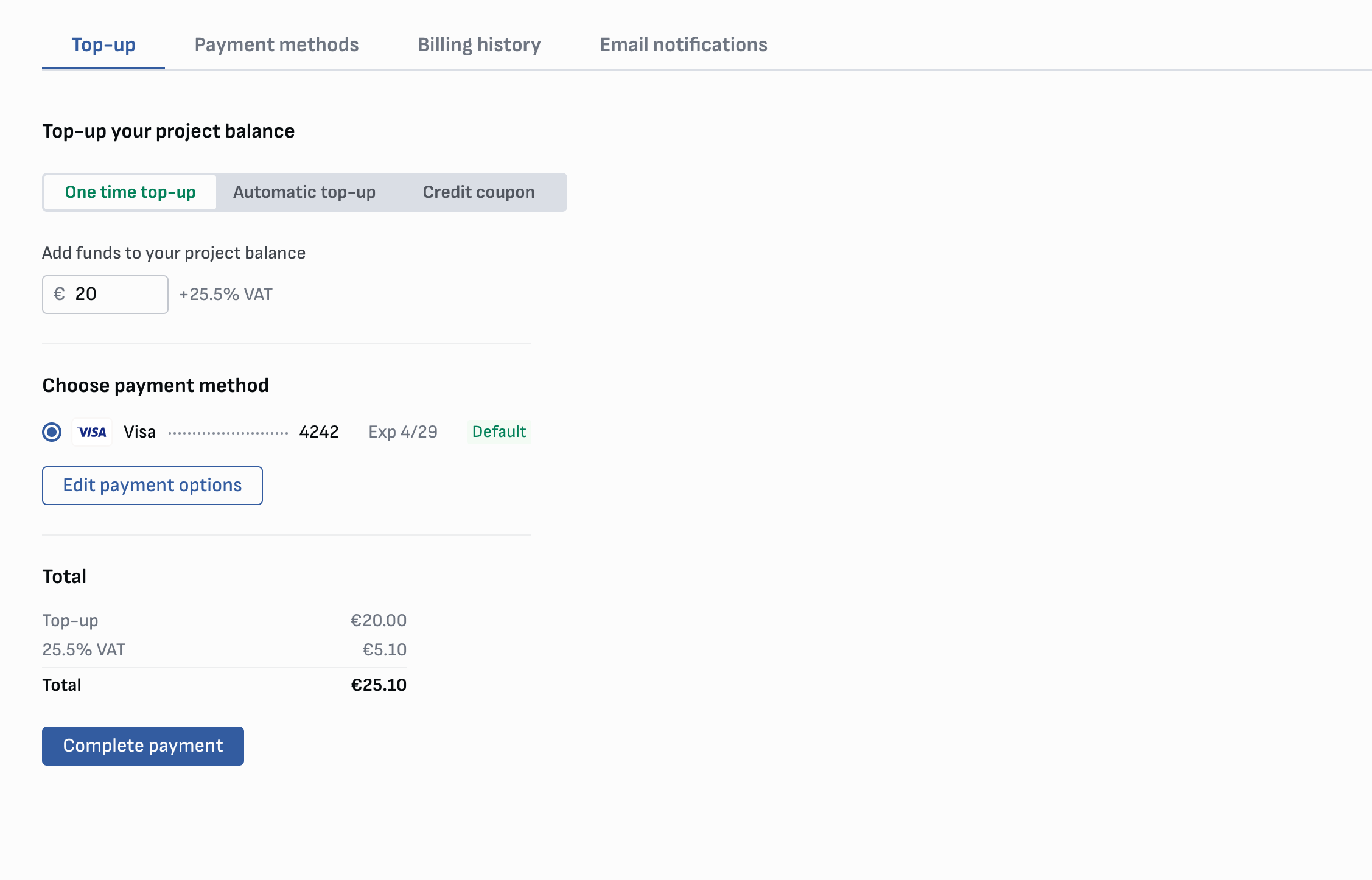
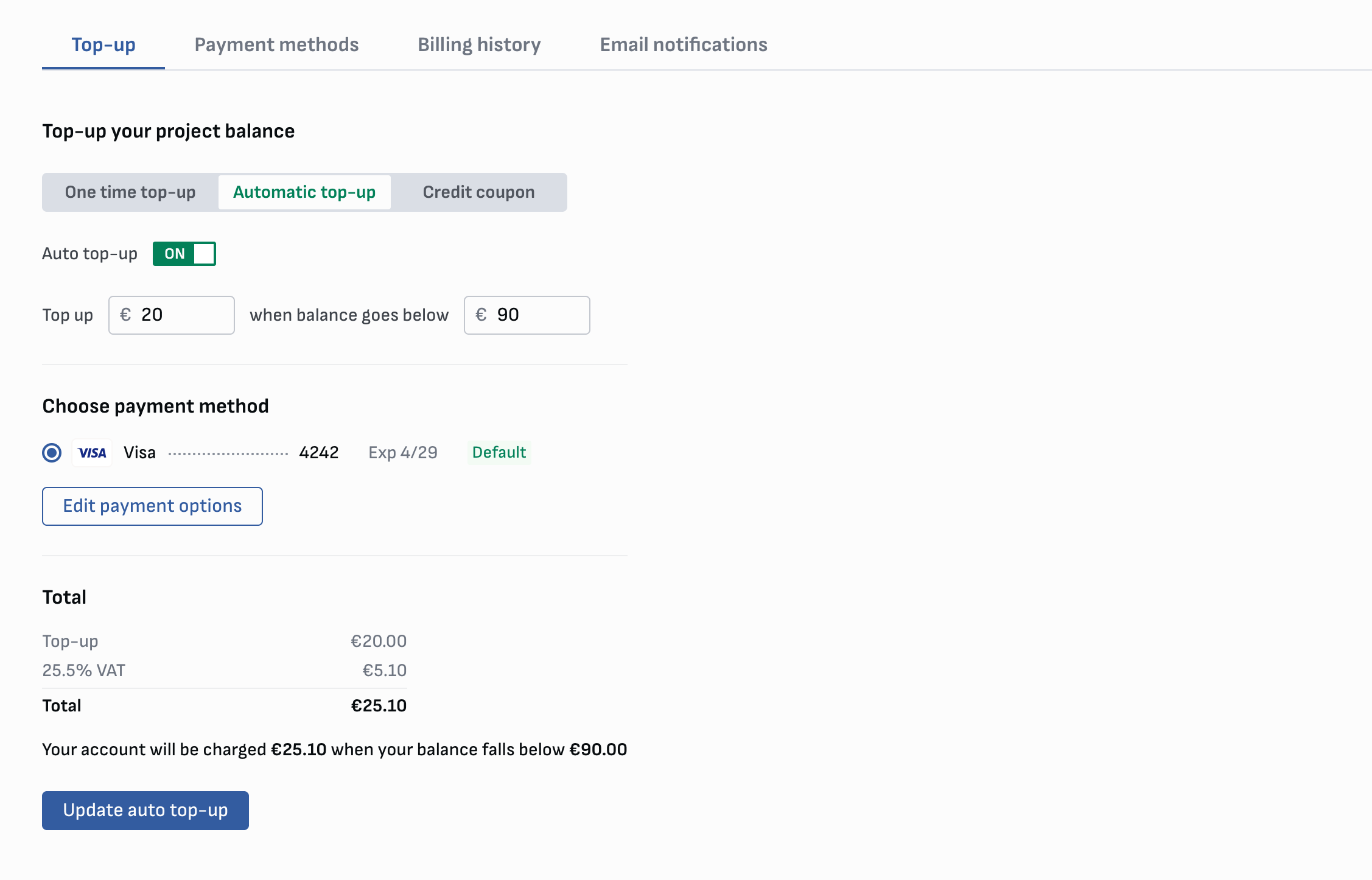
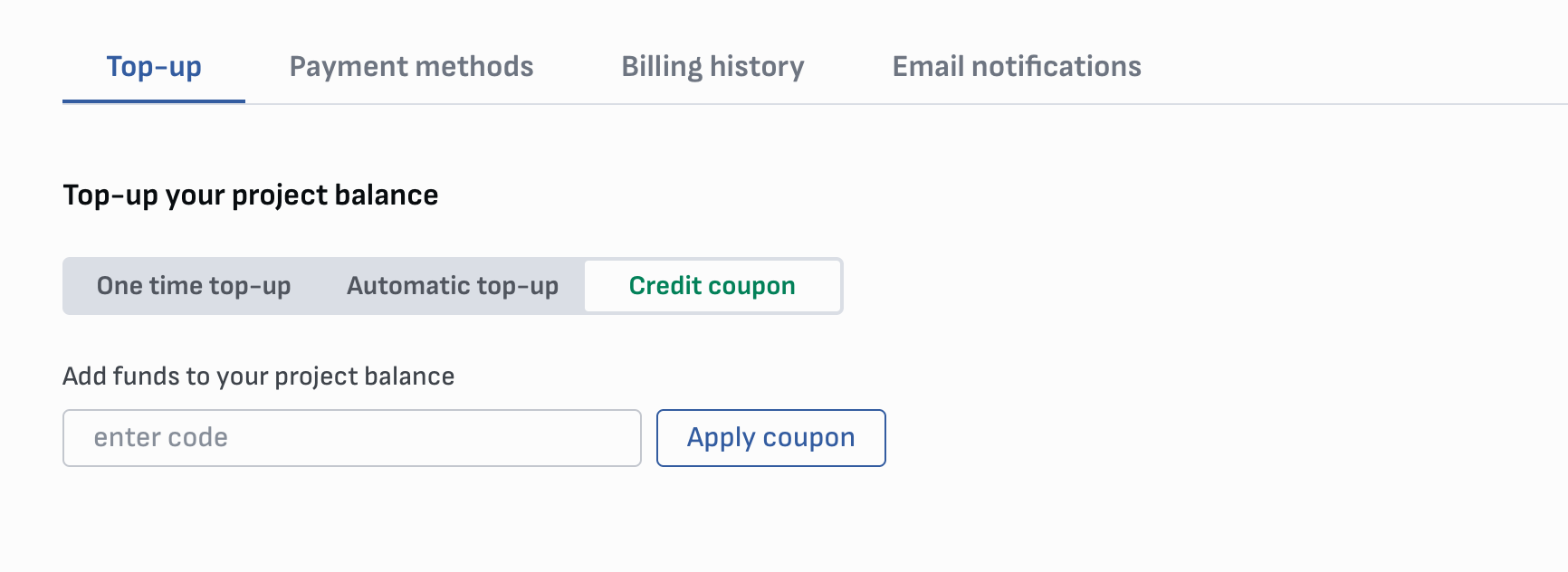
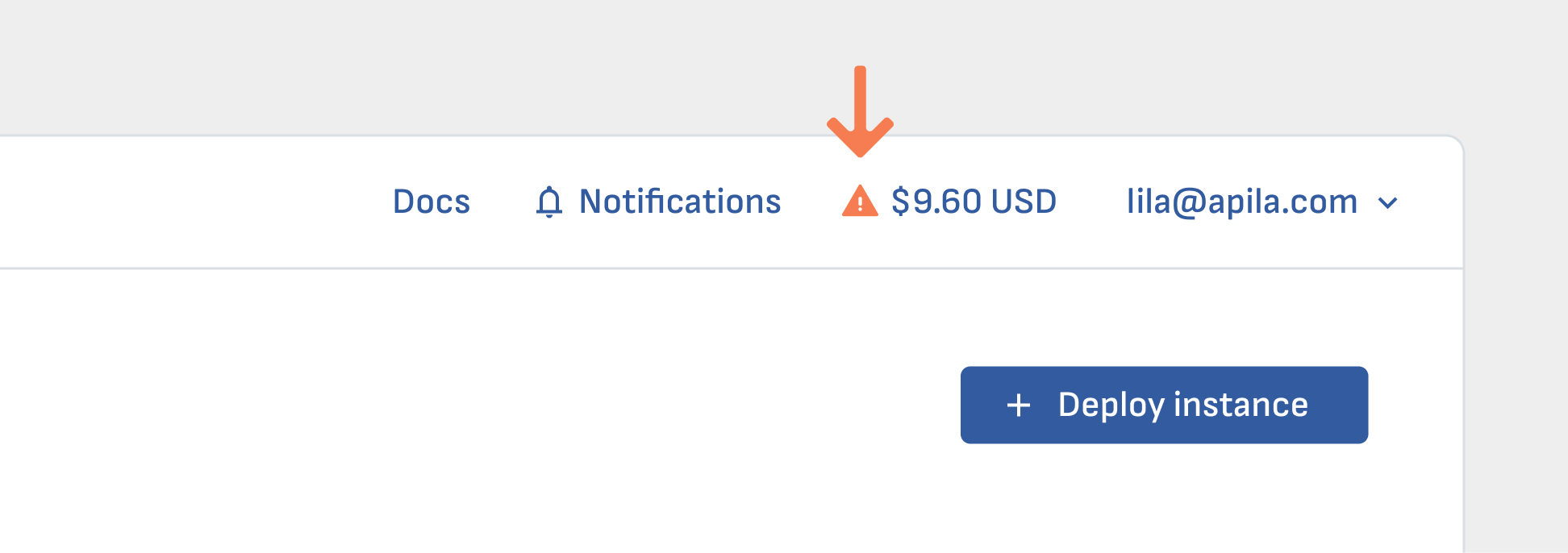
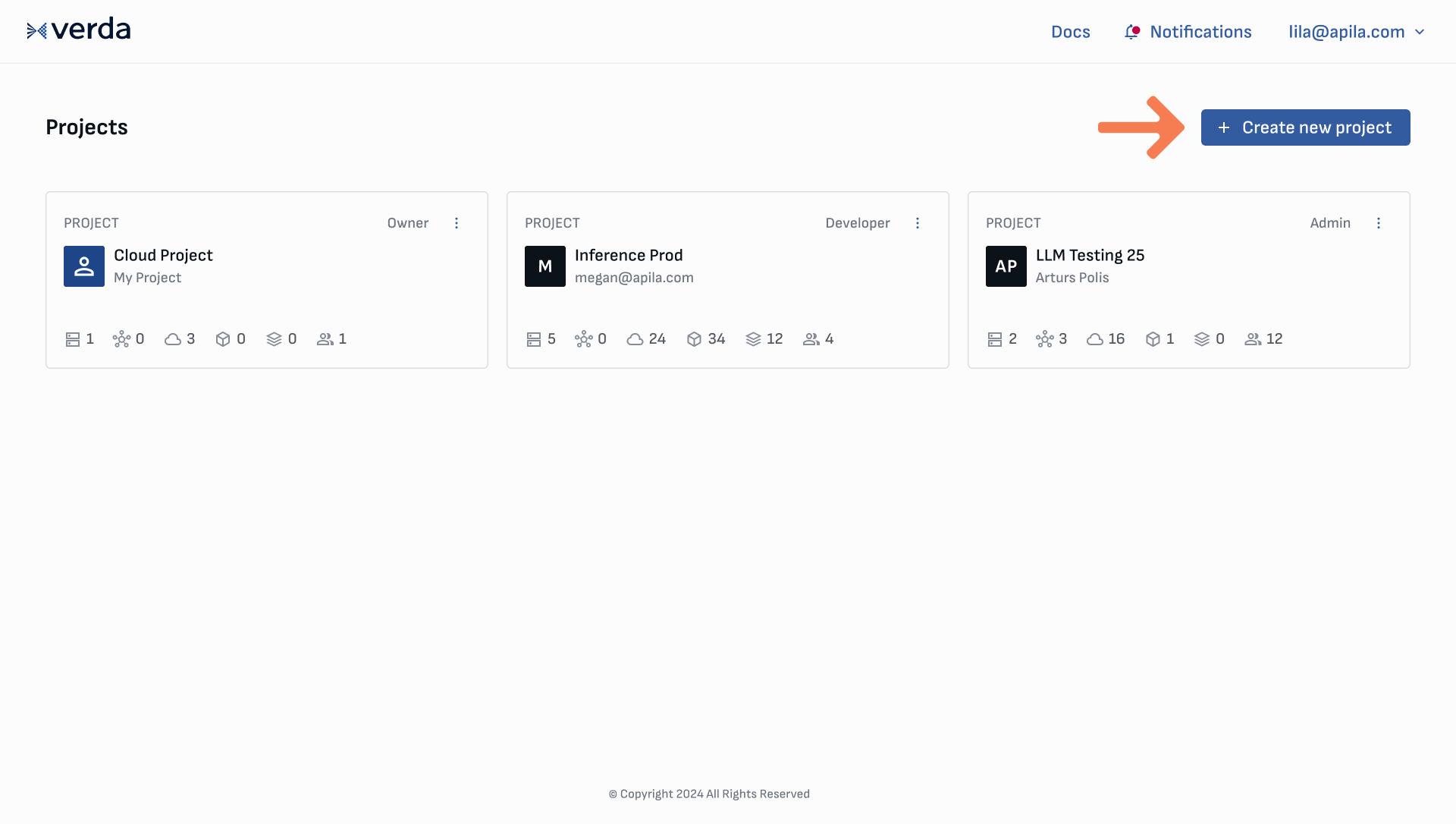
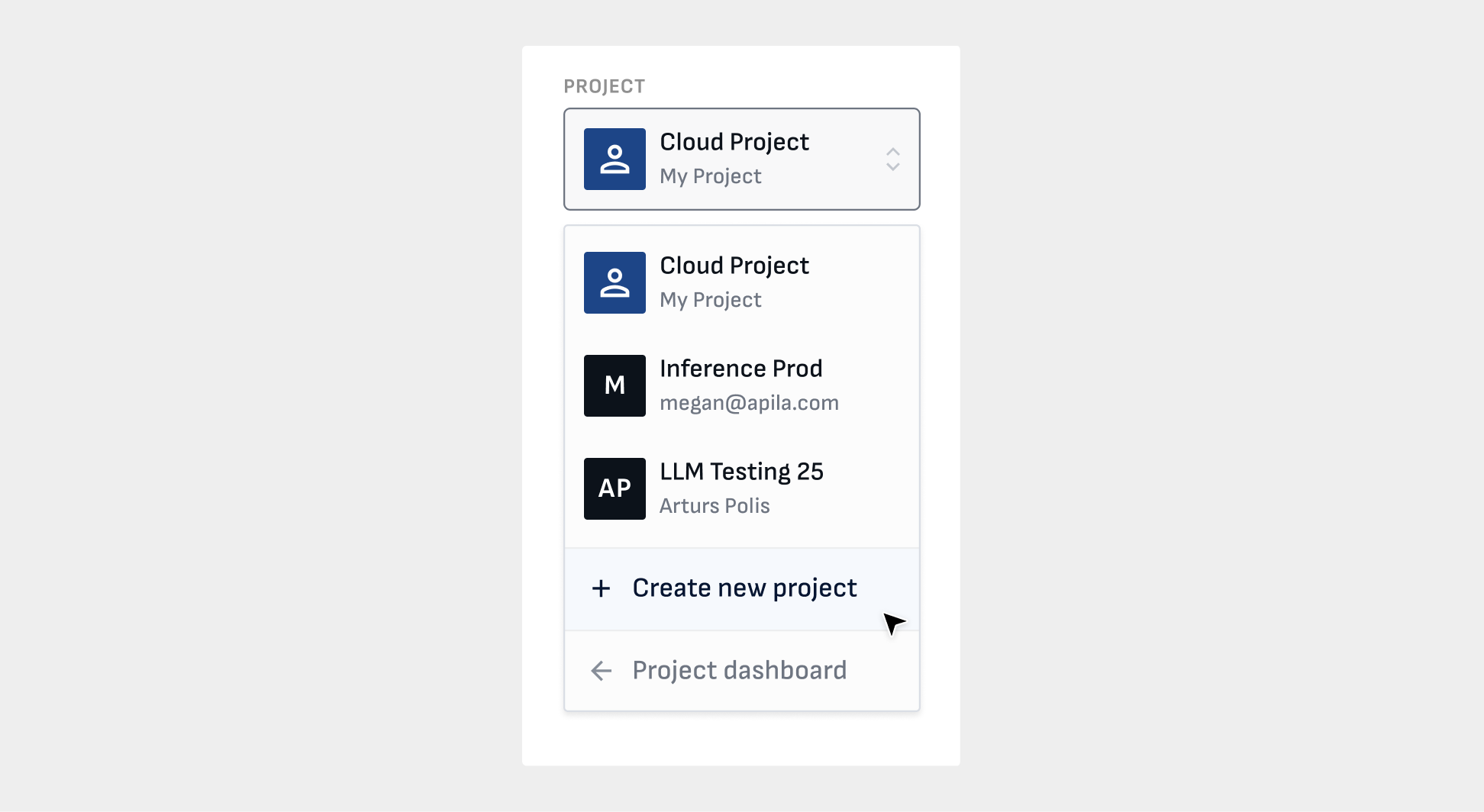
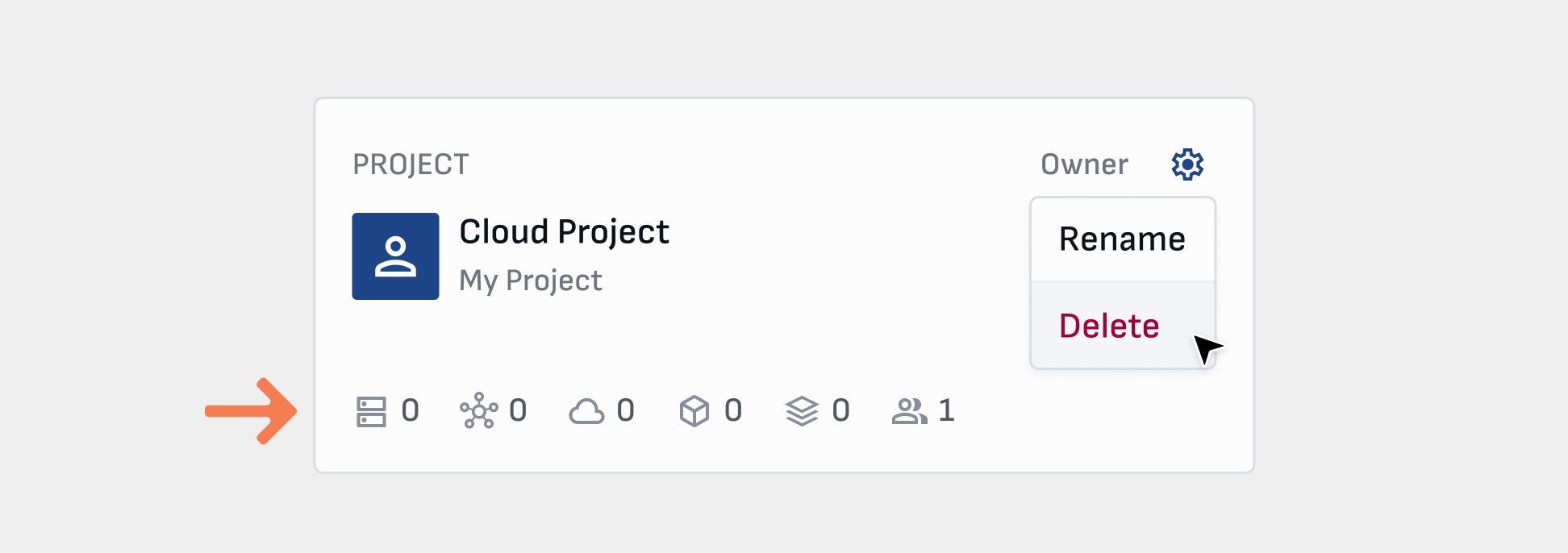
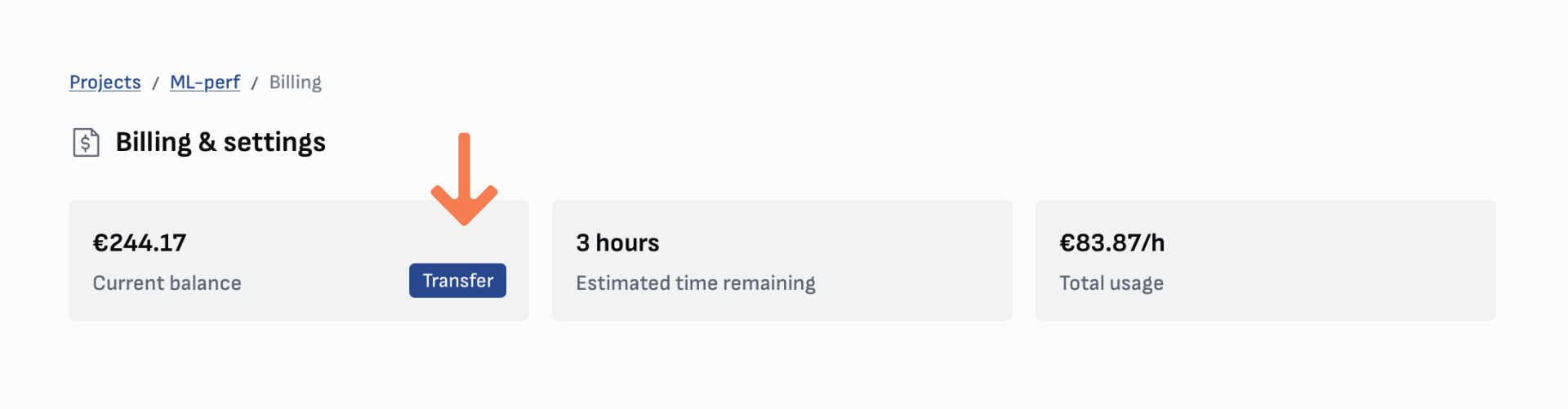
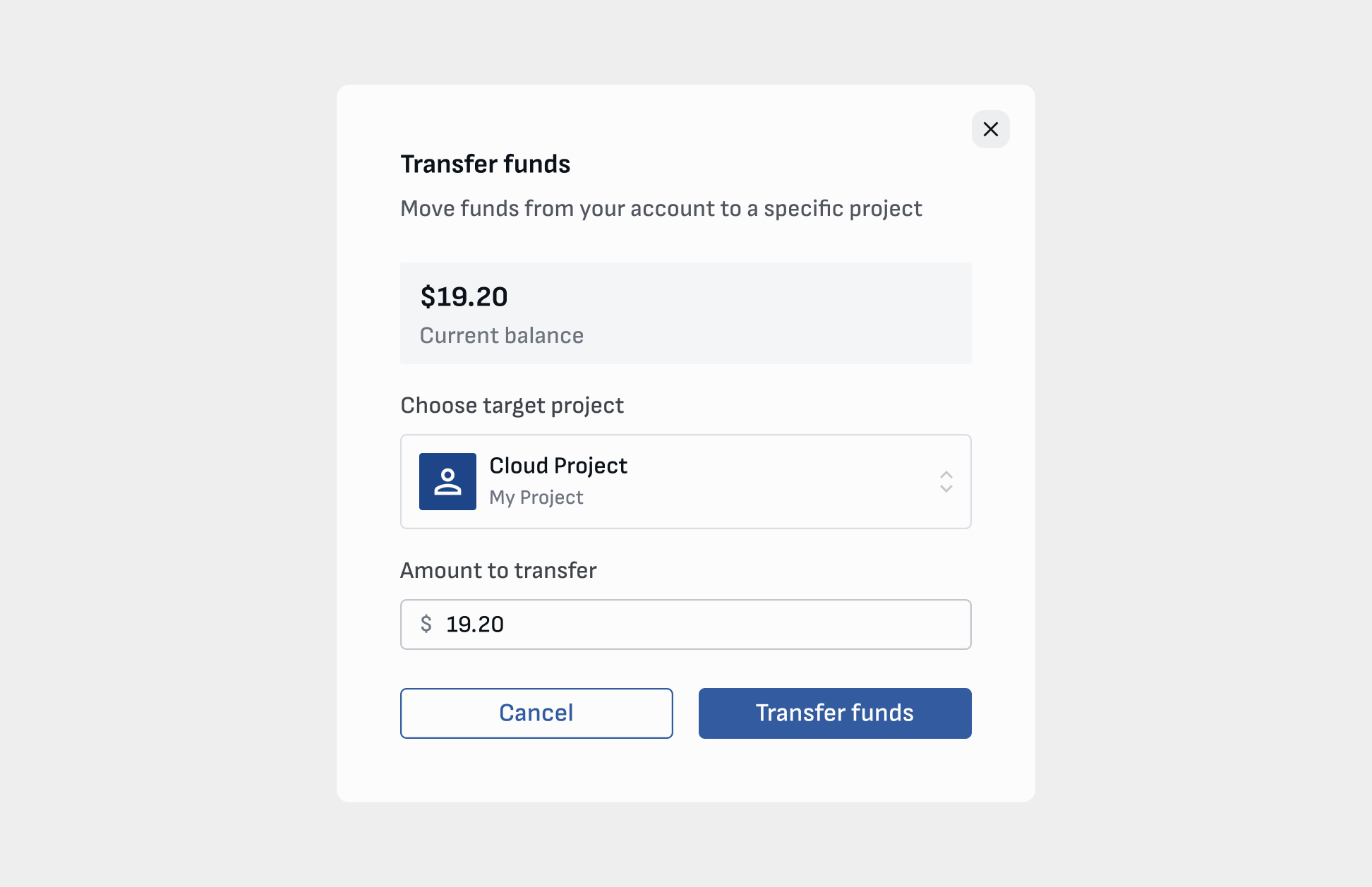
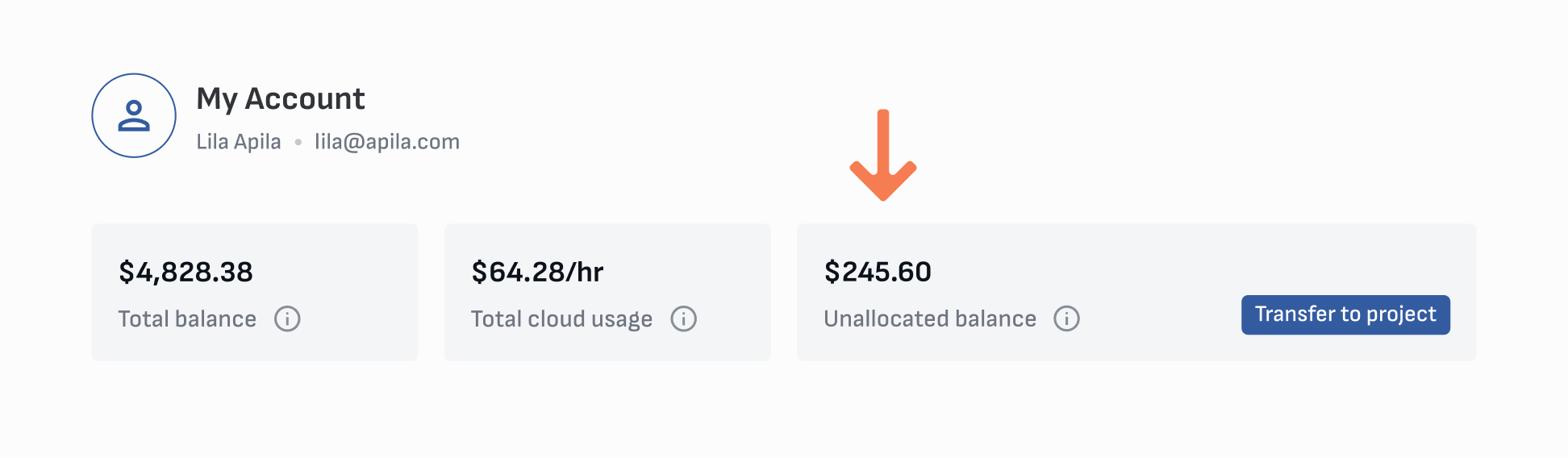
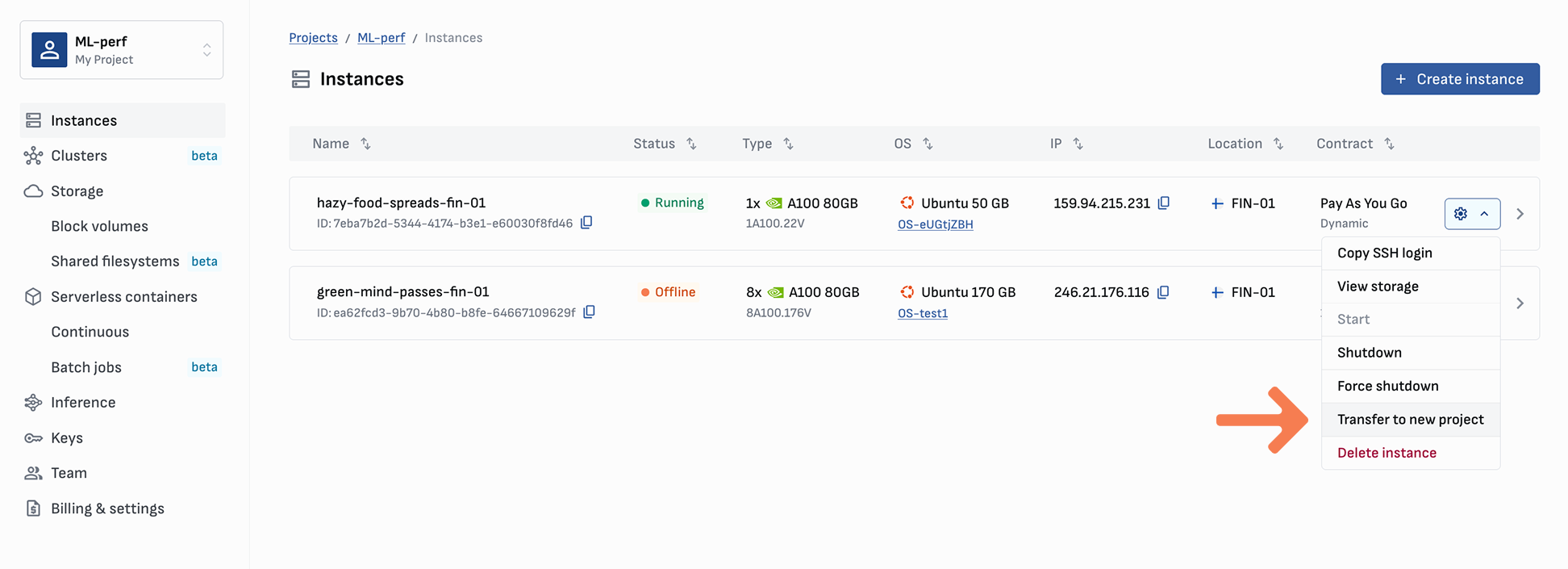
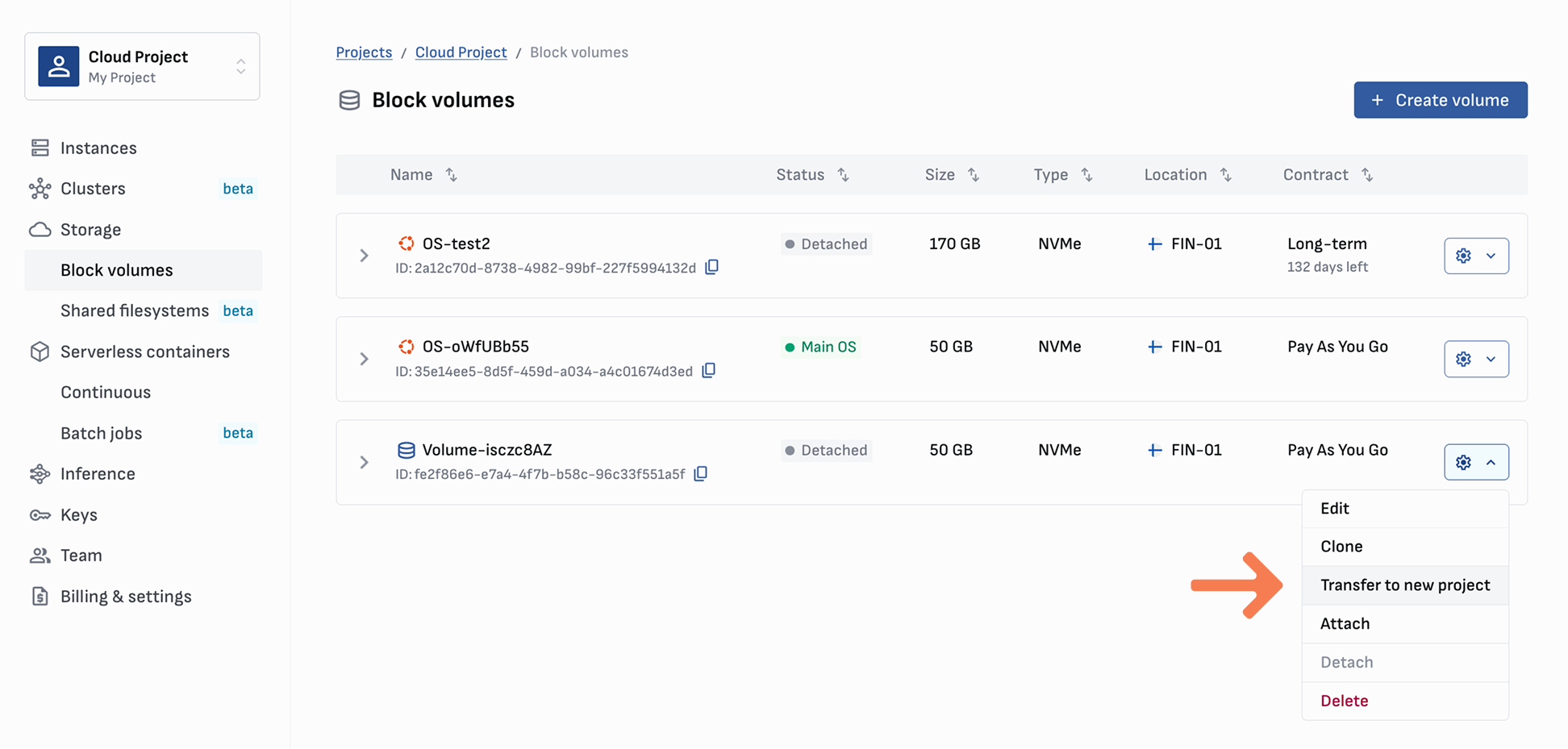
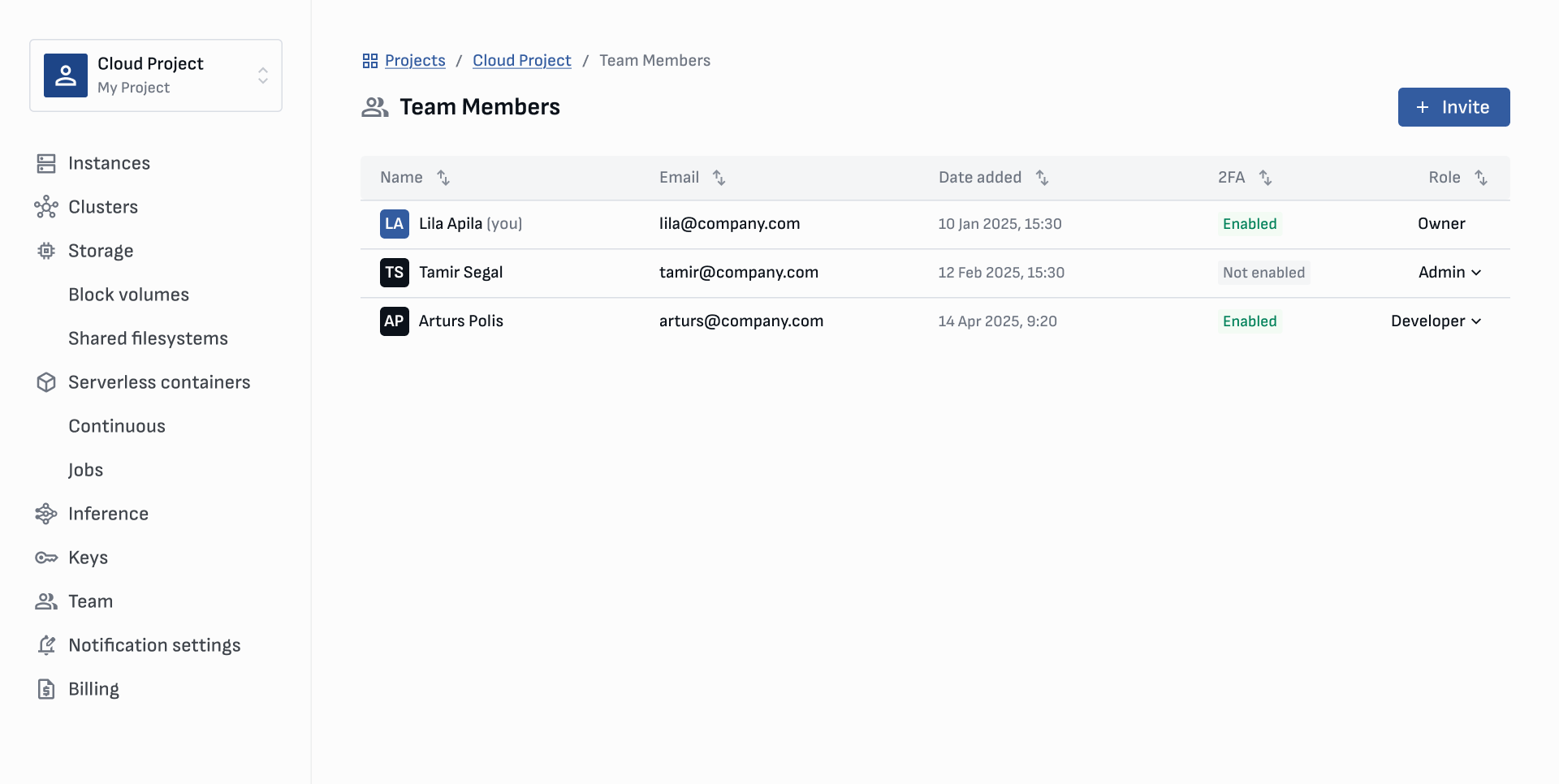
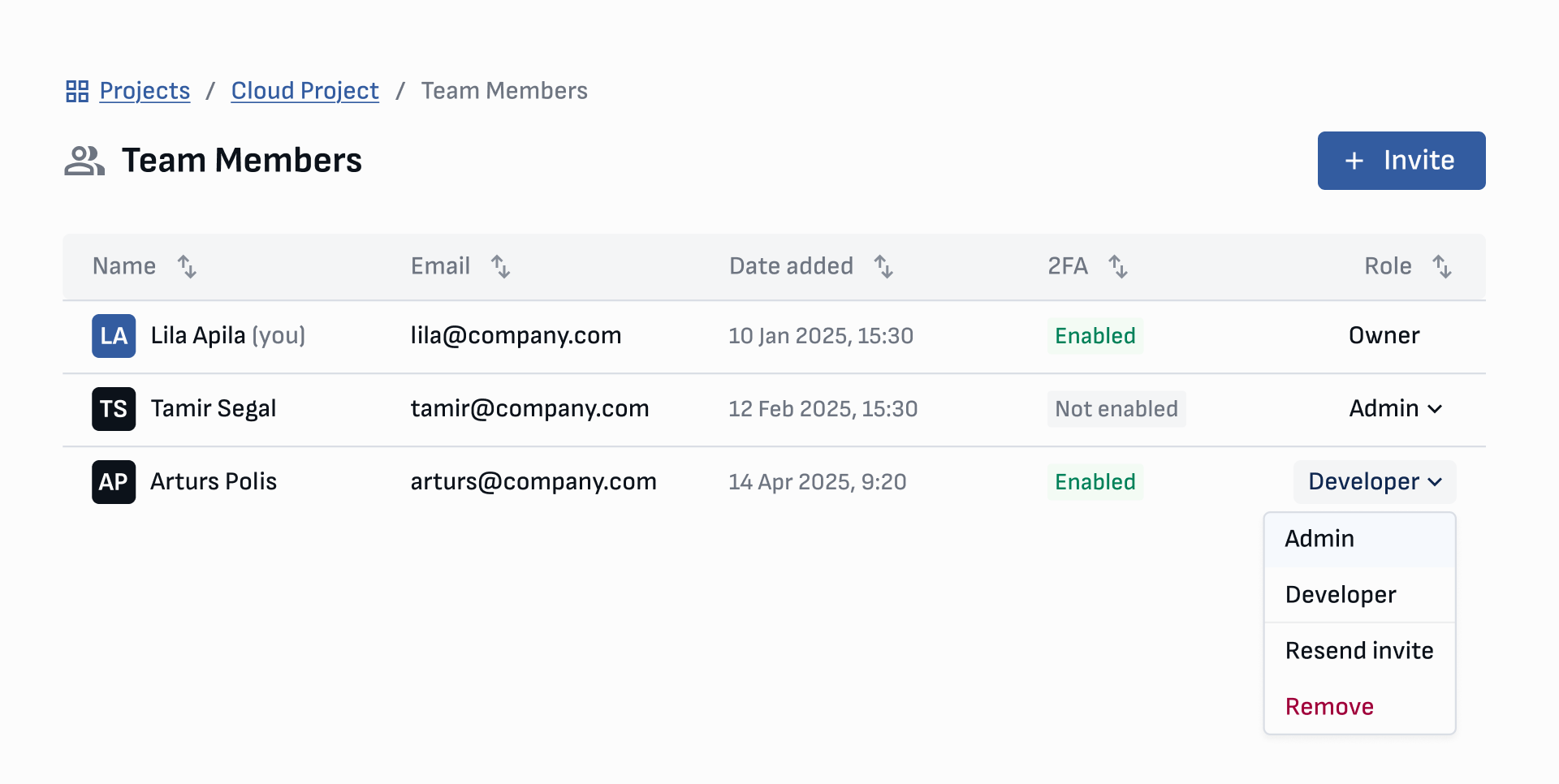
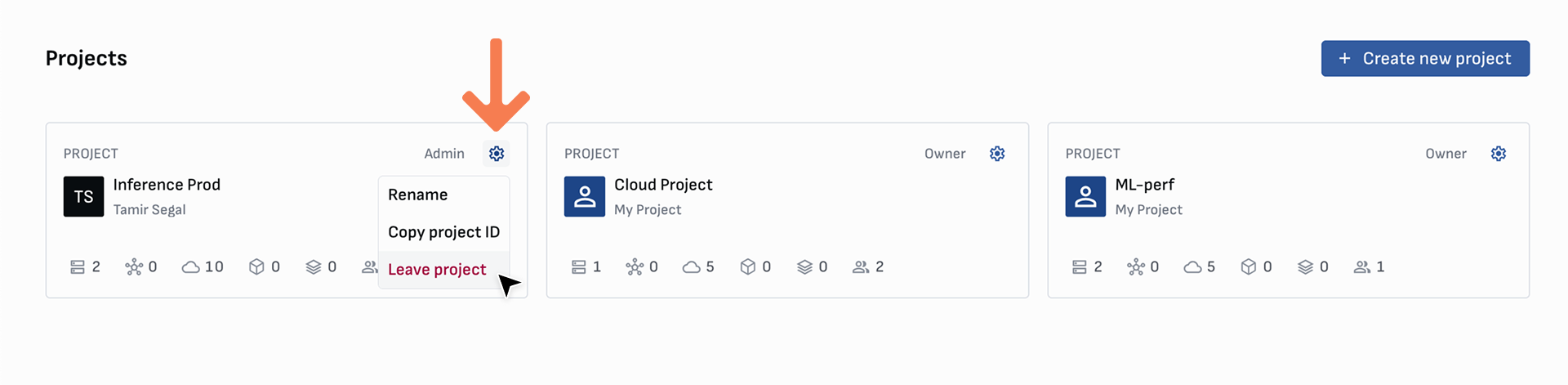
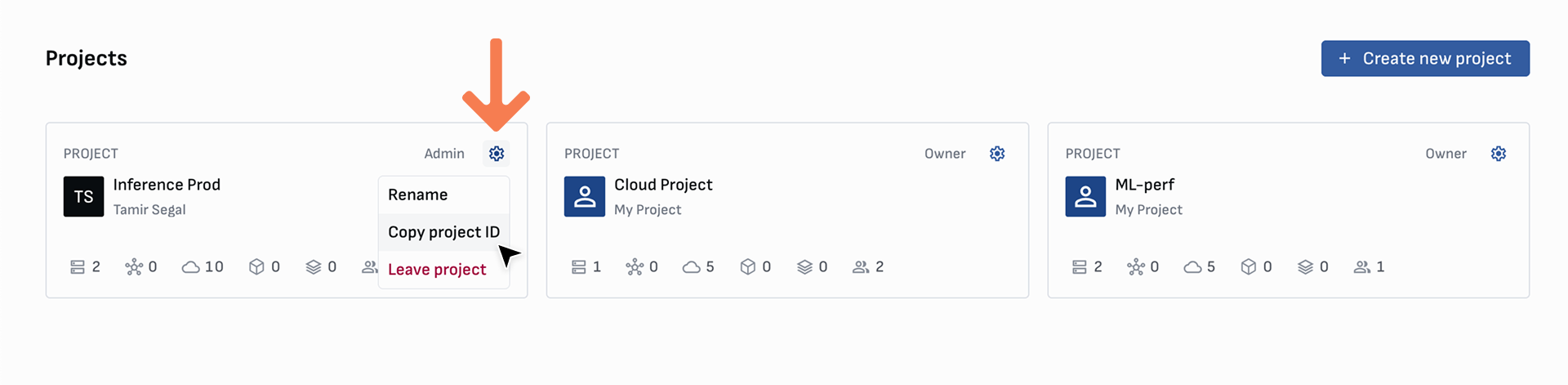
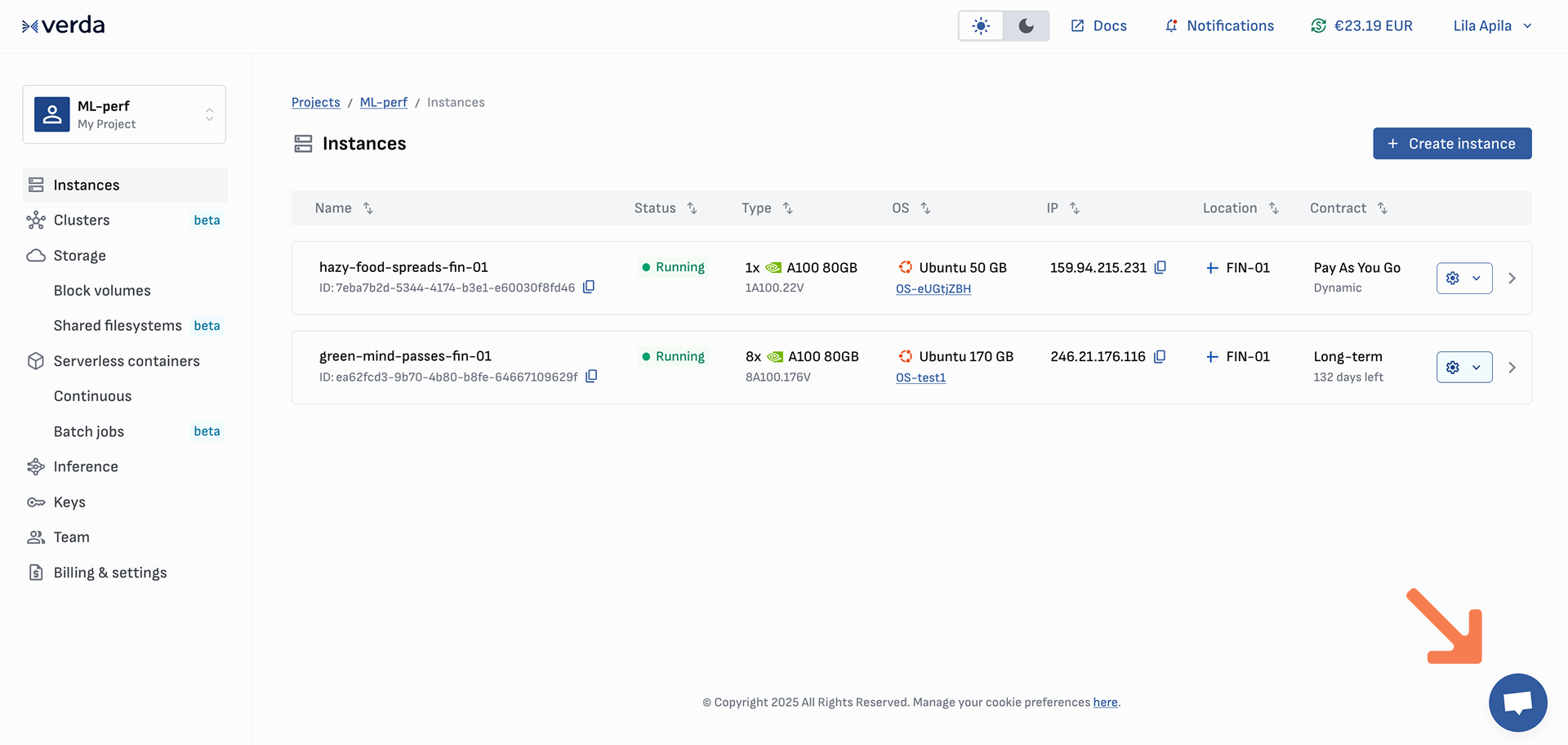
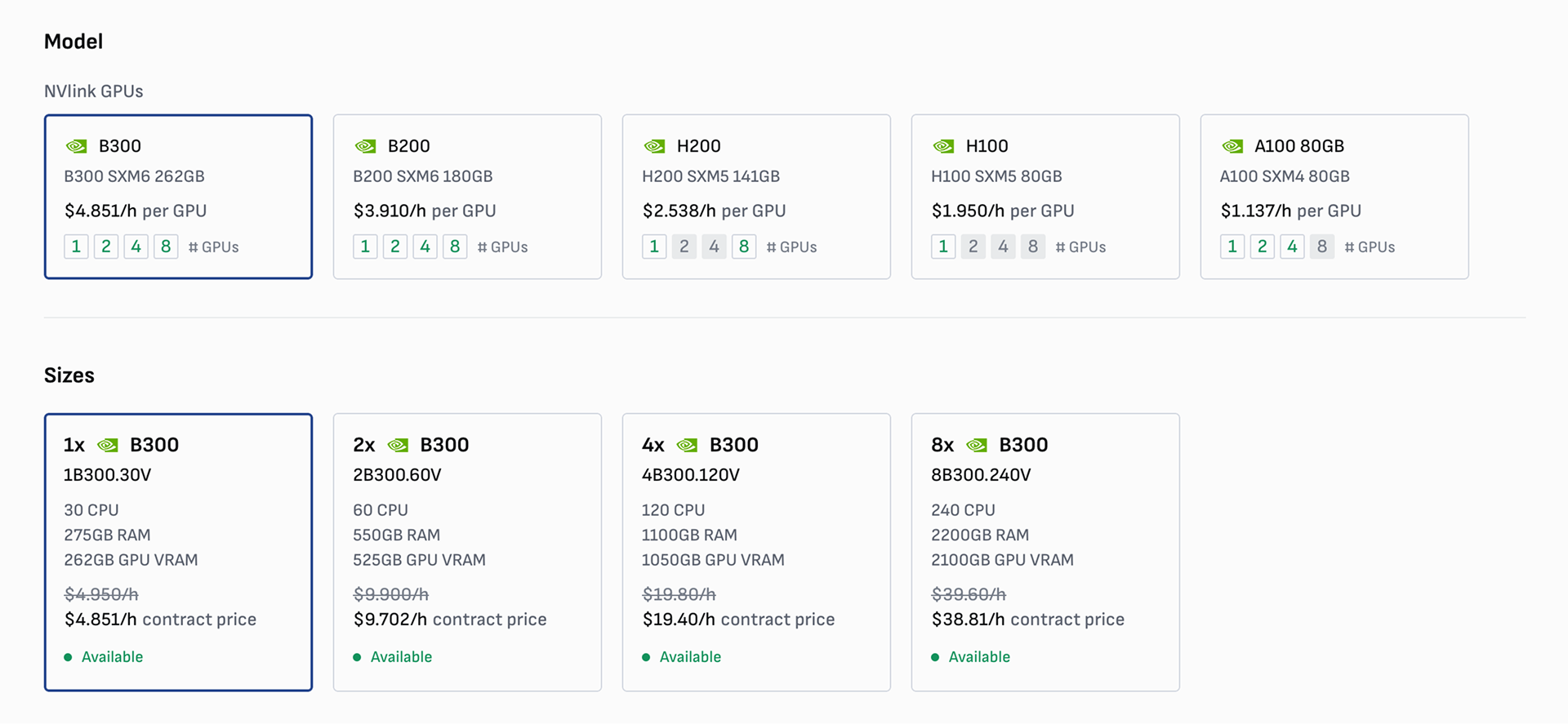
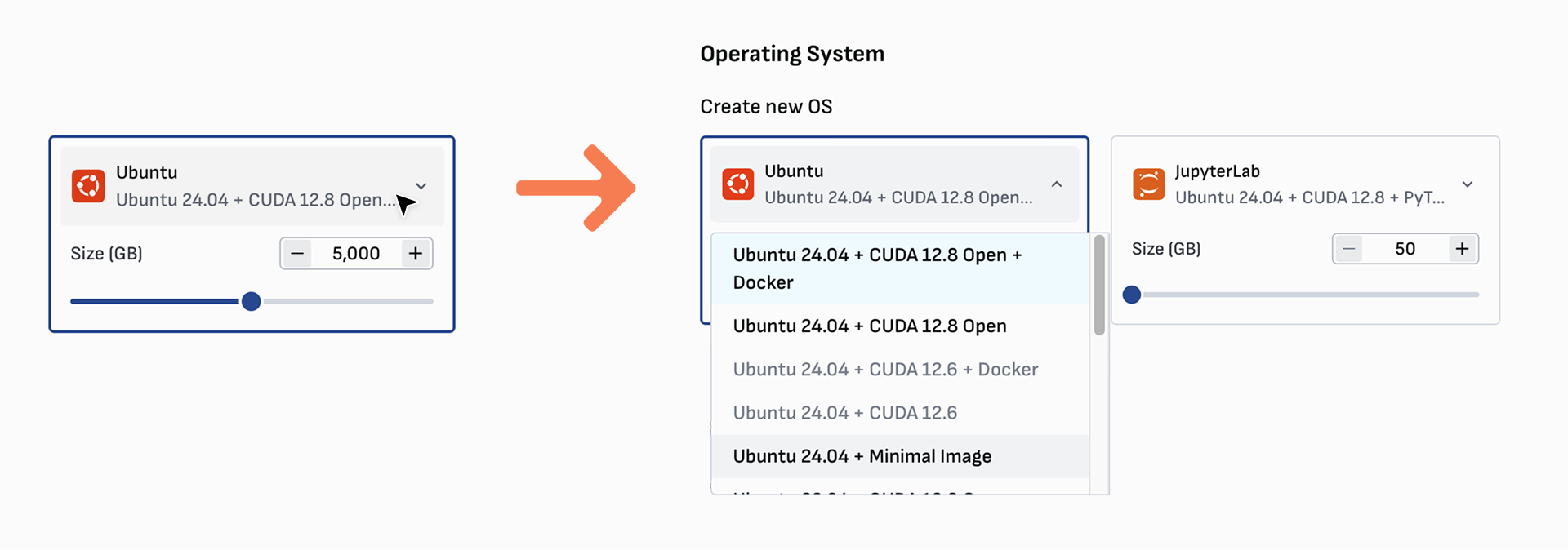
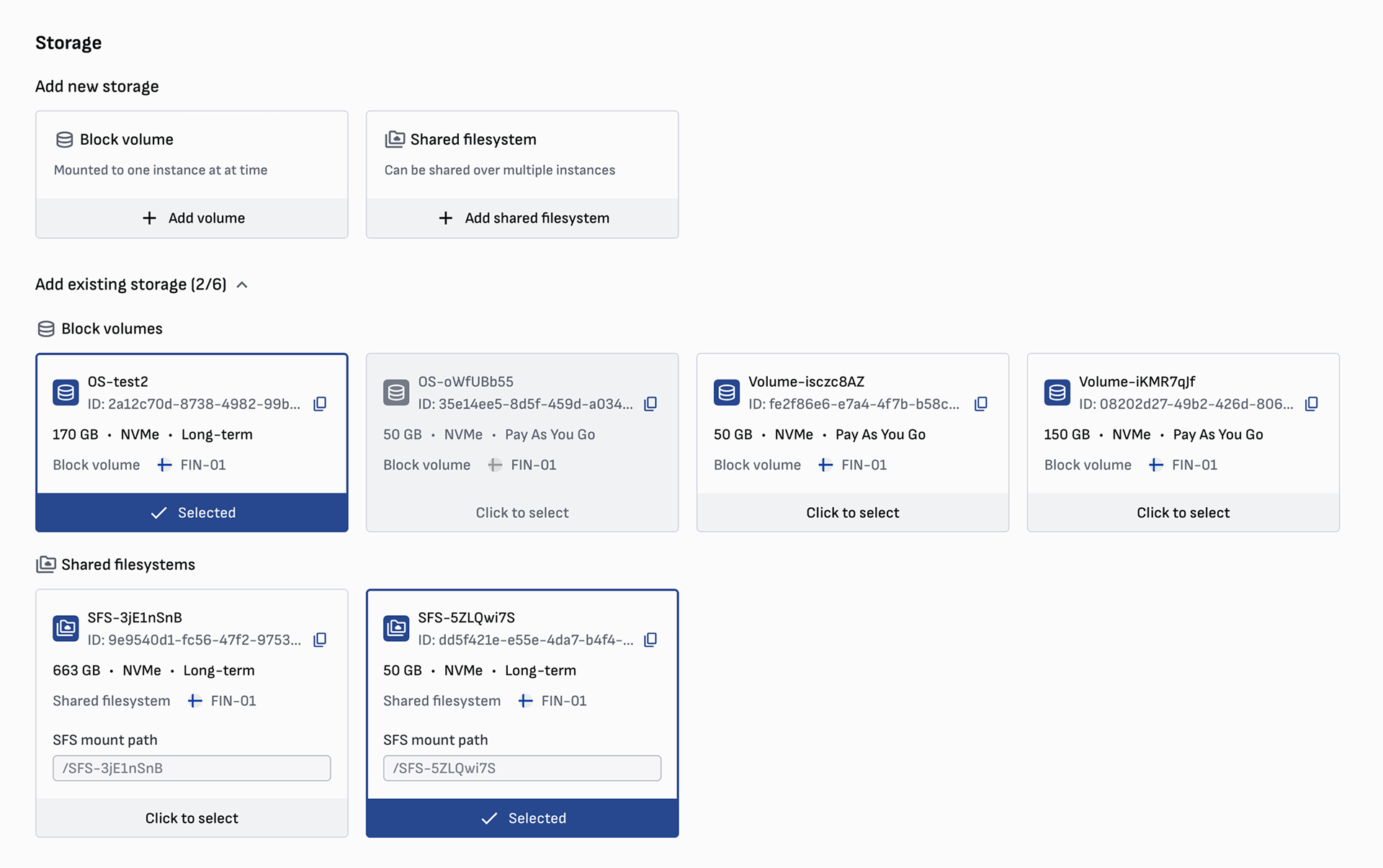
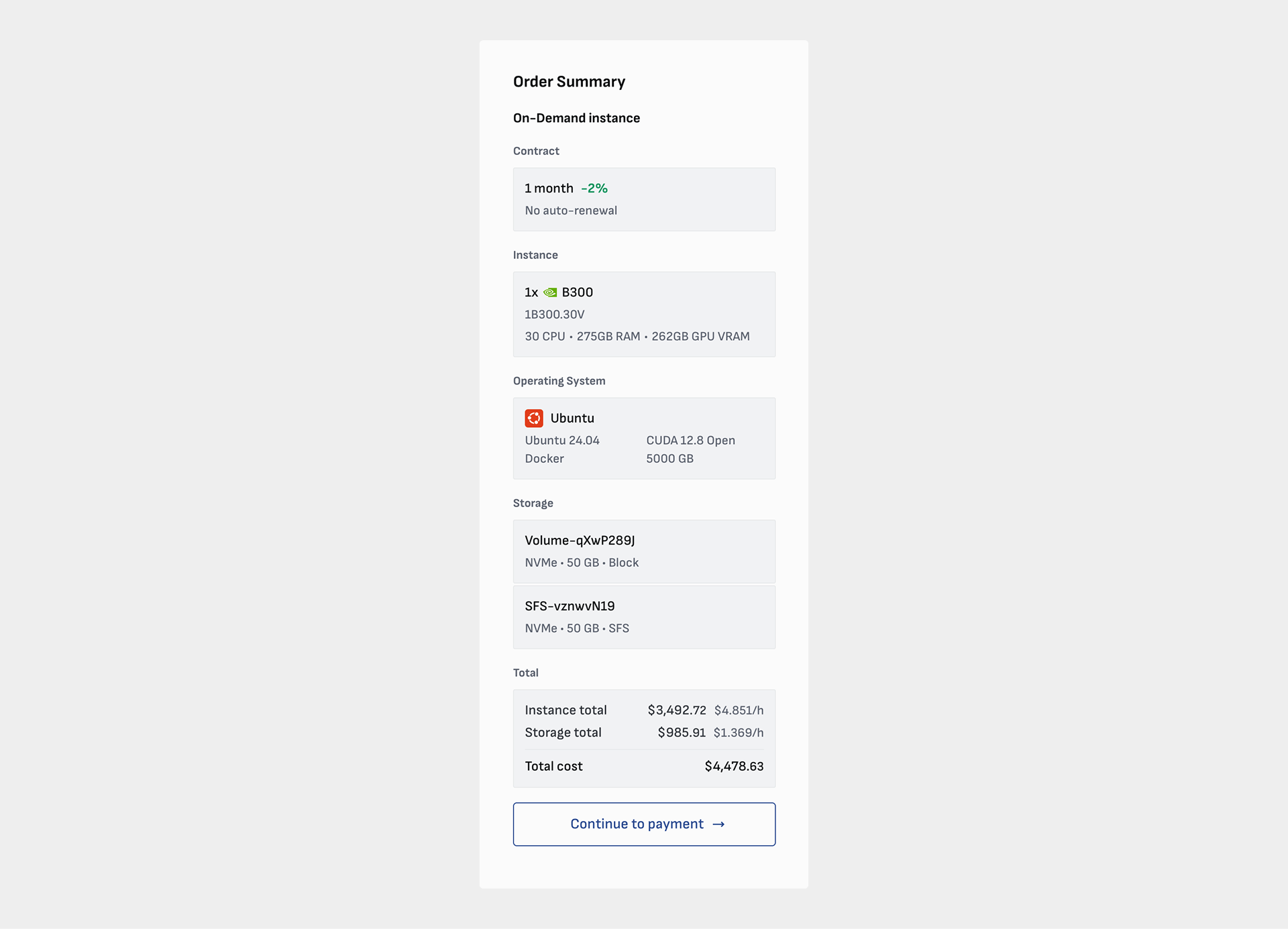
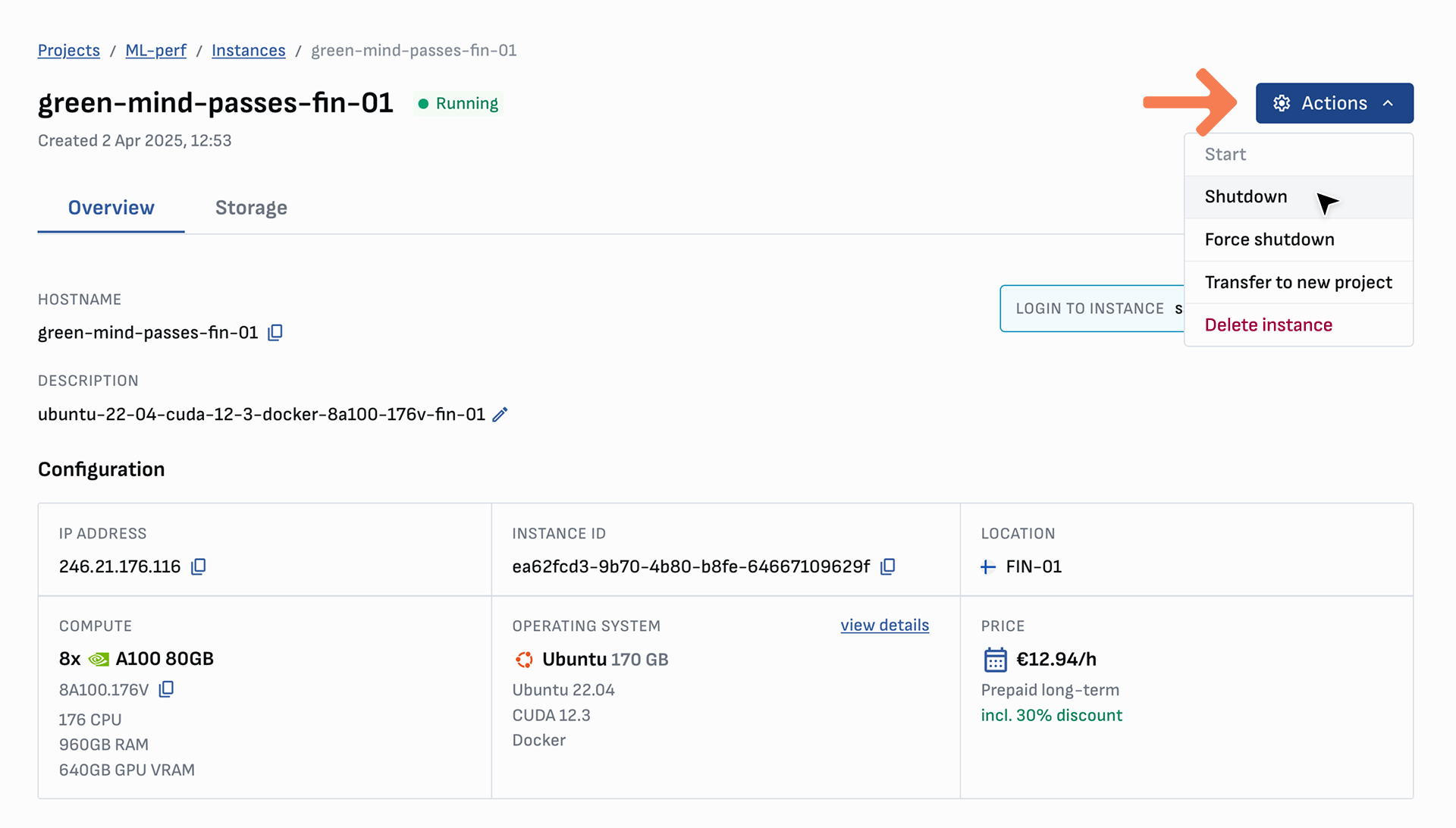
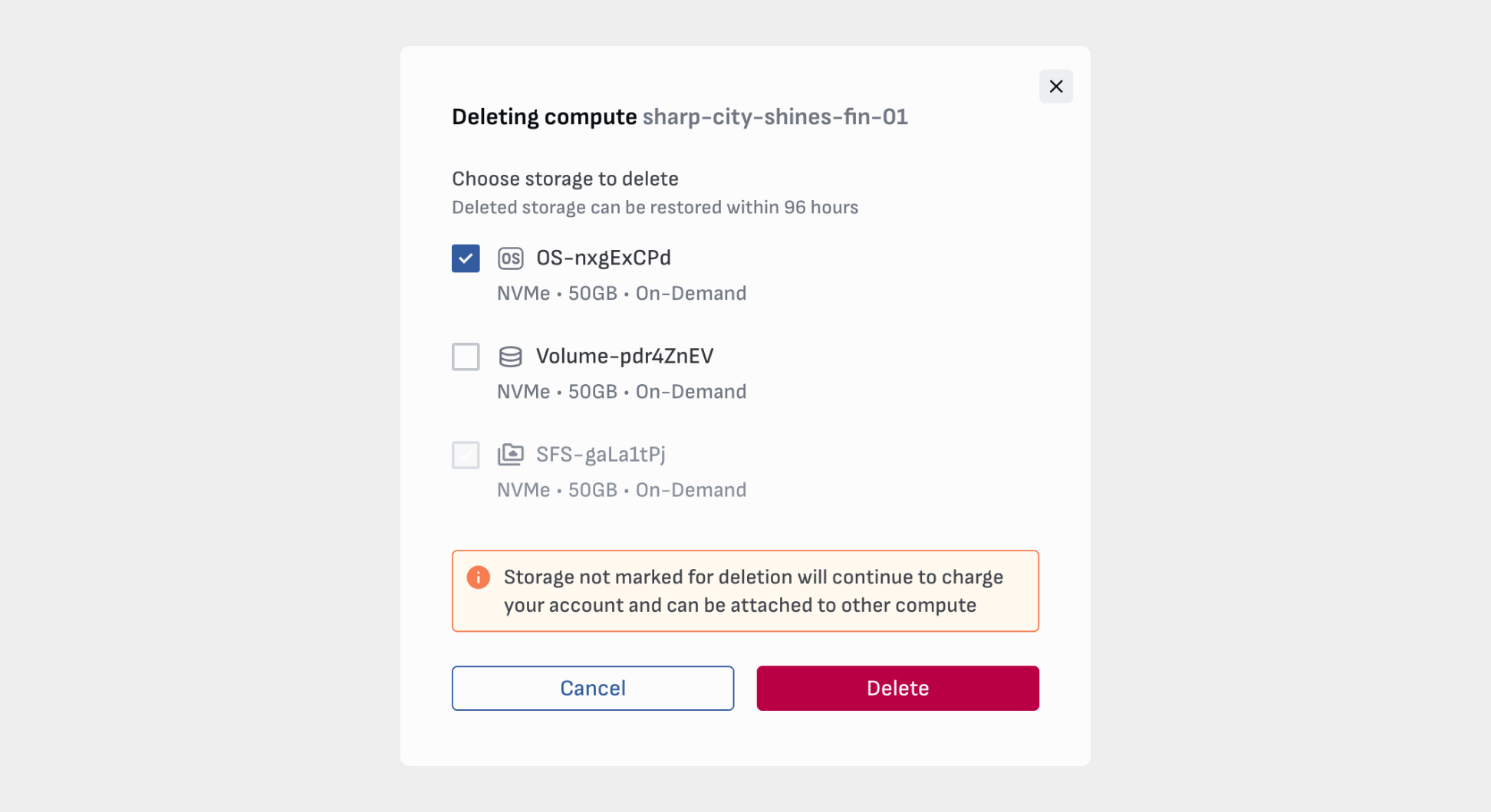
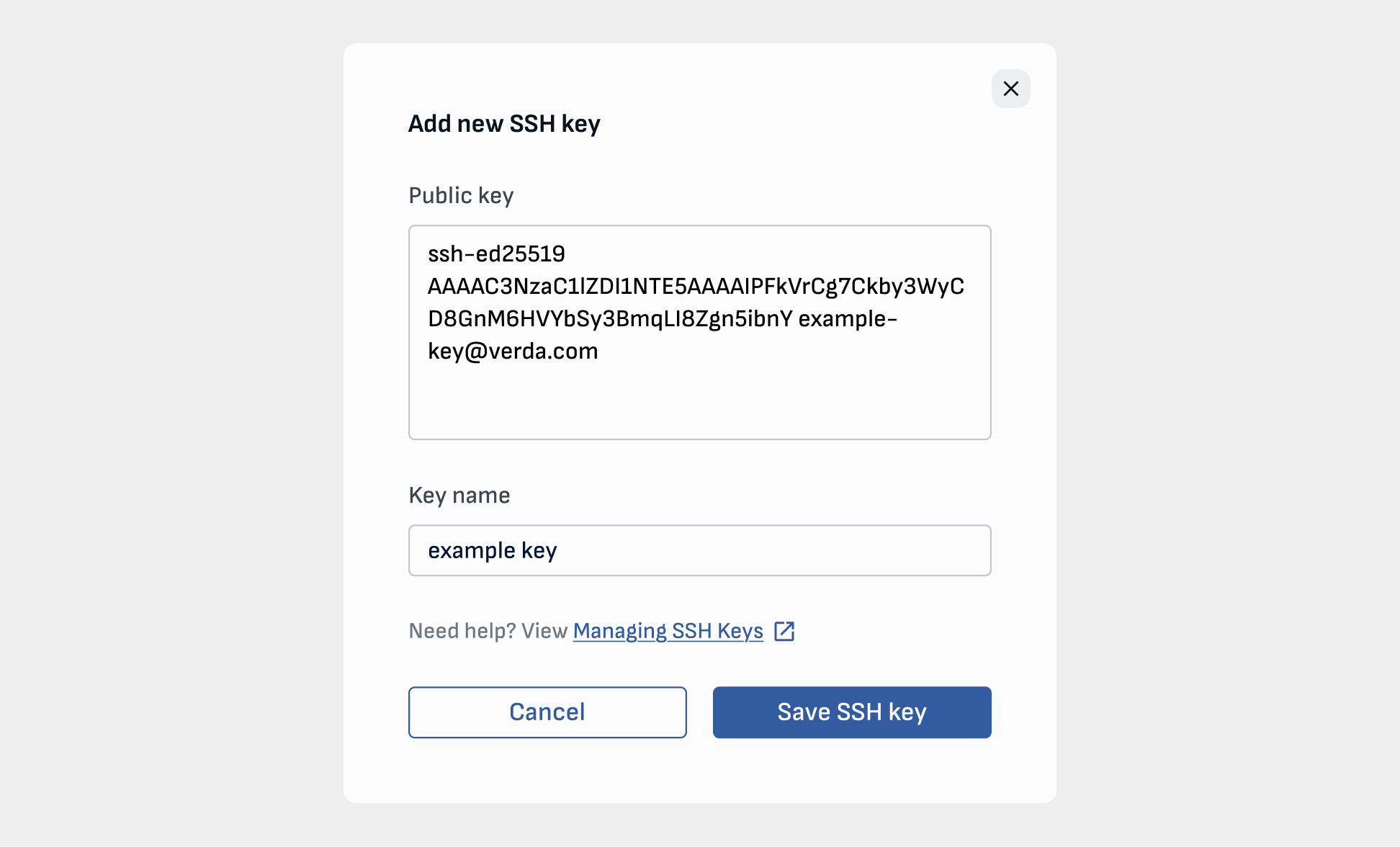
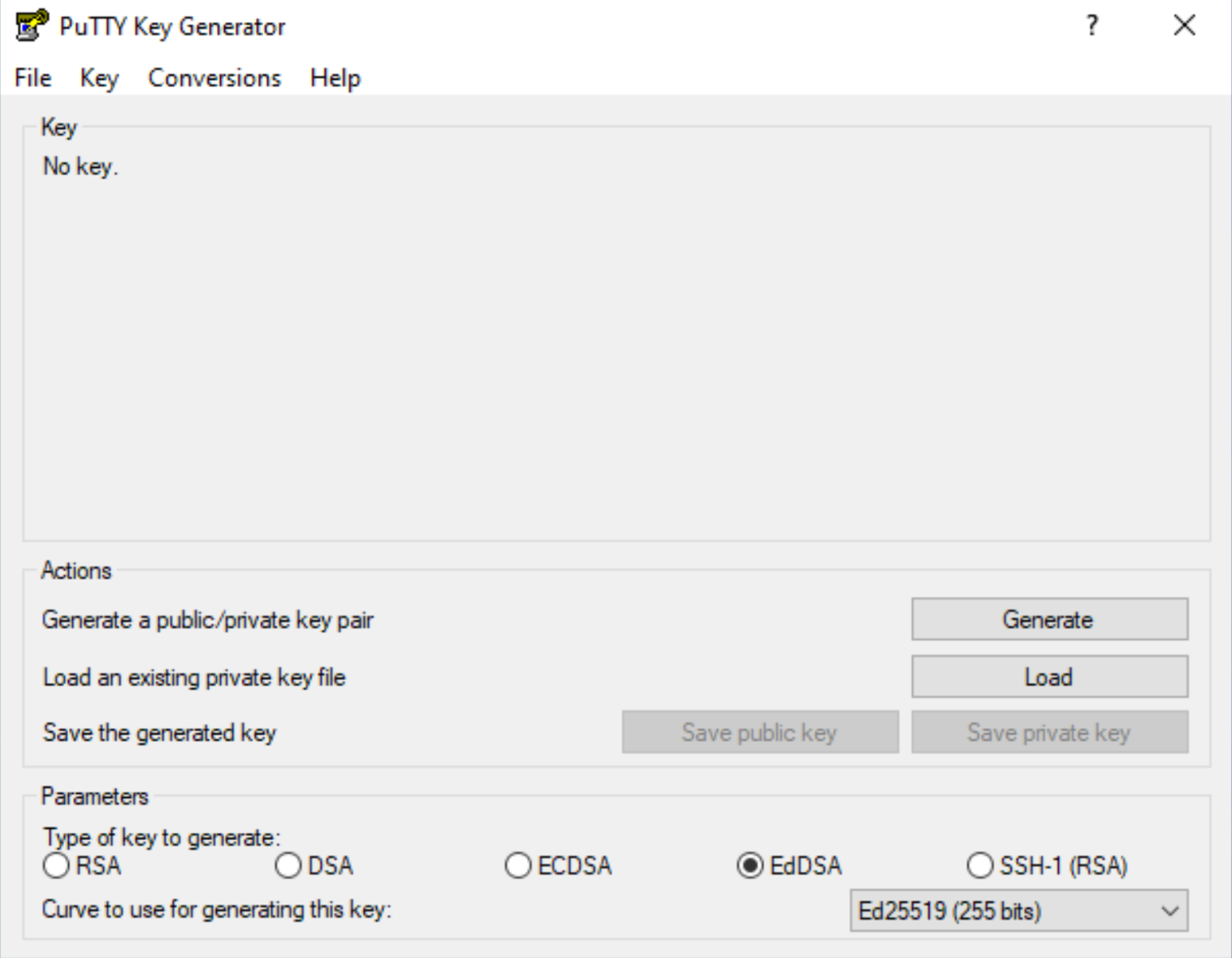
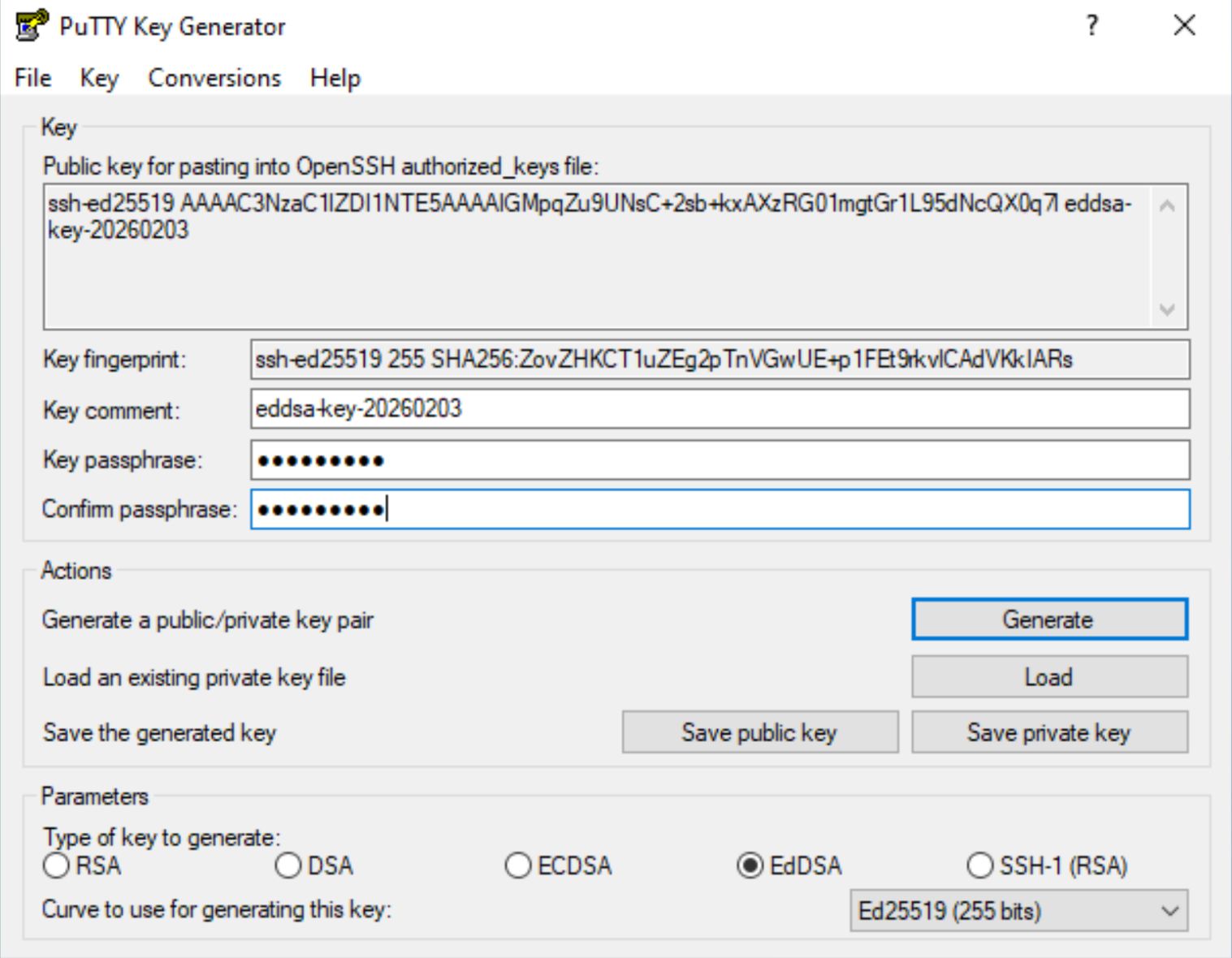
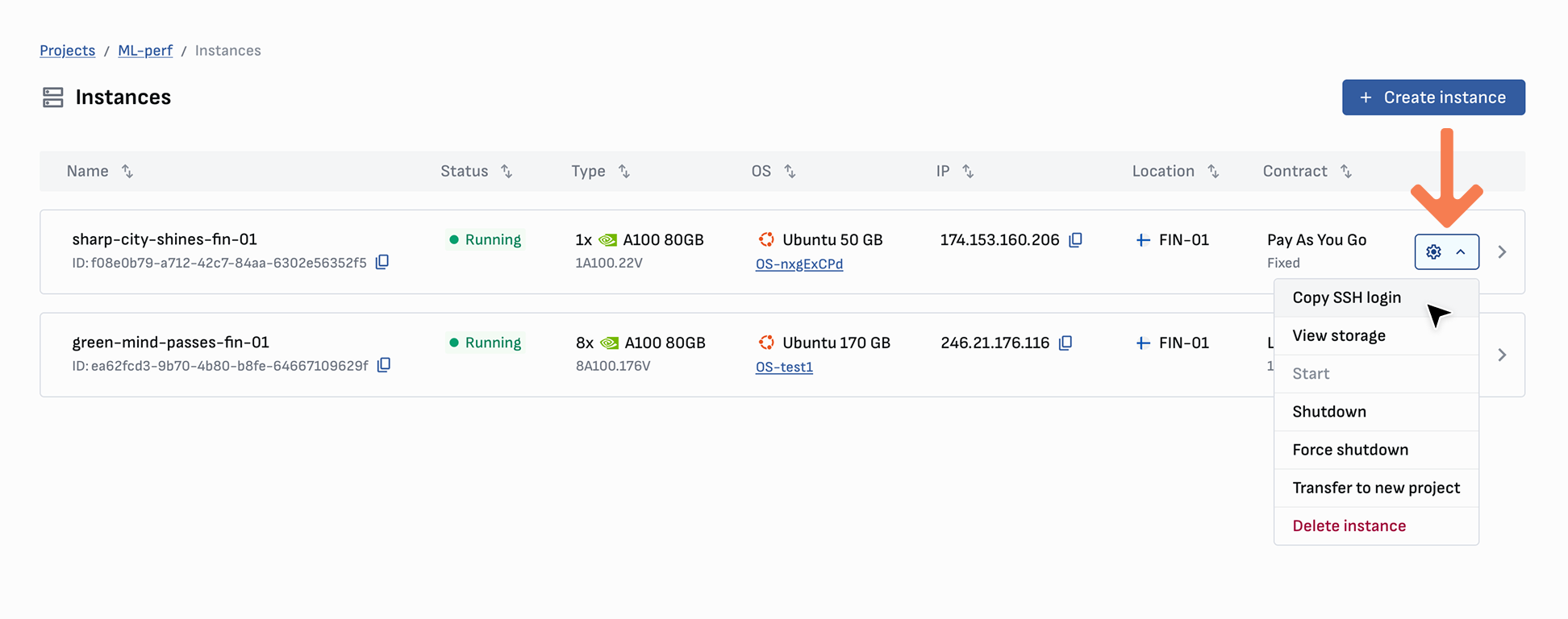
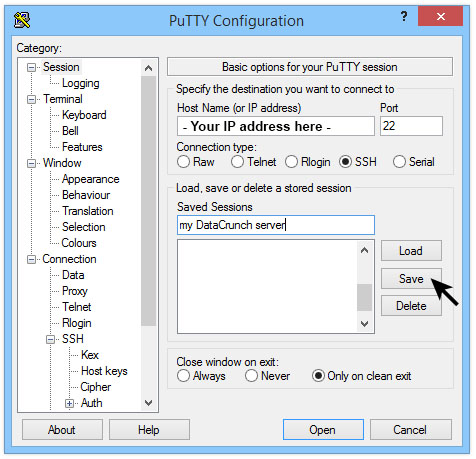
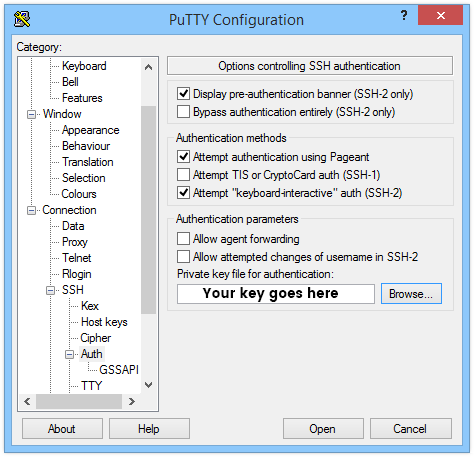
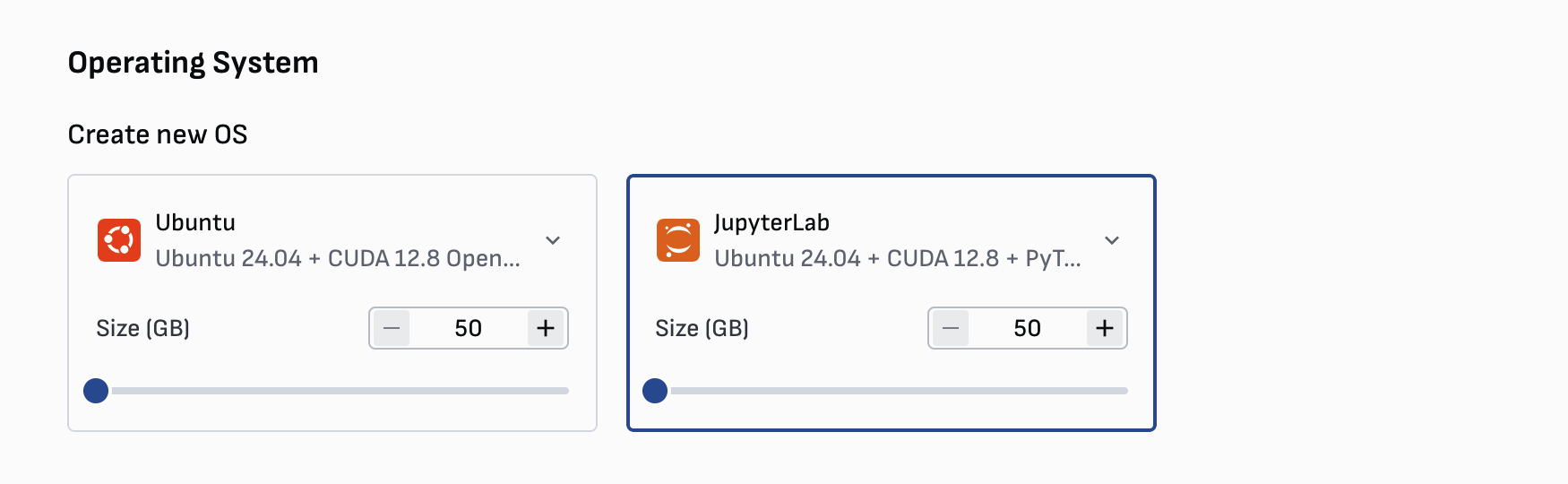
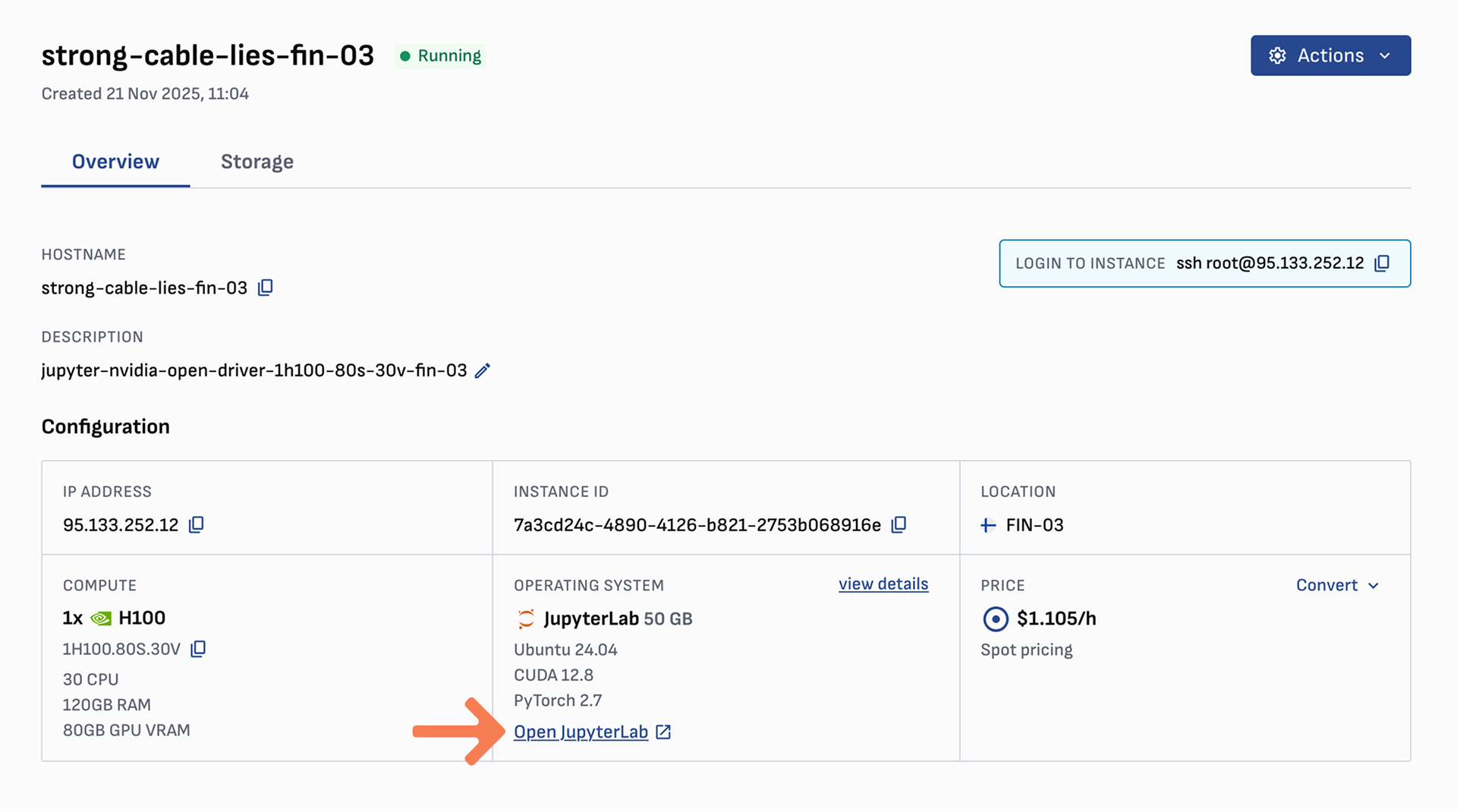
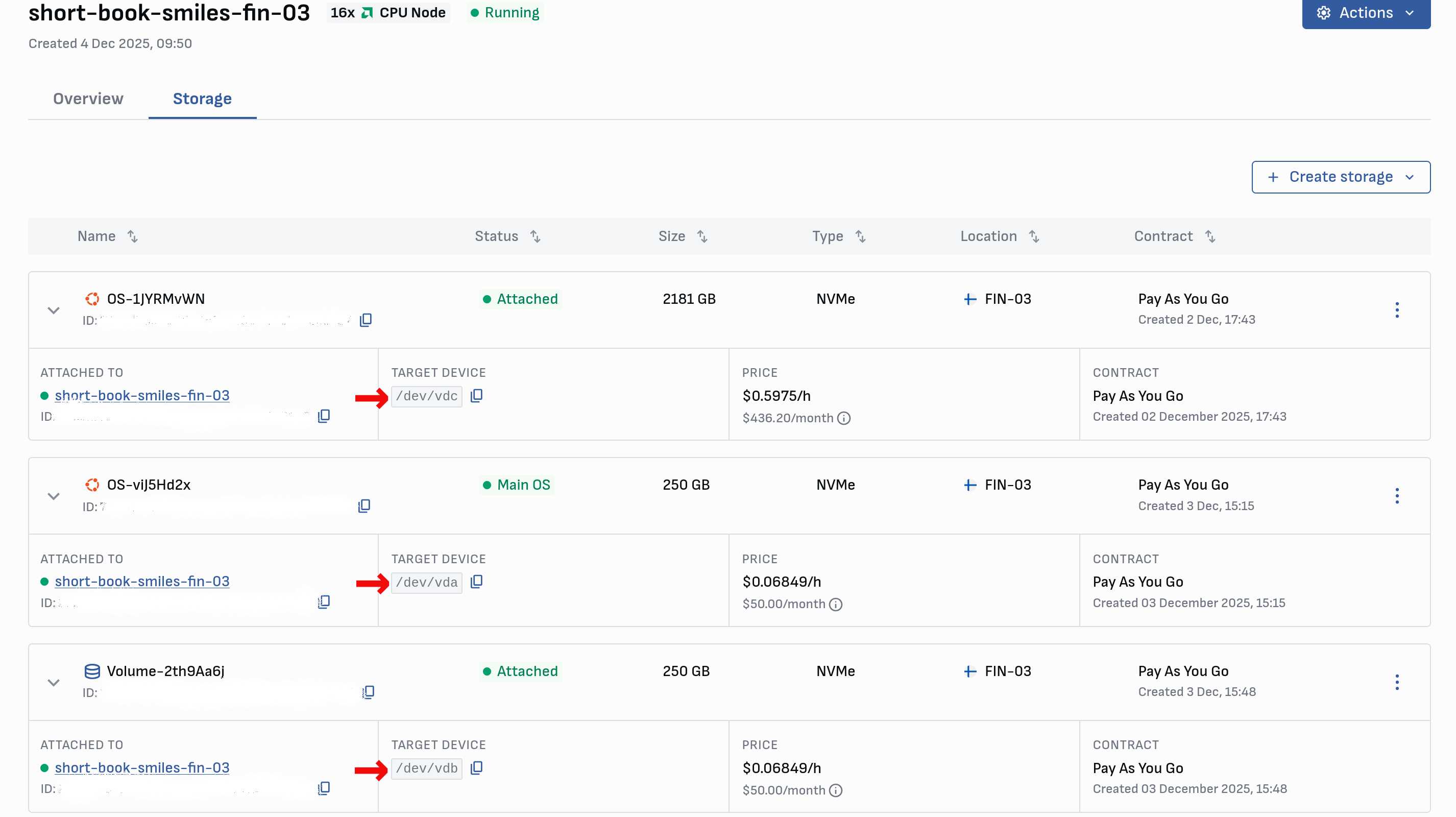
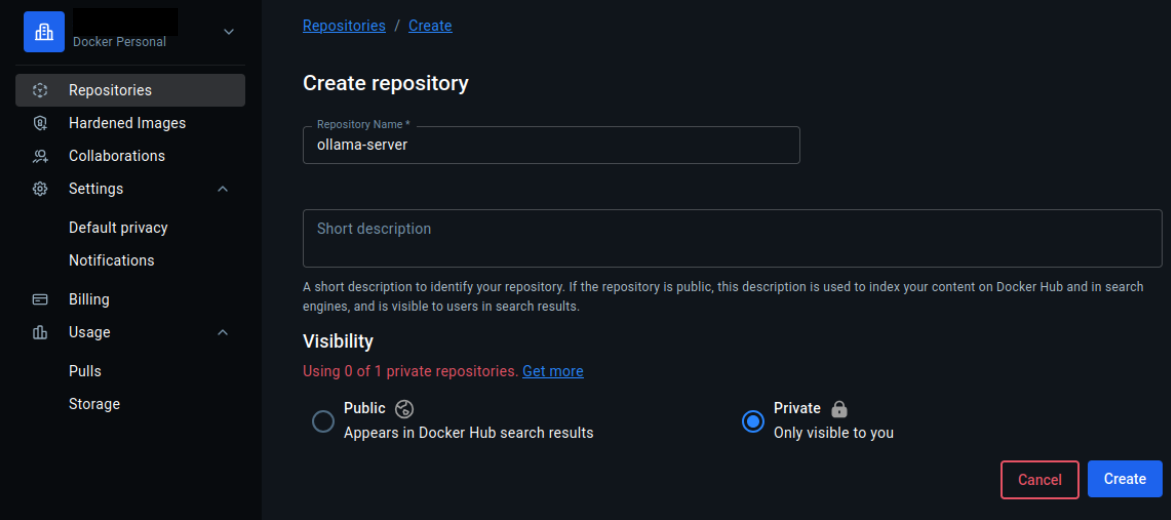
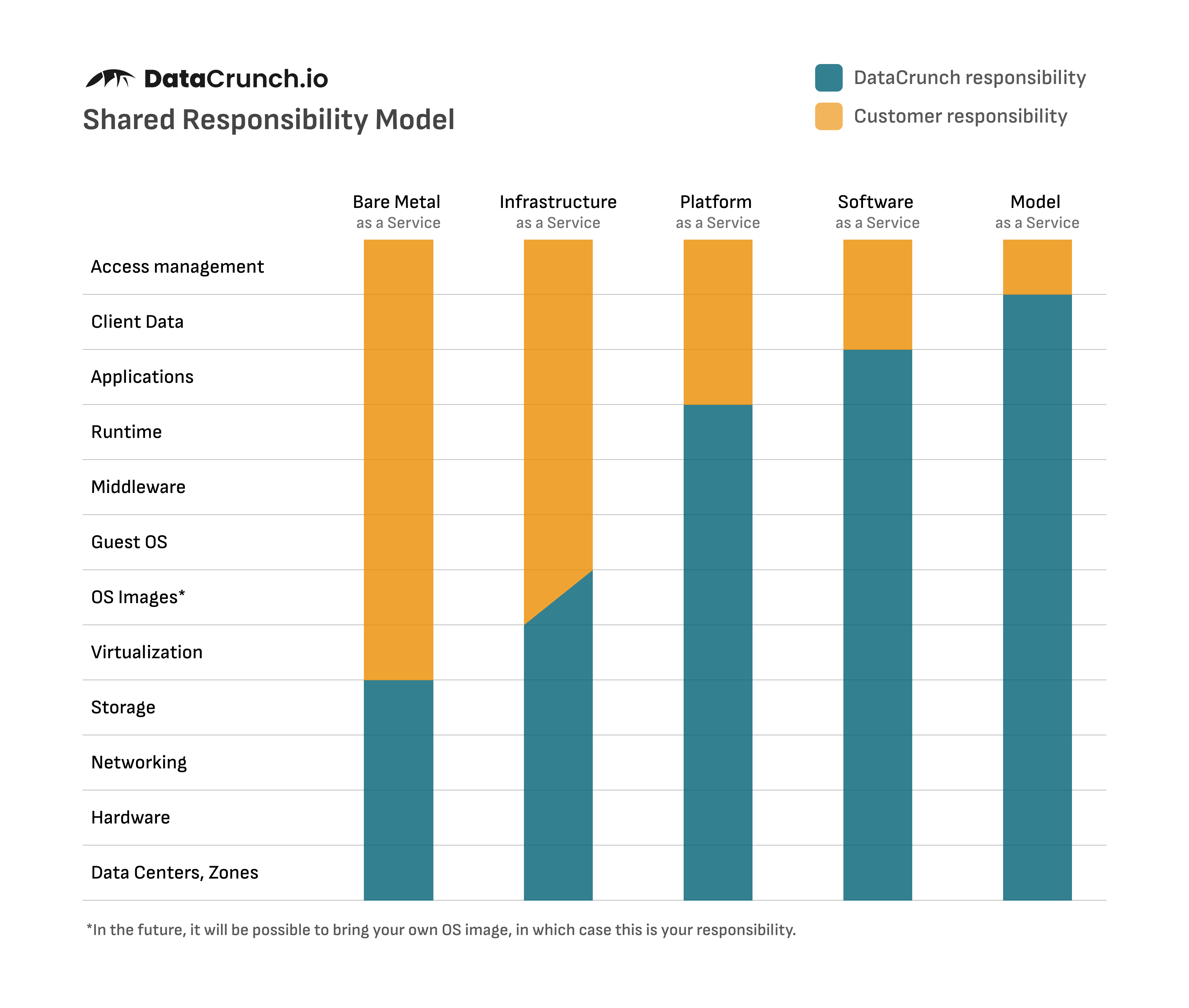
# Verda Documentation > Complete documentation for Verda Cloud — GPU instances, clusters, containers, inference, storage, and infrastructure tools. > Source: https://docs.verda.com ## Table of Contents - Start Here - Overview - Locations and Sustainability - Pricing and Billing - Team Projects - API Credentials - Quotas - Release Notes - General - Instant Clusters - Verda API changes - Support - Instances - Create an instance - Secure your instance - Shutdown and delete - Add a new user - Manage SSH keys - Connect to your server - Access JupyterLab - Use Jupyter with VS Code - Remote desktop access - Troubleshoot SSH - Confidential Computing - Profile with Nsight - Tips and tricks - Startup environment variables - Copy files between block devices - Recovering lost SSH access - Clusters - Overview - Deploy an Instant Cluster - Job orchestrators - Kubernetes - Overview & architecture - Getting started - Running multi-node workloads - Job queueing (Kueue) - Storage - Observability - Health checks - Tutorials - Gang-scheduled Training with SkyPilot + Kueue - Deploying NVIDIA Dynamo - Slinky (Slurm on Kubernetes) - Overview & architecture - Getting started - User management - Shared jail - Containers (Apptainer) - Observability - Health checks - Tutorials - Vanilla / custom image - Tips and tricks - Deploying vLLM Inference using Ray - Customized GPU clusters - Storage - Overview - Block Volumes - Attach a block volume - Resize a block volume - Clone a block volume - Shared Filesystems (SFS) - Create a shared filesystem - Edit share settings - Mount a shared filesystem - Use SFS with a cluster - Deleting storage - Container Registry - Overview - Quickstart - Tag immutability rules - Tag retention rules and runs - Tag rules syntax - Serverless Containers - Overview - Container registries - Scaling and health checks - Batching and streaming - Async inference - Storage - Batch jobs - Tutorials - Overview - Quickstart: deploy with vLLM - Quickstart: migrate from Runpod - Quickstart: GPT-OSS 120B with Ollama - In depth: deploy with TGI - In depth: deploy with SGLang - In depth: deploy with vLLM - In depth: deploy with Replicate Cog - Async Whisper inference - Publish your first Docker image - Vector database with pgvector - Build a RAG application - Verda CLI - Overview - Getting Started - Instances - Templates - Storage - Object Storage - Container Registry - SSH Keys and Startup Scripts - Cost and Status - Skills - MCP Server - Automation - Infrastructure as Code - Overview - Terraform - Overview - Getting Started - Authentication - Provider Configuration - Compute - Instances - Compute - SSH Keys - Compute - Startup Scripts - Storage - Volumes - Containers - Containers - Containers - Serverless Jobs - OpenTofu - Overview - Getting Started - Using Verda with OpenTofu - Migration from Terraform - Integrations - dstack - SkyPilot - Reference - Resources Overview - Services Overview - Shared Responsibility Model - Audit Logs - Overview - Supported events - Public API - Free Compute Credits - How to receive credits - How to redeem credits --- ## Start Here --- ### Verda Documentation Use this hub to find the right guide by task or product area. If you are new to Verda, start with the task you want to complete first. #### Start With A Task - :verda-instance: **Launch compute** --- Create a CPU or GPU instance, choose storage, add SSH access, and deploy. [:octicons-arrow-right-24: Create an instance](cpu-and-gpu-instances/set-up-a-gpu-instance.md) - :verda-cluster: **Deploy a GPU cluster** --- Provision an Instant Cluster for distributed training with Slurm or Kubernetes. [:octicons-arrow-right-24: Deploy a cluster](clusters/instant-clusters/deploying-your-cluster.md) - :verda-container: **Run a container endpoint** --- Deploy containerized inference workloads with scaling, health checks, and logs. [:octicons-arrow-right-24: Deploy with vLLM](containers/tutorials/deploy-with-vllm-quick.md) - :verda-storage: **Add persistent storage** --- Choose between block volumes, shared filesystems, and container image storage. [:octicons-arrow-right-24: Choose storage](storage/) - :material-terraform: **Automate infrastructure** --- Manage Verda resources with Terraform, OpenTofu, the Verda CLI, or integrations. [:octicons-arrow-right-24: Browse automation](infrastructure-as-code/overview.md) #### Browse By Product - :verda-instance: **Instances** --- Dedicated CPU and GPU instances for development, training, and hosted workloads. [:octicons-arrow-right-24: Instances docs](cpu-and-gpu-instances/set-up-a-gpu-instance.md) - :verda-cluster: **Clusters** --- Multi-node GPU clusters with Slurm or Kubernetes for larger training jobs. [:octicons-arrow-right-24: Clusters docs](clusters/instant-clusters/) - :verda-storage: **Storage** --- Persistent volumes, shared filesystems, deletion behavior, and private registries. [:octicons-arrow-right-24: Storage docs](storage/) - :verda-container: **Serverless Containers** --- Container deployments, autoscaling, request handling, storage, and batch jobs. [:octicons-arrow-right-24: Containers docs](containers/overview.md) - :verda-docs: **Reference** --- API reference, SDK links, service overviews, responsibility model, and credits. [:octicons-arrow-right-24: Reference docs](resources/resources-overview.md) #### Account And Support - :verda-paid-dollar: **Pricing and billing** --- Understand billing, balance management, payment methods, and invoices. [:octicons-arrow-right-24: View billing docs](welcome-to-verda/pricing-and-billing.md) - :verda-team: **Team projects** --- Create projects, manage roles, transfer compute, and work with shared balances. [:octicons-arrow-right-24: Manage team projects](welcome-to-verda/team-projects.md) - :verda-company: **Locations** --- Compare Verda locations and sustainability details. [:octicons-arrow-right-24: View locations](welcome-to-verda/locations-and-sustainability.md) - :verda-chat-bubble: **Support** --- Contact the Verda team by chat or email when you need help. [:octicons-arrow-right-24: Contact support](welcome-to-verda/contact-support.md) --- ### Locations and Sustainability ##### **Data Center Locations** Our data centers are strategically located in the Finland, celebrated for its exceptional renewable energy practices and highly efficient cooling systems. By utilizing state-of-the-art hardware and meticulously optimizing our software, we achieve peak efficiency, minimizing waste and maximizing the utilization of our silicon resources | Location | Energy | PUE Rating | |----------|--------|------------| | **FIN-01** Helsinki, Finland | 50% hydroelectric, 50% wind power | 1.2 | | **FIN-02** Helsinki, Finland | 50% hydroelectric, 50% wind power | 1.3 | | **FIN-03** Helsinki, Finland | 100% renewable energy | 1.2 | ##### **Security and Data Protection** We prioritize top-notch data security and safeguard your intellectual property, adhering to GDPR compliance and utilizing ISO 27001 certified data centers. All data is handled and stored securely within Europe. Visit [https://trust.verda.com/](https://trust.verda.com/) for more information about security at Verda. --- ### Pricing and Billing #### GPU pricing We provide state-of-the-art hardware at competitive prices. Click the card below to view our current pricing for On-Demand instances. [**Products & Pricing** — View our current prices for all GPUs](https://verda.com/pricing) *** #### Why pricing varies by location The cost of running a data center depends heavily on where it sits. Electricity, the largest ongoing expense, varies in price depending on the local energy market, grid mix, and taxes. Wages, land and construction costs, corporate taxes, and cooling costs also vary by location. We price each location to reflect what it actually costs us to operate there: where our costs are lower, your price is lower too. This is standard practice across the cloud industry. This also gives you a lever for managing cost. If your workload has no strict location requirements, such as batch jobs, training runs, or dev environments, you can deploy it in a lower-cost region to reduce spend. If it has latency or data residency requirements, the location that meets them is priced according to its own operating cost. *** #### Long-term contract discounts We understand compute can be expensive, which is why we offer hefty discounts for long-term contracts. You can choose long-term contracts for GPU Instances and Instant Clusters via the console or [contact our sales team for customized GPU clusters](contact-support.md#cluster-sales). Long-term contracts are paid up-front. *** #### Making Payments ##### Bare-metal Clusters Every Bare-metal Cluster contract is tailored to your specific requirements. You will receive a custom invoice based on your consultations with our sales and technical teams. If you have specific payment needs, feel free to reach out to our team at [support@verda.com](mailto:support@verda.com). ##### Cloud Console When using the Cloud Console, you can deploy instances and clusters using the following payment models: * Long-term: Secure your resources by paying up-front for a set contract length. * Pay As You Go: Pay only for what you use, with billing calculated in pre-paid 10-minute increments. If a resource is terminated before the billed period ends, the unused portion is automatically refunded within the next billing period. You can manage your payments through the **Billing & Top-up** tab in the navigation sidebar or directly on the **Deploy a new instance** page. Since our services operate on a prepaid basis, your usage is limited to your available balance. For Pay As You Go instances, your balance is automatically deducted in pre-paid 10-minute increments. [DANGER] If your balance reaches zero, your instances will be discontinued and your volumes (data) will be deleted. _Your volumes can be restored up to 96 hours after deletion._ *** ##### Topping up in the console ###### One-time top-up This option adds a specific amount to your balance as a single transaction. It's a great choice if you are just starting out, running a few tests, or aren't yet sure how much compute power you'll need. ###### Automatic top-up To ensure your projects keep running without interruption, you can set up auto top-up. This automatically charges your saved card whenever your balance falls below a threshold you define. This is the best way to prevent your resources from being accidentally deleted due to an empty balance. Once enabled, a green icon will appear next to your project balance so you know you're covered. [TIP] Give yourself a buffer: We recommend setting your top-up trigger to a value equal to at least 12 hours of your estimated usage. This gives you a safe window to react if there's ever a temporary payment issue. [WARNING] Check your payment card for expiration date, and enable low balance notifications in case your payment card fails for any reason. *** ##### Topping up via Bank Transfer You can easily add funds to your Verda Cloud balance using a bank transfer. The process depends on your currency and location. ###### For EUR accounts with SEPA-enabled banks If you are using a European bank within the SEPA zone, you can generate your transfer details instantly: 1. Navigate to Settings: Go to the **Bank Transfer** tab in your account settings. 2. Verify your info: Select your bank's country and enter the last 4 digits of your sending IBAN. 3. Get your details: You will immediately see your unique IBAN, BIC, and a list of frequently asked questions to help you complete the transfer. !!! info "Note" If you have multiple projects in your account, wire transfers will arrive in your Unallocated Balance (located in your account settings page), where you can then distribute them to your specific projects. ###### For USD accounts or non-SEPA banks If you prefer to pay in USD or your bank is outside the SEPA zone, we handle these requests manually via a bank invoice. * Minimum Amount: The minimum for invoice-based top-ups is 1,000 EUR or USD. * How to request: Please email [sales@verda.com](mailto:sales@verda.com) with the subject "Bank Invoice Top-up" and include the following details: * User Info: Your full name and the Verda User Account to be credited. * Company Details: Company name, street address (with postal code/city/state), and your Company Registration/Tax number. * Billing Contact: The name and email address for the person receiving the invoice. * Amount: The total amount you wish to top up (in EUR or USD). Once we receive your email, we will send over an invoice. Your balance will be updated as soon as the payment is successfully processed. *** ##### Credit coupons During promotions, events, and hackathons, we sometimes offer credit coupons. You can apply this coupon in the **Billing & settings** section of the project of your choosing. See more about earning and redeeming credits: [Get Free Compute Credits](../resources/obtaining-free-credits/how-to-receive-credits.md) *** #### Low balance By default, the low balance icon is visible when your balance has **less than 48 hours of running time** for all your resources combined. You can change this setting in the **Email notifications** tab. [DANGER] We recommend topping up your account immediately to avoid any deletion of your instances or volumes. For running resources with an unspecified duration, we recommend enabling automatic top-up. *** #### Project Billing [View project billing information](team-projects.md#project-billing) --- ### Team Projects #### Create New Project There are two different ways to create a new cloud project: via the Project dashboard or the Project menu. Create a new project from the **Project dashboard** by clicking the **Create new project** button on the top right corner of the screen. You can also use the **Project menu** found within the navigation sidebar by opening the drop down menu and clicking **Create new project** option. Input the project name and any email addresses of team members you would like to invite, and click **Create project**. (See more about [inviting team members](team-projects.md#invite-team-members)). *** #### Delete a project You can delete any project of which you are the **Owner**. On the project dashboard, open the settings menu on the project card and click **Delete**. Any remaining balance within that project will be sent to your **Unallocated funds** in **My Account** page, [see Transfer Funds](team-projects.md#transfer-funds). [WARNING] You must delete or transfer all instances and volumes from a project to enable deletion. *** #### Project billing Project payment methods and billing information (including address, company name, and business ID) are always associated with the **Owner** of the project. Billing information can only be edited by the project owner in their **My Account** page. Project admin can view this billing information in the **Billing & Settings** page. Payment methods are added by the project owner. Both owner and admin can view the payment methods and choose which ones to use for topping up the account, including automatic top-up. Project developers can create and manage resources, but do not have access to view or edit billing and payment details. [View role permissions](team-projects.md#role-permissions) *** #### Transfer funds When a project is deleted, any remaining funds from that project will be transferred to your **Unallocated balance** in the **My Account** page. From the Unallocated balance, funds can be transferred to any other project you own. [INFO] You must be the **Owner** of a project to transfer funds into it. *** #### Transfer resources You can transfer active compute and storage between projects. In order to transfer resources, you must be the **Owner** of _both_ the source and target projects. [INFO] When transferring _Pay As You Go_ resources, the target project must have enough balance to cover **at least 30 minutes** of the transferred resources. ##### Transfer compute between projects You can find **Transfer to new project** in the Actions menu on the compute cards or in their specific pages. Compute can remain running during the transfer. There is no need to shutdown instances, unless you want to detach storage first. Choose which project the instance will be transferred to and click **Transfer compute**. All attached block volumes will be transferred with the instance. ##### Transfer block volumes between projects [INFO] Volumes must be detached before individual transfer is enabled. OS Volumes can only be detached by deleting the instance for which they are used as the main OS. On the **Block volumes** screen, open the settings menu of the volume you would like to transfer. Click on **Transfer**, select the target project, and click **Transfer volume**. ##### Transfer shared filesystems between projects Currently, you cannot transfer shared filesystems between projects as they may be shared to other compute. We are working hard on improving this feature. Feel free to reach out to us for assistance via the chat on the console or email [support@verda.com](mailto:support@verda.com). *** #### Invite team members Invite team members from the **Team** page. Click the **invite** button on the top right of the screen. Input email addresses of the team members you would like to add. Choose a role for them using the menu. View role permissions below. They will receive an email invitation with a link to accept and join the project. You will see when they have accepted the invitation next to their information on the **Team** page. *** #### Roles Team members are given different roles with various permissions: * **Owner** is the user that created a project. Owners have all permissions. * **Admin** have almost all permissions, except editing projects or editing billing information. * **Developer** can only deploy instances, create volumes, and manage project resources. ##### Role Permissions | Project Permissions | Owner | Admin | Developer | |---|:---:|:---:|:---:| | Deploy and manage instances | ✅ | ✅ | ✅ | | Create and manage volumes | ✅ | ✅ | ✅ | | View auto top-up settings | ✅ | ✅ | ✅ | | View balance, currency, usage rate, remaining time | ✅ | ✅ | ✅ | | Edit auto top-up settings | ✅ | ✅ | ❌ | | Top-up project balance | ✅ | ✅ | ❌ | | View billing details (name, address, VAT) | ✅ | ✅ | ❌ | | Invite team members | ✅ | ✅ | ❌ | | Change team member roles | ✅ | ✅ | ❌ | | Transfer resources between projects | ✅ | ✅ | ❌ | | Rename project | ✅ | ✅ | ❌ | | Change default payment card | ✅ | ✅ | ❌ | | View audit logs | ✅ | ✅ | ❌ | | Export audit logs | ✅ | ✅ | ❌ | | Edit billing details | ✅ | ❌ | ❌ | | Add/delete payment card | ✅ | ❌ | ❌ | | Transfer funds between projects | ✅ | ❌ | ❌ | | Delete project | ✅ | ❌ | ❌ | ##### Changing roles Project **Owner** and **Admin** can change the roles of other team members using the menu in the **Team** page. *** #### Remove a team member On the **Team** page, click on the role menu associated with the team member you would like to remove and click **Remove** (see image of menu above). You must confirm the removal of the team member. For security purposes, all Cloud API keys the team member created will be deleted upon their removal. Contact us via chat or email [support@verda.com](mailto:support@verda.com) if you need assistance. *** #### Leave a project If you are a team member of a shared project, you can leave a project from your role menu on the **Team** page (see image above) or from the settings menu on the Project card. For security purposes, all Cloud API keys you created will be deleted upon leaving. Contact us via chat or email [support@verda.com](mailto:support@verda.com) if you need assistance. *** #### How to find the Project ID Your Project ID is essential for troubleshooting, so please have it ready when reaching out to our support team. Project IDs can be found from the URL or copied from the **Project** card on the Project list screen. --- ### API Credentials Verda uses two types of API credentials: **Cloud API credentials** for the general Verda API, and **Inference API Keys** for hosted model endpoints. *** #### Cloud API credentials Cloud API credentials authenticate requests to the Verda API. The same Client ID and Client Secret pair works across the [CLI](../cli/index.md), [Terraform](../infrastructure-as-code/terraform/authentication.md) and OpenTofu providers, and third-party integrations such as dstack and SkyPilot. ##### Create Cloud API credentials 1. Log in to the [Verda Console](https://console.verda.com/). 2. Open the **Credentials** page from the sidebar. 3. Under **Cloud API credentials**, click **+ Create**. 4. Copy the **Client ID** and **Client Secret** - the secret is shown only once. [WARNING] Store the Client Secret somewhere safe. The Console does not display it again after creation - if you lose it, you'll need to create a new credential pair. *** #### Inference API Keys Inference API Keys authenticate requests to Verda's hosted model endpoints, used with the Python client or direct API calls. ##### Create Inference API Keys 1. Log in to the [Verda Console](https://console.verda.com/). 2. Open the **Credentials** page from the sidebar. 3. Under **Inference API Keys**, click **+ Create**. 4. Copy your key - it serves as your bearer token for all inference endpoint requests. Include it in the `Authorization` header of each request: ``` Authorization: Bearer ``` [WARNING] Keep your Inference API Key secure and never expose it in client-side code. If you suspect it's been compromised, regenerate a new key immediately. *** #### Credential lifecycle Both Cloud API credentials and Inference API Keys are tied to the team member who created them, not to a project. If a team member is removed from a project or leaves it, all credentials and keys they created are deleted for security purposes. See [Team Projects](team-projects.md#remove-a-team-member). --- ### Quotas Every Verda account has quotas that limit how much of each resource you can use at once. If your workload needs more, you can request an increase from your account for: ##### Compute quotas * **GPUs**: total GPU count across on-demand instances and Kubernetes clusters * **Spot GPUs**: total GPU count across spot instances * **vCPUs**: total virtual CPU count, including on-demand and spot ##### Storage quotas * **NVMe storage**: total NVMe-backed storage capacity across block volumes and shared filesystems * **Storage item count**: number of individual storage resources across block volumes and shared filesystems ##### Account quotas * **Projects**: total number of projects allowed in account For any other quota not listed here, contact us via the chat on the console or email [support@verda.com](mailto:support@verda.com). *** #### Where to check for your resource quotas 1. Log in to the [Verda Console](https://console.verda.com/). 2. Click your profile icon in the top right corner and select **Account settings**. 3. Open the **Quotas** tab to see **Resource quotas**, showing your current usage and limit across all your owned projects. *** #### Request an increase 1. Find the resource you need more of and click **Request increase**. 2. Enter your desired new limit. Use the **1.5x**, **2x**, or **3x** shortcuts, or enter a custom value. 3. Fill in **Reason for increase**: tell us what you're building and why you need more capacity, including expected workload and timeline. 4. Submit the request. [INFO] You can only have one open request per resource at a time. Requests are typically reviewed within about one business day. *** #### Track your requests Click **Requests & activity** to see two tabs: * **Pending requests**: requests awaiting review, and can be cancelled here * **History**: past requests and their decisions Each entry shows the resource type, status (**Approved**, **Denied**, **Partially approved**, or **Cancelled by you**), and your current limit against the requested amount. If a request is denied or only partially approved, a review note from the Verda team explains why. --- ### Release Notes --- #### Release Notes ##### September 2026 ###### New products ###### Sign in with GitHub (SSO) You can now sign in to the Verda console with your GitHub account. Link GitHub to your Verda account once before your first GitHub sign-in: sign in with your email and password, then go to **My Account > Linked accounts** and link your GitHub account. After that, **Sign in with GitHub** works straight from the login page, and you can unlink GitHub from the same place. ###### Changes ###### Non-root GPU profiling on instances New instance images let any user on the instance read NVIDIA GPU hardware performance counters, so NVIDIA Nsight Systems and Nsight Compute run without `sudo`. This applies to the current Ubuntu 24 and 26 images. ##### August 2026 ###### New products ###### Resource quotas Every Verda account now has a **Quotas** page in the console, where you can see the limits that apply to your account and request increases yourself. Quotas cover GPUs, Spot GPUs, vCPUs, NVMe storage, storage items, and projects. Go to **Account settings > Quotas** to view your usage and limits, request an increase, and track your requests. Requests are typically reviewed within one business day. [Read the quotas documentation.](../quotas.md) ###### Changes [Confidential Computing](../../cpu-and-gpu-instances/confidential-computing.md) is now generally available. ##### July 2026 ###### New products ###### Sign in with Google (SSO) You can now sign in to the Verda console with your Google account. Link Google to your Verda account once before your first Google sign-in: sign in with your email and password, then go to **My Account > Linked accounts** and link your Google account. After that, **Sign in with Google** works straight from the login page, and you can unlink Google from the same place whenever you want. ###### Audit logs The project audit logs is now available in the console and via the public API. Audit logs give you a record of who did what in a project, when, and from where, using the [CloudEvents 1.0](https://github.com/cloudevents/spec) JSON format. Events use the CloudEvents JSON format, cover the last 90 days, and can be read through the API or exported as a JSON file. Only the project owners and admin members have access. [Read the audit log documentation.](../../resources/audit-logs/index.md) ###### Changes ###### Storage sizes now use binary units Storage capacity is now expressed in binary units (gibibytes, GiB, and tebibytes, TiB) instead of decimal units (gigabytes, GB, and terabytes, TB). Binary units align with how storage hardware actually addresses capacity. For example, a volume created with `--size 500` is 500 GiB. This applies to block volumes, container scratch disks, shared file systems, and all other storage products across the console, CLI, and API. ##### June 2026 ###### Improvements ###### Activity logs for instances and clusters We added an **Activity** tab to the instance and instant cluster overview. Open any instance or instant cluster in the console and select **Activity** to see a history of its lifecycle events: when it was created, provisioned, and started running, along with block volume and shared filesystem attach and detach events. Each entry records when it happened and, where applicable, who triggered it. ##### April 2026 ###### Deprecated ###### HDD based services It is no longer possible to create instances and volumes based on HDD. NVMe provides better performance for AI/ML workloads. Existing HDD volumes can't be extended. Please reach out to our customer support if you need help with the existing HDD based services. ##### March 2026 ###### Improvements ###### Cross-datacenter volume cloning now available for all customers You can now clone your OS and data volumes across data centers. This makes it easy to replicate your environment in a different location. [Read more about block volume cloning.](../../storage/block-volumes/cloning-a-block-volume.md) ###### SEPA transfers for topping up balance It is now possible to top up the balance using bank transfer from SEPA-enabled bank. ###### Confidential Computing Added support for NVIDIA Confidential Computing–based instances, now available by request, enabling hardware-level protection for data, AI models, and in-memory operations. These Confidential VMs isolate workloads from the host hypervisor, removing the need to trust the cloud provider. Check out the documentation: [Confidential Computing](../../cpu-and-gpu-instances/confidential-computing.md). ##### February 2026 ###### New products ###### **Instant GPU Clusters Generally Available** The Beta label has been removed from clusters, marking their general availability. Users can also now transfer clusters between projects, matching the flexibility that already existed for instances. ###### Improvements ###### **Spot Eviction Storage Behaviour Controls** Users can now configure what happens to their attached storage when a spot instance is evicted — for example, whether volumes are retained or released. This gives teams more control over data safety and cost when running interruptible workloads. [See API notes here.](https://api.verda.com/v1/docs#description/2026-02-03-spot-instance-volume-policy) [INFO] 2026-03-03 Introduced changes to API 2026-03-05 Python SDK improved (v1.20.0) ###### **SFS Share Settings Improved** The shared filesystem (SFS storage) share settings modal received a round of UX improvements, and the displayed mount command was updated to reflect the latest syntax — ensuring users copy the correct command when attaching volumes to instances. ##### January 2026 ###### New products ###### **Terraform Provider for Verda Infrastructure (GA)** Users can now manage their entire Verda infrastructure as code (IaC) using the official Terraform provider, enabling reproducible deployments, version-controlled configurations, and seamless integration with existing IaC workflows. For more information, check out the [official documentation](../../infrastructure-as-code/terraform/) or visit the [GitHub repository](https://github.com/verda-cloud/terraform-provider-verda). ###### **Container Registry (Limited Beta)** A built-in container registry that lets users store, manage, and deploy container images directly within the platform, eliminating the need for third-party registry services. ###### **Cluster Auto-scaler for Kubernetes (Under review)** An auto-scaler integration currently under review by the official Kubernetes project that would allow Verda-based clusters to automatically scale node pools up and down based on workload demand, optimizing both performance and cost. ###### Improvements **Unified Top-Up Page** Combines One-time top-up, Automatic top-up, and Credit coupon forms into a single, streamlined page, simplifying the payment experience. **Transfer Money Between Projects** Users can now move funds between their projects, adding important flexibility to multi-project billing workflows. **Around \~90 other smaller improvements and bug-fixes across 27 releases to Cloud Platform.** --- #### Instant Cluster Release Notes Changes to the Instant GPU Cluster offering -> new GPU accelerators, orchestrator images, software upgrades, and infrastructure improvements. ##### October 2026 ###### Kubernetes and Slinky images on Ubuntu 26.04 and CUDA 13.4 Kubernetes and Slinky Instant Cluster images are now built on Ubuntu 26.04 with CUDA 13.4 and the NVIDIA 580 open driver. They are available for Kubernetes 1.35, 1.36 and 1.37. The cluster software stack was upgraded too: DOCA-OFED 3.5, DCGM 4.7, HPC-X 2.26, gpud 0.13.1 and Grafana 13.1. ###### Slinky: SSH on port 22 lands in the Slurm login pod On newly created Slinky clusters, `ssh @` on port `22` drops you straight into the Slurm login pod, so it works like a login node on a native Slurm cluster. The host admin shell (`ubuntu`, with `kubectl`) moved to port `2222`: `ssh -p 2222 ubuntu@`. The login pod's welcome message explains what the pod is, where `$HOME`, shared and local scratch storage live, and how to reach the admin shell. `cat /root/grafana_password.txt` works in the login pod as well. ###### Worker hostnames resolved by cluster DNS Worker hostnames are now served by a DNS server on the cluster's service node instead of being written into `/etc/hosts` on every node. Pods resolve them too, so `ping -1` works from inside the Slinky login pod and from your own pods. ##### July 2026 ###### Kubernetes clusters: Kueue, GPU Operator and RWX storage preinstalled Kubernetes Instant Clusters now ship with [Kueue](https://kueue.sigs.k8s.io/) for job queueing and quota admission, pre-wired with a ready-to-use `default` queue — label a workload with `kueue.x-k8s.io/queue-name: default` and it queues; see [Job queueing (Kueue)](../../clusters/instant-clusters/kubernetes/queueing.md). GPU scheduling moved from the standalone device plugin to the full [NVIDIA GPU Operator](https://docs.nvidia.com/datacenter/cloud-native/gpu-operator/latest/) (drivers and container toolkit remain preinstalled in the image). A new `shared-path` StorageClass provides dynamic **ReadWriteMany** volumes on the shared filesystem for multi-node datasets and model caches. ###### Profiling enabled for unprivileged users On all cluster images, GPU hardware counters are unlocked for Nsight Compute (`ncu`) and the kernel perf interface is opened up (`perf stat` / `perf top`), so workloads can be profiled inside jobs and pods without root. ###### Inter-node NCCL health check and health-check overview In addition to the 6-hourly per-node benchmark suite, clusters now run a 6-hourly **inter-node NCCL AllReduce** across rotating node pairs, catching InfiniBand fabric degradation between nodes within hours. All recurring checks report into a new health-check overview dashboard — one row per check with last run, result and freshness, with per-node drill-down. See [Ongoing health checks](../../clusters/instant-clusters/validation.md#ongoing-health-checks). On Kubernetes clusters the first active sweep now runs minutes after provisioning instead of waiting for the next 6-hour slot. ###### Weekly automated training benchmark GPU clusters now run a short training benchmark automatically once a week, training Llama-3.1-70B and Qwen3-30B-A3B for a limited number of steps across all of the cluster's GPU nodes. This exercises real multi-node NCCL/InfiniBand communication, GPU memory pressure, and end-to-end throughput, catching regressions that a synthetic benchmark can miss. Results are visible on the [monitoring dashboards](../../clusters/instant-clusters/monitoring.md). ###### GPU memory fully scrubbed on reset When a GPU is reset between allocations, its memory is now zeroed across the entire framebuffer rather than just the portion that was already free. Any processes still holding GPU memory are terminated first, so no data from a previous workload can resurface later. ##### June 2026 ###### Kubernetes and Slinky are now separate orchestrator options The default Kubernetes Instant Cluster image now provisions a Kubernetes-only cluster. It no longer installs [Slinky](https://github.com/SlinkyProject/slurm-operator) or reserves GPUs with Slurm worker pods by default. Slinky is available as a separate orchestrator/image option for customers who want Slurm running on top of Kubernetes. This keeps Kubernetes workloads such as `MPIJob`, Kueue, Ray, and custom GPU pods from competing with a bundled Slurm deployment unless Slinky was explicitly selected. ###### Slinky beta validation and worker health checks Slinky beta clusters now run lightweight multi-node validation during provisioning, including Slurm worker readiness, `srun` smoke tests, shared-jail checks, and `sbatch` with nested `srun`. The Slinky worker image also includes a Slurm `HealthCheckProgram` that checks GPU visibility, DCGM health, and recent fatal NVIDIA Xid events. Failed checks drain the affected Slurm node so new Slurm jobs avoid unhealthy workers. ###### Observability stack moved to VictoriaMetrics New clusters deploy a VictoriaMetrics-based observability stack on the service node: VictoriaMetrics stores metrics (Prometheus-compatible), VictoriaLogs and Vector handle log collection, and Grafana sits on top. The [dashboard set](../../clusters/instant-clusters/monitoring.md) was expanded with GPUd health, a cluster log explorer, per-orchestrator Slurm dashboards, and a Kubernetes dashboard folder on Kubernetes/Slinky clusters. ###### Slurm management plane pinned to the service node on Slinky On Slinky clusters the whole Slurm management plane (operator, controller, REST API, login pod and accounting database) now runs on the service node; workers run only `slurmd` pods. GPU workers no longer host control-plane pods. ###### Spack no longer preinstalled on Kubernetes and Slinky images Kubernetes and Slinky images no longer ship the prebuilt Spack tree. Use `uv`, the HPC-X modules, or [Apptainer containers](../../clusters/instant-clusters/slinky/containers.md) there instead. Spack remains preinstalled on native Slurm clusters. ##### May 2026 ###### `NCCL_IB_PKEY=1` no longer required on B300 clusters On B300 clusters, the InfiniBand partition key is now assigned at index 0. NCCL workloads running inside Docker containers no longer need the `NCCL_IB_PKEY=1` environment variable to use InfiniBand. H200 and B200 clusters are unaffected and still need the variable set. See [networking and ports](../../clusters/instant-clusters/basics/networking.md#infiniband-partitioning) for details. ##### April 2026 ###### NVIDIA B300 GPU Accelerator support Instant Clusters now support NVIDIA B300 GPUs, with InfiniBand XDR networking and NVMe passthrough. NCCL tests are compiled for the B300 compute capability. ###### SLURM upgraded to 25.11.4 The SLURM scheduler has been updated to version 25.11.4. ###### Jump host renamed to `CLUSTER_NAME-login` The jump host's static hostname is now `CLUSTER_NAME-login`. It continues to act as the SSH entry point (and NAT gateway) into the cluster. The Console and API still label this node as the **jumphost** for now. The login node no longer hosts the SLURM controller, the Kubernetes control plane or the monitoring/observability stack — these have moved off the login node to improve isolation and stability. The Grafana UI is still reachable at `https://:443` as before. ###### Kubernetes orchestrator beta included bundled SLURM ([Slinky](https://github.com/SlinkyProject/slurm-operator)) During the Kubernetes orchestrator beta, selecting Kubernetes also installed a [Slinky](https://github.com/SlinkyProject/slurm-operator) SLURM deployment on top of Kubernetes. You could drop into the SLURM login pod and submit jobs with `srun` / `sbatch` as you would on a SLURM-only cluster. As of June 2026, Kubernetes and Slinky are separate orchestrator options. Select Kubernetes for a Kubernetes-only cluster, or select Slinky for Slurm running on top of Kubernetes. ###### Validation coverage on Kubernetes / Slinky beta clusters The deployment-time [validation](../../clusters/instant-clusters/validation.md) and ongoing health checks were initially less thorough on Kubernetes / Slinky beta clusters than on SLURM-only clusters. Slinky validation and worker health checks were expanded in June 2026. ##### March 2026 ###### Kubernetes cluster image A Kubernetes orchestrator image is now available as an alternative to SLURM. Clusters can be deployed with Kubernetes, including GPU device plugins (NFD, GFD), local NVMe storage classes, and InfiniBand networking support. ###### Kubernetes MPI Operator Kubernetes clusters now deploy the [MPI Operator](https://github.com/kubeflow/mpi-operator), enabling distributed multi-node training jobs using `MPIJob` resources. ###### Slurmrestd REST API SLURM clusters now run `slurmrestd`, enabling programmatic job submission and cluster management via the SLURM REST API. ###### DOCA networking updated to 3.2.2 The NVIDIA DOCA SDK has been updated to 3.2.2, keeping InfiniBand and networking drivers current. ##### February 2026 ###### Instant GPU Clusters Generally Available The Beta label has been removed from clusters, marking their general availability. ###### Centralized log aggregation with VictoriaMetrics Cluster logs can be viewed using [Grafana](../../clusters/instant-clusters/monitoring.md) Logs are retained with a size-based limit of 50 GB. ###### Production-ready alerting The observability stack now includes production-ready alert rules with tuned thresholds for GPU health, node availability, disk usage, and cluster state. To configure destinations of alerts see [monitoring section](../../clusters/instant-clusters/monitoring.md) ##### January 2026 ###### Reduced availability We have moved most of our instant cluster availability away for a few dedicated customers. More availability expected later in spring. ###### kanidm for identity management Cluster internal authentication now uses [kanidm](../../clusters/instant-clusters/local-users/). kanidm provides centralized POSIX identity management across all cluster nodes, including SSH key distribution and user/group synchronization. ###### SLURM upgraded to 25.11.1 The SLURM scheduler has been upgraded from 25.05 to the 25.11 series, bringing improved scheduling performance and new features. ###### gpud upgraded to 0.9.2 The [gpud](https://github.com/leptonai/gpud) daemon has been upgraded to 0.9.2, improving GPU health monitoring. ##### October 2025 ###### SLURM upgraded to 25.05.3 The SLURM scheduler has been upgraded to 25.05.3. This is the first major version upgrade from the initial SLURM build. ###### Ubuntu 24.04 cluster image Cluster images are now built on Ubuntu 24.04 with the 6.14 HWE kernel, replacing the previous Ubuntu 22.04 base. ###### CUDA 12.9 removed CUDA 12.9 has been removed from the cluster image. Clusters now use CUDA 13.0. ###### gpud integrated with Node Health Check The [gpud](https://github.com/leptonai/gpud) daemon is now used within SLURM Node Health Check (NHC) to continuously monitor GPU state, InfiniBand port health, and driver status. Nodes with degraded GPUs or network links are automatically drained and can be rebooted. ###### Chrony time synchronization Cluster nodes now use chrony for NTP time synchronization, ensuring consistent timestamps across all nodes. ##### August 2025 ###### NVIDIA B200 GPU Accelerator support Instant Clusters now support NVIDIA H200 GPUs ###### HPC-X pre-installed [NVIDIA HPC-X](https://developer.nvidia.com/networking/hpc-x) is now pre-installed in `/opt` on all cluster nodes, providing optimized MPI, SHMEM, and PGAS libraries for multi-node communication over InfiniBand. ###### Grafana monitoring dashboards Clusters now include pre-provisioned Grafana dashboards for GPU metrics (DCGM), node resource usage, SLURM job status, and IPMI sensor data. Customer-facing alerts for common failure modes are included. ###### NCCL all_reduce_perf validation Cluster deployment now includes automated NCCL `all_reduce_perf` benchmarks to validate GPU-to-GPU communication performance across nodes before the cluster is marked as ready. ###### Enroot and Pyxis container support [Enroot](https://github.com/NVIDIA/enroot) and [Pyxis](https://github.com/NVIDIA/pyxis) are pre-installed, allowing SLURM jobs to run inside unprivileged containers pulled directly from container registries. ##### September 2025 ###### virtiofs replaces NFS for /home The shared `/home` filesystem now uses virtiofs instead of NFS-backed SFS, improving file I/O performance for cluster workloads. ##### April 2025 ###### NFS backed SFS The /home filesystem is now backed by NFS instead of CephFS ##### March 2025 ###### Observability stack Prometheus and Grafana are deployed on the cluster jumphost, providing metrics collection and visualization from day one. Node Exporter and DCGM Exporter run on all compute nodes. ##### February 2025 ###### NVIDIA H200 GPU Accelerator support Instant Clusters Initially Released with support for NVIDIA H200 GPUs --- #### Verda API changes For full API documentation go to [Verda API docs](https://api.verda.com/v1/docs) ###### 2026-10-07 Automatic top-ups in the audit log A top-up charged automatically by auto top-up is now reported as an `auto_top_up` event instead of a `topup` one, so it can be told apart from a top-up you started yourself. This covers the charge being created, completed and canceled — `com.verda.api.cloud.auto_top_up.create.v1`, `.complete.v1` and `.cancel.v1`. - [`GET /v1/audit/log`](https://api.verda.com/v1/docs#tag/journal/GET/v1/audit/log) - [`POST /v1/audit/log/download`](https://api.verda.com/v1/docs#tag/journal/POST/v1/audit/log/download) Filtering by `object_type=topup` therefore no longer returns automatic charges; use `auto_top_up` for those. Events recorded before this change have been relabelled the same way, so the audit log reads consistently for past and future charges. Top-ups you started yourself are unaffected. ###### 2026-09-25 Inference model prices in your billing currency [`GET /v1/inference/models`](https://api.verda.com/v1/docs#tag/inference/GET/v1/inference/models) and [`GET /v1/inference/models/{code}`](https://api.verda.com/v1/docs#tag/inference/GET/v1/inference/models/{code}) now quote `pricing` and `service_tier_pricing` in the currency your account is billed in. Previously prices were always in USD. Each service tier in `service_tier_pricing` is quoted at its own rate, and a service tier without prices of its own is left out. ###### 2026-09-24 Managed instance groups Managed instance groups provide reusable placement and template defaults for related instances. Use the `/v1/instance-groups` endpoints to manage groups. `POST /v1/instances` now accepts an optional `instance_group_id`; group instances inherit the group's instance type, image and location defaults. ###### 2026-09-23 Deployment system logs System logs of serverless container and job deployments are available through the public API. System logs are platform events about a deployment, such as scheduling failures, image pull errors and failed health checks. - [`GET /v1/container-deployments/{deployment_name}/system-logs`](https://api.verda.com/v1/docs#tag/serverless-containers/GET/v1/container-deployments/{deployment_name}/system-logs) returns the system logs of a container deployment. - [`GET /v1/job-deployments/{jobName}/system-logs`](https://api.verda.com/v1/docs#tag/serverless-jobs/GET/v1/job-deployments/{jobName}/system-logs) returns the system logs of a job deployment. Filter the events by `reason`, `involved_object` and `search_text`, and select the time range with `since`, `start` and `end`. Repeated events are grouped into one entry, with the number of grouped records in `count`. ###### 2026-09-21 SSH key creator attribution SSH key responses now include the additive nullable UUID field `created_by_user_id`, identifying the user who added that SSH key record to the project. Historical records without a matching creation event return `null`. - [`GET /v1/ssh-keys`](https://api.verda.com/v1/docs#tag/SSH-Keys/GET/v1/ssh-keys) - [`GET /v1/ssh-keys/{sshKeyId}`](https://api.verda.com/v1/docs#tag/SSH-Keys/GET/v1/ssh-keys/{sshKeyId}) - [`GET /v1/sshkeys`](https://api.verda.com/v1/docs#tag/SSH-Keys/GET/v1/sshkeys) (deprecated alias) - [`GET /v1/sshkeys/{sshKeyId}`](https://api.verda.com/v1/docs#tag/SSH-Keys/GET/v1/sshkeys/{sshKeyId}) (deprecated alias) ###### 2026-09-21 HDD storage is being decommissioned HDD storage is being decommissioned. Creating and resizing `HDD` volumes is no longer supported, and these requests now receive an HTTP 400 Bad Request response. Existing HDD volumes keep working. You can still list, attach, detach, rename, restore and delete them, and you can clone one to `NVMe` to move off HDD. To migrate an existing HDD volume, first detach it, or shut down the instance it is attached to — cloning requires the source to be detached, or its instance to be offline. Then clone it with `action: "clone"` and `type: "NVMe"`. Once the clone reaches the `detached` status, delete the HDD source. ###### 2026-09-16 Inference model service tiers [`GET /v1/inference/models`](https://api.verda.com/v1/docs#tag/inference/GET/v1/inference/models) and [`GET /v1/inference/models/{code}`](https://api.verda.com/v1/docs#tag/inference/GET/v1/inference/models/{code}) now return `service_tiers` (the service tiers a model supports, similar to OpenAI's `service_tier`), `service_tier_pricing` (a price breakdown per tier), and `endpoint_model` (the id to send as `model` in an inference request). `endpoint_model` is always present, and is usually the same as `code`. Send it as-is; there is no case where you have to fall back to another field. ###### 2026-09-15 New image categories [`GET /v1/images`](https://api.verda.com/v1/docs#tag/os-images/GET/v1/images) and [`GET /v1/images/cluster`](https://api.verda.com/v1/docs#tag/clusters/GET/v1/images/cluster) can now return `confidentialComputing` and `docker` in the `category` field, for confidential computing and Docker images. ###### 2026-09-14 Container deployment templates Curated model templates for serverless containers are available through the public API. A template pins an open model from Hugging Face to a serving engine and a tested configuration, so one request creates a working inference deployment. - [`GET /v1/container-deployment-templates`](https://api.verda.com/v1/docs#tag/serverless-containers/GET/v1/container-deployment-templates) lists the templates, with the recommended compute for each. - [`GET /v1/container-deployment-templates/{template_id}`](https://api.verda.com/v1/docs#tag/serverless-containers/GET/v1/container-deployment-templates/{template_id}) returns one template with its variants and features. - [`POST /v1/container-deployment-templates/{template_id}/deployments`](https://api.verda.com/v1/docs#tag/serverless-containers/POST/v1/container-deployment-templates/{template_id}/deployments) creates a container deployment from the template. Variant, features, compute, scaling, the Hugging Face token secret, and the shared memory size are optional. ###### 2026-09-14 Deployment logs Replica logs of serverless container and job deployments are available through the public API. Replica logs are the output that your containers write. - [`GET /v1/container-deployments/{deployment_name}/logs`](https://api.verda.com/v1/docs#tag/serverless-containers/GET/v1/container-deployments/{deployment_name}/logs) returns the logs of a container deployment. - [`GET /v1/job-deployments/{jobName}/logs`](https://api.verda.com/v1/docs#tag/serverless-jobs/GET/v1/job-deployments/{jobName}/logs) returns the logs of a job deployment. Filter the log lines by `container_name`, `pod` and `search_text`, and select the time range with `since`, `start` and `end`. The default time range is the last 15 minutes, and a time range cannot be longer than 7 days. ###### 2026-09-11 Resource tags Instances, clusters, and volumes now support key-value tags. Use tags to organize resources and filter the instance list. - Add tags while provisioning a new instance, cluster, or volume with the `tags` request property. New volumes included in an instance deployment can also have their own tags. - Add or remove tags from existing resources: - Instances: [`POST`](https://api.verda.com/v1/docs#tag/instances/POST/v1/instances/{instance_id}/tags) or [`DELETE`](https://api.verda.com/v1/docs#tag/instances/DELETE/v1/instances/{instance_id}/tags/{tagId}) tags. - Clusters: [`POST`](https://api.verda.com/v1/docs#tag/clusters/POST/v1/clusters/{id}/tags) or [`DELETE`](https://api.verda.com/v1/docs#tag/clusters/DELETE/v1/clusters/{id}/tags/{tagId}) tags. - Volumes: [`POST`](https://api.verda.com/v1/docs#tag/volumes/POST/v1/volumes/{volume_id}/tags) or [`DELETE`](https://api.verda.com/v1/docs#tag/volumes/DELETE/v1/volumes/{volume_id}/tags/{tagId}) tags. - Tags are reusable within a project: the same key-value pair receives the same tag id wherever it is applied. - Filter instances with `GET /v1/instances?tag=key` or `GET /v1/instances?tag=key=value`. Repeat `tag` to require multiple tags. Each resource can have up to 10 tags. Tag keys are normalized to lowercase; omit `value` to create a freeform tag. ###### 2026-07-30 Audit log The project audit log is now available in the console and through the API. It records who did what in a project, when, and from where, using the [CloudEvents 1.0](https://github.com/cloudevents/spec) JSON format. * [`GET /v1/audit/log`](https://api.verda.com/v1/docs#tag/journal/GET/v1/audit/log) reads events, newest first, with cursor pagination. * [`POST /v1/audit/log/download`](https://api.verda.com/v1/docs#tag/journal/POST/v1/audit/log/download) exports the matching events as a single JSON file and returns a link valid for 15 minutes. Both endpoints are limited to the project owner and members with the `admin` role, and cover the last 90 days. Filter with `object_type`, `action`, `start_date`, and `end_date`. [Read the audit log documentation.](../../resources/audit-logs/index.md) ###### Query parameters * `object_type=compute`: one object type, for example `compute`, `volume`, `ssh_key`, `user`. * `action=delete`: one action, for example `create`, `delete`, `login`. * `start_date=2026-07-01T00:00:00.000Z`: events at or after this timestamp, at most 90 days ago. * `end_date=2026-07-31T00:00:00.000Z`: events at or before this timestamp. * `page_size=100`: events per page, 1 to 100, default 20. * `cursor=log_02yTr8Kc11BspqLM40XZQV`: continue from the `cursor` of the previous response. Example request: ```http GET /v1/audit/log?object_type=compute&action=delete&page_size=100 ``` Example response: ```json { "data": [ { "specversion": "1.0", "id": "log_033FNaNcc0AtphhH71DLBW", "source": "https://api.verda.com/project/7c9e6a41-2f8b-4d3e-9a15-0b6c4d2e8f37", "subject": "7bdb4161-c7d2-478c-9850-05719adc8381", "type": "com.verda.api.cloud.compute.delete.v1", "time": "2026-07-28T14:15:52.872Z", "data": { "contract": "PAY_AS_YOU_GO", "hostname": "tiny-tree-unfolds-fin-01", "instance_type": "CPU.4V.16G", "location_code": "FIN-01", "discontinue_reason": "by_user_action", "request_ip": "203.0.113.10", "request_origin": "console-11.67.0", "actor_id": "5bbb59cb-fced-44a4-85c6-5005e7480a8f", "compute": { "id": "7bdb4161-c7d2-478c-9850-05719adc8381", "hostname": "tiny-tree-unfolds-fin-01", "instance_type": "CPU.4V.16G", "ip": "192.0.2.15", "os_volume_id": "2b7d0e2e-fc8d-4e9c-8b89-6117a4d8d941", "location_code": "FIN-01", "is_cluster": false } } } ], "cursor": "log_02yTr8Kc11BspqLM40XZQV" } ``` The CloudEvents envelope fields are stable. Field names inside `data` may still change while event coverage grows. ###### 2026-06-12 Startup script list sorting `GET /v1/scripts` is now sorted by creation date **descending by default**, so the most recently created scripts appear first and land on the first page. Previously the list was sorted ascending, which pushed newly created scripts onto the last page once pagination was in effect. You can control the order with the optional `orderBy` and `orderDirection` query parameters. ###### Query parameters * `orderBy=created_at` — field to sort by. The only supported value is `created_at`, the script's creation timestamp from the response payload (also the default). * `orderDirection=desc` — sort direction, either `asc` or `desc`. Defaults to `desc`. To restore the previous behavior (oldest first), request ascending order explicitly: ```http GET /v1/scripts?orderBy=created_at&orderDirection=asc ``` Example response: ```json [ { "id": "9f3c1e2a-1b7d-4a4e-9c2f-8d5b6e7a0c11", "name": "Older startup script", "created_at": "2026-05-01T08:15:00Z" }, { "id": "2b1af58-7537-4edb-ba81-82cee082c5e9", "name": "My startup script", "created_at": "2026-06-12T10:30:00Z" } ] ``` ###### 2026-06-09 SSH key fingerprint The SSH keys endpoints now return a `fingerprint` field — the public key fingerprint as colon-separated hex. This is useful for checking whether the same key already exists or for matching a key against a local copy. The fingerprint is computed from the stored public key, so no extra request is needed. * [`GET /v1/ssh-keys`](https://api.verda.com/v1/docs#tag/ssh-keys/GET/v1/ssh-keys) * [`GET /v1/ssh-keys/{sshKeyId}`](https://api.verda.com/v1/docs#tag/ssh-keys/GET/v1/ssh-keys/{sshKeyId}) Example response: ```json [ { "id": "39479972-f06d-4a94-8027-75a0b42dcf6b", "name": "my-laptop", "key": "ssh-ed25519 AAAAC3NzaC1lZDI1NTE5AAAAIAXy2Jl8/DqhHm9akSXVyRx3Zh5W4SzncepC2mKZEeDC user@example.com", "fingerprint": "9b:11:74:af:5c:04:48:31:40:ef:b5:ef:e3:dc:33:81" } ] ``` ###### 2026-03-30 Startup script quota and pagination The number of startup scripts allowed per user per project is now limited by a quota with a default of `100` scripts and a hard maximum of `10000`. `GET /v1/scripts` now supports pagination via the `page` and `pageSize` query parameters. For backward compatibility, the response payload shape is unchanged and pagination metadata is returned in headers instead. See the Pagination section for details. ###### Query parameters * `page=1` * `pageSize=10` (can be extended to a maximum of 100 records per page) When pagination is available, the response includes these headers: * `X-Page: 1` - current page number * `X-Page-Size: 100` - current page size * `X-Total-Count: 10000` - total number of matching items Example request: ```http GET /v1/scripts?page=1&pageSize=100 ``` Example response: ```http HTTP/1.1 200 OK Content-Type: application/json Content-Length: 11111 X-Page: 1 X-Page-Size: 100 X-Total-Count: 10000 [{ "id": "2b1af58-7537-4edb-ba81-82cee082c5e9", "name": "My startup script" }] ``` ###### 2026-03-23 Property `location_code` is now required The `location_code` property is now required in the request body when creating instances, clusters, or volumes via the Public API. Requests that omit it will receive an `HTTP 400 Bad Request` response instead of silently defaulting to `FIN-01`. This brings the API in line with the SDK, where specifying a region has always been mandatory. ###### Breakdown of API changes | Description | Endpoint | Schema change | |---|---|---| | Deploy instance | [`POST /v1/instances`](https://api.verda.com/v1/docs#tag/instances/POST/v1/instances) | `{ /* required */ location_code: string, ... }` | | Deploy cluster | [`POST /v1/clusters`](https://api.verda.com/v1/docs#tag/clusters/POST/v1/clusters) | `{ /* required */ location_code: string, ... }` | | Create block volume or SFS | [`POST /v1/volumes`](https://api.verda.com/v1/docs#tag/volumes/POST/v1/volumes) | `{ /* required */ location_code: string, ... }` | ###### 2026-03-20 Scope-based access control for API tokens API tokens created via the OAuth 2.0 Client Credentials flow are now issued with the scope `cloud-api-v1` and restricted to documented Public API endpoints only. Previously, these tokens could access internal endpoints not intended for external use. If you are using API tokens for any undocumented endpoints, those requests will now return `403 Forbidden` with `"Insufficient scope"`. Only the endpoints listed in this API documentation are accessible with API tokens. ###### 2026-03-20 Long term periods endpoints Endpoint [`GET /v1/long-term/periods`](https://api.verda.com/v1/docs#tag/long-term/GET/v1/long-term/periods) is now **deprecated**. Use the dedicated endpoints instead: * [`GET /v1/long-term/periods/instances`](https://api.verda.com/v1/docs#tag/Long-Term/GET/v1/long-term/periods/instances) — long term periods for instances * [`GET /v1/long-term/periods/clusters`](https://api.verda.com/v1/docs#tag/Long-Term/GET/v1/long-term/periods/clusters) — long term periods for clusters Improved OpenAPI documentation for all long term period endpoints with detailed property descriptions and examples. ###### 2026-03-19 OpenAPI spec auth fix Fixed the OpenAPI specification incorrectly requiring bearer authentication on public endpoints (`/v1/instance-types`, `/v1/cluster-types`, `/v1/container-types`, `/v1/long-term/periods/*`). These endpoints are publicly accessible and no longer show an authentication requirement in the spec. ###### 2026-03-16 Volume response improvements [`GET /v1/volumes/{id}`](https://api.verda.com/v1/docs#tag/volumes/GET/v1/volumes/{volume_id}) now includes `is_permanently_deleted` and `deleted_at` fields when the volume is in `deleted` status. These fields are omitted for active volumes. The OpenAPI schema for this endpoint now uses `oneOf` to distinguish between the active-volume and deleted-volume response shapes. ###### 2026-03-12 Improved instance action and volume deletion responses Bulk instance actions ([`PUT /v1/instances`](https://api.verda.com/v1/docs#tag/instances/PUT/v1/instances)) now return structured per-action results. Each result includes the instance `id`, a `status` (`success` or `error`), and an `error` message when applicable. When all actions succeed the response is `202 Accepted`; when some fail, you receive a `207 Multi-Status` with individual outcomes. A single-instance action that is already in the requested state now returns `204 No Content` instead of an error. Volume deletion ([DELETE /v1/volumes/{id}](https://api.verda.com/v1/docs#tag/volumes/DELETE/v1/volumes/{volume_id})) now returns `204 No Content` when the volume is already deleted, making the operation idempotent. OpenAPI schema fields that accept both a single UUID string and an array of UUIDs (`id`, `ssh_key_ids`, `volume_ids`) are now documented with `oneOf` for accurate client generation. ###### 2026-03-11 API rate limits Introduced rate limits to our Public API to ensure the stability of our API and platform for everyone. Rate limits are restrictions our API enforces on how frequently a user or client can make requests to our services within a given timeframe. Please take a look at our API documentation section ["Rate limits"](https://api.verda.com/v1/docs#description/rate-limits). ###### 2026-02-03 Spot instance volume policy When creating a spot instance, it is now possible to specify a removal policy for the OS volume and any additional volumes created alongside it. Use the `on_spot_discontinue` field: [POST /v1/instances](https://api.verda.com/v1/docs#tag/instances/POST/v1/instances) ```js POST v1/instances { "instance_type": "CPU.4V.16G", "image": "ubuntu-24.04", "ssh_key_ids": ["442e6a59-26c2-4cea-a619-39762c0d2385"], "hostname": "test-instance", "location_code": "FIN-03", "is_spot": true, "os_volume": { "name": "test-instance-os-volume", "size": 55, // If "delete_permanently", the volume will be deleted when the spot instance is discontinued "on_spot_discontinue": "keep_detached" | "move_to_trash" | "delete_permanently" } } ``` ###### 2026-02-03 Delete volumes permanently when deleting an instance When deleting an instance, you can now specify whether its volumes should be moved to deleted storage (default) or deleted permanently: [PUT /v1/instances](https://api.verda.com/v1/docs#tag/instances/PUT/v1/instances) ```js PUT v1/instances { "action": "delete", "id": "442e6a59-26c2-4cea-a619-39762c0d2385", "volume_ids": ["5e9e63a9-fc3b-427b-b259-0c77dce61090"], // Will delete the instance and volumes permanently "delete_permanently": true } ``` --- ### Support Our team of expert infrastructure and ML engineers are available to assist you. Listed below are different options for contacting support based on your needs. No matter your issue, you can always reach out via email to [support@verda.com ](mailto:support@verda.com) #### GPU Instances and Inference ##### Chat with an engineer Reach out to our team via the chat icon at the bottom right corner of our website, the cloud console, or login screen. The chat bot will direct your issue to the correct team of people. Please have any IDs ready if you need technical assistance with specific compute or storage items. [INFO] If you can't see the chat icon, you may need to turn off cookie and ad blockers for our site. *** #### GPU Clusters ##### Cluster Sales For information regarding GPU cluster contracts and pricing, email [support@verda.com](mailto:support@verda.com) or visit our Cluster page (link below), fill out the contact form by clicking **Get Pricing** on your model of choice. [https://verda.com/clusters](https://verda.com/clusters) ##### Support via a dedicated Slack Channel When you enter into a GPU cluster contract, you can choose which members of your team will have access to a dedicated slack channel with our infrastructure team. You will have direct access to technical support via this channel for the duration of your contract. If you have questions about this, email [support@verda.com](mailto:support@verda.com). --- ## Instances --- ### Set up a CPU or GPU instance Create an account and get a CPU or GPU instance up and running within a few minutes! #### Deploy New Instance Click the **Deploy Instance** button on the top right of the **Instances** page. ##### Choose instance type and contract On-demand instances are available for **Pay As You Go** pricing, with billing calculated in pre-paid 10-minute increments. If an instance is terminated before the billed period ends, the unused portion is automatically refunded within the next billing period. _Long-term rentals are paid fully up-front._ Spot instances are only available for reduced **Pay As You Go** pricing because they can be evicted by Verda at any point without warning. *** ##### Choose GPU or CPU model and size First choose the model you would like. You can see the available sizes on the bottom of each model card (grey are unavailable). After clicking the desired model, the size section will appear with specifications. Select your desired size or request to be notified when it is available by clicking the **Notify** button. *** ##### Choose location In most cases, the above choices will automatically select the location for your instance. Please note that all storage attached/shared to your compute must be in the same location. [Learn more about our data center locations](../welcome-to-verda/locations-and-sustainability.md) *** ##### Configure the operating system You can choose between Ubuntu and JupyterLab with various configurations. Click the menu to select your preferred image configuration. *** ##### Add storage Create new storage by clicking the **Add volume** or **Add shared filesystem** buttons, or select existing storage by clicking **Add existing storage**. Your block volumes must be detached in order to be attached to a new instance. Storage must be in the same location as the instance to be attached/shared. *** ##### Choose or create SSH key Add a new SSH key from the **Deploy instance** page or **Credentials** page. View [Creating an SSH key](creating-an-ssh-key.md). *** ##### Load a startup script (optional) A startup script is a bash script that runs automatically when you deploy your GPU instance for the first time. It's handy for automating tasks without having to SSH into the instance and run the script manually. *** ##### Choose hostname and description The **hostname** is a human-friendly name to help you recognize an instance. The **description** shows various information about what type of instance it is, including OS, GPU model, and location. These are automatically generated, but you can edit them to be anything you want. [INFO] The hostname cannot be changed after deployment *** ##### Review and Deploy Review your order summary and click **Deploy now** or continue through the payment flow to deploy your instance. If you are ordering a long-term instance, you will pay for the full contract up front [view pricing and billing](../welcome-to-verda/pricing-and-billing.md). For large-scale long-term contracts with monthly invoicing, please contact us via chat or [support@verda.com](mailto:support@verda.com). --- ### Securing Your Instance Depending on your setup, adding basic security to your GPU instance can be an important first step. We will install and configure `fail2ban` & `ufw`. This guide assumes you are logged in as a non-root user. If logged in as root, you do not need to prepend the commands with `sudo`. ```bash sudo apt update sudo apt install fail2ban sudo systemctl start fail2ban sudo systemctl enable fail2ban sudo apt install ufw sudo ufw allow ssh sudo ufw enable ``` * Fail2ban will block IP addresses that continuously attempt to connect to your machine in the hopes of finding a weak password, for example. * Ufw is a firewall management tool that will block access to all ports unless otherwise specified. [WARNING] `ufw` with default settings [will not block traffic to Docker](https://docs.docker.com/network/packet-filtering-firewalls/#docker-and-ufw). In case you plan to run Docker containers on your instance, please make sure to configure your firewall rules appropriately. That's all! Your VPS is now equipped with a firewall and basic protection against automated machines trying to break in. Check your firewall status and fail2ban status with respective commands: ```bash sudo ufw status sudo fail2ban-client status sudo fail2ban-client status sshd ``` You might be surprised how many bad actors are trying to obtain access to your server! #### Extra hardening `fail2ban` and `ufw` cover the basics. If your instance is exposed to the public internet long-term, a few extra steps meaningfully reduce your attack surface: ##### Enable automatic security updates ```bash sudo apt install unattended-upgrades sudo dpkg-reconfigure --priority=low unattended-upgrades ``` This installs security patches as they're published, without you having to log in and run `apt upgrade` yourself. ##### Disable SSH password authentication Only do this once you've confirmed key-based login works — test it in a **second terminal** before closing your current session, or you may lock yourself out. ```bash sudo sed -i 's/^#\?PasswordAuthentication.*/PasswordAuthentication no/' /etc/ssh/sshd_config sudo sshd -t && sudo systemctl reload ssh ``` `sudo sshd -t` validates the config before it's applied — if it prints an error, stop and fix it before reloading. ##### Harden `sshd_config` further ```bash sudo sed -i 's/^#\?MaxAuthTries.*/MaxAuthTries 5/' /etc/ssh/sshd_config echo "AllowUsers your_username" | sudo tee -a /etc/ssh/sshd_config sudo sshd -t && sudo systemctl reload ssh ``` * **`MaxAuthTries 5`** limits how many login attempts a single SSH connection gets before being dropped, on top of what `fail2ban` already does at the IP level. * **`AllowUsers`** (or `AllowGroups`, if you manage access by group) restricts SSH login to an explicit allowlist of accounts. Replace `your_username` with the account(s) that actually need SSH access — every other local account is then blocked from logging in over SSH at all, existing or future. ##### Connecting to JupyterLab securely If you want to run a service like Jupyter Notebook, you will need to forward a port from your local computer over the SSH for that. The default port for Jupyter Notebook is `8888` To have the port forward, please add the forwarding options to the SSH command: ```bash ssh -L 8888:localhost:8888 root@IP_OF_YOUR_INSTANCE ``` --- ### Shutdown and Delete [INFO] UPDATE: We have removed **Hibernate** because it was the same as **Delete** while keeping all storage. You can select storage items when deleting an instance, providing more flexibility and accuracy. ##### What is the difference between shutting down and deleting GPU instances? ###### Shutdown Shutting down an instance temporarily pauses it so technical processes can occur, such as attaching or detaching volumes. [WARNING] Shutdown instances continue to charge your account. You can shutdown instances from two locations: the actions menu on the Instance card and on the overview page (image below). This is useful when you are editing, attaching, or detaching storage. ###### Force shutdown Use **Force shutdown** if regular shutdown is not responsive. All running processes will be stopped with possible data loss or corruption. ###### Delete Deleting an instance removes the instance and attached volumes of your choosing. You can find the **Delete instance** option in the same action menus listed above. By default, no storage is selected for deletion. All storage not marked for deletion will continue to charge you account. Detached storage can be attached to new instances. --- ### Adding a New User It is not recommended only to have a `root` user on your server, thus we will set up a new user account. The process is fairly straightforward: ```bash adduser username ``` Provide a secure password, and your new user account is created. We will want occasional higher privileges: ```bash usermod -aG sudo username ``` And you are done! Read the [Securing Your Instance guide ](securing-your-instance.md)for increased security. #### SSH login with a new username Next, we will allow the newly created. Go to the new User's folder and create `.ssh` folder and `authorized_keys` file, and change its file permissions: ```bash cd /home/ mkdir .ssh chmod 700 .ssh touch .ssh/authorized_keys chmod 600 .ssh/authorized_keys chown -R : .ssh ``` To authenticate the new user, you will need to copy the [public key](creating-an-ssh-key.md) corresponding to the user: ```bash echo "> .ssh/authorized_keys ``` You can now login from your workstation: ```bash ssh @ ``` Alternatively, you can copy the entire `authorized_keys` file from the `root` user: ```bash cp /root/.ssh/authorized_keys /home//.ssh/ ``` Make sure to give an ownership of `.ssh` folder to ``: ```bash chown -R : .ssh ``` --- ### Managing SSH Keys #### Creating an SSH Key ##### Linux and macOS On Linux or macOS, run the following in your terminal: ```bash ssh-keygen -t ed25519 ``` By default, the key will be stored in `$HOME/.ssh/id_ed25519`, you can change the location if needed. You will be prompted for a passphrase next. [INFO] In general, it is a good idea to set a passphrase for your private key. If you used the default key name it is now saved in `$HOME/.ssh/id_ed25519.pub` To view your public key, type: ```bash cat .ssh/id_ed25519.pub ``` You can now add your public key to your project to be available when creating new instances. Go to `Keys -> SSH Keys -> Create` and paste your key into the window that looks like this: Next, you can add your key, deploy your server and your key will automatically be allowed on your instance! ##### Windows When setting up compute, you need to provide an SSH key to provide secure access to your server. Here, you will learn how to create such a key using PuttyGen. When installing Putty, you can choose to install PuttyGen as well, so let's fire it up: We choose `Ed25519` as the type of key, and click 'Generate'. Move your cursor over the grey area, and your key will appear. [INFO] Don't forget to add a passphrase to your keys! Copy the output in the `Public key` field on top and **save your private key somewhere safe.** You can use PuttyGen to re-generate your public key from your private key but not vice versa; hence, we only need to save the private key. When creating your server, you can paste the output in the Key input field. Next, you can add your key, deploy your server and your key will automatically be allowed on your instance! *** #### Add/remove SSH key to existing instance Log into the instance. Edit the file `/root/.ssh/authorized_keys` and add the new key in a new line, or remove an existing key. --- ### Connecting to Your Server After setting up your server, you receive access using the IP address stated in the console. You can also easily copy the SSH login from the instance card or overview page. If you are using a command line tool/terminal, you can connect to your instance using the following command: ```bash ssh -i /path/to/your/key/id_rsa root@135.181.63.202 ``` Alternatively, you can use your favorite SSH client to connect to the server. Below is an example using Putty: Add your server info to Putty and click `Save`. After saving, you will need to add your private key: Add your key, go back to `session` and save again. Don’t forget to click save again on `session`, or your private key won’t be saved! Next, we click `Open` and are greeted with our login screen. Use username `root` to proceed. If you used an authentication key with a passphrase, you will be prompted to type it in. You should now be logged in now! !!! tip "Tip" You can paste text into your terminal in Putty by right-clicking. You can copy things from your terminal to your Windows desktop by just selecting text (no need to press `ctrl+c` or copy), it will save the text in the clipboard. --- ### Accessing JupyterLab JupyterLab runs on your instance and listens on port `8888` by default. Keep it private. Use SSH port-forwarding. ##### Start an instance Pick **JupyterLab** as the Operating System. ##### Secure the instance Do this before you run any public-facing services: * [Securing Your Instance](securing-your-instance.md) [WARNING] Do not open port `8888` to the internet. Prefer SSH tunneling. ##### Connect from your browser (recommended) ###### 1) Create an SSH tunnel Run this on your laptop/desktop: ```bash ssh -L 8888:localhost:8888 @IP_OF_YOUR_INSTANCE ``` Keep this SSH session open while you use JupyterLab. If you use `root`, the command looks like: ```bash ssh -L 8888:localhost:8888 root@IP_OF_YOUR_INSTANCE ``` If JupyterLab uses a different port, forward that port instead. ###### 2) Open JupyterLab Open this URL in your browser: * http://127.0.0.1:8888/ ###### 3) Get the token **Option A: From the Verda console (fastest)** Open the **Open JupyterLab** link on the instance card. Copy the `token=...` value from the URL. **Option B: From the instance (Docker)** If you can SSH into the instance, print the running server list. It includes the full token URL. ```bash ### SSH into the instance ssh root@IP_OF_YOUR_INSTANCE ### Find the Jupyter container name or ID ### (it is often named "jupyter") docker ps ### Print the server list (includes the token URL) docker exec jupyter jupyter server list ### Or use the container ID ### docker exec jupyter server list ``` You’re looking for a line like: * `http://localhost:8888/?token=...` If Jupyter is running on the host (not in Docker), run this instead: ```bash jupyter server list ``` ##### (Optional) Connect from VS Code VS Code connects to the same forwarded URL. Use the Jupyter extension. Then point the kernel URL at: * `http://127.0.0.1:8888` Continue here for the VS Code flow: * [Connecting to Jupyter notebook with VS Code](connecting-to-jupyter-notebook-with-vs-code.md) --- ### Connecting to Jupyter notebook with VS Code Use VS Code when you want editor features like linting and AI copilots. You’ll connect VS Code to the Jupyter server running on your instance. ##### Before you start Follow this first: * [Accessing JupyterLab](accessing-jupyterlab.md) That flow covers: * Securing your instance ([Securing Your Instance](securing-your-instance.md)) * Creating the SSH tunnel to `127.0.0.1:8888` * Getting the `token=...` value [INFO] Keep the SSH tunnel terminal open while you use VS Code. ##### Connect VS Code to the remote kernel Make sure the VS Code **Jupyter** extension is installed. Then connect to the forwarded URL (`http://127.0.0.1:8888`). 1. **Select an existing Jupyter server** Open any local `*.ipynb`. Select **Existing Jupyter Server**. 2. **Enter the local forwarded URL** Use: * `http://127.0.0.1:8888` 3. **Authenticate with the token** When prompted for a password, paste the Jupyter `token` value. 4. **Name the server** Pick any display name. 5. **Select a kernel** Choose a kernel. These are typically available on the image: * Julia * Python (Conda) * R You should now be able to run code on your remote machine through VS Code. --- ### Remote desktop access Sometimes it is useful to manage the CPU and GPU instances from a visual desktop interface. Follow these steps to set up a remote desktop environment with VNC server using [TigerVNC](https://tigervnc.org/) on Linux systems like Ubuntu 24.04. This setup allows you to remotely access a lightweight graphical desktop on Verda virtual machine instances. ###### Connect to your instance using SSH ```bash ssh user@INSTANCE_IP_ADDRESS ``` ###### Update The System Follow the instructions on [Securing Your Instance](securing-your-instance.md) if you have not done that before ```bash apt update apt upgrade ``` ###### Install XFCE Desktop Environment and tigerVNC server ```bash apt install xfce4 xfce4-goodies tigervnc-standalone-server tigervnc-common ``` ###### Remove nvidia drivers and reboot if using CPU only node ```bash ### Do only if using CPU node apt remove *nvidia* reboot ``` ###### Start the VNC server: ```bash tigervncserver -xstartup /usr/bin/startxfce4 ``` Now your instance has a VNC server running and is ready for the VNC connection. Next commands are run on the machine that you want to use for viewing and controlling the desktop. ###### Create an SSH tunnel to secure the VNC connetion Run this command on the machine that you will use to connect to your instance. If you want to keep the SSH tunnel connection in the background, you can use `screen` or `tmux` commands. ``` ssh -L 5901:localhost:5901 username@REMOTE_IP ``` ###### Connect Using a VNC Client Use any VNC viewer (e.g., TigerVNC Viewer, RealVNC, or Remmina) and connect to localhost:5901. ###### Tips * You can change the vnc ports and make multiple connections, they will get assigned different ports 5901, 5902 etc.. * You can also use other compatible Linux desktop environments like Ubuntu Desktop (Gnome), KDE Plasma on the instances. [XFCE Desktop](https://www.xfce.org/) is recommended for most users since it is lightweight and simple to use without much configuration and works with default Verda OS images. --- ### Troubleshooting SSH Connection Issues When you can't SSH into your Verda GPU or CPU instance (VM), the problem could be anywhere from your local machine to the network to the instance itself. Here's how to systematically identify and fix the issue. ##### Step 1: Verify Basic Connectivity Start by confirming the VM is reachable at the network level. **Ping the VM** to see if it responds at all: ```bash ping your-vm-ip-address ``` If ping fails, the VM might be down, have firewall rules blocking ICMP, or there's a network routing issue. If it succeeds, at least the VM is alive and reachable. **Check if the SSH port is open** using telnet: ```bash telnet your-vm-ip-address 22 ``` If this times out or is refused, the SSH service might not be running or firewall rules are blocking port 22. ##### Step 2: Check Your SSH Command and Credentials Make sure you're using the correct connection details: ```bash ssh -v username@your-vm-ip-address -i /path/to/private-key ``` The `-v` flag enables verbose mode, which shows you exactly where the connection fails. Common issues include wrong username (try `ubuntu`, `admin`, or `root` depending on your OS), incorrect IP address, or wrong SSH key. **Verify your SSH key has correct permissions:** ```bash chmod 600 /path/to/private-key ``` If permissions are too open (like 644 or 777), SSH will refuse to use the key for security reasons. ##### Step 3: Check VM Status Through the Cloud Console Log into your web console at [console.verda.com](https://console.verda.com/) and verify from your project page: * The VM is actually running (not offline or discontinued) * System health checks are passing ##### Step 4: Recover lost SSH access If the previous steps check out and you still can't get in, the most common remaining cause is a broken SSH key or a damaged `authorized_keys` file on the instance itself. You can fix this by following: [Recovering lost SSH access to an instance](tips-and-tricks/losing-ssh-access-to-your-machines.md). --- ### Confidential Computing [INFO] Verda now offers Confidential Computing on RTX PRO 6000, B200, and B300 GPUs and on AMD CPU-only instances. If you need more capacity, [reach out to us](https://verda.com/contact). Confidential Computing (CC) protects data **in use**, while it is actively being processed in memory, not just at rest on disk or in transit over the network. Verda Confidential VMs **(CVMs)** run inside a hardware-enforced Trusted Execution Environment (TEE) that encrypts both CPU and GPU memory and cryptographically isolates your workload from the hypervisor and the cloud provider. Even Verda's own infrastructure cannot read plaintext data inside a running CVM. !!! note "Confidential Computing instances cannot reboot from inside the guest" A running CVM has no firmware/bootloader to re-measure it, so an in-guest `reboot` (or `shutdown -r`) will **not** bring the instance back up. To restart a CVM, use the **Verda console (or API): Shutdown, then Start**. Each boot is freshly measured and attestable. #### How it works * **AMD SEV-SNP (CPU):** each CVM gets a unique AES-128 memory encryption key managed exclusively by the AMD Secure Processor (AMD-SP), an on-chip security co-processor the hypervisor cannot access. SEV-SNP adds memory integrity protection via the Reverse Map Table (RMP), which prevents the hypervisor from replaying, remapping, or corrupting guest memory pages. CPU register state is additionally encrypted on every hypervisor exit (SEV-ES). * **NVIDIA Confidential Computing (GPU):** the Blackwell GPUs listed in [Supported Hardware](#supported-hardware) run in CC mode with all ingress and egress paths protected by AES-256-GCM encryption. GPU memory is isolated from the host. NVIDIA firmware verifies its own integrity at boot via an on-die hardware Root of Trust before the GPU accepts any workload. * **Encrypted PCIe transfers:** data moving between the CVM and the GPU passes through bounce buffers. Payloads are AES-GCM-encrypted inside the CVM, staged through a shared PCIe buffer, and decrypted only once inside GPU-protected memory. A rolling 96-bit IV and an AES-GCM AuthTag prevent replay and tampering on the bus. * **Trust boundary:** the TEE perimeter encloses the CVM and the GPU's protected memory. The KVM/QEMU hypervisor, host OS, cloud management software, and all other VMs sit outside this boundary and are treated as untrusted. * **Measured boot (direct kernel boot):** Verda launches each CVM with QEMU **direct kernel boot** (`-kernel` / `-initrd` / `-append`) and SEV-SNP *kernel hashes* enabled, so a SHA-384 digest of the **OVMF firmware, kernel, initramfs, and kernel command line** is folded into the SEV-SNP **launch measurement**. The attestation report therefore covers your exact boot chain: not only that the hardware is genuine, but that the firmware, kernel and initrd that booted are the ones you expect. You can recompute and verify this yourself, including the exact firmware (a Verda-built AmdSev OVMF version, see [OVMF](#ovmf)). * **Attestation:** before any workload runs, you can cryptographically verify the full stack. CPU and GPU attestation are independent: the AMD-SP issues a signed SEV-SNP report (VCEK-signed ECDSA, tied to the firmware TCB version and the launch measurement above) verifiable against AMD's certificate chain, while `nvattest` performs GPU-only remote attestation, proving the GPU is genuine, firmware is unmodified, and CC mode is active. #### Architecture The AMD-SP hardware and the CVM (including its assigned GPU) are the only trusted components. The hypervisor can schedule and terminate the VM but cannot read its memory or register state. Verda's management plane is outside the trust boundary and has no access to plaintext data or decryption keys. #### Attestation chain Before a workload runs, the full hardware stack can be verified by a remote party. CPU and GPU attestation are separate flows. See [System Attestation](#system-attestation) for the exact commands to run on your instance. 1. **CPU attestation (AMD SEV-SNP):** the AMD-SP generates a report containing the **launch measurement** (a SHA-384 over the OVMF firmware plus, because Verda uses direct kernel boot, the kernel, initramfs and kernel command line), the SEV-SNP TCB version, and a user-supplied nonce or public key hash. The report is signed with the VCEK (a per-chip ECDSA key cryptographically derived from the firmware version), verifiable against AMD's public certificate chain. This is handled independently via the SEV guest driver (`/dev/sev-guest`). 2. **GPU attestation (NVIDIA):** `nvattest attest --device gpu --verifier remote` drives a GPU-only attestation flow. The NVIDIA driver establishes an SPDM session with GPU firmware using a Diffie-Hellman key exchange, and GPU firmware returns a certificate and measurement report signed by NVIDIA's Root of Trust, proving the GPU is genuine and running unmodified firmware in CC mode. On success, `nvattest` automatically sets the GPU Ready State, which gates CUDA workload execution. *** #### Supported Hardware Verda currently supports confidential computing on the following hardware: | Hardware | Size | AMD SEV-SNP | Intel TDX | |---|---|---|---| | NVIDIA RTX PRO 6000 | Single GPU | **Available** | — | | NVIDIA B200 | Multi GPU | **Available** | **Coming soon** | | NVIDIA B300 | Multi GPU | **Available** | **Coming soon** | | CPU-only | up to 360x | **Available** | — | *** #### System Attestation Attestation lets you verify that your instance is running with full confidential computing protections enabled. ##### Verify CPU RAM encryption ```console $ sudo dmesg | grep -i sev-snp [ 1.816039] Memory Encryption Features active: AMD SEV SEV-ES SEV-SNP ``` ##### Run AMD SEV-SNP CPU attestation Install `snpguest` (one-time): ```console $ curl -fsSL https://github.com/virtee/snpguest/releases/download/v0.10.0/snpguest \ -o /usr/local/bin/snpguest && chmod +x /usr/local/bin/snpguest ``` Check that SEV, SEV-ES, and SNP are all active: ```console $ snpguest ok [ PASS ] - SEV: ENABLED [ PASS ] - SEV-ES: ENABLED [ PASS ] - SNP: ENABLED ``` Generate an attestation report and fetch the AMD certificate chain: ```console $ mkdir -p /tmp/snp-attest $ snpguest report /tmp/snp-attest/report.bin /tmp/snp-attest/nonce.bin --random $ snpguest fetch ca pem /tmp/snp-attest/ turin $ snpguest fetch vcek pem /tmp/snp-attest/ /tmp/snp-attest/report.bin ``` Verify the certificate chain (AMD ARK → ASK → VCEK): ```console $ snpguest verify certs /tmp/snp-attest/ The AMD ARK was self-signed! The AMD ASK was signed by the AMD ARK! The VCEK was signed by the AMD ASK! ``` Verify the attestation report is signed by this chip's VCEK: ```console $ snpguest verify attestation /tmp/snp-attest/ /tmp/snp-attest/report.bin Reported TCB Boot Loader from certificate matches the attestation report. Reported TCB TEE from certificate matches the attestation report. Reported TCB SNP from certificate matches the attestation report. Reported TCB Microcode from certificate matches the attestation report. VEK signed the Attestation Report! ``` ##### Verify measured boot Because Verda boots your CVM with **direct kernel boot** and SEV-SNP kernel hashes, the **launch measurement** in the SEV-SNP report equals a SHA-384 over the OVMF firmware, the kernel, the initramfs, and the kernel command line. You can verify it end-to-end: fetch the signed report, independently recompute the expected measurement from the on-disk boot artifacts, and compare. Download and run the helper **inside the CVM, as root**: - [measure_boot.sh](../assets/confidential_compute/measure_boot.sh){:download="measure_boot.sh"} ```console $ chmod +x measure_boot.sh $ sudo ./measure_boot.sh [+] Fetching SEV-SNP attestation report... [+] Computing expected measurement with sev-snp-measure... OVMF : /boot/OVMF.amdsev.fd Kernel : /boot/vmlinuz Initrd : /boot/initrd.img Cmdline : console=ttyS0 root=UUID=... ro ... vCPUs : 30 (family=26 model=2 stepping=1) Report measurement : 5D8F582C2D1FF3311E6B2E25509F130343B012EC5EFE06756E01E5FB4FE44DF4... Expected measurement : 5D8F582C2D1FF3311E6B2E25509F130343B012EC5EFE06756E01E5FB4FE44DF4... MATCH: launch measurement matches OVMF+kernel+initrd+cmdline ``` A **`MATCH`** means the running CVM was launched from exactly that firmware, kernel, initramfs and command line: the hardware *and* the boot chain are verified. The script auto-installs its dependencies (`snpguest`, and `sev-snp-measure` via `pipx`), so the instance needs outbound internet and `apt` the first time. !!! note Everything the measurement is computed over is available inside the CVM, so the script runs with no extra setup: the firmware is bundled to `/boot/OVMF.amdsev.fd` at provisioning time (see [OVMF](#ovmf)), and `/boot/vmlinuz` + `/boot/initrd.img` are the kernel and initramfs of your own volume (see [vmlinuz and initrd](#vmlinuz-and-initrd)). To pin a known-good value, record the `Expected measurement` from a trusted build and compare future reports against it (the report's measurement is what the AMD-SP signs). ###### OVMF **OVMF** (Open Virtual Machine Firmware) is the UEFI firmware of the VM, the very first code that runs when your CVM starts. It initializes the virtual hardware and loads the kernel via direct kernel boot. Because SEV-SNP measures the boot chain from the very first instruction, the firmware blob is the first thing folded into the launch measurement. You cannot bring your own OVMF: the firmware is loaded and measured by the host at launch, so Verda builds and pins one firmware for the entire CC fleet. That keeps the launch measurement reproducible, and every CC instance on every platform boots the same, publicly auditable blob: | | | |---|---| | Source | [verda-cloud/edk2](https://github.com/verda-cloud/edk2), branch `amdsev-large-bars` | | Release | `verda-amdsev-largebars-stable202605` | | Commit | [`0c0bd94a4699bde01f86c6b9c39f37545af68a4a`](https://github.com/verda-cloud/edk2/commit/0c0bd94a4699bde01f86c6b9c39f37545af68a4a) | | SHA-256 | `fea1855b6c983324246e6d3fb6642be200c0a38fd17b94884a45130ffb0b3a81` | The build enables 1 GiB page tables (`PcdUse1GPageTable=TRUE`): Ubuntu's stock `OVMF.amdsev.fd` hangs early in boot once the 64-bit PCI MMIO aperture exceeds 512 GiB, so every CVM instead launches behind a fixed 16 TiB aperture with this version. To rebuild the firmware from source, follow the [build instructions](https://github.com/verda-cloud/edk2/blob/amdsev-large-bars/devenv_build/README.md). To verify, download `OVMF.amdsev.verda-amdsev-largebars-stable202605.fd` from the [GitHub release](https://github.com/verda-cloud/edk2/releases/tag/verda-amdsev-largebars-stable202605) and check its SHA-256 against the table above, or rebuild from the linked commit. A copy is also already on your instance: provisioning bundles the exact measured blob to `/boot/OVMF.amdsev.fd` ###### vmlinuz and initrd **vmlinuz** is your (compressed) Linux kernel; **initrd.img** is the initial ramdisk, a minimal early-userspace filesystem the kernel uses to mount the real root filesystem. Unlike the firmware, these are yours: they come out of the instance's own OS volume, not from Verda. Every time a CVM boots, the provisioner maps the OS volume's image on the hypervisor, scans its partitions (mounted read-only), and copies the canonical `vmlinuz` / `initrd.img` files found on the volume into a host-side cache (following the distro's symlinks, so it always extracts whatever kernel your OS currently has installed). QEMU then boots the extracted files directly (`-kernel` / `-initrd`) with SEV-SNP kernel hashes, so they are folded into the launch measurement just like the firmware. Because the measurement is bound to those exact files, a kernel update inside the CVM (e.g. `apt full-upgrade`) takes effect the next time you Shutdown and Start from the console: the new kernel is extracted and becomes part of the fresh launch measurement automatically. This is also what makes [Booting a Custom OS](#booting-a-custom-os) work. ##### Verify GPU confidential computing mode ```console $ nvidia-smi conf-compute -q ==============NVSMI CONF-COMPUTE LOG============== CC State : ON Multi-GPU Mode : None CPU CC Capabilities : AMD SEV-SNP GPU CC Capabilities : CC Capable CC GPUs Ready State : Not Ready ``` ##### Run NVIDIA GPU attestation !!! note Use of the NVIDIA attestation script requires compliance with NVIDIA's [Product-Specific Terms for Confidential Computing](https://www.nvidia.com/en-us/agreements/enterprise-software/product-specific-terms-for-confidential-computing/). Install `nvattest` (one-time): ```console $ apt install nvattest ``` Run remote attestation against the GPU: ```console $ nvattest attest --device gpu --verifier remote Devices: - Device 0: Device Type: gpu Hardware Model: GB20X UEID: 632831960640621557346471716215948155372539415535 VBIOS Version: 98.02.8D.00.01 Driver Version: 580.126.09 Measurement Result: success Attestation Report Cert Chain: Status: valid, OCSP: good Expires: 9999-12-31T23:59:59Z Driver RIM Cert Chain: Status: valid, OCSP: good Expires: 2028-01-07T22:11:08Z VBIOS RIM Cert Chain: Status: valid, OCSP: good Expires: 2027-08-26T10:19:38Z GPU attestation was successful ``` Key fields to check in the output: | Field | Expected | |---|---| | Measurement Result | success | | Attestation Report Cert Chain | valid, OCSP: good | | Driver RIM Cert Chain | valid, OCSP: good | | VBIOS RIM Cert Chain | valid, OCSP: good | | Final line | `GPU attestation was successful` | ##### Set the GPU ready state The GPU will not accept any workload until a user inside the CVM sets the `ReadyState`. This prevents accidental usage before attestation is complete. Successfully passing remote attestation (see above) automatically sets the ready state. You can also set it manually: ```console $ nvidia-smi conf-compute -srs 1 ``` *** #### Protecting Your Confidential Data When running a Confidential VM, you can create a user with an encrypted home folder so that your data at rest is also protected. ##### Create an encrypted user ```console $ sudo adduser --encrypt-home newusername $ sudo usermod -aG sudo newusername ``` Log in to your user with `login` (this will ask for your password and decrypt the home folder): ```console $ login newusername ``` ##### Verify home folder encryption Create a test file from your user session: ```console $ echo "secret 123" > ~/test.txt ``` Then exit and inspect the home folder as root. If encryption is working correctly, you will not see `test.txt` but instead encrypted directory entries: ```console $ exit root@ncc-vm:~# ls -lah /home/newusername/ total 8.0K dr-x------ 2 newusername newusername 4.0K Mar 2 14:25 . drwxr-xr-x 4 root root 4.0K Mar 2 14:44 .. lrwxrwxrwx 1 newusername newusername 33 Mar 2 14:25 .Private -> /home/.ecryptfs/newusername/.Private lrwxrwxrwx 1 newusername newusername 34 Mar 2 14:25 .ecryptfs -> /home/.ecryptfs/newusername/.ecryptfs ``` *** #### Booting a Custom OS By default, Verda CVM instances are provisioned with Ubuntu 24.04. If you need a different or custom OS (e.g. Ubuntu 25.10), you can replace the OS on the primary volume in place. Verda uses **direct kernel boot**, so there is no GRUB step: the instance is booted once into a RAM-only `dropbear` SSH initramfs that pauses before mounting `/dev/vda`, the new image is streamed straight onto `/dev/vda`, and the instance is then restarted into the new OS. [WARNING] Confidential Computing instances cannot reboot from inside the guest. Each step that "restarts" the VM means: in the **Verda console, Shutdown then Start** (the scripts power the guest off for you and then wait for it to come back). ##### How it works - `dropbear-initramfs` is installed on the running instance, plus an `init-premount/99-pause` hook that holds the boot in the initramfs forever: DHCP comes up and `dropbear` listens on port 22, but `/dev/vda` is never mounted. - The instance is powered off; you Start it from the Verda console. Verda extracts the kernel/initrd and boots the paused initramfs, where `/dev/vda` is free. - The new image is streamed from your local machine straight onto `/dev/vda`. - The instance is powered off again; you Start it, and Verda boots the new OS. ##### Prerequisites - A Verda CVM instance with SSH access as root. - On your **local** machine: ```console $ sudo apt-get install -y libguestfs-tools qemu-utils pv ``` Download the helper scripts and sample env file into a working directory: - [env_sample.txt](../assets/confidential_compute/env_sample.txt){:download="env_sample.txt"} - [00_build_image.sh](../assets/confidential_compute/00_build_image.sh){:download="00_build_image.sh"} - [01_setup_initramfs_ssh.sh](../assets/confidential_compute/01_setup_initramfs_ssh.sh){:download="01_setup_initramfs_ssh.sh"} - [02_flash.sh](../assets/confidential_compute/02_flash.sh){:download="02_flash.sh"} ```console $ chmod +x *.sh ``` ##### 1. Configure ```console $ cp env_sample.txt .env $ # Edit .env: set REMOTE (root@); SSH_KEY defaults to your ed25519 key ``` ##### 2. Build the OS image (local machine) ```console $ sudo ./00_build_image.sh ``` Produces `questing-server-raw.img` (~3.5 GiB raw, ~650 MB compressed on the wire): Ubuntu 25.10 with your SSH key injected, DHCP networking, cloud-init disabled, and a first-boot `growpart`+`resize2fs` that fills the disk. ##### 3. Boot into the rescue initramfs ```console $ ./01_setup_initramfs_ssh.sh ``` Installs `dropbear-initramfs` + the `99-pause` hook, rebuilds the initramfs, and powers the instance off. When prompted, go to the **Verda console and Start** the instance (if it still shows *running*, Shutdown first, then Start). The script waits until `dropbear` answers and `/dev/vda` is unmounted. ##### 4. Flash the new OS ```console $ ./02_flash.sh ``` Verifies `/dev/vda` is unmounted, streams the image onto it, and triggers an in-guest poweroff. When prompted, **Start** the instance again from the Verda console; the script waits for the new OS to answer SSH and reports success. #### Booting an Encrypted Custom OS Everything in [Booting a Custom OS](#booting-a-custom-os) applies here too, with one addition: the OS volume itself is **LUKS2-encrypted**, and it only unlocks after the instance proves, via the same SEV-SNP attestation chain described [above](#run-amd-sev-snp-cpu-attestation), that it is genuine, unmodified hardware running exactly the boot chain you built. This pairs data-at-rest protection with the data-in-use protection CC already gives you, closing the gap between the two. [WARNING] Confidential Computing instances cannot reboot from inside the guest. Each step that "restarts" the VM means: in the **Verda console, Shutdown then Start**. Additionally, after **every** future restart of this instance, not just the first one, you must run the attest-and-unlock step below again before the OS will boot. ##### How it works - Same rescue/flash mechanism as Booting a Custom OS, but the image built here has an **encrypted root**: everything except `/boot` and the EFI partition lives inside a LUKS2 container. - After flashing, every boot lands in a purpose-built initramfs that generates a **fresh, one-time SSH key in RAM**, produces a SEV-SNP report bound to that key, and waits: the disk stays locked until this step passes. - A script on your local machine fetches that report, verifies AMD's signature chain, recomputes the expected launch measurement, and confirms the report is bound to the key it's talking to. Only if all of that checks out does it send the disk passphrase. - Because nothing about an unlock is remembered across a power cycle, this repeats on **every** boot: each restart re-proves the machine is genuine before the OS can start, not just the first time. | File | What it does | |---|---| | `encrypted_00_build_image.sh` | Local, run as root. Downloads and customizes an Ubuntu 26.04 image, then builds the encrypted disk: an unencrypted `/boot` (kernel + a special unlock initramfs) and a LUKS2-encrypted root. Also sets up a first-boot step that grows the encrypted root to fill the disk. | | `encrypted_attested_initramfs.sh` | Called by the build script (you don't run it yourself). Installs the attestation + unlock logic into the initramfs: the fresh per-boot SSH key, the SEV-SNP report server, and the logic that swaps in the decrypted root once unlocked. | | `encrypted_01_setup_initramfs_ssh.sh` | Local. Same rescue-mode step as Booting a Custom OS: pauses the instance in a RAM-only initramfs so its disk can be safely overwritten. | | `encrypted_02_flash.sh` | Local. Streams the encrypted image onto the instance's disk, then powers it off. | | `encrypted_03_attest_and_unlock.sh` | Local. Run after every boot: verifies the AMD signature and the launch measurement, confirms the report is bound to the SSH key it's talking to, and only then sends the disk passphrase so the encrypted OS can boot. | ##### Prerequisites - A Verda CVM instance with SSH access as root. - On your **local** machine: ```console $ sudo apt-get install -y libguestfs-tools qemu-utils cryptsetup gdisk rsync pv ``` Download the helper scripts and sample env file into a working directory: - [encrypted_env_sample.txt](../assets/confidential_compute/encrypted_env_sample.txt){:download="encrypted_env_sample.txt"} - [encrypted_00_build_image.sh](../assets/confidential_compute/encrypted_00_build_image.sh){:download="encrypted_00_build_image.sh"} - [encrypted_attested_initramfs.sh](../assets/confidential_compute/encrypted_attested_initramfs.sh){:download="encrypted_attested_initramfs.sh"} - [encrypted_01_setup_initramfs_ssh.sh](../assets/confidential_compute/encrypted_01_setup_initramfs_ssh.sh){:download="encrypted_01_setup_initramfs_ssh.sh"} - [encrypted_02_flash.sh](../assets/confidential_compute/encrypted_02_flash.sh){:download="encrypted_02_flash.sh"} - [encrypted_03_attest_and_unlock.sh](../assets/confidential_compute/encrypted_03_attest_and_unlock.sh){:download="encrypted_03_attest_and_unlock.sh"} ```console $ chmod +x *.sh ``` ##### 1. Configure ```console $ cp encrypted_env_sample.txt .env $ # Edit .env: set REMOTE (root@); SSH_KEY defaults to your ed25519 key; set LUKS_PASS ``` ##### 2. Build the encrypted OS image ```console $ sudo ./encrypted_00_build_image.sh $ scp "$REMOTE":/boot/OVMF.amdsev.fd verify/OVMF.amdsev.fd ``` This builds **Ubuntu 26.04** specifically. The tool relies on Debian/Ubuntu's own package manager and initramfs mechanism (`apt`, `initramfs-tools`), so it doesn't generalize to other distro families (Fedora, RHEL, and similar). **Adding your own customization:** the script installs the base image via a single `virt-customize` call. Add more flags to that same call to bake in anything else you need. It also produces the encrypted raw image plus a `verify/` folder (kernel, initrd, cmdline) used by the attestation step later. The second command copies the instance's current firmware so the expected measurement can be computed; do this before flashing overwrites the instance. ##### 3. Boot into the rescue initramfs ```console $ ./encrypted_01_setup_initramfs_ssh.sh ``` Same as Booting a Custom OS: installs the pause hook, rebuilds the initramfs, and powers the instance off. **Start** it from the Verda console when prompted. ##### 4. Flash the new OS ```console $ ./encrypted_02_flash.sh ``` Streams the encrypted image onto the disk and powers the instance off again. **Start** it from the Verda console; it boots into the attested unlock initramfs and waits. ##### 5. Attest and unlock ```console $ ./encrypted_03_attest_and_unlock.sh ``` Verifies the AMD signature chain, checks the launch measurement against what you built, confirms the SEV-SNP report is bound to the SSH key it's talking to, and, only if everything checks out, sends the disk passphrase. The instance then boots into your encrypted OS. **Run this same command again after every future restart** to unlock it. ##### 6. Confirm the encryption ```console $ cryptsetup status cryptroot /dev/mapper/cryptroot is active. type: LUKS2 cipher: aes-xts-plain64 keysize: 512 bits key location: keyring device: /dev/vda4 ``` `type: LUKS2` and a real cipher/keysize confirm `/` is genuinely backed by an encrypted LUKS volume, not a plain partition. If you ever see `is inactive` here, the unlock in step 5 didn't actually succeed. --- ### Profile CUDA workloads with NVIDIA Nsight Use NVIDIA Nsight Systems (`nsys`) to analyze application-wide CPU and GPU activity, and NVIDIA Nsight Compute (`ncu`) to inspect individual CUDA kernels. A typical profiling workflow is: 1. Run a CUDA workload to confirm that the GPU environment works. 2. Use `nsys` to identify where the application spends time. 3. Use `ncu` to investigate individual CUDA kernels. Verda GPU instances are configured by default to allow non-admin users to access NVIDIA GPU hardware performance counters, so standard Nsight profiling does not require additional system configuration. #### Prerequisites You need: - A Verda GPU instance created from a current image (Ubuntu 24 or 26, with CUDA 12.9 or newer) - SSH access to the instance - SSH access to the instance Current Verda images come with CUDA, `nvcc`, Nsight Systems, and Nsight Compute preinstalled. Confirm this on your instance: ```bash nvidia-smi nvcc --version nsys --version ncu --version ``` The CUDA tools are installed in `/usr/local/cuda/bin`, which is on the `PATH` for `root` but not for a newly created user. If you're signed in as a user other than root, add it first, before running the commands above: ```bash export PATH=/usr/local/cuda/bin:$PATH ``` To keep it across sessions, add the same line to `~/.bashrc`. #### Create a test CUDA workload Use this small CUDA program to verify the GPU and profiling tools before profiling your own application. The program allocates a million-plus floats (2^20 elements) on the GPU, then launches a kernel that adds `1.0` to every element, repeating the launch 100 times to give the profiling tools enough activity to measure. Create the source file: ```bash cat > verda_profile_test.cu <<'EOF' #include #include __global__ void profile_kernel(float* data, int count) { const int index = blockIdx.x * blockDim.x + threadIdx.x; if (index < count) { data[index] += 1.0f; } } int main() { const int count = 1 << 20; const size_t bytes = count * sizeof(float); float* data = nullptr; cudaError_t error = cudaMalloc(&data, bytes); if (error != cudaSuccess) { std::fprintf(stderr, "cudaMalloc failed: %s\n", cudaGetErrorString(error)); return 1; } error = cudaMemset(data, 0, bytes); if (error != cudaSuccess) { std::fprintf(stderr, "cudaMemset failed: %s\n", cudaGetErrorString(error)); cudaFree(data); return 1; } for (int launch = 0; launch < 100; ++launch) { profile_kernel<<<(count + 255) / 256, 256>>>(data, count); } error = cudaGetLastError(); if (error == cudaSuccess) { error = cudaDeviceSynchronize(); } cudaFree(data); if (error != cudaSuccess) { std::fprintf(stderr, "CUDA failure: %s\n", cudaGetErrorString(error)); return 1; } std::puts("CUDA sample completed successfully"); return 0; } EOF ``` Compile the application for the GPU in the instance: ```bash nvcc -O2 -arch=native verda_profile_test.cu -o verda_profile_test ``` !!! note `-arch=native` compiles for the GPU in the instance. Without it the driver compiles embedded PTX at run time, which fails with `the provided PTX was compiled with an unsupported toolchain` when the CUDA toolkit is newer than the driver. Run the application: ```bash ./verda_profile_test ``` [INFO] Expected output: `CUDA sample completed successfully` #### Profile with Nsight Systems Nsight Systems provides an application-wide timeline of CPU and GPU activity. Use it first when the location of the performance bottleneck is unknown. Profile the test workload: ```bash nsys profile \ --trace=cuda \ --sample=none \ --cpuctxsw=none \ --force-overwrite=true \ -o verda-timeline \ ./verda_profile_test ``` Print the CUDA API and kernel summaries: ```bash nsys stats \ --force-export=true \ --report cuda_api_sum \ --report cuda_gpu_kern_sum \ verda-timeline.nsys-rep ``` A successful profile lists `profile_kernel`, the kernel used by the test application, in the CUDA GPU Kernel Summary. Example output: ```text ** CUDA GPU Kernel Summary (cuda_gpu_kern_sum): Time (%) Total Time (ns) Instances Avg (ns) Med (ns) Min (ns) Max (ns) StdDev (ns) Name -------- --------------- --------- -------- -------- -------- -------- ----------- ---------------------------- 100.0 319137 100 3191.4 3200.0 3104 3296 48.9 profile_kernel(float *, int) ``` The two reports cover different halves of the picture: - `cuda_api_sum` is time spent in CUDA API calls on the CPU side. The first CUDA call in a process also carries context initialization, which is why `cudaMalloc` dominates it in a short run. - `cuda_gpu_kern_sum` is time spent executing kernels on the GPU. The top row is the kernel to investigate first. In both, `Time (%)` is the share of that report's total and times are in nanoseconds by default. For the full column reference and the other reports `nsys stats` can produce, see the [Nsight Systems Post-Collection Analysis Guide](https://docs.nvidia.com/nsight-systems/AnalysisGuide/index.html). You can also open the `.nsys-rep` file produced above in the Nsight Systems GUI for deeper visual timeline analysis than the command-line summary provides. Since the GUI isn't installed on the instance, copy the file to your local machine first, with `scp` or any file transfer tool, then open it there. To profile your own workload, replace `./verda_profile_test` with your application command. Use the kernel names shown in the Nsight Systems report to select kernels for detailed analysis with Nsight Compute. #### Profile with Nsight Compute Nsight Compute collects detailed performance metrics for individual CUDA kernels. Profile one launch of the test kernel: ```bash ncu \ --kernel-name 'regex:profile_kernel' \ --launch-count 1 \ -o verda-kernel \ --force-overwrite \ ./verda_profile_test ``` Example output: ```text ==PROF== Connected to process 2360 (/home/user/verda_profile_test) ==PROF== Profiling "profile_kernel": 0%....50%....100% - 10 passes CUDA sample completed successfully ==PROF== Disconnected from process 2360 ==PROF== Report: /home/user/verda-kernel.ncu-rep ``` Nsight Compute may replay the selected kernel several times to collect hardware performance counters, which is the pass count shown above. Inspect the saved report from the command line: ```bash ncu \ --import verda-kernel.ncu-rep \ --page details ``` The details page prints one section per area of the kernel's behavior: - `GPU Speed Of Light Throughput` is the high-level view: what share of the device's compute and memory peak the kernel reached. - `Launch Statistics` is the launch configuration, including grid size, block size, registers per thread and shared memory. - `Occupancy` compares active warps per multiprocessor against the theoretical maximum. The gap between theoretical and achieved occupancy is usually the first thing to look at. - `GPU and Memory Workload Distribution` shows how evenly the work spreads across SMs, caches and DRAM. Nsight Compute also prints `OPT` recommendations under most sections, each with an estimated speedup. For what every section measures, see [Nsight Compute sections and rules](https://docs.nvidia.com/nsight-compute/ProfilingGuide/index.html#sections-and-rules). You can also open the `.ncu-rep` file in the Nsight Compute GUI, copied across the same way as the Nsight Systems report. To profile your own workload, replace `profile_kernel` with a kernel name identified using Nsight Systems and replace `./verda_profile_test` with your application command. Using `--launch-count 1` prevents Nsight Compute from profiling every matching kernel launch in a large workload. #### Advanced: change profiling access The setting behind this is the `nvidia` kernel module parameter `NVreg_RestrictProfilingToAdminUsers`, reported as `RmProfilingAdminOnly` in `/proc/driver/nvidia/params`. On Verda GPU instances it is set to `0`, so tools such as Nsight Compute work without `sudo`. [INFO] You do not need to run the commands below for normal profiling. Use this section only to change or restore the profiling-access setting. If a non-admin user sees `ERR_NVGPUCTRPERM` when profiling, hardware-counter access is restricted on that instance. Follow [Allow non-admin profiling](#allow-non-admin-profiling) to enable it. ##### Allow non-admin profiling To enable non-admin hardware-counter access: [WARNING] This reboots the instance. Anything running on the GPU stops and the SSH session drops. The new setting applies only after the reboot. `tee` replaces `/etc/modprobe.d/nvidia-profiling.conf` if the file already exists. ```bash echo 'options nvidia NVreg_RestrictProfilingToAdminUsers=0' \ | sudo tee /etc/modprobe.d/nvidia-profiling.conf sudo reboot ``` After reconnecting, verify the active setting: ```bash grep RmProfilingAdminOnly /proc/driver/nvidia/params ``` [INFO] Expected output: `RmProfilingAdminOnly: 0` ##### Restrict profiling to administrators To restrict hardware performance-counter access: [WARNING] This stops Nsight Compute and other hardware-counter tools from working for non-admin users, which is the default this page assumes. It also reboots the instance, so anything running on the GPU stops. To reverse it, follow [Allow non-admin profiling](#allow-non-admin-profiling). ```bash echo 'options nvidia NVreg_RestrictProfilingToAdminUsers=1' \ | sudo tee /etc/modprobe.d/nvidia-profiling.conf sudo reboot ``` After reconnecting, verify the active setting: ```bash grep RmProfilingAdminOnly /proc/driver/nvidia/params ``` [INFO] Expected output: `RmProfilingAdminOnly: 1` Setting this value to `1` restricts hardware performance-counter access but does not prevent root or another sufficiently privileged user from profiling. #### Related documentation - [NVIDIA Nsight Systems User Guide](https://docs.nvidia.com/nsight-systems/UserGuide/index.html) - [NVIDIA Nsight Compute CLI](https://docs.nvidia.com/nsight-compute/NsightComputeCli/index.html) - [NVIDIA Nsight Compute system requirements](https://docs.nvidia.com/nsight-compute/ReleaseNotes/topics/system-requirements.html) - [NVIDIA Nsight Compute GPU support](https://docs.nvidia.com/nsight-compute/ReleaseNotes/topics/gpu-support.html) - [NVIDIA GPU performance-counter permissions](https://developer.nvidia.com/nvidia-development-tools-solutions-err_nvgpuctrperm-permission-issue-performance-counters) - [CUDA C++ Best Practices Guide: Application profiling](https://docs.nvidia.com/cuda/cuda-c-best-practices-guide/index.html#application-profiling) --- ### Tips and tricks --- #### Setting environment variables on startup To have environment variables be set after each login the script with this format must be put as a startup script: ```bash #!/bin/bash cat << 'EOF' >> /etc/environment SECRET1='SECRET1VALUE' SECRET2='SECRET2VALUE' EOF ``` --- #### Best ways to copy files between two block devices There are several options on how to transfer data from one volume to another. In this article we will cover two that should cover most use cases. ##### Option 1: dd to create a 'carbon copy' of volume [DANGER] CARELESS USAGE OF `dd` CAN RESULT IN DATA LOSS `dd` overwrites the contents of the output file/device, please always double check that the if= points to input file/device, of= points to output file/device and those files/devices are not confused with other files/devices. You can see the device path for each volume attached to instance in storage tab of selected instance To create a carbon copy of input device and write it to other device/file simply run: ```bash dd if=/path/to/input of=/path/to/output bs=96M status=progress ``` If we were intending to clone OS-viJ5Hd2x to Volume-2th9Aa6j (see the above picture), the command would be: ```bash dd if=/dev/vda of=/dev/vdb bs=96M status=progress ``` ##### Option 2: rsync to copy folders and files between two mounted volumes [INFO] See [Attaching a block volume](../../storage/block-volumes/attaching-a-block-volume.md) to know how to mount volume to system [INFO] In this guide we will focus on copying to volumes that are mounted to system, therefore it will be considered local from rclone's point of view. You can also use ``` rclone config ``` to configure remote storage device to use with rclone. See [rclone docs](https://rclone.org/docs/) for more information. First, install rclone, a powerful utility for copying files locally and from/to remote disks. ```bash apt install rclone ``` Then the command to copy the files would be: ```bash rclone copy --links --progress --metadata --ignore-checksum --log-file=/tmp/rclone-$( date -I ) --exclude="/excluded_dir/" SRC DST ``` Change SRC folder you want to copy, change DST to destination folder where files from SRC should go to and adapt the --exclude flags to what you want to exclude. In case you need maximum performance you can add some flags to the above command and adapt their values to your setup: ```bash --transfers=8 --checkers=1 --multi-thread-streams=8 --multi-thread-cutoff 256Mi ``` Read more about these options at [rclone flags](https://rclone.org/flags/). --- #### Recovering lost SSH access to an instance 1. Shut down the locked-out instance. 2. Detach the affected boot volume (or [clone it](../../storage/block-volumes/cloning-a-block-volume.md) first if you want to keep the original untouched). 3. Create a new instance and [attach the volume](../../storage/block-volumes/attaching-a-block-volume.md) as Additional storage: - Find the right partition. SSH into the new instance and run: ```bash lsblk -f ``` Your old volume appears as `/dev/vdb`. Look for the partition holding the root filesystem. - Mount the volume. Replace the partition name if yours differs: ```bash mount /dev/your-partition /mnt/old-volume --mkdir ``` - Log in as root: ```bash ssh root@your-ip-address ``` - Add your key. The file you need to edit depends on which user you log in as. Open the correct file and add your new public key on its own line: - Logging in as root, edit: `/mnt/your-old-volume/root/.ssh/authorized_keys` - Logging in as any other user (for example ubuntu), edit: `/mnt/your-old-volume/home/USER/.ssh/authorized_keys` If you aren't sure, run the following command to see which users exist on the old volume: ```bash ls /mnt/your-old-volume/home ``` 4. Unmount the volume, detach it from the temporary instance, and reattach it to the original instance in place of its boot volume, then boot it and try SSH again. ###### Still locked out? If the instance still won't accept your key afterward, contact [support](../../welcome-to-verda/contact-support.md) through the chat in the console or by email. --- ## Clusters --- ### Clusters Instant Clusters are multi-node GPU setups where multiple machines are connected together via high-speed InfiniBand interconnect. Unlike single GPU instances, Instant Clusters are designed for large-scale distributed training and inference jobs that require multiple nodes connected with fast Infiniband connection. Verda clusters are designed for distributed GPU workloads that need high-speed interconnect, coordinated scheduling, shared storage, and operational visibility. You can now deploy high-performance GPU cluster with Infiniband interconnect from your [Verda Cloud Console](https://console.verda.com/), the same way you would deploy a single GPU instance. The only available contract length is: **Pay As You Go.** Instant clusters are available with Nvidia H200 SXM5, Nvidia B200 SXM6, or Nvidia B300 GPUs. Each worker node has eight InfiniBand links, 400 Gb/s each on H200 and B200 (3.2 Tb/s per node) or 800 Gb/s each on B300 (6.4 Tb/s per node), plus a 100 Gb/s Ethernet network connecting all nodes in all our cluster product. The uplink to the Internet is symmetric 2 Gb/s. Our instant clusters range from 16 to 128 GPUs. Each cluster in addition to worker nodes, has one jump host and one service node. Each worker node has 7TB of local NVMe storage and access to a configurable shared filesystem with up to 50 TiB of storage. For larger or specialized configurations, set up a [customized GPU cluster](../set-up-a-customized-gpu-cluster.md), or [contact our support](../../welcome-to-verda/pricing-and-billing.md#bare-metal-clusters). Clusters have [Kubernetes](kubernetes/index.md) or [Slinky (Slurm on Kubernetes)](slinky/index.md) pre-installed for easy job management and [Grafana dashboard](monitoring.md) for monitoring and alerts. The instant clusters are currently available in `FIN-03` location. --- ### Deploying an Instant Cluster #### Deploying an instant cluster Deploy an instant cluster by clicking the **Deploy Cluster** button on the top right of the **Clusters** page. In the next screen, you can choose your contract duration (starting from 1 day) and the number of GPUs (depending on the available resources) you would like to have in your cluster. Select the Job orchestrator, OS and Cuda toolkit: Next, select your shared filesystem size. File systems are mounted as follows: * Local storage is mounted to `/mnt/local_disk` on each worker node. * SFS is mounted to `/home` on all nodes, including the jump host. You also need to supply your SSH public key before you deploy. We recommend you choose the cluster hostname appropriately, since your worker nodes will inherit the hostname as the prefix. Once the above steps are done, you deploy the cluster, just like you would an [ordinary Verda cloud instance](../../cpu-and-gpu-instances/set-up-a-gpu-instance.md). #### Accessing your cluster Once deployment has been done, please give the cluster around 20 minutes to start. Please also note that the jump host node will become accessible a few minutes before the worker nodes are ready, when starting the cluster for the first time. As part of this 20 minutes we [validate](validation.md) the cluster. [INFO] The default Linux user for your on-demand cluster is `ubuntu` Once the cluster has been created, you can proceed to log in by copying the `ssh ubuntu@CLUSTER_IP` command from the **Clusters** screen in the console. You can login to the individual worker nodes from your jumphost by running `ssh WORKER_NAME` [INFO] You can use tab-completion with SSH to quickly login to your worker nodes #### Running jobs Use the orchestrator you selected at deploy time to manage cluster jobs. This ensures proper resource allocation and prevents conflicts, for example, multiple users attempting to run workloads on the same GPU at the same time. Continue with the section for your orchestrator: * **Kubernetes**: [Kubernetes](kubernetes/index.md) * **Slinky** (Slurm on Kubernetes): [Slinky → Getting started](slinky/getting-started.md) --- ### Job orchestrators --- #### Kubernetes --- ##### Kubernetes Choosing the Kubernetes job orchestrator provisions the Instant Cluster as a vanilla, kubeadm-based Kubernetes cluster ready to run multi-node GPU workloads over InfiniBand — no additional setup required. You get full `cluster-admin` access: install operators, run Helm charts, and use standard Kubernetes tooling as on any cluster you own. ###### Architecture ```mermaid graph TD User([User]) User -->|"SSH :22"| Login subgraph cluster [Cluster private network] Login["Jumphost (login node)kubectl · k9s · helm"] subgraph service [Service node — control plane] API["kube-apiserver, etcd,scheduler, controller-manager"] Mon["Monitoring stack(VictoriaMetrics · Grafana)"] Mgmt["Cluster add-on management(operators, Kueue)"] end subgraph workers [GPU workers] W1["worker node · 8 GPUsyour pods"] Wn["worker node · 8 GPUsyour pods"] end Login --- service API --- W1 API --- Wn end ``` * The **jumphost** is the SSH entry point. `kubectl`, `k9s` and `helm` are pre-configured with admin credentials — see [Getting started](getting-started.md). * The **service node** runs the Kubernetes control plane and the management plane of every pre-installed add-on, plus the [monitoring stack](../monitoring.md). It is tainted `NoSchedule`, so your workloads never compete with it. * Each **GPU worker** exposes 8 × `nvidia.com/gpu` plus an `rdma/rdma_shared_device_a` device for InfiniBand. Workers run nothing but your pods and the per-node agents (device plugin, exporters, health checks). * `/home` is the shared filesystem, mounted on every node — it also backs the `shared-path` **ReadWriteMany** StorageClass (see [Storage](storage.md)). ###### What's included The following components are pre-installed and ready to use: | Component | Purpose | Details | | ------------------------------------------------------------------------------------------------ | ---------------------------------------- | ---------------------------------------------------------------------------------------------------------------------------------------------------------------------- | | [NVIDIA GPU Operator](https://docs.nvidia.com/datacenter/cloud-native/gpu-operator/latest/) | GPU scheduling and lifecycle | Manages the device plugin, GPU Feature Discovery, Node Feature Discovery and validators. GPUs appear as `nvidia.com/gpu` resources. The driver and container toolkit are preinstalled in the image, so no driver containers run | | [MPI Operator](https://github.com/kubeflow/mpi-operator) | Distributed multi-node job orchestration | Provides the `MPIJob` custom resource — see [Running multi-node workloads](workloads.md) | | [Kueue](https://kueue.sigs.k8s.io/) | Job queueing and quota admission | Pre-wired with a `default` queue — see [Job queueing](queueing.md) | | [NVIDIA Network Operator](https://github.com/Mellanox/network-operator) | InfiniBand / RDMA networking | Configures high-speed InfiniBand networking for GPU-to-GPU communication across nodes | | [Cilium](https://cilium.io/) | Pod networking (CNI) | Handles standard Ethernet-based pod-to-pod and pod-to-service communication | | [metrics-server](https://github.com/kubernetes-sigs/metrics-server) | Resource metrics API | Backs `kubectl top nodes` / `kubectl top pods` | | [Storage classes](storage.md) | Local and shared storage | [`local-path`](storage.md#node-local-scratch-local-path-default) (default), [`shared-path`](storage.md#shared-multi-node-volumes-shared-path) (**RWX**), [`local-disk`](storage.md#storage-classes) — see [Storage](storage.md) | [INFO] The Kubernetes orchestrator is actively developed. Centralized cluster-user management (available on Slurm/Slinky via Kanidm) is not yet integrated on Kubernetes clusters — access is via the admin kubeconfig. ###### In this section * **[Getting started](getting-started.md)** — access the cluster, run your first multi-node NCCL test, pull from registries. * **[Running multi-node workloads](workloads.md)** — MPIJob in depth, InfiniBand/NCCL configuration, PyTorchJob and the Training Operator. * **[Job queueing (Kueue)](queueing.md)** — queue workloads, enforce GPU quota, set priorities. * **[Storage](storage.md)** — node-local NVMe, ReadWriteMany volumes on the shared filesystem. * **[Observability](observability.md)** — Grafana, resource metrics, and profiling. * **[Health checks](health-checks.md)** — recurring node, fabric, storage, training, and inference checks; dashboard results; manual runs; and troubleshooting. * **[Tutorials](../tutorials/kueue-gang-scheduling.md)** — gang-scheduled training with SkyPilot + Kueue, and [NVIDIA Dynamo inference](../tutorials/dynamo-inference.md). [Monitoring](../monitoring.md) access and [validation](../validation.md) work as on any instant cluster; the dashboards and health checks are Kubernetes-aware. --- ##### Getting started ###### Accessing the cluster SSH into the jumphost and use `kubectl`. Admin credentials are pre-configured at: ``` /root/.kube/config /home/ubuntu/.kube/config ``` `k9s` and `helm` are also available out of the box. Verify access with: ```bash kubectl get nodes ``` You should see the service node (control plane) and your GPU workers in `Ready` status. Confirm the GPUs are schedulable: ```bash kubectl get nodes -o custom-columns='NODE:.metadata.name,GPU:.status.allocatable.nvidia\.com/gpu' ``` Each worker should report `8`. !!! note "Run `kubectl` on the jumphost" The API server listens on the cluster's private network only, and its certificate is issued for the service node's internal name and address. It is not reachable from your workstation, so run `kubectl` on the jumphost rather than copying the kubeconfig elsewhere. ###### Running your first job: NCCL all_reduce test A pre-configured example job is available on the jumphost. It runs an [NCCL all_reduce_perf](https://github.com/NVIDIA/nccl-tests) benchmark across 2 nodes, the standard way to verify that the cluster's InfiniBand networking is healthy. The example is rendered for your cluster's hardware (including the correct `NCCL_IB_PKEY` setting, see [InfiniBand and NCCL configuration](workloads.md#infiniband-and-nccl-configuration)). A full-cluster variant that spans every worker node is provided alongside it. **Submit the job:** ```console $ kubectl create -f /home/ubuntu/verda_k8s_all_reduce_perf_2_nodes.yml mpijob.kubeflow.org/nccl-test-2n-wcq4s created ``` **Check pod status:** ```console $ kubectl get pods NAME READY STATUS RESTARTS AGE nccl-test-2n-8cnbc-launcher-przrf 0/1 Completed 4 30m ``` > Downloading the container image on all workers may take a few minutes on first run. **View the results:** ```console $ kubectl logs -f nccl-test-2n-8cnbc-launcher-przrf | tail -10 4294967296 1073741824 float sum -1 9230.25 465.31 872.46 0 9221.35 465.76 873.31 0 8589934592 2147483648 float sum -1 18376.5 467.44 876.45 0 18337.6 468.43 878.31 0 ##### Out of bounds values : 0 OK ##### Avg bus bandwidth : 827.441 # ##### Collective test concluded: all_reduce_perf # === NCCL test completed === ``` **Understanding the output:** the key metric is **Avg bus bandwidth** how fast GPUs collectively communicate across the InfiniBand fabric. A healthy cluster reaches **600+ GB/s** for large message sizes. Significantly lower numbers may indicate a network issue. The `#wrong` columns should read `0`, anything else indicates data corruption and warrants a support ticket. ###### Monitoring jobs Use standard `kubectl` commands to monitor your workloads: ```bash ##### List all pods and their status kubectl get pods ##### Follow logs from a specific pod kubectl logs -f ##### Describe a pod for detailed status and events kubectl describe pod ##### List all MPIJobs kubectl get mpijobs ##### Live resource usage (served by the pre-installed metrics-server) kubectl top nodes kubectl top pods ``` For cluster-level dashboards, health checks and profiling, see [Observability](observability.md). ###### Container registry Your container images are pulled by containerd on the worker nodes. It is recommended to use authenticated access when pulling images. Verda provides a managed container registry — see [Container Registries](../../../storage/container-registry/index.md) for setup instructions. To pull from a private registry, create a pull secret and reference it in your pod specs: ```bash kubectl create secret docker-registry my-registry \ --docker-server=vccr.io \ --docker-username= \ --docker-password= ``` ```yaml spec: imagePullSecrets: - name: my-registry ``` For quick experimentation, public images from NVIDIA NGC (`nvcr.io/nvidia/...`) and Docker Hub can also be used. ###### Next steps * [Running multi-node workloads](workloads.md) — write your own MPIJobs and PyTorch training jobs. * [Job queueing (Kueue)](queueing.md) — queue and prioritize work instead of hand-scheduling it. * [Storage](storage.md) — pick the right volume type for datasets, caches and checkpoints. --- ##### Running multi-node workloads ###### MPIJob (MPI Operator) An `MPIJob` is a Kubernetes custom resource provided by the pre-installed [MPI Operator](https://github.com/kubeflow/mpi-operator). It is the primary way to run distributed multi-node workloads on the cluster. When you submit an MPIJob, the operator creates: - A **launcher pod** that coordinates the job (similar to `mpirun`) - One or more **worker pods** that perform the actual computation The operator handles SSH key distribution and network setup between pods automatically. You define your container image, GPU resource requests, and the command to run — the operator takes care of the rest. ###### MPI Operator API versions: `v1` vs `v2beta1` The MPI Operator supports two API versions. Your cluster uses **v2beta1**, which is the recommended version. | | `kubeflow.org/v1` | `kubeflow.org/v2beta1` | | ------------------- | ------------------------------------------- | ------------------------------------------------ | | Worker connectivity | `kubectl exec` (requires API server access) | SSH (direct pod-to-pod) | | Image requirement | No `sshd` needed | **Must include `sshd`** | | Launcher networking | Goes through Kubernetes API server | Direct SSH to workers — lower latency | | Hostfile | Managed via ConfigMap | Written to `/etc/mpi/hostfile` | | Status | Stable but older | Actively developed, recommended for new clusters | [INFO] All examples in this documentation use `apiVersion: kubeflow.org/v2beta1`. If you see `v1` examples from external sources, the main difference to be aware of is the `sshd` requirement — `v2beta1` workers must have an SSH server in the container image. Use MPIJobs for: - NCCL communication tests (e.g. `all_reduce_perf`) - Distributed PyTorch training with `torchrun` - Any workload that needs to run across multiple nodes with GPU-to-GPU communication ###### Complete example This runs an NCCL `all_reduce_perf` benchmark across 2 nodes with 8 GPUs each: ```yaml apiVersion: kubeflow.org/v2beta1 kind: MPIJob metadata: generateName: nccl-test-2n- spec: slotsPerWorker: 8 runPolicy: cleanPodPolicy: Running mpiReplicaSpecs: Launcher: replicas: 1 template: spec: containers: - name: launcher image: vccr.io/nccl-tests/nccl-tests:cuda13.1.1-nccl2.29.3-1-v2.17.9 env: - name: OMPI_ALLOW_RUN_AS_ROOT value: "1" - name: OMPI_ALLOW_RUN_AS_ROOT_CONFIRM value: "1" command: ["/bin/bash", "-c"] args: - | echo "=== NCCL 16-GPU Test (2 nodes) ===" # Wait for MPI hostfile echo "Waiting for MPI hostfile..." while [ ! -f /etc/mpi/hostfile ] || [ ! -s /etc/mpi/hostfile ]; do sleep 2 done echo "Hostfile:" cat /etc/mpi/hostfile # Wait for workers to be reachable via SSH echo "Waiting for workers..." for worker in $(awk '{print $1}' /etc/mpi/hostfile); do retries=0 until ssh -o ConnectTimeout=2 "$worker" hostname >/dev/null 2>&1; do retries=$((retries + 1)) if [ "$retries" -ge 60 ]; then echo "TIMEOUT: $worker not reachable after 5 minutes" exit 1 fi echo " Waiting for $worker... (attempt $retries)" sleep 5 done echo " $worker ready" done echo "All workers ready" echo "" echo "==========================================" echo "Running: all_reduce_perf" echo "==========================================" mpirun \ -np 16 \ -bind-to none \ /opt/nccl-tests/build/all_reduce_perf -b 512M -e 8G -f 2 -g 1 echo "" echo "=== NCCL test completed ===" resources: requests: cpu: 2 memory: 256Mi Worker: replicas: 2 template: metadata: labels: app: nccl-test spec: containers: - name: worker image: vccr.io/nccl-tests/nccl-tests:cuda13.1.1-nccl2.29.3-1-v2.17.9 securityContext: capabilities: add: - IPC_LOCK resources: requests: cpu: 32 memory: 128Gi nvidia.com/gpu: 8 rdma/rdma_shared_device_a: 1 limits: nvidia.com/gpu: 8 rdma/rdma_shared_device_a: 1 volumeMounts: - mountPath: /dev/shm name: dshm affinity: podAntiAffinity: requiredDuringSchedulingIgnoredDuringExecution: - labelSelector: matchLabels: app: nccl-test topologyKey: kubernetes.io/hostname volumes: - name: dshm emptyDir: medium: Memory sizeLimit: 64Gi ``` Key details in this manifest: - **`generateName`** instead of `name` — each `kubectl create` generates a unique job name - **`rdma/rdma_shared_device_a`** — requests RDMA device access for InfiniBand communication - **`IPC_LOCK` capability** — required for RDMA memory registration - **`/dev/shm`** — large shared memory volume for NCCL inter-process communication - **`podAntiAffinity`** — ensures workers are scheduled on different physical nodes - **`NCCL_IB_PKEY`** — deliberately not set, which is correct for B300. On H200/B200 clusters add `-x NCCL_IB_PKEY=1 \` to the `mpirun` invocation (see below) - **`sshd` requirement** — the MPI Operator uses SSH to launch processes on workers, so your container image must include an SSH server [WARNING] Your container image **must** include `/usr/sbin/sshd`. Standard NGC images (e.g. `nvcr.io/nvidia/pytorch:...`) do not ship with an SSH server and will fail with `StartError` when used in an MPIJob. Either build a custom image with `sshd` installed, or use `PyTorchJob` instead (see below). ###### InfiniBand and NCCL configuration The cluster uses InfiniBand for high-speed GPU-to-GPU communication across nodes via [NCCL](https://developer.nvidia.com/nccl) (NVIDIA Collective Communications Library). Depending on the GPU generation, you may need to set the following environment variables in your job containers: | Environment Variable | Value | Purpose | | -------------------- | --------- | -------------------------------------------------------------------------------------------------------------------------------------------------- | | `NCCL_IB_PKEY` | `1` | **Required on H200 and B200 clusters.** Tells NCCL which InfiniBand Partition Key to use — without it, cross-node GPU communication fails. **Do not set it on B300 clusters**: their IB partition sits at PKey index 0, which is NCCL's default. | | `NCCL_DEBUG` | `INFO` | Optional. Enables verbose NCCL logging, useful for troubleshooting communication issues. | [TIP] The pre-staged example jobs in `/home/ubuntu/` are rendered for your cluster's hardware — on B300 clusters the `NCCL_IB_PKEY` line is already removed, on H200/B200 it is already set. When in doubt, copy the environment block from those examples. ###### PyTorchJob (Kubeflow Training Operator) The cluster ships with the **MPI Operator** (for `MPIJob`). If you want a higher-level abstraction for distributed training — such as `PyTorchJob`, which automatically injects environment variables like `MASTER_ADDR`, `WORLD_SIZE`, and `RANK` — install the Kubeflow Training Operator yourself: ```bash kubectl apply --server-side -k "github.com/kubeflow/training-operator.git/manifests/overlays/standalone?ref=v1.8.1" ``` Verify the installation: ```bash kubectl get crd | grep kubeflow ``` You should see `pytorchjobs.kubeflow.org` alongside the existing `mpijobs.kubeflow.org`. ###### When to use MPIJob vs PyTorchJob | | MPIJob | PyTorchJob | | ----------------- | --------------------------------------- | --------------------------------------------------- | | Pre-installed | Yes | No (install Training Operator first) | | Communication | MPI (mpirun launches processes via SSH) | PyTorch Distributed (torchrun / elastic) | | Image requirement | Must include `sshd` | No `sshd` needed — standard NGC images work | | Env vars | Manual (`NCCL_IB_PKEY`, etc.) | Auto-injected (`MASTER_ADDR`, `RANK`, `WORLD_SIZE`) | | Best for | NCCL tests, MPI-native workloads | PyTorch training scripts using `torch.distributed` | ###### Queueing your workloads Both MPIJobs and plain Jobs can be queued and quota-gated through the pre-installed Kueue — see [Job queueing (Kueue)](queueing.md). For a full gang-scheduled training pipeline, see the [SkyPilot + Kueue tutorial](../tutorials/kueue-gang-scheduling.md). --- ##### Job queueing (Kueue) [Kueue](https://kueue.sigs.k8s.io/) is pre-installed on every Kubernetes Instant Cluster. It adds what vanilla Kubernetes scheduling lacks for batch GPU work: **admission control** — jobs wait in a queue *before* their pods exist, instead of flooding the scheduler with Pending pods — plus quota, priorities and fair sharing between teams. ###### The pre-wired default queue The cluster ships with a ready-to-use queue chain: ``` LocalQueue "default" (namespace: default) → ClusterQueue "default" → ResourceFlavor "default-flavor" ``` To queue a workload, add one label to any Job, MPIJob or other [supported workload](https://kueue.sigs.k8s.io/docs/tasks/run/): ```yaml metadata: labels: kueue.x-k8s.io/queue-name: default ``` What happens next: 1. Kueue holds the workload **suspended** — no pods are created yet. 2. When quota is available, the workload is **admitted** and its pods start. 3. Workloads beyond quota wait in FIFO order (per priority). Workloads *without* the label bypass Kueue entirely, so plain `kubectl apply` flows are unaffected. Watch the queue: ```bash kubectl get workloads -n default # per-workload: admitted or pending kubectl get clusterqueue default # queue depth at a glance kubectl get jobs # SUSPEND column = still queued ``` ###### Enforcing real quota The pre-configured quota is effectively **unlimited**, which makes Kueue admit everything immediately — fine for a single user, but no real gating. To turn it into an actual queue, set the quota to your cluster's capacity. For example on a 2-node × 8-GPU cluster: ```bash kubectl patch clusterqueue default --type=json -p '[{"op":"replace", "path":"/spec/resourceGroups/0/flavors/0/resources", "value":[{"name":"cpu","nominalQuota":400}, {"name":"memory","nominalQuota":"3000Gi"}, {"name":"nvidia.com/gpu","nominalQuota":16}, {"name":"rdma/rdma_shared_device_a","nominalQuota":2000}]}]' ``` With capacity-sized quota, a burst of jobs admits only what fits. As an illustration, submitting twelve 8-GPU jobs to that 16-GPU quota gives: ```console $ kubectl get clusterqueue default NAME ... PENDING WORKLOADS default ... 10 $ kubectl get jobs NAME SUSPENDED ACTIVE load-1 false 1 # admitted — running load-2 false 1 # admitted — running load-3 true # queued — no pods exist yet ... ``` As each job finishes, the next in line is admitted automatically. ###### Priorities Create [`WorkloadPriorityClass`](https://kueue.sigs.k8s.io/docs/concepts/workload_priority_class/) objects and label workloads to let urgent work jump the queue: ```yaml apiVersion: kueue.x-k8s.io/v1beta2 kind: WorkloadPriorityClass metadata: name: high value: 1000 --- apiVersion: kueue.x-k8s.io/v1beta2 kind: WorkloadPriorityClass metadata: name: low value: 100 ``` ```yaml metadata: labels: kueue.x-k8s.io/queue-name: default kueue.x-k8s.io/priority-class: high ``` A `high` workload is admitted ahead of every waiting `low` workload (it does **not** evict already-running work by default — enable [preemption](https://kueue.sigs.k8s.io/docs/concepts/cluster_queue/#preemption) on the ClusterQueue if you want that). ###### Per-team queues The standard Kueue pattern applies unchanged: one namespace + `LocalQueue` per team, all feeding one `ClusterQueue` (shared quota, borrowing allowed) or several (hard splits). See the [Kueue administration guide](https://kueue.sigs.k8s.io/docs/tasks/manage/administer_cluster_quotas/). The pre-installed `default` queue can serve as-is for the first team; add more LocalQueues in other namespaces pointing at the same ClusterQueue. ###### Gang scheduling For multi-node training, partial scheduling wastes GPUs — you want all pods of a job to start together or not at all. Kueue admits a workload's pod sets as a unit, and pairs well with SkyPilot for a full launch pipeline: see the [gang-scheduled training tutorial](../tutorials/kueue-gang-scheduling.md). --- ##### Storage ###### Storage classes Three storage classes are pre-configured: | StorageClass | Access modes | Backed by | Use for | | ------------- | ------------- | ---------- | -------- | | `local-path` (**default**) | RWO | Node root disk (~300 GB, shared with the OS) | Scratch data, per-node caches, checkpoints — tied to one node | | `shared-path` | **RWX** / ROX / RWO | Shared filesystem (visible on every node) | Datasets, shared model-weight caches, outputs that multiple pods on different nodes mount simultaneously | | `local-disk` | RWO | Raw node-local NVMe (`/mnt/local_disk`) | Manually managed node-local volumes — by far the fastest I/O | ```console $ kubectl get storageclass NAME PROVISIONER VOLUMEBINDINGMODE local-disk kubernetes.io/no-provisioner WaitForFirstConsumer local-path (default) rancher.io/local-path WaitForFirstConsumer shared-path cluster.local/shared-path-provisioner Immediate ``` ###### Node-local scratch (`local-path`, default) Dynamic PVCs against the default class are provisioned on the node where the consuming pod is scheduled. They live under `/opt/local-path-provisioner` on the node's root disk, which is shared with the OS — size requests are not enforced, so keep them well under the ~300 GB the disk holds. For genuinely I/O-heavy work use `local-disk` (NVMe) instead: ```yaml apiVersion: v1 kind: PersistentVolumeClaim metadata: name: scratch spec: # storageClassName omitted → default (local-path) accessModes: [ReadWriteOnce] resources: requests: storage: 50Gi ``` The volume lives and dies with that node: it cannot follow a pod that gets rescheduled elsewhere, and a node replacement loses its contents. Use it for data you can regenerate (caches, temporary checkpoints, preprocessing scratch). ###### Shared, multi-node volumes (`shared-path`) `shared-path` provisions volumes as directories on the cluster's shared filesystem, so the resulting PersistentVolumes have **no node affinity** and support **ReadWriteMany**: any pod on any node can mount the same volume simultaneously. This is the right class for the download-once-use-everywhere pattern: ```yaml apiVersion: v1 kind: PersistentVolumeClaim metadata: name: model-weights spec: storageClassName: shared-path accessModes: [ReadWriteMany] resources: requests: storage: 500Gi ``` Performance note: `shared-path` I/O goes over the network to the shared filesystem. For bandwidth-critical inner-loop I/O (e.g. streaming dataloader shards), stage data onto node-local storage first and keep `shared-path` for the shared source of truth. Measured on a B300 cluster with 1 GiB sequential writes (`dd oflag=direct`): `local-disk` ~7.8 GB/s, `local-path` ~270 MB/s, `shared-path` ~80 MB/s. ###### The shared filesystem itself The same shared filesystem backs `/home` on every node (jumphost and workers), sized when you deploy the cluster — see [Shared Filesystem (SFS)](../../../storage/shared-filesystems-sfs/creating-a-shared-filesystem.md). Anything under `/home` is also reachable from pods via `hostPath` volumes if you prefer path-based access over PVCs, e.g. for quick experiments with data you staged over SSH: ```yaml volumes: - name: home-data hostPath: path: /home/ubuntu/datasets type: Directory ``` For production workloads, prefer the `shared-path` StorageClass — PVCs are quota-friendly, self-documenting and survive refactors better than hard-coded host paths. --- ##### Observability ###### Grafana dashboards Every cluster ships a Grafana instance on the service node, backed by a VictoriaMetrics stack — access and login details are described in [Monitoring](../monitoring.md). On Kubernetes clusters, the most relevant folders are: * **Kubernetes folder** — cluster, node, pod and workload views (kube-state-metrics, kubelet/cAdvisor, control-plane metrics). * **Health Checks folder** — results of the automatic [health checks](health-checks.md). The *Cluster Active Health Check Overview* is the index: select a **Check** name to open its corresponding dashboard, or select a node's **Instance** to drill into per-node details. * The common dashboards: *GPU Overview*, *GPUd Overview*, *NVIDIA DCGM Exporter*, *Node Exporter*, and *Cluster Log Explorer* for centralized logs. The metrics datasource is Prometheus-compatible — your own workloads can be scraped by adding a `VMServiceScrape`/`VMPodScrape` resource, and custom dashboards work as on any Grafana. ###### Health checks Passive node agents run continuously, while active node, fabric, storage, training, and inference checks run as scheduled Kubernetes workloads in the `monitoring` namespace. GPU checks request resources through the normal scheduler and do not preempt customer workloads. See [Health checks](health-checks.md) for the full check catalog, dashboard statuses, Kubernetes resources, manual runs, and troubleshooting commands. ###### Live resource usage The pre-installed [metrics-server](https://github.com/kubernetes-sigs/metrics-server) backs the standard resource commands: ```bash kubectl top nodes kubectl top pods -A ``` ###### Profiling Profiling works out of the box for unprivileged users, in pods and on the nodes: - **Nsight Compute (`ncu`)** — GPU hardware counters are unlocked (`NVreg_RestrictProfilingToAdminUsers=0`), so kernels can be profiled without root or `SYS_ADMIN`. - **`perf`** — `kernel.perf_event_paranoid=1` and `kernel.kptr_restrict=0` are set on the workers, so `perf stat` / `perf top` work for CPU-side profiling (data loading, launch overhead) inside pods. - **`dmesg`** is readable by unprivileged users for quick XID/hardware triage. --- ##### Health checks Kubernetes Instant Clusters continuously monitor every worker and run scheduled checks as Kubernetes Jobs, CronJobs, and MPIJobs in the `monitoring` namespace. GPU checks request resources through the normal scheduler, queue behind your workloads, and do not preempt them. ###### View health-check results Open Grafana as described in [Monitoring](../monitoring.md), then open the **Health Checks** folder. Start with **Cluster Active Health Check Overview**. The **Registered checks** table provides one row per check: * **Check** — the registry name. Select it to open the corresponding overview or detail dashboard. * **Scope** — whether the result covers a node or the whole fleet. * **Kind** — an observing check reports existing metrics; an owning check can also dispatch work. * **Scheduler** — `k8s` on Kubernetes clusters. * **Result** — `Healthy`, `Degraded`, or `Failed`. * **Freshness** and **Age** — whether the result is still within that check's reporting window. * **Last run** — the timestamp associated with the latest result. The node table below it links each **Instance** to the corresponding node detail dashboard. [INFO] A newly provisioned cluster can show states such as **Pending first run**, **Awaiting registry**, or **Idle** before a scheduled check has reported. These are not failed results. **Overdue** means that a check has not reported within its expected freshness window and should be reviewed. ###### Checks included with Kubernetes | Registry check | Scope | What it covers | How it runs | |---|---|---|---| | `active-node-suite` | Node | DCGM diagnostics, GPU matrix multiplication, intra-node NCCL collectives, host/device memory copies, kernel-launch latency, and CPU memory bandwidth | Recurring CronJob with one GPU pod per available worker | | `passive-node-suite` | Node | Continuously collected GPU, NVLink, InfiniBand, thermal, ECC, and host-health signals | DaemonSet on every worker | | `gpud-node-agent` | Node | GPU incidents including XID/SXID events, remapped rows, and link health | Node agent on every worker | | `dcgm-exporter` | Node | DCGM GPU telemetry and health-watch metrics | Exporter on every worker | | `inter-node-nccl` | Fleet | Full-cluster NCCL AllReduce over InfiniBand, compared with the baseline for the cluster topology and GPU model | Registry-dispatched MPIJob | | `weekly-training-benchmark` | Fleet | TorchTitan Llama and Qwen training, including convergence, throughput, TFLOPs per GPU, and model FLOPs utilization | Weekly Indexed Jobs on supported B300 clusters | | `weekly-io-benchmark` | Node | fio and mdtest on local NVMe and the shared filesystem, compared with pinned baselines | Registry-dispatched Jobs | | `weekly-inference-benchmark` | Fleet | The DeepSeek-V4-Pro serving frontier across tensor- and expert-parallel configurations, compared with a frozen baseline | Registry-dispatched Jobs on supported B300 clusters | A `Degraded` result generally means the check completed but one or more measurements crossed a review threshold. A `Failed` result means the check itself failed, produced an incomplete result, or reported a failed source verdict. Open the linked detail dashboard to see the affected nodes and measurements. ###### How checks are scheduled The active suite and training benchmarks are Kubernetes CronJobs. The full-cluster NCCL, storage IO, and inference checks are owned by the health-check registry on the service node, which periodically dispatches work that is due. Passive agents and exporters run continuously. Inspect the health-check resources from the jump host: ```bash kubectl -n monitoring get cronjobs kubectl -n monitoring get jobs kubectl -n monitoring get mpijobs kubectl -n monitoring get pods ``` For a compact live view: ```bash kubectl -n monitoring get jobs,mpijobs,pods -w ``` ###### Trigger a CronJob manually You can create a one-off Job from the active or training CronJobs. These Jobs still follow normal scheduling and wait for the required GPU resources. ```bash suffix=$(date +%s) kubectl -n monitoring create job \ --from=cronjob/cluster-health-check-active "chc-manual-${suffix}" kubectl -n monitoring create job \ --from=cronjob/tt-llama70b-weekly "tt-llama-manual-${suffix}" kubectl -n monitoring create job \ --from=cronjob/tt-qwen3-weekly "tt-qwen-manual-${suffix}" ``` The registry dispatches NCCL, storage IO, and inference checks automatically when they are due. Their Jobs and MPIJobs appear in the same `monitoring` namespace. ###### Inspect a run Find the Job and its pods, then inspect events and logs: ```bash kubectl -n monitoring describe job kubectl -n monitoring get pods -l job-name= -o wide kubectl -n monitoring logs job/ ``` For an MPIJob: ```bash kubectl -n monitoring describe mpijob kubectl -n monitoring get pods -l training.kubeflow.org/job-name= -o wide ``` If a pod is still Pending, inspect its scheduling events: ```bash kubectl -n monitoring describe pod ``` A scheduled check can remain queued while customer workloads hold the GPUs. Do not delete or preempt customer workloads to make a health check run. ###### Troubleshooting If a registry row needs review: 1. Select the **Check** name to open its dashboard. 2. Identify whether the issue is a failed result, a threshold regression, or an overdue report. 3. Inspect the corresponding Job, MPIJob, pods, and scheduling events in `monitoring`. 4. Review logs from the launcher or index-zero pod for distributed checks. 5. For a node-level issue, select its **Instance** in the overview and compare it with the other workers. Hardware-related alerts from the passive checks are also forwarded to Verda. --- ##### Tutorials --- ###### Gang-scheduled Multi-node Training with SkyPilot + Kueue This tutorial wires up [SkyPilot](https://skypilot.co/) and [Kueue](https://kueue.sigs.k8s.io/) on a Verda Kubernetes Instant Cluster so you can launch multi-node training jobs with a single `sky launch` and have them gang-scheduled: all pods of a job admit together, or none do, and excess jobs wait in a FIFO queue instead of half-starting and hogging GPUs. The worked example is a 2-node, 16-GPU [TorchTitan](https://github.com/pytorch/torchtitan) Llama 3 `debug_model` run. ###### Prerequisites 1. A Verda Kubernetes Instant Cluster with at least two GPU nodes. The example assumes **B300**; adjust the accelerator type for other SKUs. 2. Local `kubectl` configured for the cluster (`kubectl get nodes` lists your workers). 3. Python 3.10+ on your workstation. 4. `cluster-admin` rights (Kueue installs cluster-scoped CRDs and webhooks). ###### Step 1: Install SkyPilot ```bash python3 -m venv ~/sky-env source ~/sky-env/bin/activate pip install 'skypilot[kubernetes]' sky check k8s # should report "Kubernetes: enabled" sky gpus list --infra k8s # should list your GPU type (e.g. B300) ``` If either check fails, SkyPilot cannot reach the cluster; re-check your kubeconfig (`kubectl config current-context`). ###### Step 2: Install Kueue !!! info "Kueue is pre-installed on current images" Recently provisioned Kubernetes Instant Clusters ship with Kueue already installed (`kubectl -n kueue-system get pods` shows the controller), along with a pre-wired `default` LocalQueue/ClusterQueue, see [Job queueing (Kueue)](../kubernetes/queueing.md). On such clusters **skip the install below** and continue with Step 3; the tutorial's dedicated queue objects coexist fine with the pre-installed `default` queue. ```bash KUEUE_VERSION=v0.17.1 # check https://github.com/kubernetes-sigs/kueue/releases for latest kubectl apply --server-side -f \ "https://github.com/kubernetes-sigs/kueue/releases/download/${KUEUE_VERSION}/manifests.yaml" ``` Verify: ```bash kubectl -n kueue-system get pods ###### kueue-controller-manager-xxxxx 1/1 Running kubectl api-resources | grep kueue ###### clusterqueues, localqueues, resourceflavors, workloads, ... ``` By default Kueue manages the `default` namespace. To use a different one, see [Advanced tuning](#advanced-tuning) below. ###### Step 3: Define the quota You need three Kueue objects: - **ResourceFlavor**: labels a class of hardware (or "any node"). - **ClusterQueue**: a pool of quota Kueue hands out. - **LocalQueue**: the namespace-scoped handle your jobs reference. Fetch the manifest from the examples repo: ```bash curl -O https://raw.githubusercontent.com/datacrunch-research/instant-cluster-examples/main/kueue-skypilot/kueue-queue.yaml ``` Edit `kueue-queue.yaml`: - **`ClusterQueue.spec.resourceGroups[0].flavors[0].resources[*].nominalQuota`**: set each value to your cluster's total capacity (`N_nodes × per_node`). Defaults are sized for a 2 × B300 cluster (480 CPU, 4000 Gi memory, 16 GPU, 2 RDMA). - **`coveredResources`**: drop `rdma/rdma_shared_device_a` if your cluster does not expose it. Apply and verify: ```bash kubectl apply -f kueue-queue.yaml kubectl get clusterqueue my-cluster-queue \ -o jsonpath='{.status.conditions[0]}' | jq ###### expect: "type":"Active","status":"True" ``` ###### Step 4: Align your kubeconfig namespace SkyPilot submits pods into your kubeconfig's current-context namespace, and Kueue only admits pods in namespaces it manages. Both must match the namespace your LocalQueue lives in. ```bash kubectl config set-context --current --namespace=default ``` [WARNING] This is the step people miss. If `kubectl get workload` is empty after a `sky launch`, kubeconfig namespace ≠ LocalQueue namespace is almost always the cause. ###### Step 5: Launch the TorchTitan job ```bash curl -O https://raw.githubusercontent.com/datacrunch-research/instant-cluster-examples/main/kueue-skypilot/torchtitan-sky.yaml ``` Edit `torchtitan-sky.yaml`: - **`num_nodes`**: number of pods (default `2`). - **`resources.accelerators`**: `B300:8`, `H100:8`, `A100-80GB:8`, etc. Must match `sky gpus list --infra k8s`. - **`config.kubernetes.kueue.local_queue_name`**: must match your LocalQueue (default `my-local-queue`). Drop the `rdma/rdma_shared_device_a` request under `config.kubernetes.pod_config` if your cluster does not expose RDMA. Launch: ```bash sky launch -c tt-tutorial -y torchtitan-sky.yaml ``` This provisions the pods, runs `setup` (clones + installs torchtitan, ~1-2 min first time), and runs `torchrun` across 16 ranks. Stream logs from another shell with `sky logs tt-tutorial`. ###### Verify Kueue admitted it ```bash kubectl get workload ###### NAME QUEUE RESERVED IN ADMITTED AGE ###### tt-tutorial-xxxxxx my-local-queue my-cluster-queue True 30s ``` If `ADMITTED` stays `False` for more than a few seconds, see [Troubleshooting](#troubleshooting). ###### What success looks like Per-rank training logs: ``` step: 1 loss: 8.1898 grad_norm: 0.2366 tps: 763 tflops: 0.05 mfu: 0.02% step: 2 loss: 8.1361 grad_norm: 0.2334 tps: 405,648 tflops: 29.17 mfu: 9.35% ... step: 36 loss: 5.6757 grad_norm: 0.1597 tps: 564,898 tflops: 40.62 mfu: 13.02% ``` Followed by `✓ Job finished (status: SUCCEEDED).` Checks: - All 16 ranks show the same loss at each step → NCCL collectives are correct. - Loss decreases monotonically from ~8.2 to ~5.7 → the model is training. - TFLOPS settles in the 30 to 45 range per rank → GPUs are doing work. - MFU around 10 to 15% is expected: `debug_model` is a toy; real Llama 3 8B/70B runs reach 40 to 55%. ###### (Optional) Demo queueing behavior The payoff of Kueue is most visible when jobs compete. With the first job still running: ```bash sky launch -c tt-tutorial-2 -y torchtitan-sky.yaml ``` The second job's pods stay gated: ```bash kubectl get workload ###### tt-tutorial-xxxxxx my-local-queue True 2m ###### tt-tutorial-2-yyyyyy my-local-queue False 10s ← queued ``` When the first job's pods are torn down and quota releases, the second admits automatically. [WARNING] `sky launch -c ` creates a **persistent cluster**; pods stay running after the training command exits, so quota stays reserved. To see the handoff, `sky down tt-tutorial` once the first run prints `SUCCEEDED`, or use `sky jobs launch` (auto-terminates pods on completion). ###### Tear down ```bash sky down tt-tutorial tt-tutorial-2 # release the jobs kubectl delete clusterqueue my-cluster-queue # remove the tutorial's queue defs kubectl delete localqueue my-local-queue -n default ###### Optional: uninstall Kueue ###### kubectl delete -f https://github.com/kubernetes-sigs/kueue/releases/download/${KUEUE_VERSION}/manifests.yaml ``` [WARNING] Delete the two queues by name, **not** with `kubectl delete -f kueue-queue.yaml`. That manifest declares a `ResourceFlavor` named `default-flavor`, which is the same cluster-scoped object your cluster's pre-installed `default` ClusterQueue already uses — applying the manifest adopts the existing flavor rather than creating a new one, so deleting the manifest would remove it and break the default queue. ###### Scaling up - **Bigger model**: swap `debug_model.toml` for `llama3_8b.toml` or `llama3_70b.toml` under `torchtitan/models/llama3/train_configs/`. Set HuggingFace tokens as SkyPilot `envs`. - **More nodes**: bump `num_nodes` and the ClusterQueue `nominalQuota` to match. - **More steps**: bump `--training.steps=50` in the `run` block. - **Checkpointing**: add `--checkpoint.enable_checkpoint=true` and mount shared storage via `pod_config`. ###### Troubleshooting ###### `kubectl get workload` is empty, but my pods are running Kueue does not see the pods: almost always a namespace mismatch. The three namespaces must agree: ```bash kubectl config view --minify -o jsonpath='{.contexts[0].context.namespace}' # kubeconfig kubectl get localqueue -A # LocalQueue kubectl -n kueue-system get cm kueue-manager-config -o yaml | grep -A6 managedJobsNamespaceSelector # Kueue managed namespaces ``` Quickest fix: `kubectl config set-context --current --namespace=`. ###### Workload exists but stays `Admitted: False` The ClusterQueue cannot satisfy the request: ```bash kubectl get workload -o jsonpath='{.status.conditions}' | jq ``` Common causes: pods request a resource the ClusterQueue's `coveredResources` does not include (add it), or the request exceeds `nominalQuota` (bump quota or shrink job). ###### Workload `Admitted=True` but pods stuck `Pending` with `Insufficient nvidia.com/gpu` Kueue's quota math says GPUs are free but the kube-scheduler refuses; something outside Kueue's view is holding them (Slurm/Slinky workers, raw Deployments). Find the holder: ```bash kubectl describe node | sed -n '/Non-terminated Pods/,/Allocated resources/p' ``` Fix by freeing those GPUs (e.g. `kubectl -n slurm patch nodeset slurm-worker-slinky --type=merge -p '{"spec":{"replicas":0}}'`), shrinking the ClusterQueue `nominalQuota` to match what is actually free, or bringing the other workload under Kueue. ###### Advanced tuning Optional hardening that pays off on shared or production clusters. Skip on a first run. ###### Manage a non-default namespace Kueue ships with `managedJobsNamespaceSelector` set to `default`. To watch a different namespace, edit the configmap and restart the controller: ```bash kubectl -n kueue-system edit configmap kueue-manager-config ###### add your namespace under managedJobsNamespaceSelector.matchExpressions[0].values kubectl -n kueue-system rollout restart deployment kueue-controller-manager ``` ###### Soften webhook failure policy Kueue's admission webhooks default to `failurePolicy: Fail`; if the controller goes unhealthy, pod creations across the whole cluster briefly hang. On shared clusters, download the manifest, flip to `Ignore`, and re-apply: ```bash curl -sL "https://github.com/kubernetes-sigs/kueue/releases/download/${KUEUE_VERSION}/manifests.yaml" -o kueue-install.yaml sed -i 's/failurePolicy: Fail/failurePolicy: Ignore/g' kueue-install.yaml kubectl apply --server-side -f kueue-install.yaml ``` Trade-off: if Kueue is unhealthy, workloads that *should* be gated will be admitted as plain pods. Fine for low-stakes clusters; not acceptable in regulated multi-tenant environments. ###### Enable `waitForPodsReady` (runtime gang gating) Pod-group annotations gate admission against quota, but Kueue does not enforce that admitted pods reach `Ready`. If half of an admitted gang fails to start (bad image pull, RDMA init flake, node taint), the workload sits deadlocked while holding the GPU quota. Patch the Kueue manager configmap to add a `waitForPodsReady` block under `controllerManager`: ```yaml waitForPodsReady: timeout: 15m # generous: image pull + RDMA init on first run recoveryTimeout: 5m blockAdmission: true # sequential admission, prevents same-time deadlock requeuingStrategy: timestamp: Creation backoffLimitCount: 5 backoffBaseSeconds: 60 backoffMaxSeconds: 1800 ``` `blockAdmission: true` serializes admission cluster-wide, slower under load but prevents two half-admitted gangs deadlocking on each other's quota. For parallel admission without deadlock risk, look at [Topology Aware Scheduling](https://kueue.sigs.k8s.io/docs/concepts/topology_aware_scheduling/) instead. ###### What's next - **Per-team queues**: one LocalQueue per namespace, all pointing at the same or different ClusterQueues. - **Cohorts and borrowing**: teams borrow each other's idle quota. See [Kueue cohorts](https://kueue.sigs.k8s.io/docs/concepts/cohort/). - **Preemption**: `WorkloadPriorityClass` lets high-priority jobs evict low-priority ones. - **Managed jobs**: `sky jobs launch` runs the job under a controller that handles restarts and preemption recovery. This tutorial intentionally covers only the happy path. For multi-tenancy, fair sharing, and provisioning integration, see [kueue.sigs.k8s.io](https://kueue.sigs.k8s.io/). --- ###### Deploying NVIDIA Dynamo on a Kubernetes Instant Cluster [NVIDIA Dynamo](https://github.com/ai-dynamo/dynamo) is an open-source, distributed inference-serving framework built to deploy LLMs and other generative models in multi-node environments at data-center scale. It supports multiple inference backends (SGLang, NVIDIA TensorRT-LLM, and vLLM) and disaggregates the prefill and decode stages of inference across pods so each can be scaled independently. This tutorial walks through deploying Dynamo on a Verda Kubernetes Instant Cluster (B200 / B300 class hardware) end-to-end: prerequisites, install, model deployment, and verification. It also documents the known issues and workarounds we hit during validation so you can skip past them. ###### What you'll deploy | Layer | Component | Role | |---|---|---| | Kubernetes operator | NVIDIA GPU Operator | Manages driver, container toolkit, MIG, DCGM exporter | | Kubernetes operator | NVIDIA Network Operator | RDMA over InfiniBand (already installed on Verda Instant Clusters) | | Dynamo control plane | `dynamo-crds` chart | Defines the Dynamo CRDs (`DynamoGraphDeployment`, `DynamoGraphDeploymentRequest`, etc.) | | Dynamo control plane | `dynamo-platform` chart | Operator + NATS messaging + planner job runner | | Dynamo workload | `DynamoGraphDeploymentRequest` (DGDR) | Auto-profiles your hardware and generates an optimal `DynamoGraphDeployment` | | Dynamo workload | `DynamoGraphDeployment` (DGD) | The actual inference graph: frontend, prefill workers, decode workers, router | End users hit an OpenAI-compatible HTTP endpoint exposed by the frontend service; the operator handles everything below it. ###### Prerequisites Before you start, confirm: - A Verda Kubernetes Instant Cluster with at least one GPU node, and `kubectl` access from the jumphost. See [Deploying an Instant Cluster](../deploying-your-cluster.md) if you don't have one yet. - `helm` v3.12+ on the jumphost (`helm version`). - An **NVIDIA NGC API key**, generated at [ngc.nvidia.com](https://ngc.nvidia.com) → top-right user menu → Setup → Generate API Key. The key needs *NGC Catalog (Container Registry)* access. - A **HuggingFace token** with read access to whichever model you plan to serve, generated at [huggingface.co](https://huggingface.co) → Settings → Access Tokens. - **Free GPU capacity at the Kubernetes layer.** Confirm with the command below; Dynamo's inference workers will go `Pending` if no GPUs are allocatable. If your cluster has other workloads holding GPUs (e.g. Slurm via Slinky), scale them down before deploying Dynamo. ```bash kubectl get nodes -o jsonpath='{range .items[*]}{.metadata.name}{"\t"}gpu={.status.allocatable.nvidia\.com/gpu}{"\n"}{end}' ``` - **A default `StorageClass` that supports `ReadWriteMany` (RWX) access mode.** Dynamo's disaggregated architecture spreads prefill and decode workers across multiple nodes, and every worker mounts the *same* model-weights PVC so the weights are downloaded **once** and shared. This matters for two reasons: 1. **Multi-node correctness.** With `ReadWriteOnce` (RWO) only one node can mount the volume at a time, so a multi-node DGD cannot bind its workers to a single shared PVC at all. The operator either fails to deploy or silently degrades to a single-node graph that wastes the rest of the cluster. 2. **Cold-start time and disk usage.** Even on a single node, RWX lets you reuse one cached copy of the weights across re-deploys (prefill ↔ decode ratio changes, autoscaler events, planner regenerations). Without it, every worker re-downloads from HuggingFace, taking minutes to hours for large models, plus N× the disk. Verify your default StorageClass advertises RWX before installing Dynamo: ```bash kubectl get sc kubectl get sc -o jsonpath='{.metadata.name}: {.metadata.annotations.storageclass\.kubernetes\.io/is-default-class}{"\n"}' # Confirm AccessModes the provisioner supports: kubectl describe sc | grep -iE 'provisioner|allowVolumeExpansion|VolumeBindingMode' ``` Verda Instant Clusters ship with an RWX-capable class out of the box: **`shared-path`**, backed by the shared filesystem. The *default* class is the node-local `local-path` (RWO), so either point Dynamo's PVCs at `shared-path` explicitly (`storageClassName: shared-path`), or make it the default for the install: ```bash kubectl patch sc shared-path -p '{"metadata":{"annotations":{"storageclass.kubernetes.io/is-default-class":"true"}}}' kubectl patch sc local-path -p '{"metadata":{"annotations":{"storageclass.kubernetes.io/is-default-class":"false"}}}' ``` On older images without `shared-path`, add any RWX-capable class: common choices are CephFS, NFS, Longhorn RWX, or any CSI driver that exposes `ReadWriteMany`. Set these as environment variables on the jumphost; every command in this tutorial assumes they're set: ```bash export NAMESPACE=dynamo-system export NGC_API_KEY='nvapi-...your-key-here...' export HF_TOKEN='hf_...your-token-here...' ``` ###### Step 1: Pre-deployment check The Dynamo repo ships a script that validates cluster readiness: ```bash git clone https://github.com/ai-dynamo/dynamo.git cd dynamo/deploy/pre-deployment bash pre-deployment-check.sh ``` A healthy cluster produces: ``` ======================================== Dynamo Pre-Deployment Check Script ======================================== --- Checking kubectl connectivity --- ✅ kubectl is available and cluster is accessible --- Checking for default StorageClass --- ✅ Default StorageClass found --- Checking cluster GPU resources --- ✅ Found 2 GPU node(s) in the cluster --- Checking GPU operator --- ✅ GPU operator is running (1/1 pods) Summary: 4 passed, 0 failed 🎉 All pre-deployment checks passed! ``` Two checks commonly fail on a fresh Instant Cluster: ###### "No GPU nodes found" The script looks for the label `nvidia.com/gpu.present=true`. Verda Instant Clusters use the standard `nvidia.com/gpu.product` label set by the Device Plugin, which the Dynamo script doesn't currently recognize. Fix by labelling each GPU node: ```bash for n in $(kubectl get nodes -l nvidia.com/gpu.product -o name); do kubectl label "$n" nvidia.com/gpu.present=true --overwrite done ``` ###### "GPU operator not found" !!! info "Check first: newer images ship the GPU Operator" Recently provisioned Kubernetes Instant Clusters include the NVIDIA GPU Operator out of the box: run `kubectl get clusterpolicies.nvidia.com`; if it returns `cluster-policy`, **skip Step 2 entirely**. The GPU Operator's GPU Feature Discovery also sets `nvidia.com/gpu.present=true`, so the node-labelling workaround above is unnecessary on those clusters. Older Instant Cluster images ship only the standalone NVIDIA Device Plugin and Network Operator, not the full GPU Operator. Dynamo expects GPU Operator's `ClusterPolicy` CRD to be present. On those images, install it next. ###### Step 2: Install NVIDIA GPU Operator ```bash helm repo add nvidia https://helm.ngc.nvidia.com/nvidia --force-update helm repo update nvidia helm install gpu-operator nvidia/gpu-operator \ --namespace gpu-operator --create-namespace \ --wait --timeout=600s ``` Verify: ```bash kubectl get pods -n gpu-operator kubectl get clusterpolicies.nvidia.com ``` You should see the operator pod `Running` and a `ClusterPolicy` named `cluster-policy` with `state: ready`. !!! info "Coexistence with the standalone Device Plugin" GPU Operator's default install detects the existing Device Plugin / NFD / GFD components shipped by the Instant Cluster image and coexists gracefully; the device plugin DaemonSet is owned by whichever chart installed it first, and GPU Operator's components fill in the gaps (DCGM Exporter, MIG Manager, validator). Confirm allocatable GPU counts haven't changed after install: ```bash kubectl get nodes -o jsonpath='{range .items[*]}{.metadata.name}{"\t"}gpu={.status.allocatable.nvidia\.com/gpu}{"\n"}{end}' ``` If you see `0` or doubled counts (e.g. `16` on a worker that should have `8`), the two device plugins conflicted; open a Verda support ticket. ###### Step 3: Install Dynamo Platform Dynamo's CRDs and platform are published as **HTTPS Helm charts** (not OCI) at `helm.ngc.nvidia.com/nvidia/ai-dynamo`. Install in two steps, CRDs first, then platform: ```bash helm repo add nvidia-ai-dynamo https://helm.ngc.nvidia.com/nvidia/ai-dynamo helm repo update nvidia-ai-dynamo ###### See what's published helm search repo nvidia-ai-dynamo ###### Install CRDs (use the latest dynamo-crds version) helm install dynamo-crds nvidia-ai-dynamo/dynamo-crds \ --version 0.9.1 \ --namespace "$NAMESPACE" --create-namespace \ --wait ###### Install platform (use the latest dynamo-platform version) helm install dynamo-platform nvidia-ai-dynamo/dynamo-platform \ --version 1.1.0 \ --namespace "$NAMESPACE" \ --wait --timeout=600s ``` !!! tip "Pin to versions you've actually verified exist" The `dynamo-crds`, `dynamo-platform`, and `dynamo-graph` charts version independently; at time of writing the latest are `0.9.1`, `1.1.0`, and `0.8.1` respectively. Always run `helm search repo nvidia-ai-dynamo --versions` before installing rather than relying on hardcoded examples in tutorials (including this one). Verify: ```bash kubectl get pods -n "$NAMESPACE" kubectl get crd | grep dynamo ``` You should see two pods running (`dynamo-platform-dynamo-operator-controller-manager` and `dynamo-platform-nats-0`) and seven CRDs including `dynamographdeployments.nvidia.com` and `dynamographdeploymentrequests.nvidia.com`. ###### Step 4: Create credentials secrets Dynamo needs two distinct credentials at two different layers: | Secret | Used by | Purpose | |---|---|---| | `nvcr-imagepullsecret` | kubelet (before container start) | Pull Dynamo container images from `nvcr.io` | | `hf-token-secret` | inference container (at runtime) | Download model weights from huggingface.co | Create both: ```bash ###### NGC image pull secret kubectl create secret docker-registry nvcr-imagepullsecret \ --docker-server=nvcr.io \ --docker-username='$oauthtoken' \ --docker-password="$NGC_API_KEY" \ -n "$NAMESPACE" --dry-run=client -o yaml | kubectl apply -f - ###### HuggingFace token kubectl create secret generic hf-token-secret \ --from-literal=HF_TOKEN="$HF_TOKEN" \ -n "$NAMESPACE" --dry-run=client -o yaml | kubectl apply -f - ``` !!! warning "Don't conflate these two secrets" `HF_TOKEN` and `NGC_API_KEY` are not interchangeable. NGC docs sometimes only mention `HF_TOKEN` because most NGC images are anonymous-pullable, but Dynamo's Job templates reference `nvcr-imagepullsecret` regardless. Creating both eliminates a class of confusing pull-error and warning messages. ###### Step 5: Deploy a model The simplest path is a `DynamoGraphDeploymentRequest` (DGDR), Dynamo's auto-profiling resource. The operator runs a profiler job, determines optimal sharding/parallelism for your hardware, and auto-creates a `DynamoGraphDeployment` (DGD) that spawns the actual inference pods. Fetch the quickstart manifest: ```bash curl -O https://raw.githubusercontent.com/datacrunch-research/instant-cluster-examples/main/dynamo/qwen3-quickstart.yaml ``` Open `qwen3-quickstart.yaml` and edit the hardware block to match your cluster: - **`spec.model`**: any HuggingFace model readable by `$HF_TOKEN` (default: `Qwen/Qwen3-0.6B`). - **`spec.hardware.totalGpus`**: allocatable GPU count from `kubectl get nodes`. Default `8` assumes a single 8-GPU node. - **`spec.hardware.numGpusPerNode`**: GPUs per node, usually `8`. - **`spec.hardware.vramMb`**: per-GPU VRAM in MiB. `275039` is correct for B300 SXM6. - **`spec.hardware.gpuSku`**: keep `b200_sxm` for both B200 and B300 (see [Known issues](#b300-not-in-dynamos-gpusku-enum) below). Apply: ```bash kubectl apply -f qwen3-quickstart.yaml kubectl get pods -n "$NAMESPACE" -w ``` What happens next: 1. The operator creates a `profile-qwen3-quickstart-...` Job. Its `profiler` container runs hardware sweeps to find the best deployment shape. 2. On success, the profiler emits a config to a ConfigMap, and the operator generates a `DynamoGraphDeployment`. 3. The DGD spawns inference pods: typically a frontend, one or more prefill workers, decode workers, and a router. They pull their runtime image (e.g. `tensorrtllm-runtime:1.1.0`) and start. 4. The frontend exposes an OpenAI-compatible HTTP endpoint via a `Service`. Profiling takes 5 to 15 min for small models, 30+ min for larger ones. You can `kubectl logs -f -c profiler` to watch progress. !!! info "Expected: startup probe warnings during first deploy" Worker pods will emit `Startup probe failed` events on port 9090 (`/live`) for several minutes after they start. This is normal; the runtime needs to pull a large image (TRT-LLM runtime is ~19 GB), load model weights, compile inference engines, and allocate KV cache before it's healthy. Total cold-start can be 10+ minutes on first deploy. The startup probe is configured with a long `failureThreshold` to tolerate this; the pod will become `Ready` once `/live` returns 200. Subsequent restarts on the same node are much faster because the image is cached. ###### Step 6: Verify inference Find the frontend service and port-forward: ```bash kubectl get svc -n "$NAMESPACE" FRONTEND_SVC=$(kubectl get svc -n "$NAMESPACE" -o name | grep -iE "frontend|router|api" | head -1) kubectl port-forward "$FRONTEND_SVC" 8000:8000 -n "$NAMESPACE" & PF_PID=$! ###### Wait for the forward to be ready for i in $(seq 1 20); do curl -s -m 1 http://localhost:8000/health >/dev/null 2>&1 && break sleep 1 done ###### OpenAI-compatible chat completion curl -s http://localhost:8000/v1/chat/completions \ -H "Content-Type: application/json" \ -d '{ "model": "deepseek-ai/DeepSeek-V4-Pro", "messages": [{"role": "user", "content": "What is NVIDIA Dynamo?"}], "max_tokens": 200 }' | jq kill $PF_PID ``` Example response (reasoning model: `content` and `reasoning_content` are returned as separate fields): ```json { "id": "chatcmpl-xxxxxxxx-xxxx-xxxx-xxxx-xxxxxxxxxxxx", "choices": [ { "index": 0, "message": { "content": null, "role": "assistant", "reasoning_content": "We need to answer: \"What is NVIDIA Dynamo?\" I need to recall or infer what NVIDIA Dynamo is. ... [model's chain-of-thought continues here]" }, "finish_reason": "length", "logprobs": null } ], "created": 1778660379, "model": "deepseek-ai/DeepSeek-V4-Pro", "service_tier": null, "system_fingerprint": null, "object": "chat.completion", "usage": { "prompt_tokens": 10, "completion_tokens": 200, "total_tokens": 210 } } ``` A successful response includes a `choices[0].message.content` string with the generated answer (non-reasoning models) or a `reasoning_content` trace followed by the final `content` once the reasoning phase completes (reasoning models: give them more `max_tokens` if you want to see `content` populated). If you get an empty body, the port-forward likely raced ahead of the service being ready; wait longer or extend the polling loop. ###### Cleanup To remove Dynamo and restore the cluster to its original state: ```bash ###### 1. Delete the running deployment (DGD owns the pods, not DGDR) kubectl get dgd -n dynamo-system kubectl delete dgd qwen3-quickstart-dgd -n dynamo-system ###### 2. Delete the request and any leftover output ConfigMaps kubectl delete dgdr qwen3-quickstart -n dynamo-system 2>/dev/null kubectl delete cm -l dgdr.nvidia.com/name -n dynamo-system ###### Or nuke everything in one shot kubectl delete dgd,dgdr,dynamocomponentdeployment --all -n dynamo-system ###### 3. Uninstall the platform helm uninstall dynamo-platform -n dynamo-system helm uninstall dynamo-crds -n dynamo-system kubectl delete ns dynamo-system ###### Optional: uninstall GPU Operator if you only added it for Dynamo ###### helm uninstall gpu-operator -n gpu-operator ###### kubectl delete ns gpu-operator ``` !!! warning "DGDR vs DGD lifecycle" The `DynamoGraphDeploymentRequest` (DGDR) is a one-shot object: the operator profiles hardware, generates a plan, creates a `DynamoGraphDeployment` (DGD), and is then done. **The DGD is not owned by the DGDR**; it has an independent lifecycle. Deleting the DGDR does *not* take down the running inference pods. You must delete the DGD to stop the workload. The DGD's name is the DGDR name with a `-dgd` suffix (e.g. DGDR `qwen3-quickstart` → DGD `qwen3-quickstart-dgd`). ###### Known issues ###### B300 not in Dynamo's `gpuSku` enum The profiler will reject B300 hardware with a Pydantic enum error because the operator auto-fills `gpuSku` from the `nvidia.com/gpu.product` node label (`NVIDIA B300 SXM6 AC`), which isn't in the allowed list. **Workaround:** explicitly set `spec.hardware.gpuSku: b200_sxm` in your DGDR (as shown in [Step 5](#step-5-deploy-a-model)). Keep `vramMb` at the actual B300 value (`275039`). B200 and B300 share the same chip family and NVLink5 bandwidth, so plans generated under the B200 profile run correctly. Track upstream at [github.com/ai-dynamo/dynamo](https://github.com/ai-dynamo/dynamo). ###### Upstream `helm install` examples use the wrong scheme NVIDIA's docs sometimes show `oci://helm.ngc.nvidia.com/...` for Dynamo charts. That scheme returns "not found"; Dynamo's NGC repo is **HTTPS-based**. Use `helm repo add` (Step 3) or fetch the `.tgz` directly: ```bash helm install dynamo-platform \ https://helm.ngc.nvidia.com/nvidia/ai-dynamo/charts/dynamo-platform-1.1.0.tgz \ -n "$NAMESPACE" ``` ###### Listing NGC image tags requires a Bearer token `docker login nvcr.io` works, but raw `curl -u '$oauthtoken':$NGC_API_KEY` against `tags/list` returns 401; the endpoint requires a Bearer token exchanged via `/proxy_auth`. Reusable helper: ```bash ngc_tags() { local repo="$1" local tok=$(curl -s -u '$oauthtoken':"$NGC_API_KEY" \ "https://nvcr.io/proxy_auth?scope=repository:${repo}:pull&service=nvcr.io" \ | jq -r '.token // .access_token') curl -s -H "Authorization: Bearer $tok" \ "https://nvcr.io/v2/${repo}/tags/list" \ | jq -r '.tags[]?' | grep -vE 'sha256-' | sort -V } ngc_tags nvidia/ai-dynamo/dynamo-planner ngc_tags nvidia/ai-dynamo/tensorrtllm-runtime ``` ###### References - [Dynamo project on GitHub](https://github.com/ai-dynamo/dynamo) - [Dynamo Kubernetes installation guide](https://docs.nvidia.com/dynamo/kubernetes-deployment/start-here/installation-guide) - [Dynamo helm chart on NGC](https://catalog.ngc.nvidia.com/orgs/nvidia/teams/ai-dynamo/helm-charts/dynamo-platform) - [NVIDIA GPU Operator](https://docs.nvidia.com/datacenter/cloud-native/gpu-operator/latest/index.html) - [Verda Instant Clusters overview](../index.md) --- #### Slinky (Slurm on Kubernetes) --- ##### Slinky (Slurm on Kubernetes) **Slinky** is [SchedMD's](https://github.com/SlinkyProject) way of running Slurm on top of Kubernetes: the Slurm control plane runs as Kubernetes pods, and each worker node runs a `slurmd` pod. You get the normal Slurm experience (`sbatch`, `srun`, `squeue`, `sacct`) on a Kubernetes-managed cluster. Slinky is its own orchestrator option when you deploy an instant cluster, alongside plain Kubernetes. If you selected it, this is what you are running. It differs from a conventional Slurm installation in a few user-visible ways, documented in this section. ###### Architecture ```mermaid graph TD User([User]) User -->|"SSH :22"| Pod User -->|"SSH :2222 admin"| Login subgraph cluster [Cluster private network] Login["Login nodeadmin shell · kubectl"] subgraph service [Service node] Op["Slinky operator"] Ctl["slurm-controller(slurmctld)"] Acct["accounting(slurmdbd + DB)"] Rest["slurm-restapi"] Pod["login pod"] end subgraph workers [GPU workers] W1["slurmd pod · 8 GPUsjobs in shared jail"] Wn["slurmd pod · 8 GPUsjobs in shared jail"] end Login --- service Ctl --- W1 Ctl --- Wn end ``` * SSH on port `22` lands in the **login pod**, where every user (including `ubuntu`) is themselves and runs the Slurm CLI directly. The **login node** behind it is the admin shell on port `2222` (`sudo`, `kubectl`, user management); see [User management](users.md#how-users-log-in). * The whole **Slurm management plane** (operator, controller, accounting, REST API and login pod) runs on the **service node**, so workers do nothing but run jobs. * Each **worker** runs a `slurmd` pod that owns all 8 GPUs. Every job step executes inside a per-job [shared jail](shared-jail.md). * `/home` is shared across the login node, the login pod and all workers: build environments once, use them from every job. * Storage inside jobs: `/shared` is a common dataset area on the shared filesystem, `/local` is the worker's NVMe (persists across jobs on that node), and `/tmp` is a private per-job scratch on the same NVMe, emptied at job end. * The operator owns `slurm.conf`. Configuration changes go through the controller resource, not through files; see [Changing the Slurm configuration](#changing-the-slurm-configuration) below. ###### What is different on Slinky * **[User management](users.md)**: add users with one command, `slinky-user-add`, instead of driving Kanidm by hand. Users SSH straight into the Slurm login pod on port `22`, and identities can survive cluster re-provisioning via the identity ledger (replay). * **[The shared jail](shared-jail.md)**: every `srun`/`sbatch` step runs inside a per-job sandbox. Your `/home`, CUDA and HPC-X are available inside it; GPUs appear only when you request `--gpus`. * **[Containers](containers.md)**: containers run via Apptainer from inside a step. Pyxis (`srun --container-image`) and an in-job Docker daemon are not available. * **[Observability](observability.md)**: Slinky-specific Grafana dashboards, centralized metrics, and custom prolog/epilog hooks. * **[Health checks](health-checks.md)**: recurring node, fabric, storage, training, and inference checks; dashboard results; manual runs; and troubleshooting. ###### What is the same * The Slurm CLI and job model, see the [Slurm documentation](https://slurm.schedmd.com/man_index.html) and [Getting started](getting-started.md). * The Lmod/HPC-X modules work (`/opt/hpcx` is bind-mounted into the jail). For Python, create a virtualenv under `/home` with `python3 -m venv`, or run the `/usr/local/bin/pytorch.setup.sh` helper, which installs `uv` on first run. * [Monitoring](../monitoring.md) access and [validation](../validation.md) work as on any instant cluster; the dashboards and checks are Slinky-aware. ###### Changing the Slurm configuration On Slinky clusters there is **no `/etc/slurm/slurm.conf` to edit**. The operator generates `slurm.conf` and distributes it to the controller and all workers, so a hand-edited file is overwritten on the next reconcile. Extra settings go into the controller's `extraConf` field, whose lines are appended to the generated `slurm.conf`. To add or change a setting (example: enable accounting enforcement): 1. Open the controller resource in an editor: ```bash kubectl -n slurm edit controller slurm ``` 2. Find `spec.extraConf` (a multi-line text block) and append your line at the end, keeping the indentation: ```yaml extraConf: | # ...existing lines... AccountingStorageEnforce=associations,limits,qos ``` 3. Save and exit. The operator regenerates `slurm.conf` and applies it live (equivalent to `scontrol reconfigure`), with no control-plane downtime and no pod restart. 4. Verify from the login node: ```bash scontrol show config | grep AccountingStorageEnforce ``` Two footnotes: * A small set of Slurm parameters only take effect on a full `slurmctld` restart (noted in the [slurm.conf reference](https://slurm.schedmd.com/slurm.conf.html)). For those, delete the controller pod and let the operator recreate it: `kubectl -n slurm delete pod slurm-controller-0`. * If you manage the `slurm` Helm release yourself, set `controller.extraConf` in the release values (`helm upgrade slurm -n slurm --reuse-values -f values.yaml`) instead: a live `kubectl edit` is overwritten by the next `helm upgrade` of the release. ###### In this section [Getting started](getting-started.md) [User management](users.md) [Shared jail](shared-jail.md) [Containers (Apptainer)](containers.md) [Observability](observability.md) [Health checks](health-checks.md) [Tutorials](tutorials.md) --- ##### Getting started ###### Log in SSH to the cluster's public IP. This lands you in the Slurm login pod as `ubuntu`, with the Slurm CLI ready to use: ```bash ssh ubuntu@ ``` The login pod has no `sudo`, and anything installed outside `/home` is lost when the pod restarts, so keep environments (venv, uv, conda) under `/home`. For admin work (`sudo`, `kubectl`, adding users), SSH to the login node itself on port `2222`: ```bash ssh -p 2222 ubuntu@ ``` Additional users are provisioned with [`slinky-user-add`](users.md) and log in on port `22` the same way, as themselves, so their jobs run under their own identity. `srun id` shows which identity a shell submits as. [INFO] Clusters deployed before October 2026 use the opposite layout: port `22` is the login node and port `2222` is the login pod (off by default). See [How users log in](users.md#how-users-log-in). ###### Check the cluster ```bash sinfo ``` Worker nodes appear as `slinky-0`, `slinky-1`, ... in the `all` partition and should be `idle` (or `mix`/`alloc` when busy). ###### Run your first job Each worker has 8 GPUs, so a 16-GPU job spans two nodes: ```bash srun --gpus=16 nvidia-smi -L ``` [WARNING] Steps only see the GPUs they request. With no `--gpus` (or `--gres=gpu:N`), `nvidia-smi` reports `No devices found.` inside the step. See [Shared jail](shared-jail.md). ###### Batch jobs Write the script under `/home` (it is shared with the workers) and submit from there: ```bash cat > /home/ubuntu/hello.sbatch <<'EOF' #!/bin/bash #SBATCH --job-name=hello #SBATCH --nodes=2 #SBATCH --gres=gpu:8 #SBATCH --time=00:05:00 srun hostname srun nvidia-smi -L EOF sbatch /home/ubuntu/hello.sbatch ``` Output lands in `slurm-.out` next to where you submitted. Use `squeue` for active jobs, `sacct` for finished ones. The full command reference is in the [Slurm documentation](https://slurm.schedmd.com/man_index.html), which applies to Slinky unchanged. ###### Interactive sessions ```bash srun --nodes=1 --gres=gpu:1 --time=00:15:00 --pty bash ``` drops you into a shell on a worker with one GPU bound. For multi-node interactive work, hold an allocation with [`salloc`](https://slurm.schedmd.com/salloc.html) and run `srun` inside it. ###### Where to put things * **`/home`** is shared everywhere: Python environments (`python3 -m venv`), job scripts, container images ([SIF files](containers.md)). Build once, use from every job. * **`/shared`** is a world-writable dataset area on the same shared filesystem: one stable path for team data, identical on the login pod and inside every job. * **`/local`** inside a step is the worker's local NVMe: a per-node cache for datasets and checkpoints. It persists across jobs and node restarts, so a re-run landing on the same node finds its data already there. * **`/tmp`** inside a step is private to the job, also on the NVMe: use it for heavy temporary I/O. It is emptied when the job ends; keep anything valuable on `/local` or `/home`. * **HPC-X modules** are available inside steps from `/opt/hpcx`: `srun bash -lc 'module load hpcx && ...'`. ###### Next steps * Add your team: [User management](users.md) * Run containers: [Containers (Apptainer)](containers.md) * Watch the queue and node health: [Observability](observability.md) * Worked examples: [Tutorials](tutorials.md) --- ##### User management On a Slinky cluster you do **not** drive [Kanidm](../local-users/index.md) by hand. A single tool, `slinky-user-add`, provisions everything a user needs in one step: * a **Kanidm** person (the identity + their SSH public key), * a **POSIX** account (UID/GID) and `cluster_users` group membership, * the per-user **subuid/subgid** mapping that [containers](containers.md) need, * a **Slurm** account association (`default_acct` by default) so the user can submit jobs. Run it as an admin (root) on the login node, which you reach with `ssh -p 2222 ubuntu@` (see [How users log in](#how-users-log-in)). ###### Add a user ```bash sudo slinky-user-add alice \ --display-name "Alice Example" \ --ssh-key "ssh-ed25519 AAAA... alice@laptop" ``` Useful options: | Option | Purpose | |--------|---------| | `--ssh-key "ssh-... "` | Public key (repeatable for multiple keys). | | `--ssh-key-file FILE` | Read one or more public keys from a file. | | `--from-authorized-keys` | Pick keys interactively from the node's `authorized_keys`. | | `--interactive` / `-i` | Prompt for missing values. | | `--uid UID` | Fix the POSIX UID/GID (otherwise auto-allocated). | | `--account ACCOUNT` | Slurm account to join (default `default_acct`). | | `--enable-seamless` | Turn seamless SSH back on if it was disabled (see below). | | `--path DIR` | Filesystem holding the identity ledger (see below). | | `--test` | Run an in-cluster NSS/Slurm smoke test after provisioning. | `--test` is worth using the first time: it confirms the new user resolves on the workers and can launch a Slurm step (it prints the step's `uid`/`user`). ###### Remove a user ```bash sudo slinky-user-remove alice --yes ``` * `--archive-home` moves `/home/alice` under `/home/.verda/removed-users/` instead of leaving it in place. * `--keep-kanidm` keeps the Kanidm person but drops `cluster_users` membership (revokes cluster access without deleting the identity). ###### How users log in Port `22` on the cluster's public IP leads straight into the Slurm login pod (**seamless SSH**). Every user, including `ubuntu`, lands there as themselves (their own UID), with the full Slurm CLI, and their jobs run under their own identity: ```bash ssh alice@ ssh ubuntu@ ``` The login pod has no `sudo`, and anything installed outside `/home` is lost when the pod restarts. For admin work (`sudo`, `kubectl`, `slinky-user-add`), use the login node's own shell on port `2222`: ```bash ssh -p 2222 ubuntu@ ``` Members of the kanidm `cluster_users` group (everyone added with `slinky-user-add`) cannot open a shell on the login node; they only get the login pod. [TIP] The first SSH attempt as a freshly created user can fail with `Permission denied` while the nodes' kanidm caches warm up. Retry after a few seconds. The Slurm commands on the login node are admin wrappers that run inside the login pod through `kubectl`, as the pod's **root** user. Jobs submitted that way are owned and accounted as root, so submit regular work from the login pod instead; `srun id` shows which identity a shell submits as. ###### Changing the port layout The layout is set in `/etc/default/verda_seamless_ssh` on the login node: | Setting | Effect | |---------|--------| | `SEAMLESS_SSH_PORT=22` (default) | `:22` → login pod, `:2222` → login node shell. | | `SEAMLESS_SSH_PORT=2222` | `:22` → login node shell, `:2222` → login pod (the layout used before October 2026). | | `SEAMLESS_SSH_ENABLED=0` | No login pod redirect; `:22` → login node shell only. | Apply a change with `sudo systemctl restart slinky-login-dnat.service`. Only `22` or `2222` are valid ports. ###### Access control When users submit from the login pod, each user is a distinct POSIX/Slurm identity and normal Slurm and filesystem boundaries apply: a user cannot `scancel` another user's job, and `/home/` is private. Jobs submitted through the admin wrappers all run as root and bypass these per-user boundaries. Per-user limits and QoS are set with `sacctmgr`, see the [workshop use case](../local-users/use-case-workshop.md) for a worked multi-user example. ###### Identity across cluster re-provisioning (replay and reconcile) File ownership on a shared filesystem is stored as numeric UIDs. If you delete a cluster and create a new one with the same filesystem attached, the new cluster starts with an empty identity store, and naively re-created users would get different UIDs and lose access to their own files. Slinky clusters solve this with an **identity ledger**: a small record of every user (username, UID, display name, SSH keys) kept on the filesystem itself. * `slinky-user-add` and `slinky-user-remove` maintain the ledger automatically. By default it lives at `/home/.verda/slinky-users/`; pass `--path ` to keep it on a filesystem you retain between clusters instead. * **`slinky-users-replay`** re-creates every user in the ledger, pinned to the original UID/GID and with the stored SSH keys. It runs automatically at boot and is idempotent, so it is safe to run by hand, for example after attaching a kept filesystem at `/main`: ```bash sudo slinky-users-replay --path /main ``` * If the attached filesystem holds user data but no ledger yet (a volume from before this feature), replay first **auto-seeds** the ledger from directory ownership. It only considers regular user UIDs and refuses to guess if two directories share a UID. * **`slinky-users-reconcile`** audits the ledger against actual directory ownership and reports mismatches without changing anything; `--write-ledger` writes the inferred entries: ```bash sudo slinky-users-reconcile --path /main ``` [WARNING] `/home` is created fresh with every new cluster, so a ledger kept there does not survive re-provisioning. To carry identities across clusters, keep them on the shared filesystem you retain and pass its mount point with `--path`. [INFO] `slinky-user-add` is the Slinky front-end to Kanidm. For the identity model itself, group management, and the manual Kanidm workflow used on **native** Slurm, see [Local users](../local-users/index.md). --- ##### The shared execution jail On this cluster every `srun` and `sbatch` step runs inside a **per-job jail** — a `chroot` / `pivot_root` sandbox that Slurm sets up for the step on each worker node. This is the defining trait of the cluster: your job never runs directly on the worker's root filesystem, but in an isolated, consistent Ubuntu userspace that looks the same on every node. You can confirm you are inside the jail from any step — the `VERDA_SHARED_JAIL` environment variable is set to `1`: ```console $ srun bash -c 'echo $VERDA_SHARED_JAIL' 1 ``` ###### Why it exists The jail gives you two things at once: * **Process isolation** — each step runs in its own PID and mount namespace with a private `/tmp`, so steps cannot see or disturb each other's processes on a shared worker. * **A consistent userspace** — the same Ubuntu environment, tools and library paths are presented on every worker node, so a job behaves identically whether it lands on `slinky-0` or `slinky-1`. !!! warning "The jail root is shared and writable" Every job on every node pivots into the same root filesystem at `/home/.slinky-jail/rootfs`. It is not per-job and not an overlay, and steps run as `root` — so writing outside `/home`, `/tmp` or `/local` (`apt install`, `pip install` into system paths) changes the environment for every other job on the cluster and persists after yours ends. Keep changes in `/home`, a virtualenv, or a container image. ###### What is visible inside the jail The jail is not empty — the pieces you need for real workloads are bind-mounted in: * **Your `/home`** is shared into the jail. Home directories and Python virtualenvs work exactly as they do on the login node — install once under `/home`, use it from every job. * **CUDA** is available at `/usr/local/cuda`. * **HPC-X** is available at `/opt/hpcx`. * **Scratch**: `/shared` is the dataset area on the shared filesystem, `/local` is the worker's NVMe and persists across jobs on that node, and `/tmp` is a private per-job directory on the same NVMe, emptied when the job ends. ```bash srun bash -c 'ls -d /usr/local/cuda /opt/hpcx' ``` GPUs are the exception: they appear **only when you request them**. A step with no `--gpus` (or `--gres=gpu:N`) sees no GPUs at all, because the job's cgroup fences them off: ```console $ srun bash -c 'nvidia-smi -L' No devices found. ``` Request GPUs and exactly that many become visible inside the jail: ```console $ srun --gpus=1 bash -c 'nvidia-smi -L' GPU 0: NVIDIA B300 SXM6 AC (UUID: GPU-...) ``` [TIP] Always size `--gpus` (or `--gres=gpu:N`) to what your step actually needs. Anything you do not request is invisible to the step. ###### Implications * **Containers work.** [Apptainer / Singularity](containers.md) and Enroot are available inside the jail, including GPU passthrough with `apptainer exec --nv` for the GPUs you requested. See [Containers](containers.md) for usage. * **Pyxis is off.** Because it is mutually exclusive with the jail, `srun --container-image=...` (pyxis) is **not** available — use Apptainer instead. * **No in-job Docker daemon.** The `docker` client binary exists, but there is no Docker daemon running inside a job, so `docker run` will not work. Use Apptainer or Enroot to run container images. * **Lmod and HPC-X modules work.** [Lmod](https://lmod.readthedocs.io/) is present; in a login shell (`bash -lc`) `module avail` lists the HPC-X modulefiles and `module load hpcx` works: ```bash srun bash -lc 'module load hpcx && echo loaded' ``` ###### Where the NVIDIA userspace comes from Inside a step, the NVIDIA driver userspace (`nvidia-smi`, `libnvidia-*.so`) comes from packages in the jail image — `dpkg -S /usr/bin/nvidia-smi` reports `libnvidia-compute`: ```console $ srun which nvidia-smi /usr/bin/nvidia-smi ``` The [NVIDIA Container Toolkit](https://docs.nvidia.com/datacenter/cloud-native/container-toolkit/latest/index.html) injection happens one level out, in the `slurmd` worker pod, where `nvidia-smi` and the `libnvidia-*.so.` libraries are read-only bind-mounts from the host. You will not see those bind-mounts from inside a step: `mount | grep nvidia` shows only the persistenced socket and a toolkit hook. Neither the login node nor the login pod has a GPU. The login pod has no NVIDIA userspace at all; the login node has `nvidia-smi` installed but no driver behind it, so it exits with `NVIDIA-SMI has failed because it couldn't communicate with the NVIDIA driver`. Run it under `srun --gpus=N` instead. --- ##### Containers On this Slinky (Slurm-on-Kubernetes) cluster, the supported way to run containers is **[Apptainer](https://apptainer.org/)** (formerly Singularity) from inside a Slurm step. Every `srun`/`sbatch` step runs in a per-job [shared jail](shared-jail.md), and Apptainer works inside that jail. [INFO] `singularity` is an alias of `apptainer` (the `singularity` binary is a symlink to `apptainer`), so either name works. [`enroot`](https://github.com/NVIDIA/enroot) is also installed for manual use. ###### Run a container in a Slurm step Pull and run a public image directly. Apptainer converts the OCI image to a SIF on the fly: ```console $ srun apptainer exec docker://alpine:3 cat /etc/os-release NAME="Alpine Linux" PRETTY_NAME="Alpine Linux v3.24" ``` See the [Slurm documentation](https://slurm.schedmd.com/man_index.html) for the full `srun`/`sbatch` reference, including `--time`, `--mem` and partition selection. ###### GPU containers Request GPUs with `--gpus=N` on the step and pass `--nv` to Apptainer so the host NVIDIA driver userspace is exposed inside the container. Exactly the requested number of GPUs appears: ```console $ srun --gpus=1 apptainer exec --nv docker://nvidia/cuda:13.0.0-base-ubuntu24.04 nvidia-smi -L GPU 0: NVIDIA B300 SXM6 AC (UUID: GPU-...) ``` [WARNING] The step is GPU-cgroup fenced. A step launched with **no** `--gpus` sees no GPUs — `nvidia-smi -L` prints `No devices found.` from inside the container. Always request `--gpus=N` for GPU work. [TIP] Pick an image whose CUDA / framework build matches the GPU architecture. These are Blackwell **B300** GPUs (`compute_cap` 10.3), so use CUDA 13.x and a recent framework build (e.g. a current PyTorch/NGC release). CUDA 12.x images predate B300 support and may fail to run kernels even though `nvidia-smi` lists the device. ###### Pull once, reuse many times Converting an OCI image on every step is wasteful for large images. Pull to a SIF in the shared `/home` filesystem once, then point every step at that file: ```bash ##### Pull once, inside a job srun --time=00:10:00 bash -c ' export APPTAINER_CACHEDIR=/local/apptainer-cache APPTAINER_TMPDIR=/tmp/apptainer-tmp mkdir -p "$APPTAINER_CACHEDIR" "$APPTAINER_TMPDIR" apptainer pull /home/ubuntu/cuda.sif docker://nvidia/cuda:13.0.0-base-ubuntu24.04' ##### In any step — reuse the local SIF (no re-download, no conversion) srun --gpus=1 apptainer exec --nv /home/ubuntu/cuda.sif nvidia-smi -L ``` Because `/home` is shared (and bind-mounted into the jail), the same SIF is usable from any worker, including multi-node jobs. !!! tip "Cache and temp directories" Set `APPTAINER_CACHEDIR` and `APPTAINER_TMPDIR` to node-local paths as above. The default cache lives under `$HOME`, which puts multi-gigabyte layers on the shared filesystem. The cache is not reclaimed automatically — clear it with `apptainer cache clean` when you are done. ###### What is not available ###### pyxis / `srun --container-image` NVIDIA [pyxis](https://github.com/NVIDIA/pyxis) is **not** enabled on this cluster, so `srun --container-image=...` does not work: ```console $ srun --container-image=alpine:3 true srun: unrecognized option '--container-image=alpine:3' ``` The shared jail owns the step's mount namespace, and pyxis would need to own the same namespace — the two are mutually exclusive. Use Apptainer instead. See [Shared jail](shared-jail.md) for details on how the jail works. ###### `docker run` The `docker` client binary exists in the jail, but there is **no in-job Docker daemon**, so `docker run` (and any other daemon-backed command) fails inside a step: ```console $ srun docker run --rm alpine:3 true failed to connect to the docker API at unix:///var/run/docker.sock ... ``` To run a Docker image, reference it with Apptainer (`docker://...`) as shown above, or pre-pull it to a SIF. --- ##### Observability ###### Grafana dashboards Grafana access works as on any instant cluster, see [Monitoring](../monitoring.md). On Slinky clusters the pre-provisioned set includes: * **Slurm folder**: *Slurm Native / Overview*, */ Nodes and Partitions*, */ Scheduler*, plus a Slinky operator dashboard. * **Kubernetes folder**: cluster, node, pod and workload views. * **Health Checks folder**: the health-check registry and detail dashboards — active sweeps, full-cluster NCCL, per-job prolog/epilog GPU checks, and the weekly training, storage IO and inference benchmarks (see [Health checks](health-checks.md)). * The common dashboards: *GPU Overview*, *GPUd Overview*, *NVIDIA DCGM Exporter*, *Node Exporter*, and *Cluster Log Explorer* for centralized logs. ###### Health checks Every worker's `slurmd` runs a lightweight health gate periodically and when its node state changes. It verifies GPU visibility, DCGM health, and recent fatal NVIDIA XID events. A failed gate drains the node automatically so new jobs avoid it. Recurring node, fabric, storage, training, and inference checks run through the normal Slurm scheduler without preempting customer workloads. See [Health checks](health-checks.md) for the full check catalog, dashboard statuses, manual triggers, and troubleshooting commands. ###### Custom prolog and epilog hooks Slurm runs **prolog** scripts on every allocated node before a job starts and **epilog** scripts after it ends. Use them for per-job health gates, cleanup, or bookkeeping. On Slinky the scripts are distributed as ConfigMaps referenced from the controller resource; the operator wires them into `slurm.conf` and the workers fetch them automatically, no image changes or pod restarts needed. Clusters ship with Verda-provided health-gate scripts preconfigured (visible with `scontrol show config | grep -iE '^Prolog|^Epilog'`, names like `20-verda-prolog-gpustate.sh`). They check GPU state and run a short NCCL all-reduce before each job, then a per-GPU GEMM benchmark after it, publishing per-GPU TFLOPS to the *Cluster Prolog Epilog Health Check* dashboard — keep them in place when you add your own. 1. Write the script and create a ConfigMap from it. The file name becomes the script name; when several scripts are configured they run in file-name order, so a numeric prefix keeps the order explicit: ```bash cat > 50-gpu-gate.sh <<'EOF' #!/bin/bash # refuse to start jobs on a node that lost its GPUs count=$(ls /dev/nvidia[0-9]* 2>/dev/null | wc -l) [ "${count}" -ge 8 ] || exit 1 EOF kubectl -n slurm create configmap my-prolog --from-file=50-gpu-gate.sh ``` 2. Reference it from the controller. This **replaces** the whole list, so check `kubectl -n slurm get controller slurm -o yaml` first and include any existing refs: ```bash kubectl -n slurm patch controller slurm --type merge \ -p '{"spec":{"prologScriptRefs":[{"name":"my-prolog"}]}}' ``` Epilogs work the same via `epilogScriptRefs`. 3. The operator reconfigures the cluster live. Verify: ```bash scontrol show config | grep -iE '^Prolog|^Epilog' ``` [WARNING] * The prolog runs in the start path of **every job**, keep it fast (well under a couple of seconds). * A non-zero exit from a prolog or epilog **drains the node**. That is the point (gate unhealthy nodes), but it means a buggy script drains the whole cluster job by job. Test on one job before rolling out. --- ##### Health checks Slinky clusters continuously monitor worker health and run scheduled checks through ordinary Slurm jobs. The checks use the same scheduler as your workloads: they queue behind your jobs, do not preempt them, and only run when the required resources are available. ###### View health-check results Open Grafana as described in [Monitoring](../monitoring.md), then open the **Health Checks** folder. Start with **Cluster Active Health Check Overview**. The **Registered checks** table provides one row per check: * **Check** — the registry name. Select it to open the corresponding overview or detail dashboard. * **Scope** — whether the result covers a node or the whole fleet. * **Kind** — an observing check reports existing metrics; an owning check can also dispatch work. * **Scheduler** — `slurm` on Slinky clusters. * **Result** — `Healthy`, `Degraded`, or `Failed`. * **Freshness** and **Age** — whether the result is still within that check's reporting window. * **Last run** — the timestamp associated with the latest result. The node table below it links each **Instance** to the corresponding node detail dashboard. [INFO] A newly provisioned cluster can show states such as **Pending first run**, **Awaiting registry**, or **Idle** before a scheduled check has reported. These are not failed results. **Overdue** means that a check has not reported within its expected freshness window and should be reviewed. ###### Checks included with Slinky | Registry check | Scope | What it covers | When it runs | |---|---|---|---| | `active-node-suite` | Node | DCGM diagnostics, GPU matrix multiplication, intra-node NCCL collectives, host/device memory copies, kernel-launch latency, and CPU memory bandwidth | Recurring sweep on available workers | | `passive-node-suite` | Node | Continuously collected GPU, NVLink, InfiniBand, thermal, ECC, and host-health signals | Continuous | | `gpud-node-agent` | Node | GPU incidents including XID/SXID events, remapped rows, and link health | Continuous | | `dcgm-exporter` | Node | DCGM GPU telemetry and health-watch metrics | Continuous | | `inter-node-nccl` | Fleet | Full-cluster NCCL AllReduce over InfiniBand, compared with the baseline for the cluster topology and GPU model | Recurring | | `prolog-epilog-job-checks` | Node | GPU state before a Slurm job and GPU/NCCL performance checks after it | At Slurm job boundaries | | `weekly-training-benchmark` | Fleet | TorchTitan Llama and Qwen training, including convergence, throughput, TFLOPs per GPU, and model FLOPs utilization | Weekly | | `weekly-io-benchmark` | Node | fio and mdtest on local NVMe and the shared filesystem, compared with pinned baselines | Weekly | | `weekly-inference-benchmark` | Fleet | The DeepSeek-V4-Pro serving frontier across tensor- and expert-parallel configurations, compared with a frozen baseline | Weekly on supported B300 clusters | A `Degraded` result generally means the check completed but one or more measurements crossed a review threshold. A `Failed` result means the check itself failed, produced an incomplete result, or reported a failed source verdict. Open the linked detail dashboard to see the affected nodes and measurements. ###### Automatic worker gate Every worker's `slurmd` runs a lightweight health program periodically and when the node state changes. It verifies GPU visibility, DCGM health, and recent fatal NVIDIA XID events. If the gate fails, Slurm drains the node so new jobs avoid it. Inspect a drained node and return it to service after fixing the cause: ```bash sinfo -R scontrol show node slinky-0 scontrol update NodeName=slinky-0 State=RESUME ``` Hardware-related alerts are also forwarded to Verda. ###### Inspect scheduled checks Run these commands on the login node: ```bash ##### Current and recent health-check jobs squeue sacct -X --name=chc-active,dsv4-xref --starttime today ##### Services and schedules systemctl list-timers --all | grep -E 'chc-active|io-bench|infbench|tb-weekly' systemctl status chc-active.service ##### Service logs journalctl -u chc-active.service journalctl -u io-bench-weekly.service journalctl -u infbench-weekly.service journalctl -u tb-weekly.service ``` Health-check Slurm jobs use recognizable names such as `chc-active`, `dsv4-xref`, and `io-bench-*`. ###### Trigger a scheduled check manually Run the relevant service as `root` on the login node. The submitted jobs still follow normal Slurm scheduling and wait for the required resources. ```bash systemctl start chc-active.service systemctl start io-bench-weekly.service systemctl start infbench-weekly.service systemctl start tb-weekly.service ``` Scheduled checks use marker files to avoid rerunning before they are due. If you intentionally need to repeat a check immediately, inspect the corresponding marker first: ```bash ls -l /var/lib/cluster-health-check/ ``` Remove only the marker for the check you intend to repeat, then start its service again. Removing a marker changes scheduling state; it does not remove existing Grafana results. The prolog and epilog checks do not have a separate manual trigger. They run at the boundaries of normal GPU jobs. See [Observability](observability.md#custom-prolog-and-epilog-hooks) before adding your own Slurm hooks. ###### Troubleshooting If a registry row needs review: 1. Select the **Check** name to open its dashboard. 2. Identify whether the issue is a failed result, a threshold regression, or an overdue report. 3. Check `squeue` and `sacct` to see whether the underlying job is queued, running, or completed. 4. Inspect the corresponding systemd journal and Slurm output. 5. For a node-level issue, select its **Instance** in the overview and compare it with the other workers. An overdue scheduled check can simply be waiting behind customer workloads. Do not cancel customer jobs to make a health check run. --- ##### Tutorials ###### Run a containerized PyTorch job Goal: run a GPU workload from an NGC container image as a normal Slurm batch job. The pattern is pull once, reuse everywhere: convert the image to a SIF file on the shared `/home`, then point every job at it. ###### 1. Pull the image to a SIF (once) Run the pull inside a job so the conversion happens on a worker. NGC PyTorch images are big: give the job memory and CPUs (the SIF compression is parallel) and point the Apptainer cache at node-local `/local` and its temp directory at the per-job `/tmp`, instead of the slower shared `/home`. The cache on `/local` survives the job, so a repeat pull on the same node skips the download. Pick a current [NGC PyTorch tag](https://catalog.ngc.nvidia.com/orgs/nvidia/containers/pytorch); Blackwell GPUs need a recent build. ```bash srun --mem=64G --cpus-per-task=16 --time=01:00:00 bash -c ' export APPTAINER_CACHEDIR=/local/apptainer-cache APPTAINER_TMPDIR=/tmp/apptainer-tmp mkdir -p "$APPTAINER_CACHEDIR" "$APPTAINER_TMPDIR" apptainer pull /home/'"$USER"'/pytorch.sif docker://nvcr.io/nvidia/pytorch:25.06-py3 ' ``` The pull takes about 10 minutes and the resulting SIF is around 13 GB. Because `/home` is shared and bind-mounted into the [jail](shared-jail.md), the same SIF is now usable from any worker, so this is a one-time step. ###### 2. Submit the job Write the test script and the batch file, then submit. The batch file references absolute paths on `/home` (they are filled in when you create the file, so the job itself does not depend on any runtime environment): ```bash cat > /home/$USER/torch-test.py <<'EOF' import torch n = torch.cuda.device_count() print(f"visible GPUs: {n}") for i in range(n): print(" ", torch.cuda.get_device_name(i)) x = torch.randn(8192, 8192, device="cuda", dtype=torch.bfloat16) y = x @ x torch.cuda.synchronize() print("matmul OK:", y.shape) EOF cat > /home/$USER/torch-test.sbatch <.out visible GPUs: 8 NVIDIA B300 SXM6 AC NVIDIA B300 SXM6 AC ... matmul OK: torch.Size([8192, 8192]) ``` Key points: * `--nv` exposes the host NVIDIA driver inside the container; `--gres=gpu:8` decides how many GPUs the step (and therefore the container) sees. * Request memory (`--mem`) for both the pull and the job; image conversion and PyTorch both need it. * For interactive experimentation, the same works under `srun --pty`: ```bash srun --gres=gpu:1 --mem=64G --time=00:30:00 --pty \ apptainer exec --nv /home/$USER/pytorch.sif python3 ``` More container details (GPU passthrough, what is not available) are on the [Containers](containers.md) page. For multi-user setups with per-user limits, see the [workshop use case](../local-users/use-case-workshop.md). --- #### Vanilla / custom image If you prefer full control of the software stack (your own drivers, scheduler, and container runtime), you can deploy a vanilla **Ubuntu 24.04** image (or other custom image) on an Instant Cluster. The cluster provides the same hardware that you receive from the managed Kubernetes or Slinky clusters: login node, service node, and worker nodes wired together over InfiniBand. You need to manually set up the operating environment: Internet access, shared filesystems, NVIDIA GPU drivers, CUDA, and NVIDIA networking drivers. This guide explains how to configure them. [INFO] At this time, only the **Ubuntu 24.04 minimal** image is available. For other Ubuntu versions, [get in touch with our support](../../../welcome-to-verda/contact-support.md?h=support). [INFO] On a vanilla image the only account is `root`. There is no `ubuntu` user. Log in to the login node with `ssh root@CLUSTER_IP` (using the command from the **Clusters** screen). ##### What you set up yourself - **Internet access for the worker and service nodes**, only the login node has a public IP. The other nodes route through it, so the login node has to act as a NAT gateway. - **The shared filesystem**, the SFS is exposed to every node over virtiofs (tag `home`) but is not mounted until you add it to `/etc/fstab`. - **NVIDIA GPU drivers** and **NVIDIA networking (DOCA / OFED) drivers**, needed for the GPUs and InfiniBand fabric to be usable. [INFO] The cluster reaches **running** status in under ~7 minutes, at which point the login node and service node are up. The worker nodes take a few minutes longer to finish booting. Please wait a few additional minutes before you log in to them. --- ##### 1. Give the worker and service nodes Internet access The worker and service nodes have no public IP; their default route points at the login node over the internal cluster network (`eth1` on the login node, `eth0` on the other nodes). Since the worker and service nodes need to install packages or download drivers from the Internet, you must configure traffic forwarding and masquerading on the login node before proceeding. Run this **on the login node**: ```bash #### Find your internal cluster subnet (the eth1 address, e.g. 10.13.118.100/24) ip -4 addr show eth1 #### Enable IPv4 forwarding (persist across reboots) echo 'net.ipv4.ip_forward=1' | sudo tee /etc/sysctl.d/99-cluster-nat.conf sudo sysctl -w net.ipv4.ip_forward=1 #### Masquerade cluster traffic out of the public interface. #### Replace 10.13.118.0/24 with your internal subnet from the command above. sudo iptables -t nat -A POSTROUTING -s 10.13.118.0/24 -o eth0 -j MASQUERADE #### The internal network uses jumbo frames (MTU 9000) while the uplink is MTU 1500. #### Clamp the TCP MSS so large responses don't stall on PMTU discovery. sudo iptables -t mangle -A FORWARD -o eth0 -p tcp --tcp-flags SYN,RST SYN \ -j TCPMSS --clamp-mss-to-pmtu ``` Verify from a worker or service node: On the login node, find the internal IP address of a service or worker node: ```bash #### IP of the first worker node typically ends with 101, #### IP of the last worker node typically ends with #TOTAL_WORKER_NODES + 100 #### IP of a service node typically ends with 200 ip neighbor show dev eth1 ``` From your workstation, connect to a worker or service node through the login node: ```bash ssh -J root@CLUSTER_IP root@NODE_INTERNAL_IP 'curl -sI https://verda.com | head -n1' ``` [INFO] Alternatively, you can configure direct SSH authentication from the login node by generating a dedicated SSH key pair on it and authorizing the public key on the service and worker nodes. This configuration is outside the scope of this guide. [INFO] `iptables` rules are not persistent by default. Re-run them after a reboot, or install `iptables-persistent` (`sudo apt-get install iptables-persistent`) to save and restore them automatically. --- ##### 2. Mount the shared filesystem Your [shared filesystem](../../../storage/shared-filesystems-sfs/shared-filesystem-for-a-cluster.md) is attached to every node over virtiofs with the tag `home`, but it is not mounted on a vanilla image. Add it to `/etc/fstab` **on every node** (login node, service node, and each worker): ```bash echo 'home /home virtiofs defaults 0 0' | sudo tee -a /etc/fstab sudo systemctl daemon-reload sudo mount /home ``` Confirm it is mounted: ```bash mount | grep /home ``` --- ##### 3. Install the NVIDIA GPU drivers Install the data center GPU driver, CUDA toolkit, and Fabric Manager on **every worker node**. Please follow the official guide: - [NVIDIA Driver Installation Guide for Ubuntu](https://docs.nvidia.com/datacenter/tesla/driver-installation-guide/index.html) - [CUDA Downloads](https://developer.nvidia.com/cuda-downloads) (Linux → x86_64 → Ubuntu → 24.04 → deb (network)). We recommend CUDA 13.0. Once installed and rebooted, verify with `nvidia-smi`. --- ##### 4. Install the NVIDIA networking (DOCA / OFED) drivers The InfiniBand fabric needs the NVIDIA networking drivers (the `doca-ofed` package, formerly MLNX_OFED), which include the drivers, tools, and libraries. The [NVIDIA DOCA download page](https://developer.nvidia.com/doca-downloads) (DOCA-Host → Linux → x86_64 → doca-ofed → Ubuntu → 24.04 → deb (online)) generates the exact repository commands for Ubuntu 24.04: - [NVIDIA DOCA Installation Guide for Linux](https://docs.nvidia.com/doca/sdk/nvidia+doca+installation+guide+for+linux/index.html) Install on every worker node, reboot, and verify the InfiniBand ports with `ibstat`. You should see eight ports, all `Active` at NDR (or faster). [INFO] If both CUDA and DOCA repositories are enabled, installing doca-ofed may fail with an `mft` dependency error: ```bash The following packages have unmet dependencies: doca-ofed : Depends: mft (>= 4.36.0-147) but 4.35.0.159-1 is to be installed Depends: doca-sosreport (= 4.9.0-6) but it is not going to be installed E: Unable to correct problems, you have held broken packages. ``` To fix this, you can explicitly specify `mft` and `doca-ofed` versions when installing: ```bash # get the versions of mft and doca-ofed apt-cache policy mft doca-ofed # install mft and doca-ofed with specific versions apt-get -y install mft=MFT_VERSION doca-ofed=DOCA_OFED_VERSION ``` [TIP] To configure multiple workers efficiently, run the setup in a loop from your workstation after completing step 1. For example, for 16 workers: `for n in $(seq 101 116); do ssh -J root@CLUSTER_IP root@10.13.118.$n 'sudo ...'; done`. Replace `10.13.118` with the first three octets of your cluster’s internal IP. Alternatively, use a configuration management tool such as Ansible. --- ### Tips and tricks --- #### Tutorial: deploying vLLM inference on Instant Cluster using Ray If you need to run your inference on more than 8 GPUs, you can do so on our instant cluster using vLLM with Ray. !!! info "This tutorial runs directly on the nodes, without a job orchestrator" The steps below SSH into the nodes and start Ray by hand; they work on any Instant Cluster image, but bypass Slurm/Kubernetes entirely. On a [Kubernetes cluster](../kubernetes/index.md), GPUs used this way are invisible to the scheduler, so avoid mixing this with Kubernetes-scheduled workloads on the same nodes, or use a Kubernetes-native serving stack instead (see the [NVIDIA Dynamo tutorial](dynamo-inference.md)). [WARNING] The vllm command and required steps might differ depending on the model you are trying to deploy After you grab your instant cluster and ssh into the first node you need to install the environment: ```bash apt install python3-venv curl -LsSf https://astral.sh/uv/install.sh | sh source $HOME/.local/bin/env # or restart shell uv python install 3.12 uv venv --python 3.12 source .venv/bin/activate ##create pyproject.toml and add dependencies to it cat << EOF >> pyproject.toml [project] name = "vllm-ray" version = "1.0.0" dependencies = [ "ray==2.52.0", "vllm", ] [tool.uv.sources] vllm = { url = "https://github.com/vllm-project/vllm/releases/download/v0.12.0/vllm-0.12.0+cu130-cp38-abi3-manylinux_2_31_x86_64.whl" } [[tool.uv.index]] url = "https://download.pytorch.org/whl/cu130" EOF uv sync --index-strategy unsafe-best-match ``` Then you need to download the model you want to run, remember to replace `YOUR_HF_TOKEN` with your actual huggingface token: ```bash export HF_TOKEN=YOUR_HF_TOKEN hf auth login --token $HF_TOKEN hf download deepseek-ai/deepseek-llm-7b-chat # or any other model ``` After model has been downloaded, we can start ray on node 1: ```bash export CUDA_VISIBLE_DEVICES=0,1,2,3,4,5,6,7 export GLOO_SOCKET_IFNAME=eth0 ray start --head --num-gpus=8 --port=6379 ``` Then on our worker nodes we also start ray, remember to replace `FIRST_NODE_IP` with actual IP of first node: ```bash source .venv/bin/activate ray start --address="FIRST_NODE_IP:6379" --num-gpus=8 --block ``` And then on the first node we can finally start serving with vllm, change `pipeline-parallel-size`'s value to the amount of nodes(including head node) you have available and `tensor-parallel-size` to number of GPUs per node: ```bash source .venv/bin/activate # if not in venv already python -m vllm.entrypoints.openai.api_server \ --model deepseek-ai/deepseek-llm-7b-chat \ --tensor-parallel-size 8 \ --pipeline-parallel-size 2 \ --distributed-executor-backend ray ``` --- ### Customized GPU clusters We also offer high-performance tailor-made bare metal clusters containing hundreds of GPU nodes, hundreds of CPU nodes, and petabytes of storage volumes. Set up your customized GPU cluster by contacting our sales team at [inbound-sales@verda.com](mailto:inbound-sales@verda.com), or by filling out the contact form on our Clusters page (link below). Let us know your needs, and we will get you started! [https://verda.com/clusters](https://verda.com/clusters) --- ## Storage --- ### Storage Verda storage services help you keep data close to your workloads, share files across systems, and manage container images for deployment. Use block volumes when you need persistent disk storage for an instance, shared filesystems when multiple instances or cluster nodes need access to the same files, and Container Registry when you need a private place to store and deploy container images. --- ### Block Volumes --- #### Attaching a block volume ##### Attaching a block volume to an instance ###### Attaching volume with existing data First `Attach` the volume to the instance either during the instance creation, either via UI or the API. After you have attached the volume, it should become available as a block device such as `/dev/vdb`. Next you will need to run these commands on your instance to start using a volume: Replace ``with the volume target, e.g. `vdb` and `` with the name of the directory you want to mount it to. Create directory: ```bash mkdir /mnt/ ``` Mount volume: ```bash mount /dev/ /mnt/ ``` Recommended: add volume to `fstab` (this will automatically mount the volume on every system startup): ```bash echo "/dev/ /mnt/ ext4 defaults,nofail 0 0" >> /etc/fstab ``` ###### Attaching new block device (with no data on it) If you attach an empty block device, you will first need to format the device. The rest of the steps in the section [#attaching-volume-with-existing-data](attaching-a-block-volume.md#attaching-volume-with-existing-data) are the same. Format volume (only needed once, e.g, if it's a new volume): ```bash mkfs.ext4 /dev/ ``` *** ##### Attaching a block volume to an instant cluster [INFO] Currently instant clusters have fixed storage by default. Contact us via chat in the console or email us at [support@verda.com](mailto:support@verda.com) if you need to adjust your cluster's storage. --- #### Resizing a block volume !!! note Volumes can only be **grown**, not shrunk. Resizing grows the *block device*; you still need to **grow the filesystem** on the instance (see below) before the extra space becomes usable. ###### Resizing the OS volume The OS (root) volume is resized live, exactly like any other volume. After you resize it from the console, the running instance sees the larger `/dev/vda` right away; then grow its filesystem as shown below. The OS volume is partitioned and uses ext4 by default, so follow the partitioned ext4 instructions with target `vda`. ###### Growing the filesystem After the volume is resized, grow the filesystem on the instance so the new space is usable. This applies to every volume, including the OS volume. Replace `` with the volume target, e.g. `vda` (OS volume) or `vdb` (an additional volume). Check with `lsblk`. ###### Instructions for EXT4 filesystem (default) **If partitioned** (e.g. the OS volume, which is ext4 by default): ```bash growpart /dev/ ``` ```bash resize2fs /dev/ ``` [WARNING] `growpart` takes the device and the partition number as **two separate arguments**: `growpart /dev/vda 4`. `resize2fs` then takes the partition path: `resize2fs /dev/vda4`. **If not partitioned:** ```bash resize2fs /dev/ ``` ###### Instructions for XFS filesystem Same process as in [instructions for ext4 filesystem default](resizing-a-block-volume.md#instructions-for-ext4-filesystem-default), but replace `resize2fs` with `xfs_growfs`: ```bash #### if partitioned xfs_growfs /dev/ #### if not partitioned xfs_growfs /dev/ ``` ###### Useful commands To check the volume size and whether it's partitioned, use: ```bash lsblk ``` To check the filesystem type use: ```bash df -hT ``` --- #### Cloning a block volume Cloning a volume will duplicate all of its data onto a new volume. A volume can be cloned from the settings menu on the right side of the card. [WARNING] Volumes must either be **detached** or the instance to which it is attached must be **shutdown**. Volumes can be cloned across datacenter locations. For example, a volume in **FIN-01** can be cloned to **FIN-03**. --- ### Shared Filesystems (SFS) --- #### Creating a shared filesystem Create a new shared filesystem in two ways. One way is by clicking **Create filesystem** on the Shared filesystems screen. Choose your settings and click **Create filesystem**. If you have running instances, you will see the **Share settings** modal and any available instances (instances in unsupported locations will be inactive and cannot be selected). Choose any and all available instances that you would like to have access to your filesystem. Click **Confirm settings** and see [Mounting a shared filesystem](mounting-a-shared-filesystem.md) to complete the process. The other way to create a shared filesystem is during deployment of a new instance. This will automatically be shared to the instance it is created with. View [Editing share settings](editing-share-settings.md) for how to share to multiple instances after deployment. --- #### Editing share settings To mount SFS on your instance, you need to first share it with the instance via the cloud console. There are two ways to share the filesystem with the instance: 1. When a shared filesystem is added during the instance creation, it will be shared to the instance automatically, and you can skip straight to [Mounting a shared filesystem](mounting-a-shared-filesystem.md). 2. Otherwise, you can share and unshare to instances by clicking the **Share settings** button. Choose which instances you would like to have access to the shared filesystem and click **Confirm settings**. Note that you can only share to instances within the same location (e.g. FIN-02). [INFO] Sharing to long-term instances requires payment upfront based on the instance with the longest remaining contract time. You are only charged for additional contract time that has not already been paid. --- #### Mounting a shared filesystem ##### Mounting to an instance [WARNING] Only SFS that have been shared with instance can be mounted to this instance, see [Editing share settings](editing-share-settings.md) [INFO] Shared filesystem can only be attached to the instance in the same region [INFO] Replace `SFS_NAME` with the name of the directory you want to mount it to. Replace `PSEUDO` with the filesystem's pseudopath. Replace `DC` with the datacenter location (ex: `fin-01`). 1. Create a directory to which you want to mount the SFS: ```bash mkdir -p /mnt/[SFS_NAME] ``` 2. Mount the shared filesystem: ```bash mount -t nfs -o nconnect=16 nfs.[DC].verda.com:[PSEUDO] /mnt/[SFS_NAME] ``` 3. Add filesystem to the `/etc/fstab`, to have it mount on instance startup: ```bash grep -qxF 'nfs.[DC].verda.com:/[PSEUDO] /mnt/[SFS_NAME] nfs defaults,nconnect=16 0 0' /etc/fstab || echo 'nfs.[DC].verda.com:/[PSEUDO] /mnt/[SFS_NAME] nfs defaults,nconnect=16 0 0' | sudo tee -a /etc/fstab ``` *** ##### Mounting to every node in a cluster [INFO] Replace `SFS_NAME` with the name of the directory you want to mount it to. Replace `PSEUDO` with the filesystem's pseudopath. Replace `DC` with the datacenter location (ex: `fin-01`). ```bash pdsh -a "sudo mkdir -vp /mnt/[SFS_NAME] && grep -qxF 'nfs.[DC].verda.com:/[PSEUDO] /mnt/[SFS_NAME] nfs defaults,nconnect=16 0 0' /etc/fstab || echo 'nfs.[DC].verda.com:/[PSEUDO] /mnt/[SFS_NAME] nfs defaults,nconnect=16 0 0' | sudo tee -a /etc/fstab && sudo mount /mnt/[SFS_NAME]" ``` --- #### Shared filesystem for a cluster Clusters have a shared filesystem implementation which is better suited for cluster workloads. It is based on the `virtiofs` protocol that allows handling terabytes of data typically needed for clusters. Cluster filesystems allow any kind of operation compatible with normal block storage, with better speed and compatibility than traditional filesystem workloads. ###### Shared Filesystem Compatibility Table Currently, cluster shared filesystems can only be used in clusters. We are working to make `virtiofs` shared filesystems available for instances as well. ###### Creating an instant cluster When you create an instant cluster, we automatically create a `/home` shared filesystem which is available on the jumphost and all worker nodes. You can also select existing shared filesystems to be attached when you are creating an instant cluster. Refer to [Deploying an Instant Cluster](../../clusters/instant-clusters/deploying-your-cluster.md) for more information. [INFO] You can only mount shared filesystems from the same region as the cluster you are trying to create. ###### Attaching existing cluster shared filesystem Currently, it is not possible to attach cluster shared filesystem (`virtiofs`) to a cluster after it was created. You must attach any existing cluster shared filesystems during deployment. ###### Mounting and unmounting cluster shared filesystem [INFO] Replace \ with the generated name of SFS when you created it. 1\. Create a directory to which you want to mount the SFS: ```bash mkdir -p /mnt/ ``` 2\. Mount the shared filesystem: ```bash sudo mount -t virtiofs /mnt/ ``` ###### Using cluster shared filesystem in instances You cannot attach and mount cluster shared filesystem to the instances. An alternative way is to create an NFS-based shared filesystem, attach it to the cluster, and then copy all files from the cluster shared filesystem to it. See [Creating a shared filesystem](creating-a-shared-filesystem.md) for more information. --- ### Deleting storage When a storage item is deleted, it is sent to the trash for 96 hours, during which time it can be restored. The restore cost is the Pay As You Go price for the amount of time the volume was deleted, and will be deducted from your project balance. To free up storage quota, you must permanently delete the storage. In the console, go to **Deleted volumes** and click **Permanently delete** from the actions menu. Please note that this action cannot be undone. Alternatively, you can also permanently delete a volume via the Public API by or Python SDK [by adding the flag `is_permanent:true`](https://api.verda.com/v1/docs#tag/volumes/DELETE/v1/volumes/{volume_id}). --- ### Container Registry --- #### Container registry Container Registry is a secure, private repository for your container images. It provides a central location to manage the software building blocks used across your project. **Getting Started** All registries are private by default. To begin pushing or pulling images, you must first establish authentication between your local environment and the registry. Image URLs follow this format: `vccr.io//:` [Quickstart](quickstart.md) **Image Protection & Lifecycle** Manage the stability and footprint of your repositories through automated policies: [Tag immutability rules](tag-immutability-rules.md) [Tag retention rules & retention runs](tag-retention-rules-and-retention-runs.md) [Tag rules syntax](tag-rules-syntax.md) **Optimized Integration** Deploying images within the Verda ecosystem provides significant performance and security advantages for Serverless Containers and Batch Job deployments. --- #### Quickstart Create registry credentials from the **Container Registry** or **Credentials** page: [INFO] The credentials name will be prefixed with: `vcr-+` Example: `credentials-name` and project id `f64a8306-af4e-423c-b4bc-be5b3b4ec560` it would be `vcr-f64a8306-af4e-423c-b4bc-be5b3b4ec560+credentials-name` **In your local environment:** Use the credentials name and secret to log into the registry. Prefer `--password-stdin` to avoid leaking the secret in shell history. ```bash echo '' | docker login vccr.io/ -u 'vcr-+credentials-name' --password-stdin ``` Then tag an image and push it to the registry: ```bash docker tag [:TAG] vccr.io//[:TAG] docker push vccr.io//[:TAG] ``` ```bash title="Example:" echo 'NOdNc9Vm8skBEx7N5eXJzHdWuHjJOYHC' | docker login vccr.io/f64a8306-af4e-423c-b4bc-be5b3b4ec560 -u 'vcr-f64a8306-af4e-423c-b4bc-be5b3b4ec560+credentials-name' --password-stdin docker tag hello-world:v1.0.0 vccr.io/f64a8306-af4e-423c-b4bc-be5b3b4ec560/hello-world:v1.0.0 docker push vccr.io/f64a8306-af4e-423c-b4bc-be5b3b4ec560/hello-world:v1.0.0 ``` *** After pushing an image, you may create a serverless container deployment from it by clicking the **Create deployment** button from the actions menu: Alternatively, you can create a serverless container deployment based on your image by entering the image URL and the Verda registry credentials in the **New deployment** page: --- #### Tag immutability rules ###### Tag immutability Tag immutability rules allow you to prevent images with specific tags from being overwritten or deleted. You define patterns for repositories and tags. See [Tag rules syntax](tag-rules-syntax.md). [WARNING] **Nested repository prefixes need `**` on its own path segment.** A repository pattern like `patterntest-**` does **not** match nested repositories such as `patterntest-a/sub` — `**` only crosses `/` when it stands alone as a full path segment. That pattern silently matches zero repositories, so any tag under `patterntest-a/sub` would remain fully mutable despite the rule appearing to protect it. Use `patterntest-*/**` instead. See [Tag rules syntax](tag-rules-syntax.md) for the full explanation. ###### Why use tag immutability rules? 1. **Guarantee Reproducible Builds** Mutable tags cause environment drift, where the same tag might deploy different code over time. Immutability ensures a specific tag always resolves to the exact same image, eliminating "it worked in Staging" inconsistencies. 2. **Prevent "Supply Chain" Attacks** Immutability blocks compromised pipelines or actors from overwriting trusted tags with malicious code. This ensures that the image defined in your deployment manifest is exactly what runs in your container. 3. **Ensure Reliable Rollbacks** Rollbacks rely on previous versions remaining unchanged. Immutability guarantees that "known good" tags stay exactly as they were when verified, preserving your safety net during deployment failures. 4. **Avoid Caching Issues** Overwriting tags causes consistency issues when nodes rely on aggressive caching. Immutability prevents a cluster from running a confusing mix of cached old code and pulled new code under the same tag name. ###### Examples Example 1: To make all tags for all repositories in the project immutable, set the following options: - Set **Apply to image repositories** to **matching** and enter `**`. - Set **Tags** to **matching** and enter `**`. Example 2: To allow the tags `rc`, `test`, and `nightly` to be overwritten but make all other tags immutable, set the following options: - Set **Apply to image repositories** to **matching** and enter `**`. - Set **Tags** to **excluding** and enter `rc,test,nightly`. Example 3: Make [SemVer](https://semver.org/) tags (with optional `v` prefix) immutable for all repositories: - Set **Apply to image repositories** to **matching** and enter `**`. - Set **Tags** to **matching** and enter `{v,}[0-9]{,[0-9],[0-9][0-9]}.[0-9]{,[0-9],[0-9][0-9]}.[0-9]{,[0-9],[0-9][0-9]}` - This will work for SemVer tags up to three decimal digits per section e.g. `999.999.999` --- #### Tag retention rules & retention runs ###### Tag retention Tag retention rules determine how long images (tags) are kept before deletion. Rules can be based on age, tag patterns, and repository patterns. Retention runs are the events in which images are deleted or retained, based on the defined retention rules. If an image matches any of the retention rules (or one of its tags matches a rule) then it will be retained. Runs can be triggered manually or scheduled. We recommend testing your tag retention rules by manually triggering a dry run to see which images would have been retained (or deleted): [INFO] Immutable tags (defined under tag immutability rules) won't be deleted during a retention run, even if they don't explicitly have a retention rule. **Why use tag retention rules?** 1. **Minimize Storage Costs** Container registries grow indefinitely if left unchecked. Retention rules automatically identify and delete old or unused artifacts—such as stale nightly builds or overwritten tags—preventing expensive storage bills and quota exhaustion. 2. **Automate Repository Cleanup** Manual cleanup is tedious and prone to human error. Retention policies automate the lifecycle management of your images, systematically pruning ephemeral tags (like `feature-branch-v1`) while ensuring stable release tags remain untouched. 3. **Improve Registry Performance** Bloated registries with thousands of stale images suffer from slower indexing and search speeds. Aggressively pruning old data ensures your CI/CD pipelines maintain fast, reliable interactions with the registry. ###### Examples: Example 1: Retain all images in all repositories for a year: Example 2: Delete all images (exclude all tags (\*\*) is equivalent to retain none) in repository ending in `playground` --- #### Tag rules syntax Tag rules follow the doublestar (aka globstar: `**`) matching pattern. Regex is unfortunately unsupported. ###### Patterns **doublestar** supports the following special terms in the patterns: [WARNING] **`**` must be a standalone path segment.** `prefix-**` or `**suffix` will **not** cross `/` — they behave exactly like `*`. This applies to every tag rule, including immutability rules, so a pattern like `patterntest-**` will silently match zero nested repositories instead of protecting them. If you want to match a prefix across nested repository paths, write it as `prefix-*/**` (or otherwise put `**` on its own path segment). Any character with a special meaning can be escaped with a backslash (`\`). **Character classes** support the following: **Example for common tag pattern: Semantic Versioning (SemVer):** This is the most common versioning strategy (e.g., `v1.0.1`, `1.5.2`). This pattern uses alt-matches with an empty alt option, matching "nothing": * The pattern `{v,}` matches `v` or an empty string ("nothing") which means it can match strings which start with `v` or not. * The pattern `[0-9]{,[0-9],[0-9][0-9]}` matches a single digit (always) and one of 3 alt options: empty, single digit, or two digits; this gives us a matching pattern between 0 to 999 * This limits us to to max version of `v999.999.999` which should suffice for most usage. If not enough, just add another alt choice with more digits: `[0-9]{,[0-9],[0-9][0-9],[0-9][0-9][0-9]}` --- ## Serverless Containers --- ### Overview With our Containers service, you can create your own inference endpoints to serve your models while paying only for the compute that is in active use. We support loading containers from any registry and are [quite flexible](https://github.com/verda-cloud/container-examples) about how the container is built. You can deploy your first container by following the guide: [Quick: Deploy with vLLM](tutorials/deploy-with-vllm-quick.md) ##### GPU drivers and CUDA compatibility Serverless Containers uses **NVIDIA driver version 580.x.x (R580)** across all customer-serving GPU pools. Exact patch versions can vary between nodes. If your image requires a specific patch version, [contact support](../welcome-to-verda/contact-support.md) to confirm it for your selected GPU and location. Verda manages the host NVIDIA driver. Your container image supplies the CUDA runtime and application libraries, so its CUDA version does not need to match the node image's CUDA toolkit version exactly. Choose an image whose driver requirements and supported GPU architectures match your deployment. [NVIDIA's CUDA compatibility guide](https://docs.nvidia.com/deploy/cuda-compatibility/minor-version-compatibility.html) lists R580 as the minimum driver branch for CUDA 13.x minor-version compatibility. Newer drivers also support applications built with older CUDA toolkits, but compatibility within a CUDA major version has feature and PTX limitations. Check the image release's requirements as well as the CUDA compatibility table. ##### Serverless Containers pricing You're billed for every minute in which a replica processed any usage, including the time spent spinning up or down. The number of currently running replicas will depend on your [scaling](scaling.md) settings. Charges are aggregated and displayed on your bill in 10-minute intervals. [See here for pricing](https://verda.com/serverless-containers). ##### Features * Scale to hundreds of GPUs when needed with our battle-tested inference cluster * Scale to zero when idle, so you only pay while your container is running * Support for any container registry, using either registry-specific authentication methods or a vanilla Docker `config.json`-style auth * Both manual and request queue-based autoscaling, with adjustable scaling sensitivity * Logging and metrics in the console * [RESTful API](https://api.verda.com/v1/docs#tag/serverless-containers) for managing your deployments * [Python SDK](https://github.com/verda-cloud/sdk-python) * Support for [async / polling requests](synchronous-and-asynchronous-inference.md) * Shared storage between the Containers and Cloud GPU instances * Batch jobs - recommended for long inference durations > 3min ##### Coming soon * Container Registry --- ### Container Registries Verda Containers service supports any container registry that allows authentication using the standard Docker `config.json` format. In addition to that, we support the custom authentication methods for Docker Hub, GitHub Container Registry, and GCP Artifacts. **Docker Hub** Use your Docker Hub username and access token (dckr\_pat\_xxxxx) **GitHub Container Registry** Use your GitHub access token (ghp\_xxxx) **GCP Artifacts** Use your GCP service account key file (json format) **AWS ECR** Use your AWS credentials (access\_key\_id and secret\_access\_key). It's recommended to create a new IAM user and a keypair for it. [WARNING] Ensure you assign the `ecr:GetAuthorizationToken` permission to the IAM role, or our platform will not be able to refresh the token, and container pulls will fail after 12 hours when the token expires. **Custom Registries** Other registries can be authenticated using the keys in `config.json`. Here is a sample key in this format: ```json { "auths": { "my-private-registry.com": { "auth": "bXlwYXNzd29yZA==" } } } ``` --- ### Scaling and health-checks Verda Containers service comes with **autoscaling** support. Scaling rules are applied whenever the maximum number of replicas (i.e. worker nodes) per deployment is set higher than the minimum. ##### Queue load We use an internal queue to handle incoming requests. The default scaling is **Queue load** only. You can adjust the scaling sensitivity based on the queue length (number of messages in queue) per replica: $$ queue\_load = \dfrac{queue\_length}{num\_replicas} $$ Small values indicate sensitive scaling, while larger values allow queues to fill up before new replicas are created. Example use cases: - You want to run low-priority batch jobs overnight. Setting the maximum queue load value will keep costs down while using a small number of replicas. - Your service runs an image generation for premium paid users. Setting the minimum queue load value will make sure no requests are idly waiting for a replica. [INFO] For the queue load scaling, only messages in the queue are counted. If a replica has picked up the message, it is not counted towards the queue length. Example: Queue load 2 with 10 replicas means there are 20 messages in queue plus 10 messages in progress before any scaling happens. [WARNING] Please consider your average inference duration when calculating the queue load. If you run a quick image generation algorithm (say 3 seconds per request), a queue load of 0.5 means that the average request will wait 1.5 seconds before being picked up for processing. If you generate video (say 1 minute per request), a queue load of 0.5 means that the average request will wait 30 seconds before being processed. ##### CPU and GPU utilization Additional Scaling Metrics currently available are **CPU utilization** and **GPU utilization** (calculated as averages per deployment). In practice, these are not as reliable as queue-based scaling. Depending on the nature of your workload, these may prove useful, for example, when you have known specific CPU-usage pattern for CPU-heavy jobs. Scaling up occurs after one of the enabled scaling metrics is exceeded, and conversely, scaling down occurs when all metrics are below the scaling thresholds. ##### Additional scaling attributes Additional attributes that you can control the behavior of scaling are: - **Scale-up delay** - Time to delay spawning new replicas after the scale-up threshold has been exceeded. - **Scale-down delay** - Time to delay reducing the number of replicas after all of the scaling metrics have gone below the threshold. - **Request message time to live (TTL) -** Time before a request is deleted, this combines both time in the queue and the actual inference. ##### Controlling downscaling To avoid terminating replicas that are actively doing work, a `SIGTERM` handler can be used. When a replica has been selected for downscaling, it is sent a `SIGTERM` and given a grace period (30 seconds) to exit - after this it will be forcefully terminated (with a `SIGKILL`), losing any work in progress. [INFO] If the 30-second timeout after receiving `SIGTERM` is not enough for your needs, please contact [support@verda.com](mailto:support@verda.com). The below snippet contains a sample signal handling implementation for [FastAPI](https://fastapi.tiangolo.com/advanced/events/?h=lifespan). Different methods can be used. The sample will stop receiving requests and wait 30 seconds before exiting, but the cost-conscious user can implement a mutex that is toggled at the beginning and end of the predict function, allowing the application to exit the instant the mutex is toggled from busy to free. ```python import signal, uvicorn, logging, asyncio from fastapi import FastAPI from fastapi.responses import JSONResponse from contextlib import asynccontextmanager logging.basicConfig(level=logging.INFO) logger = logging.getLogger(__name__) sigterm_received = False def sigterm_handler(sig, frame): global sigterm_received logger.info(f"Received signal {sig}, starting graceful shutdown") sigterm_received = True @asynccontextmanager async def lifespan(app): # Setup signal handlers during startup signal.signal(signal.SIGTERM, sigterm_handler) signal.signal(signal.SIGINT, sigterm_handler) yield # Wait for existing requests to complete (max 30s) wait_seconds = 0 while sigterm_received and wait_seconds < 30: logger.info(f"Waiting for requests to complete ({wait_seconds}s)") await asyncio.sleep(1) wait_seconds += 1 app = FastAPI(lifespan=lifespan) ### semaphore with 1 slot → acts like a Lock max_concurrency = 1 busy_semaphore = asyncio.Semaphore(max_concurrency) @app.get("/") async def read_root(): return {"message": "Hello World"} @app.get("/predict") async def predict(): await busy_semaphore.acquire() # Acquire a slot try: await asyncio.sleep(15) # Simulate long-running request return {"message": "Prediction completed"} finally: busy_semaphore.release() @app.get("/health") async def health_check(): # Report unhealthy during shutdown to prevent new requests if sigterm_received: return JSONResponse(status_code=503, content={"status": "shutting_down"}) # _value is how many slots remain if busy_semaphore._value == 0: return JSONResponse(status_code=200, content={"status": "busy"}) return JSONResponse(status_code=200, content={"status": "healthy"}) if __name__ == "__main__": uvicorn.run("main:app", host="0.0.0.0", port=8000, timeout_graceful_shutdown=30) ``` In the above snippet, `lifespan` a context manager is used to register signal handlers before FastAPI starts serving requests, after which control is yielded to the regular request handlers. ##### Health checks Health checks are an integral part of the system, knowing when a replica is ready to receive requests. If not implemented, the newly started container can receive a request before it's ready and return a `500 internal error` to incoming requests. We do not throttle at errors, but pass them through to the caller, so there is a chance that several or a lot of requests are picked from the queue and fail processing. Health checks can also be used to control when the replica gets traffic. Our system records a replica's health status and only sends work to replicas posting ready status. Health check returns are as follows: - **Healthy:** - Any non-JSON body with `HTTP 200 OK` response - JSON body with `HTTP 200 OK` response, with`status` having values `ok`,`ready`,`healthy`, `running`, or `up` , for example: `{ "status": "ok" }` - **Unhealthy:** - Other HTTP codes. It's good practice to use a `5xx` code here. - JSON body with `HTTP 200 OK` response, with`status` having value `unhealthy` - **Busy (**currently optional): - JSON body with `HTTP 200 OK` response, with`status` having value `busy` --- ### Batching In the scaling section, you can control the number of concurrent requests. While most diffusion-based models support only one request at a time, Language Models (LLMs) can efficiently handle multiple concurrent requests. By default, the number of concurrent requests is set to 1, with a maximum of 100 concurrent requests per replica. Modern LLM engines are optimized for batching requests, with minimal performance impact. Taking advantage of batching can significantly improve throughput. Our benchmarks using [text-generation-inference](https://github.com/huggingface/text-generation-inference) demonstrate that token throughput can increase up to 20x with batching, while maintaining reasonable latency. Below is a benchmark table showing median processing times for different batch sizes. While this data is from an older LLM, the pattern remains consistent across different models. Note: Output was limited to 100 tokens per request. | Batch Size | Total time (ms) | Tokens produced | | ---------- | --------------- | --------------- | | 1 | 1776 | 100 | | 2 | 1981 | 200 | | 4 | 2067 | 400 | | 8 | 3767 | 800 | | 16 | 4431 | 1600 | | 32 | 4942 | 3200 | The results show that batch sizes of 4 concurrent requests have minimal impact on latency, making them ideal for real-time applications. For batch processing jobs, maximum efficiency (in tokens per $/€) is achieved with larger batch sizes (32 or more concurrent requests, up to 100 if supported). Note that your specific model's token limits and inference engine capabilities may restrict the maximum number of concurrent requests. ### Streaming For LLM models, we support streaming for real-time applications. Streaming is not recommended for batch jobs. Streaming works when the inference server supports Server-Sent Events (SSE). We have tested and support [text-generation-inference](https://github.com/huggingface/text-generation-inference) and [vllm](https://github.com/vllm-project/vllm). To enable streaming, you need to set the SSE standard headers in the request. Receiving these headers will instruct TGI and VLLM to stream the response. ``` Accept: text/event-stream Cache-Control: no-cache Connection: keep-alive ``` Depending on your code used to call the API, you may need to set additional options. Below is an example of how to call the API using Python and the `requests` library, which requires the `stream=True` option: ```python import requests import json import sys import os def generate_text(prompt): url = "https://containers.verda.com/vllm-deepseek/v1/completions" payload = { "model": "deepseek-ai/deepseek-llm-7b-chat", "prompt": prompt, "max_tokens": 200, "temperature": 0.7, "stream": True } # Get token from environment variable - this is a your Inference API key you can get from cloud.verda.com in the 'keys' section token = os.getenv('VERDA_TOKEN') headers = { 'Content-Type': 'application/json', 'Accept': 'text/event-stream', 'Authorization': f'Bearer {token}', 'Cache-Control': 'no-cache', 'Connection': 'keep-alive' } try: # Make POST request to the API with stream=True response = requests.post(url, json=payload, headers=headers, stream=True) response.raise_for_status() full_text = "" for line in response.iter_lines(): if line: line = line.decode('utf-8') if line.startswith('data:'): data = line[5:] # Remove 'data: ' prefix if data == '[DONE]': break try: event_data = json.loads(data) token_text = event_data['choices'][0]['text'] full_text += token_text # Print token immediately to show progress print(token_text, end='', flush=True) except json.JSONDecodeError: print("xxx") continue print() return full_text except requests.exceptions.RequestException as e: print(f"Error making request: {e}", file=sys.stderr) return None def main(): input_data = { "prompt": "Write a long story about a robot learning to paint." } result = generate_text(input_data['prompt']) if result: print("\nFull response:") print(json.dumps({'response': result}, indent=2)) else: sys.exit(1) if __name__ == '__main__': main() ``` --- ### Async Inference By default Verda services process inference requests as synchronous requests. Enabling asynchronous inference with Verda services is done by using `Prefer` header with `X-Inference-Id` header. Our services recognize 3 values for `Prefer` header: * `Prefer: respond-async` - use when your container is implemented to work synchronously, with Verda adding async layer for your convenience. Verda will maintain the response and the status of the request for later retrieval (for example by polling). * `Prefer: respond-async-proxy` - fire-and-forget - assuming that your container will call a webhook or perform some other action that does not require an HTTP response. * `Prefer: respond-async-container` - similar to above, but lets your container return a task identifier that you can use later, for example by mapping responses returned to the webhook address or output stored in the object-storage bucket. Anything else in the `Prefer` header is not recognized and is transported to the inference container as a part of the synchronous inference request. #### Fully asynchronous inference requests By setting the `Prefer: respond-async` header you dictate that you want to execute the inference request fully asynchronously and you want the Verda systems to maintain the status and the result of the inference. Sending an asynchronous inference request will result in a json displaying information about the request: ```json { "Id": "bi249e6b-66e6-41f1-8bcb-b26548dace0a", "StatusPath": "/status/name-of-your-deployment", "ResultPath": "/result/name-of-your-deployment" } ``` `Id` is the identifier that is required to access the status and result. This value will be found also in the response headers as `X-Inference-Id` header. `StatusPath` is the path used to access the status of the inference request. `ResultPath` is the path used to fetch the results of the inference. This value will be found also in the response headers as `Location` header. When accessing the result or the status of your request you need to set the `X-Inference-Id` header value to the identifier you received. ##### Custom inference ID By default, Verda generates a UUID for each async request. You can provide your own identifier by setting the `X-Inference-Id` header on the initial request: ```bash curl -X POST "https://containers.verda.com//predict" \ --header 'Prefer: respond-async' \ --header 'X-Inference-Id: my-custom-job-id' \ --header 'Authorization: Bearer ' \ --data '{"input": "..."}' ``` [INFO] This works for both `containers.verda.com` (with `Prefer: respond-async`) and `tasks.verda.com` (batch jobs, which are always async). If a request with the same ID is already in progress, the server returns `409 Conflict`. This makes it safe to use your own idempotency keys — submitting the same ID twice will not create a duplicate job. #### Partially asynchronous inference requests In scenario where you have a container that itself does asynchronous workload or you don't want the Verda systems to store your result or status you can trigger a partially asynchronous flow by setting the `Prefer` header either to `respond-async-proxy` or `respond-async-container`. These both operate so that when you send a request with these values to the `Prefer` header, the inference services will process accordingly and send `Prefer: respond-async` header to your container. The main difference with these two is `respond-async-container` will relay your inference request to the deployed inference container and return you the response it returned. This is useful when your container produces an identifier for your asynchronous operation that you'll need later. `respond-async-proxy` will send your inference request to queue and instantly returns you an empty response with http statuscode `202`. This is the "fire-and-forget" style approach where your don't need any information about the workload and inference container will take care of the operations themselves. For example, upload the inference result to a webhook. --- ### Storage Verda Containers supports two types of persistent storage that can be attached to your deployments and batch jobs. Both are mounted into each replica and **persist independently of replica lifecycle** — storage is retained even when your deployment scales down to zero. #### Storage Types ##### General Storage (scratch disk) Each deployment or batch will by default have a scratch disk attached — a **500 GiB** storage volume dedicated to that deployment. It is automatically provisioned and requires no prior setup. The scratch disk is **shared across all replicas** of the deployment. This means that if one replica downloads model weights on first start, all other replicas — including replicas scaled out to different nodes — see the same files immediately. The default mount path is `/data`, but you can configure a custom path when creating or editing your deployment. Use the scratch disk for: * Caching model weights on first load to avoid re-downloading on every cold start * Temporary working files generated during inference * Output files for batch jobs before uploading to a final destination ##### Shared Filesystem (SFS) A [Shared Filesystem (SFS)](../storage/shared-filesystems-sfs/creating-a-shared-filesystem.md) is a network filesystem you provision separately and can attach to one or more deployments. Unlike the scratch disk, an SFS can be shared across multiple deployments simultaneously and its size is determined by what you provision. The default mount path is `/mnt/`, for example `/mnt/SFS-k3r7N33Z`. You can configure a custom path when attaching the SFS to your deployment. Use SFS for: * If you want to share storage between VM and container (for example training and inference) * If you need interactive access to the storage #### Configuring Storage Storage is configured per deployment in the Verda console or via the API. For each storage option you can set: * **Mount path** — where the storage appears inside the container * **Size** - for SFS you can in the Storage / Shared filesystems section of the console edit the size of an existing SFS volume. Both storage types are available for serverless container deployments and batch jobs. #### Use Cases ##### Caching Model Weights Downloading large model weights on every cold start is slow and expensive. By pointing your model loading library to persistent storage, weights are downloaded once and reused across restarts. **Hugging Face Transformers / Diffusers** Set the `HF_HOME` environment variable to a path on your scratch disk or SFS by editing the environment variables section of your container/jobs settings. ``` Name = HF_HOME Value = /data/hf-cache ``` On first startup, the model is downloaded to `/data/hf-cache`. On subsequent cold starts, it loads directly from disk. **Other common environment variables:** | Variable | Library | Purpose | |---|---|---| | `HF_HOME` | Hugging Face (all) | Cache dir for models, datasets, tokenizers | | `TRANSFORMERS_CACHE` | Transformers (legacy) | Model weights cache | | `HF_DATASETS_CACHE` | Datasets | Dataset cache | | `TORCH_HOME` | PyTorch | Model hub cache | | `NIM_CACHE_PATH` | NVIDIA NIM | Model cache dir for NIM containers | ##### Sharing Weights Across Deployments If you run multiple deployments using the same base model, attach the same SFS to each deployment. Download the weights once, and all deployments load from the shared volume: ```bash Name = HF_HOME Value = /mnt/my-sfs/hf-cache # replace the mount path of the SFS ``` ##### Training on a VM, Serving from a Container A common workflow is to fine-tune or train a model on a GPU instance and then serve it directly from a container deployment without any intermediate upload/download step: 1. Provision a GPU instance and attach your SFS 2. Train or fine-tune your model, saving weights to the SFS (e.g. `/mnt/SFS-k3r7N33Z/my-model`) 3. Create a container deployment, attach the same SFS, and point your model loader to the SFS path The inference container loads weights directly from the SFS — no object-storage upload or re-download required. ##### Interactive Access to SFS If you need to browse, edit, or manage files on an SFS outside of a container deployment (e.g. to inspect outputs, upload datasets, or organize weights), provision a small CPU instance and mount the SFS to it. This gives you a persistent interactive shell with direct access to the filesystem. See [Mounting a shared filesystem](../storage/shared-filesystems-sfs/mounting-a-shared-filesystem.md) for instructions. [INFO] Scratch disk storage is **per deployment** — all replicas within a deployment share the same volume, but two different deployments each have their own separate scratch disk. Use SFS if you need to share files across deployments. --- ### Batch Jobs #### What are batch jobs? Batch jobs deployments are autoscaling containers feature that is targeted towards long-running jobs, ensuring a unique replica for each job and better resource management. #### Why use batch jobs instead of continuous deployments? With long inference duration (>3 min), it becomes difficult to properly downscale a deployment: * We either need to set a high-enough `Scale-down delay` value to make sure the inference call has finished, which can leave a long idle time for the replica, wasting resource and funds. * Too low `Scale-down delay` value can result in scaling down a replica while the inference is still running. With batch job deployments we ensure each job get its own replica which is destroyed as soon as the job is finished. An app handling batch jobs must provide a process exit functionality to signal the job is done, and that the replica can be destroyed. #### Usage and Examples Batch jobs deployments are similar to continuous deployments, with a few important differences: * The containerized app running in a replica **must exit the process** (with exit code 0 for success, non-zero code for failure) in order to signal the work hard ended, resulting in scaling down of the replica. * Unlike continuous deployments, calls to a batch job deployment [are always async](https://docs.verda.com/containers/synchronous-and-asynchronous-inference). * A job has a `deadline` duration, after which the replica will be destroyed regardless of the job status. The deadline is a safety net against jobs that hang or never exit — in normal operation your app exits the process on its own, well before the deadline is reached. ###### Let's create an example batch job deployment using an [example python app](https://github.com/verda-cloud/batch-jobs-example) which simulates a long-running job and success or fail scenarios. For the container image, we will use the [example app public docker image](https://github.com/orgs/verda-cloud/packages/container/package/batch-jobs-example) `ghcr.io/verda-cloud/batch-jobs-example:1.0.1` Use exposed port 8000 and the default health check endpoint. We can deploy it similarly to a continuous deployment, except for the following params: * **Max concurrent jobs**: maximum number of replicas, will scale to 0 when there are no jobs in the queue. * **Deadline**: maximum duration a replica will be up. Replica is killed when reaching the deadline, even if the job is still running — set it higher than your longest expected job. Let's call the endpoint to trigger a job with a duration of 10 seconds: [The call is `async` by default](synchronous-and-asynchronous-inference.md), the response contains the job `id`, a status path to check the job status, and a result path to get the job response if you set one. ``` curl -X POST "https://tasks.verda.com//job?duration=10" \ ### Response: { "Id": "632c1e18-85e6-4567-ac15-f04749a51b9e", "StatusPath": "/status/", "ResultPath": "/result/" } ``` [INFO] tip: to set a custom job id use the header `X-Inference-Id: ` Check the job status: ``` curl -X GET \ --location 'https://tasks.verda.com/status/' \ --header 'X-Inference-Id: 632c1e18-85e6-4567-ac15-f04749a51b9e' \ --header 'Authorization: Bearer ' ### Response: { "Id": "632c1e18-85e6-4567-ac15-f04749a51b9e", "Status": "Queue" } ``` Fetch the result when the job is finished: ``` curl -X GET \ --location 'https://tasks.verda.com/result/' \ --header 'X-Inference-Id: 632c1e18-85e6-4567-ac15-f04749a51b9e' \ --header 'Authorization: Bearer ' ### Response (our custom response defined in the example app, you may use your own): { "success": true, "message": "Job completed successfully", "executionTime": 5, "timestamp": "2025-11-06 11:03:03" } ``` #### Best Practices * Use this feature for long running jobs (\~over 3 minutes inference duration) * Remember to exit the process when the job is done, either successful or failed * The process exit code should be called **after** returning a response * Use logging liberally with appropriate log levels—DEBUG during development, and INFO/WARNING in production #### Troubleshooting * The replica keeps running after the job was done * Make sure to exit the process, and use the correct exit status code * Unhandled exceptions may cause the app to return an HTTP error status but keep the app running * The replica was killed before the job was done * Make sure the `Deadline` duration value is **higher** than the estimated job duration, with a comfortable buffer — the deadline destroys the replica the moment it is reached, even if the job is still running * No response is returned * Make sure the process is not killed before returning the response e.g. for python's FastAPI use `BackgroundTasks` or javascript's `setImmediate` to exit the process after sending the response * The replica isn't accepting jobs * Make sure a `GET /health` endpoint is implemented --- ### Tutorials --- #### Serverless Container Tutorials Use these tutorials for end-to-end examples that deploy models, migrate workloads, and prepare container images for Verda Serverless Containers. - :material-rocket-launch: **Deploy with vLLM** --- Quickstart for deploying an inference endpoint with vLLM. [:octicons-arrow-right-24: Open tutorial](deploy-with-vllm-quick.md) - :material-import: **Migrate from Runpod** --- Move an existing Runpod-style container workflow to Verda. [:octicons-arrow-right-24: Open tutorial](migrate-from-runpod.md) - :material-robot-outline: **GPT-OSS 120B with Ollama** --- Deploy GPT-OSS 120B with Ollama on Serverless Containers. [:octicons-arrow-right-24: Open tutorial](quick-deploying-gpt-oss-120b-ollama-on-serverless-containers.md) - :material-file-document-outline: **Deploy with TGI** --- In-depth guide for serving models with Text Generation Inference. [:octicons-arrow-right-24: Open tutorial](deploy-with-tgi-indepth.md) - :material-lightning-bolt: **Deploy with SGLang** --- In-depth guide for serving models with SGLang. [:octicons-arrow-right-24: Open tutorial](deploy-with-sglang-indepth.md) - :material-cube-send: **Deploy with Replicate Cog** --- In-depth guide for packaging and deploying a Cog model. [:octicons-arrow-right-24: Open tutorial](deploy-with-replicate-cog-indepth.md) - :material-microphone-outline: **Async Whisper inference** --- Run asynchronous inference requests with Whisper. [:octicons-arrow-right-24: Open tutorial](async-whisper.md) - :material-docker: **Publish a Docker image** --- Build and publish your first Docker image for container deployments. [:octicons-arrow-right-24: Open tutorial](tutorial-how-to-publish-your-first-docker-image-to-docker-hub.md) --- #### Quick: Deploy with vLLM In this tutorial, we will deploy a vLLM endpoint in a few easy steps. [vLLM](https://docs.vllm.ai/) has become one of the leading libraries for LLM-serving and inference, supporting [many architectures](https://docs.vllm.ai/en/stable/models/supported_models.html) and models that use them. ##### Model Weights vLLM depends on the model weights being fetched from Hugging Face. In this tutorial we are loading `Qwen/Qwen2.5-1.5B-Instruct` [model from Hugging Face](https://huggingface.co/Qwen/Qwen2.5-1.5B-Instruct). [TIP] Some models on Hugging Face require the user to accept their usage policy, so please verify this for any model you are deploying. If you have not Agreed to the policy previously, you will see a similar dialog on the model page on Hugging Face: You will also require the `User Access Token` in order to fetch the weights. You can obtain the Access Token in your [Hugging Face account](https://huggingface.co/) by clicking the Profile icon (top right corner) and selecting **Access Tokens**. For deploying the vLLM endpoint, the `READ` permissions are sufficient. [TIP] Please store the obtained token safely. You will need it for the next steps! ##### Choose a compatible vLLM tag The image tag selects a vLLM release and its bundled CUDA libraries. The model, `Qwen/Qwen2.5-1.5B-Instruct`, is selected separately in the startup command. 1. Check the [current NVIDIA driver version for Serverless Containers](../overview.md#gpu-drivers-and-cuda-compatibility). 2. Choose an explicit stable release tag from [the official vLLM image tags](https://hub.docker.com/r/vllm/vllm-openai/tags). Avoid `latest` and nightly tags so the selected release does not change unexpectedly. 3. Read the matching [vLLM release notes](https://github.com/vllm-project/vllm/releases) and that release's documentation for its CUDA build and driver requirements. If the tag does not identify CUDA, check the release's image build configuration or inspect the image's bundled libraries; the vLLM version number alone does not identify its CUDA version. 4. Compare those requirements with [NVIDIA's compatibility table](https://docs.nvidia.com/deploy/cuda-compatibility/minor-version-compatibility.html) and Verda's documented driver. An image that requires a newer driver or a particular unconfirmed patch version needs further verification before deployment. Do not assume that a newer CUDA image works through forward compatibility unless that release explicitly supports your GPU and driver combination. 5. In the documentation for the selected release, confirm support for your GPU and the model's `Qwen2ForCausalLM` architecture. Follow the deployment steps below, then verify the health check and [test request](#test-request) before using the image for production traffic. ##### Create the Deployment In this tutorial, we will deploy `Qwen/Qwen2.5-1.5B-Instruct` on a General Compute (24 GB VRAM) GPU type. For larger models, you may need to choose one of the other GPU types we offer. 1. Log in to the [Verda cloud console](https://console.verda.com/signin), and go to **Containers -> New deployment.** Name your deployment and select the Compute Type. 2. We will be using the official [vLLM Docker container](https://hub.docker.com/r/vllm/vllm-openai), set **Container Image** to `docker.io/vllm/vllm-openai` 3. Toggle on the **Public** location for your image 4. We suggest **Tag** `v0.29.0` as a starting point; this tag was used to test the model. You can also use another compatible release following [Choose a compatible vLLM tag](#choose-a-compatible-vllm-tag). 5. Set the Exposed HTTP port to `8000` 6. Set the Healthcheck port to `8000` 7. Set the Healthcheck path to `/health` 8. Toggle **Start Command** on 9. Add the following parameters to **CMD**: `--model Qwen/Qwen2.5-1.5B-Instruct --gpu-memory-utilization 0.9 --model-loader-extra-config '{"enable_multithread_load": true}'` 10. Add your Hugging Face User Access Token to the **Environment Variables** as `HF_TOKEN` 11. **Deploy container** (You can leave the **Scaling** options to their default values.) Wait for the replica to become healthy using the `/health` check configured above, then send the [test request](#test-request). A healthy process alone does not establish that model inference works. If the logs report an insufficient NVIDIA driver or an unsupported PTX version, recheck the image's CUDA requirements against the [driver guidance](../overview.md#gpu-drivers-and-cuda-compatibility). Select a compatible image or contact support with the tag, GPU, location, and error message. Errors about model loading, memory, or unsupported startup arguments need to be checked against the selected vLLM release separately. [WARNING] For production use, we recommend authenticating/using private registries to avoid potential rate limits imposed by public container registries. ##### Connect to the Endpoint Before you can connect to the endpoint, you will need to generate an authentication token, by going to **Credentials -> Inference API Keys**, and click **Create.** The **base endpoint URL** for your deployment is in the **Containers API** section in the top left of the screen. ###### Test Request Below is an example cURL command for running your test request: !!! info "Endpoint path" Add the `/v1/chat/completions` subpath to the base endpoint URL. ```bash curl -X POST /v1/chat/completions \ --header 'Authorization: Bearer ' \ --header 'Content-Type: application/json' \ --data '{ "model": "Qwen/Qwen2.5-1.5B-Instruct", "messages": [ { "role": "system", "content": "You are a helpful writer assistant." }, { "role": "user", "content": "What is deep learning?" } ], "stream": false }' ``` ###### Example Response You should see a response that looks like this: ```json { "id": "chatcmpl-adf2c6933f6ffde4", "object": "chat.completion", "created": 1789736418, "model": "Qwen/Qwen2.5-1.5B-Instruct", "choices": [ { "index": 0, "message": { "role": "assistant", "content": "Deep learning is a subset of machine learning that involves training artificial neural networks with multiple layers to learn and extract features from raw data, such as images or audio signals. The term \"deep\" refers to the number of hidden layers in the network, which allows it to capture complex patterns and relationships in the input data.\nOne of the key advantages of deep learning is its ability to automatically extract hierarchical representations of data, which can be used for tasks such as image recognition, speech recognition, natural language processing, and more. This makes it particularly well-suited for applications where there is not enough labeled data available to train traditional machine learning models.\nThere are many different types of deep learning architectures, including convolutional neural networks (CNNs), recurrent neural networks (RNNs), and transformers. These architectures have been applied to a wide range of domains, including computer vision, natural language processing, speech recognition, and robotics.", "refusal": null, "annotations": null, "audio": null, "function_call": null, "reasoning": null }, "logprobs": null, "finish_reason": "stop", "stop_reason": null, "token_ids": null, "routed_experts": null } ], "service_tier": null, "system_fingerprint": "vllm-0.29.0-a3f4f4c1", "usage": { "prompt_tokens": 25, "total_tokens": 209, "completion_tokens": 184, "prompt_tokens_details": null, "completion_tokens_details": null }, "prompt_logprobs": null, "prompt_token_ids": null, "prompt_text": null, "kv_transfer_params": null, "ec_transfer_params": null, "metrics": null } ``` --- #### Quick: Migrate from Runpod In this tutorial, we will migrate a container that runs in Runpod to our serverless containers platform. ##### Get an access token This example depends on the model weights being fetched from Hugging Face. In this tutorial we are loading `meta-llama/Meta-Llama-3.1-8B-Instruct` [model from Hugging Face](https://huggingface.co/meta-llama/Llama-3.1-8B-Instruct). [TIP] Some models on Hugging Face require the user to accept their usage policy, so please verify this for any model you are deploying. If you have not Agreed to the policy previously, you will see a similar dialog on the model page on Hugging Face: You will also require the `User Access Token` in order to fetch the weights. You can obtain the Access Token in your [Hugging Face account](https://huggingface.co/) by clicking the Profile icon (top right corner) and selecting **Access Tokens**. For deploying the endpoint, the `READ` permissions are sufficient. [TIP] Please store the obtained token safely. You will need it for the next steps! ##### Build and push the container We have a simple LLM model running Llama on Runpod's platform. ```python import os import transformers import torch import runpod model_id = "meta-llama/Meta-Llama-3.1-8B-Instruct" pipeline = transformers.pipeline( "text-generation", model=model_id, model_kwargs={"torch_dtype": torch.bfloat16}, device_map="auto", token=os.environ.get("HF_TOKEN", ""), ) def run_llama(event): input = event['input'] prompt = input.get('prompt') print(f"Prompt: {prompt}") messages = [ {"role": "system", "content": "You are a pirate chatbot who always responds in pirate speak!"}, {"role": "user", "content": prompt}, ] outputs = pipeline( messages, max_new_tokens=256, ) print(outputs[0]["generated_text"][-1]) return outputs[0]["generated_text"][-1] if __name__ == '__main__': runpod.serverless.start({"handler": run_llama}) ``` We will modify the code to run on Verda's serverless containers platform. Simply put, we remove runpod's scaffolding and have the container serve an API to be used by the platform. For this, we use 2 common Python projects, FastAPI framework and the Uvicorn server. ```python import os import transformers import torch import uvicorn import fastapi model_id = "meta-llama/Meta-Llama-3.1-8B-Instruct" pipeline = transformers.pipeline( "text-generation", model=model_id, model_kwargs={"torch_dtype": torch.bfloat16}, device_map="auto", token=os.environ.get("HF_TOKEN", ""), ) def run_llama(event): input = event['input'] prompt = input.get('prompt') print(f"Prompt: {prompt}") messages = [ {"role": "system", "content": "You are a pirate chatbot who always responds in pirate speak!"}, {"role": "user", "content": prompt}, ] outputs = pipeline( messages, max_new_tokens=256, ) print(outputs[0]["generated_text"][-1]) return outputs[0]["generated_text"][-1] def create_app(): app = fastapi.FastAPI() @app.get("/health") async def health_check(): return {"status": "ok"} @app.post("/query") async def llama_endpoint(request: fastapi.Request): event = await request.json() result = run_llama(event) return {"result": result} return app if __name__ == '__main__': uvicorn.run(create_app(), host="0.0.0.0", port=8000) ``` You should be able to run the application locally with just `python your_app.py` assuming the dependencies have been installed. To run it in the platform, it needs to be packaged into a container and made available. We will do this next. The Dockerfile you have used to package your application for Runpod's platform should work nicely, just remember to change the runpod package into uvicorn and fastapi. You can also use the example file to package it. ```docker FROM python:3.12-slim WORKDIR / RUN pip install torch torchvision --index-url https://download.pytorch.org/whl/cu126 RUN pip install --no-cache-dir fastapi uvicorn transformers accelerate COPY llama.py / CMD ["python3", "-u", "llama.py"] ``` The choice to include the weights depends on your needs. Adding them makes the container image considerably larger (around 26Gb in this example), but the application will also start faster as it doesn't need to download them on every startup. If you want to scale your application to zero and want to have it start up faster when the image has already been downloaded (which also takes time), you might want to include them, but if your workload is more stable, or you want it to run constantly, it might be better to leave them out. Once done, build your application into a container (`docker build -t username/your-app:v1`) and push it to your registry (`docker push username/your-app:v1`). You are now ready to create a new serverless container deployment! ##### Create a deployment 1. Log in to the [Verda cloud console](https://console.verda.com/signin), and go to **Containers -> New deployment.** Name your deployment and select the Compute Type. 2. Add your registry credentials and type in your container's name, `username/your-app:v1` for example. 3. Set the exposed HTTP port to what you have in your application. Our example listens on port `8000`, which is the default. 4. Set the healthcheck path correctly. The example uses the default, `/health` path. 5. Add your Hugging Face User Access Token to **Environment Variables** as `HF_TOKEN`. Also add your shared disk location as `HF_HOME` so containers don't need to re-download model weights after the first time. If your general storage mount path is /data _(default value)_, the value for HF\_HOME could be `/data/.huggingface`, and this should be available by default. 6. Deploy your container and start using it! [WARNING] For production use, we recommend authenticating/using private registries to avoid potential rate limits imposed by public container registries. ##### Connect to the Endpoint Before you can connect to the endpoint, you will need to generate an authentication token, by going to **Credentials -> Inference API Keys**, and click **Create.** The **base endpoint URL** for your deployment is in the **Containers API** section in the top left of the screen. ###### Test Request Your containers API url should be visible in the deployment details page. Below is an example cURL command for running your test request: ```bash curl -X POST /query \ --header 'Authorization: Bearer ' \ --header 'Content-Type: application/json' \ --data '{ "input": { "prompt": "Who are you?" } }' ``` ###### Example Response You should see a response that looks like this: ```json { "result": { "role": "assistant", "content": "Arrr, ye landlubber! Yer askin' who be me, eh? Well, matey, I be a swashbucklin' pirate chatbot, here to bring ye treasure o' knowledge and swashbucklin' fun! Me name be Captain Chat, and I be here to chart ye through the seven seas o' information, answerin' yer questions and tellin' tales o' adventure! So hoist the sails and set course fer a pirate-tastic conversation, me hearty!" } } ``` Feel free to try our different amount of minimum and maximum replicas to best serve your request amounts. They can be easily adjusted in the Replicas section. We will charge for running replicas so make sure that your minimum amount has enough traffic. If there are more requests than what your containers can handle, we'll scale it up to your maximum amount to serve the increased traffic, and scale down when things settle. --- #### Quick: Deploying GPT-OSS 120B (Ollama) on Serverless Containers ##### Overview This tutorial provides step-by-step instructions for deploying [OpenAI's GPT-OSS 120B](https://openai.com/index/introducing-gpt-oss/), as a scalable API endpoint using the Verda Serverless Container platform. This process uses a pre-built Docker image running the [Ollama](https://ollama.com/) server.The container will download the model weights on its first run and reuse them across restarts, ensuring fast subsequent startups. ###### Pre-requisites * A Verda Cloud Platform account to deploy serverless containers. * A Docker image hosted in a container registry. If you need to create one, follow our guide on [How to Publish Your First Docker Image.](https://docs.verda.com/containers/tutorials/tutorial-how-to-publish-your-first-docker-image-to-docker-hub) ###### Preparing a Custom Container Image (Optional) For advanced control, you can build and publish your own image. This allows you to specify the exact Ollama version and add other tools. !!! tip "Note" The `FROM` instruction below uses a specific Ollama version (e.g., `ollama/ollama:0.12.6`). We recommend checking the [Ollama Docker Hub page](https://hub.docker.com/r/ollama/ollama/tags) for the latest version and updating it as needed. Create a `Dockerfile` with the following content. The `jq` utility is not needed in the image itself; it is a client-side tool for formatting the API response. ```dockerfile FROM ollama/ollama:0.12.6 #### Install curl for health checks RUN apt-get update && \ apt-get install -y curl && \ rm -rf /var/lib/apt/lists/* #### Create a robust startup script inside the image RUN cat > /start-ollama.sh <<'EOF' #!/bin/bash set -e echo "=== Ollama Container Starting ===" echo "Model storage path: ${OLLAMA_MODELS:-/data/.ollama/models}" echo "Host binding: ${OLLAMA_HOST:-0.0.0.0:8000}" #### Set default values for model storage and host export OLLAMA_MODELS=${OLLAMA_MODELS:-/data/.ollama/models} export OLLAMA_HOST=${OLLAMA_HOST:-0.0.0.0:8000} echo "Creating models directory: ${OLLAMA_MODELS}" mkdir -p "${OLLAMA_MODELS}" #### Start Ollama server in the background OLLAMA_PORT=${OLLAMA_HOST##*:} echo "Starting Ollama server on port ${OLLAMA_PORT}..." ollama serve & OLLAMA_PID=$! #### Wait for the Ollama API to become available echo "Waiting for Ollama API to be ready..." TIMEOUT=600 ELAPSED=0 while ! curl -s http://localhost:${OLLAMA_PORT}/api/tags >/dev/null 2>&1; do if [ $ELAPSED -ge $TIMEOUT ]; then echo "ERROR: Ollama failed to start within $TIMEOUT seconds" kill $OLLAMA_PID 2>/dev/null exit 1 fi sleep 1 ELAPSED=$((ELAPSED + 1)) done echo "✓ Ollama API is ready!" #### If a model is specified in the environment variable, download it if [ -n "$OLLAMA_PULL_MODEL" ]; then echo "Model requested: $OLLAMA_PULL_MODEL" if ollama list | grep -q "^${OLLAMA_PULL_MODEL}"; then echo "✓ Model $OLLAMA_PULL_MODEL already exists." else echo "→ Downloading model: $OLLAMA_PULL_MODEL. This may take a while..." if ollama pull "$OLLAMA_PULL_MODEL"; then echo "✓ Model download successful!" else echo "ERROR: Failed to download model." fi fi fi #### Trap signals for graceful shutdown trap "echo 'Shutting down...'; kill $OLLAMA_PID; exit 0" SIGTERM SIGINT echo "=== Ollama server is running on ${OLLAMA_HOST} ===" wait $OLLAMA_PID EOF #### Make the startup script executable RUN chmod +x /start-ollama.sh #### Set default environment variables. These can be overridden at runtime. ENV OLLAMA_MODELS=/data/.ollama/models ENV OLLAMA_HOST=0.0.0.0:8000 ENV OLLAMA_PULL_MODEL=llama3:8b #### Add a healthcheck to let Docker know when the container is ready HEALTHCHECK --interval=30s --timeout=10s --start-period=60s --retries=3 \ CMD curl -f http://localhost:8000/api/tags || exit 1 LABEL maintainer="support@verda.com" \ version="1.0" \ description="Ollama with automatic model download support" #### Expose the default port EXPOSE 8000 #### Set the entrypoint to our startup script ENTRYPOINT ["/start-ollama.sh"] ``` you can follow the complete tutorial on publishing to docker registry [here](https://docs.verda.com/containers/tutorials/tutorial-how-to-publish-your-first-docker-image-to-docker-hub) ###### Deployment Steps Follow these instructions carefully in the Verda cloud console to create your deployment. ###### 1. Navigate to New Deployment Log in to the [Verda cloud console](https://console.verda.com/signin) and from the side bar navigate to **Serverless Containers -> New deployment**. ###### 2. Basic Configuration * **Deployment Name:** Choose a unique name for your deployment to avoid conflicts (e.g., `gpt-oss-your-initials`). * **Compute Type:** Select a GPU with sufficient VRAM. The GPT-OSS 120B model is very large; we recommend selecting a compute type with at least **80 GB of VRAM** (e.g., NVIDIA H100 or A100 80GB) to prevent deployment failures. ###### 3. Container Image Configuration This is a critical step. You must provide the full, versioned path to the container image. * **Container Image:** the format will be `docker.io//:` * **Example:** `docker.io//gptoss:v1.0` * **Action:** Replace `datacrunch` with your actual Docker Hub username, `gptoss` with the actual name of your image and `v1.0` with the specific version tag of the image you want to deploy. !!! danger "Warning" The platform does not allow the use of the `:latest` tag. This is a best practice to ensure your deployments are predictable. Always use a specific, immutable version tag (e.g., `:v1.0`). ###### 4. Networking and Ports * **For Public Images:** Leave the **Registry Credentials** set to `None`. * **For Private Images:** You must provide credentials. 1. Click **Create Credentials**. 2. Give the credentials a name (e.g., `docker-hub-creds`). In this tutorial, we will be using Docker Hub's registry. 3. Enter your Docker Hub **Username** and paste in your **Access Token** as the password. 4. Click **Create Credential**. * **Exposed HTTP Port:** Set this to `8000`, the default port for the Ollama server. * **Delete** any Environment Variables as we don't need them for this tutorial ###### 5. Health Check Configuration The health check is crucial for the platform to know when your container is ready to receive traffic. An incorrect health check is the most common reason for deployment failure. * **Healthcheck Port:** Will be automatically set to the exposed HTTP port unless you change it * **Healthcheck Path:** Set this to a lightweight API endpoint that indicates the server is running. For Ollama, the `/api/tags` endpoint is perfect for this. * **Action:** Set to `/api/tags`. ###### 6. Storage and Scaling Verda automatically attaches a persistent storage volume at the `/data` path inside the container. We will configure Ollama to use this volume to store model weights, so they are not re-downloaded on every container restart. You can leave the Scaling options to their default values. ###### 7. Deploy Review your settings and click **Deploy Container**. That's it! You have now created a deployment. You can check the logs of the deployment from the logs tab. *** ###### First-Time Startup The first time the container starts, it will take some time and be slow. You can view the logs to see the progress of the `ollama pull` command as it downloads the 120B model to the `/data` volume. At this point, in the console it will show the container is unavailable, no need to worry. This is a one-time operation. Subsequent restarts will be much faster. ###### Connecting to the Endpoint Before you can connect to the endpoint, you will need to generate an authentication token, by going to `Credentials -> Inference API Keys`, and click Create. !!! warning "Token visibility" Make sure to immediately copy and save the inference token somewhere safe as it will not be visible after closing the dialog box The base endpoint URL for your deployment is in the `API` section towards the top left of the screen. Once the container is marked as "Healthy" and the status of the container changes to "running" on the console, you can test it using `curl`. !!! info "Endpoint path" Add the `/v1/chat/completions` subpath to the base endpoint URL. !!! warning "Note" In the command below, you must replace `` and `` with your actual deployment URL and API key. ```bash curl -X POST https:///v1/chat/completions \ -H 'Authorization: Bearer ' \ -H 'Content-Type: application/json' \ -d '{ "model": "gpt-oss:120b", "messages": [ { "role": "system", "content": "You are a helpful writer assistant." }, { "role": "user", "content": "Briefly describe what is deep learning?" } ], "stream": false }' ``` to improve the readability of the JSON output, you can install a command-line tool like [jq](https://jqlang.org/) on your local machine and pipe the curl command to it: ```bash #### Example with jq for pretty-printing curl -X POST https:///v1/chat/completions \ -H 'Authorization: Bearer ' \ -H 'Content-Type: application/json' \ -d '{ "model": "gpt-oss:120b", "messages": [ { "role": "system", "content": "You are a helpful writer assistant." }, { "role": "user", "content": "Briefly describe what is deep learning?" } ], "stream": false }' | jq ``` **Congratulations!** You have now deployed OpenAI's gpt-oss on serverless inference. --- #### In-Depth: Deploy with TGI In this tutorial, we will deploy a text generation interface ([TGI](https://huggingface.co/docs/text-generation-inference/index)) endpoint hosting `deepseek-ai/deepseek-llm-7b-chat` large language model. [TGI](https://huggingface.co/docs/text-generation-inference/index) is one of the leading libraries for LLM-serving and inference, supporting [many architectures](https://huggingface.co/docs/text-generation-inference/supported_models) and models that use them. You can find more information about the model itself from the [Hugging Face model hub](https://huggingface.co/deepseek-ai/deepseek-llm-7b-chat). ##### Prerequisites For this example you need a Python environment running on your local machine, a Hugging Face account to create a Hugging Face token that is used to fetch the model weights and Verda cloud account to create a deployment. ##### Model Weights [TGI](https://huggingface.co/docs/text-generation-inference/index) deployment fetches the model weights from Hugging Face. In this tutorial we are loading `deepseek-ai/deepseek-llm-7b-chat` model. [TIP] Some models on Hugging Face require the user to accept their usage policy, so please verify this for any model you are deploying. If you have not Agreed to the policy previously, you will see a similar dialog on the model page on Hugging Face: You will also require the `User Access Token` in order to fetch the weights. You can obtain the Access Token in your [Hugging Face account](https://huggingface.co/) by clicking the Profile icon (top right corner) and selecting **Access Tokens**. For deploying the [TGI](https://huggingface.co/docs/text-generation-inference/index) endpoint, the `READ` permissions are sufficient. [TIP] Please store the obtained token safely. You will need it for the next steps! ##### Create the deployment In this example, we will deploy `deepseek-ai/deepseek-llm-7b-chat` on a General Compute (24 GB VRAM) GPU type. For larger models, you may need to choose one of the other GPU types we offer. 1. Log in to the [Verda cloud console](https://console.verda.com/signin) 2. Create a new project or use existing one, open the project 3. On the left you'll see a navigation menu. Go to **Containers -> New deployment.** Name your deployment and select the Compute Type. 4. We will be using the official [TGI Docker image](https://github.com/huggingface/text-generation-inference/pkgs/container/text-generation-inference), set **Container Image** to `ghcr.io/huggingface/text-generation-inference:3.0.2` You can select another version from the list if you prefer, or leave the version out of the url given and select the one that you wish to use. For this example we use `3.0.2`. 5. Toggle on the **Public** location for your image. You can use the **Private** if you have a private registry, paired with credentials. For this example we use the public registry. 6. Make sure your preferred tag is selected 7. Set the Exposed HTTP port to `80` 8. Set the Healthcheck port to `80` 9. Set the Healthcheck path to `/health` 10. Toggle **Start Command** on 11. Add the following parameters to **CMD**: `--model-id deepseek-ai/deepseek-llm-7b-chat` 12. Add your Hugging Face User Access Token to the **Environment Variables** as `HF_TOKEN`. Note that in some examples you might see `HUGGING_FACE_HUB_TOKEN` environment variable used. The `HF_TOKEN` is the new name for the environment variable. The old name `HUGGING_FACE_HUB_TOKEN` is still supported, but going forwards we recommend using the new name. 13. **Deploy container** (You can leave the **Scaling** options to their default values, however if you wish to enable LLM batching, you can set the **Concurrent requests per replica** option to a value greater than 1. This number represents the number of concurrent requests the deployment accepts) That's it! You have now created a deployment. You can check the logs of the deployment from the logs tab. When the deployment starts it'll download the model weights from Hugging Face and start the [TGI](https://huggingface.co/docs/text-generation-inference/index) server. This will take few minutes to complete. [WARNING] For production use, we recommend authenticating/using private registries to avoid potential rate limits imposed by public container registries. ##### Accessing the deployment Before you can connect to the endpoint, you will need to generate an authentication token, by going to **Credentials -> Inference API Keys**, and click **Create.** The **base endpoint URL** for your deployment is in the **Containers API** section in the top left of the screen. This will be in the form of: `https://containers.verda.com//` ###### Test Deployment Once the deployment has been created and is ready to accept requests, you can test that it responds correctly by sending a `List Models` request to the endpoint. [TGI](https://huggingface.co/docs/text-generation-inference/index) can be deployed as a server that implements the [OpenAI API protocol](https://platform.openai.com/docs/api-reference/introduction). This allows [TGI](https://huggingface.co/docs/text-generation-inference/index) to be used as a replacement for applications using OpenAI API. More information about [TGI](https://huggingface.co/docs/text-generation-inference/index) in general and available endpoints can be found in the [official documentation of TGI](https://huggingface.co/docs/text-generation-inference/index) Below is an example cURL command for running your test deployment: !!! info "Endpoint path" Add the `/v1/models` subpath to the base endpoint URL. ```bash #!/bin/bash curl -X GET /v1/models \ --header 'Authorization: Bearer ' \ --header 'Content-Type: application/json' ``` This should return a response that shows `deepseek-ai/deepseek-llm-7b-chat` model is available for use. ```json { "object": "list", "data": [ { "id": "deepseek-ai/deepseek-llm-7b-chat", "object": "model", "created": 0, "owned_by": "deepseek-ai/deepseek-llm-7b-chat" } ] } ``` ##### Sending inference requests As the `List Models` request show us `deepseek-ai/deepseek-llm-7b-chat`, we are ready to send an inference requests to the model. ###### Generate API Generate API `/generate` offers a quick way to get completions for a given prompt. ###### Synchronous request Below is a Python script that calls the completions endpoint `/generate` with a prompt and returns the completion. Save it to a file named `test_request.py` and run it with `python test_request.py`. Remember to replace `` and `` with the values from your deployment. ```python import requests import sys import signal def graceful_shutdown(signum, frame) -> None: print(f"\nSignal {signum} received at line {frame.f_lineno} in {frame.f_code.co_filename}") sys.exit(0) def do_test_request() -> None: url = '/generate' headers = { 'Content-Type': 'application/json', 'Authorization': 'Bearer ', } data = { "inputs": "Solar wind is a curious phenomenon. By studying it's origins", "parameters": { "max_new_tokens": 128, "temperature": 0.7, "top_p": 0.9 } } response = requests.post(url, headers=headers, json=data) if response.status_code == 200: try: print(response.json()) except ValueError: print("Response content is not valid JSON.", file=sys.stderr) print("Response body:", file=sys.stderr) print(response.text, file=sys.stderr) else: print(f"Request failed with status code {response.status_code}", file=sys.stderr) print("Response body:", file=sys.stderr) print(response.text, file=sys.stderr) if __name__ == "__main__": signal.signal(signal.SIGINT, graceful_shutdown) signal.signal(signal.SIGTERM, graceful_shutdown) do_test_request() ``` **Response** This returns a synchronous response with the completion of the prompt: ```json { "generated_text": " and its impact on the Earth we can learn a lot about the Sun and our own planet. The Solar wind is a stream of charged particles that are constantly emitted from the Sun. This stream moves at high speeds and can be measured in the solar system as far as the Voyager spacecrafts, which are now leaving the solar system.\n\nThe solar wind is made up of electrons, protons, and heavier ions. These particles are moving at speeds of hundreds of kilometers per second. As they move away from the Sun, they carry with them the Sun's magnetic field. This field is important" } ``` ###### Streaming request Same example as above, but streaming out the response using Generate API stream endpoint `/generate_stream`. Save it to a file named `test_request.py` and run it with `python test_request.py`. ```python import requests import sys import signal def graceful_shutdown(signum, frame) -> None: print(f"\nSignal {signum} received at line {frame.f_lineno} in {frame.f_code.co_filename}") sys.exit(0) def do_test_request() -> None: url = '/generate_stream' headers = { 'Content-Type': 'application/json', 'Authorization': 'Bearer ', 'Accept': 'text/event-stream', 'Cache-Control': 'no-cache', 'Connection': 'keep-alive', } data = { "inputs": "Solar wind is a curious phenomenon. By studying it's origins", "parameters": { "max_new_tokens": 128, "temperature": 0.7, "top_p": 0.9 } } try: with requests.post(url, headers=headers, json=data, stream=True) as response: if response.status_code == 200: print("Stream started. Receiving events...\n") for line in response.iter_lines(decode_unicode=True): if line: print(line) else: print(f"Request failed with status code {response.status_code}", file=sys.stderr) print("Response body:", file=sys.stderr) print(response.text, file=sys.stderr) except requests.RequestException as e: print(f"An error occurred: {e}", file=sys.stderr) if __name__ == "__main__": signal.signal(signal.SIGINT, graceful_shutdown) signal.signal(signal.SIGTERM, graceful_shutdown) do_test_request() ``` **Response** This returns a streaming response with the completion of the prompt: ``` Stream started. Receiving events... event:response data:{"index":1,"token":{"id":29493,"text":",","logprob":-0.61816406,"special":false},"generated_text":null,"details":null} event:response data:{"index":2,"token":{"id":1246,"text":" we","logprob":-0.16967773,"special":false},"generated_text":null,"details":null} event:response data:{"index":3,"token":{"id":1309,"text":" can","logprob":-0.1661377,"special":false},"generated_text":null,"details":null} ... ``` ###### Chat Completions API The chat completions API `/v1/chat/completions` is a more dynamic, interactive way to communicate with the model, allowing back-and-forth exchanges that can be stored in the chat history. Notice that the prompt format is different from the completions API. ###### Synchronous request Below is a Python script that calls the chat completions endpoint `/v1/chat/completions` with a prompt and returns the completion. Save it to a file named `test_request.py` and run it with `python test_request.py`. . Remember to replace `` and `` with the values from your deployment. ```python import requests import sys import signal def graceful_shutdown(signum, frame) -> None: print(f"\nSignal {signum} received at line {frame.f_lineno} in {frame.f_code.co_filename}") sys.exit(0) def do_test_request() -> None: url = '/v1/chat/completions' headers = { 'Content-Type': 'application/json', 'Authorization': 'Bearer ', } data = { "model": "deepseek-ai/deepseek-llm-7b-chat", "messages":[ {"role": "user", "content": "What is deep learning?"} ], "stream":False } try: with requests.post(url, headers=headers, json=data, stream=False) as response: print(response.json()) except requests.RequestException as e: print(f"An error occurred: {e}", file=sys.stderr) if __name__ == "__main__": signal.signal(signal.SIGINT, graceful_shutdown) signal.signal(signal.SIGTERM, graceful_shutdown) do_test_request() ``` **Response** This returns a synchronous response with the completion of the prompt. ```json { "object": "chat.completion", "id": "", "created": 1737406192, "model": "deepseek-ai/deepseek-llm-7b-chat", "system_fingerprint": "3.0.2-sha-b70f29d", "choices": [ { "index": 0, "message": { "role": "assistant", "content": "Deep learning is a subset of machine learning which is based on artificial neural networks. It\\'s a type of algorithm inspired by the structure and function of the brain. These neural networks are designed to simulate the learning process that occurs in a human brain, using layers of interconnected \\'neurons\\' to process and learn from large amounts of data.\n\nDeep learning algorithms can be used in a variety of contexts, such as image and speech recognition, natural language processing, and even in industries like healthcare, finance, and autonomous vehicles. The term \"deep\" refers to the deep neural networks with many layers, allowing them to learn increasingly complex patterns and abstractions from the data." }, "logprobs": "None", "finish_reason": "stop" } ], "usage": { "prompt_tokens": 8, "completion_tokens": 141, "total_tokens": 149 } } ``` ###### Streaming request Same example as above, but streaming out the response. Save it to a file named `test_request.py` and run it with `python test_request.py`. ```python import requests import sys import signal def graceful_shutdown(signum, frame) -> None: print(f"\nSignal {signum} received at line {frame.f_lineno} in {frame.f_code.co_filename}") sys.exit(0) def do_test_request() -> None: url = '/v1/chat/completions' headers = { 'Content-Type': 'application/json', 'Authorization': 'Bearer ', 'Accept': 'text/event-stream', 'Cache-Control': 'no-cache', 'Connection': 'keep-alive', } data = { "model": "deepseek-ai/deepseek-llm-7b-chat", "messages":[ {"role": "user", "content": "What is deep learning?"} ], "stream":True, "stream_options": { "include_usage": True }, "temperature": 0.8, "top_p": 0.95 } try: with requests.post(url, headers=headers, json=data, stream=True) as response: if response.status_code == 200: print("Stream started. Receiving events...\n") for line in response.iter_lines(decode_unicode=True): if line: print(line) else: print(f"Request failed with status code {response.status_code}", file=sys.stderr) print("Response body:", file=sys.stderr) print(response.text, file=sys.stderr) except requests.RequestException as e: print(f"An error occurred: {e}", file=sys.stderr) if __name__ == "__main__": signal.signal(signal.SIGINT, graceful_shutdown) signal.signal(signal.SIGTERM, graceful_shutdown) do_test_request() ``` **Response** This returns a streaming response with the completion of the prompt. ``` Stream started. Receiving events... event:response data:{"id":"fb7bb0fbd2ee4316b041f03a71264597","object":"chat.completion.chunk","created":1737390987,"model":"deepseek-ai/deepseek-llm-7b-chat","choices":[{"index":0,"delta":{"role":"assistant","content":""},"logprobs":null,"finish_reason":"","matched_stop":null}],"usage":null} event:response data:{"id":"fb7bb0fbd2ee4316b041f03a71264597","object":"chat.completion.chunk","created":1737390987,"model":"deepseek-ai/deepseek-llm-7b-chat","choices":[{"index":0,"delta":{"role":null,"content":" Deep"},"logprobs":null,"finish_reason":"","matched_stop":null}],"usage":null} event:response data:{"id":"fb7bb0fbd2ee4316b041f03a71264597","object":"chat.completion.chunk","created":1737390987,"model":"deepseek-ai/deepseek-llm-7b-chat","choices":[{"index":0,"delta":{"role":null,"content":" learning"},"logprobs":null,"finish_reason":"","matched_stop":null}],"usage":null} ... ``` ##### Conclusion This concludes our tutorial how to call the [TGI](https://huggingface.co/docs/text-generation-inference/index) endpoint with `deepseek-ai/deepseek-llm-7b-chat` model. You can now use the [TGI](https://huggingface.co/docs/text-generation-inference/index) endpoint to generate completions for your prompts. Also check out also other [TGI](https://huggingface.co/docs/text-generation-inference/index) standard endpoints such as `/health`, `/info` or `/metrics` to monitor the health of the deployment. --- #### In-Depth: Deploy with SGLang In this tutorial, we will deploy a [SGLang](https://docs.sglang.ai/) endpoint hosting `deepseek-ai/deepseek-llm-7b-chat` large language model. [SGLang](https://docs.sglang.ai/) is one of the leading libraries for LLM-serving and inference, supporting [many architectures](https://docs.sglang.ai/references/supported_models.html) and models that use them. You can find more information about the model itself from the [Hugging Face model hub](https://huggingface.co/deepseek-ai/deepseek-llm-7b-chat). ##### Prerequisites For this example you need a Python environment running on your local machine, a Hugging Face account to create a Hugging Face token that is used to fetch the model weights and Verda cloud account to create a deployment. ##### Model Weights [SGLang](https://docs.sglang.ai/) deployment fetches the model weights from Hugging Face. In this tutorial we are loading `deepseek-ai/deepseek-llm-7b-chat` model. [TIP] Some models on Hugging Face require the user to accept their usage policy, so please verify this for any model you are deploying. If you have not Agreed to the policy previously, you will see a similar dialog on the model page on Hugging Face: You will also require the `User Access Token` in order to fetch the weights. You can obtain the Access Token in your [Hugging Face account](https://huggingface.co/) by clicking the Profile icon (top right corner) and selecting **Access Tokens**. For deploying the [SGLang](https://docs.sglang.ai/) endpoint, the `READ` permissions are sufficient. [TIP] Please store the obtained token safely. You will need it for the next steps! ##### Create the deployment In this example, we will deploy `deepseek-ai/deepseek-llm-7b-chat` on a General Compute (24 GB VRAM) GPU type. For larger models, you may need to choose one of the other GPU types we offer. 1. Log in to the [Verda cloud console](https://console.verda.com/signin) 2. Create a new project or use existing one, open the project 3. On the left you'll see a navigation menu. Go to **Containers -> New deployment.** Name your deployment and select the Compute Type. 4. We will be using the official [SGLang Docker image](https://hub.docker.com/r/lmsysorg/sglang), set **Container Image** to `docker.io/lmsysorg/sglang:v0.4.1.post6-cu124` You can select another version from the list if you prefer, or leave the version out of the url given and select the one that you wish to use. For this example we use `v0.4.1.post6-cu124`. 5. Toggle on the **Public** location for your image. You can use the **Private** if you have a private registry, paired with credentials. For this example we use the public registry. 6. Make sure your preferred tag is selected 7. Set the Exposed HTTP port to `30000` 8. Set the Healthcheck port to `30000` 9. Set the Healthcheck path to `/health` 10. Toggle **Start Command** on 11. Add the following parameters to **CMD**: `python3 -m sglang.launch_server --model-path deepseek-ai/deepseek-llm-7b-chat --host 0.0.0.0 --port 30000 --model-loader-extra-config '{"enable_multithread_load": true}'` 12. Add your Hugging Face User Access Token to the **Environment Variables** as `HF_TOKEN`. Note that in some examples you might see `HUGGING_FACE_HUB_TOKEN` environment variable used. The `HF_TOKEN` is the new name for the environment variable. The old name `HUGGING_FACE_HUB_TOKEN` is still supported, but going forwards we recommend using the new name. 13. **Deploy container** (You can leave the **Scaling** options to their default values, however if you wish to enable LLM batching, you can set the **Concurrent requests per replica** option to a value greater than 1. This number represents the number of concurrent requests the deployment accepts) That's it! You have now created a deployment. You can check the logs of the deployment from the logs tab. When the deployment starts it'll download the model weights from Hugging Face and start the SGLang server. This will take few minutes to complete. [WARNING] For production use, we recommend authenticating/using private registries to avoid potential rate limits imposed by public container registries. ##### Accessing the deployment Before you can connect to the endpoint, you will need to generate an authentication token, by going to **Credentials -> Inference API Keys**, and click **Create.** The **base endpoint URL** for your deployment is in the **Containers API** section in the top left of the screen. This will be in the form of: `https://containers.verda.com//` ###### Test Deployment Once the deployment has been created and is ready to accept requests, you can test that it responds correctly by sending a `get model info` request to the endpoint. [SGLang](https://docs.sglang.ai/) can be deployed as a server that implements the [OpenAI API protocol](https://platform.openai.com/docs/api-reference/introduction). This allows SGLang to be used as a replacement for applications using OpenAI API. More information about [SGLang](https://docs.sglang.ai/) in general and available endpoints can be found in the [official documentation of SGLang](https://docs.sglang.ai/) Below is an example cURL command for running your test deployment: !!! info "Endpoint path" Add the `/get_model_info` subpath to the base endpoint URL. ```bash #!/bin/bash curl -X GET /get_model_info \ --header 'Authorization: Bearer ' \ --header 'Content-Type: application/json' ``` This should return a response that shows `deepseek-ai/deepseek-llm-7b-chat` model is available for use. ```json { "model_path": "deepseek-ai/deepseek-llm-7b-chat", "tokenizer_path": "deepseek-ai/deepseek-llm-7b-chat", "is_generation": true } ``` ##### Sending inference requests As the `get model info` request show us `deepseek-ai/deepseek-llm-7b-chat`, we are ready to send an inference requests to the model. ###### Completions API CompletionsAPI `/v1/completions` offers a quick way to get completions for a given prompt. ###### Synchronous request Below is a Python script that calls the completions endpoint `/v1/completions` with a prompt and returns the completion. Save it to a file named `test_request.py` and run it with `python test_request.py`. Remember to replace `` and `` with the values from your deployment. ```python import requests import sys import signal def graceful_shutdown(signum, frame) -> None: print(f"\nSignal {signum} received at line {frame.f_lineno} in {frame.f_code.co_filename}") sys.exit(0) def do_test_request() -> None: url = '/v1/completions' headers = { 'Content-Type': 'application/json', 'Authorization': 'Bearer ', } data = { "model": "deepseek-ai/deepseek-llm-7b-chat", "prompt": "The sun is a star. Explain to me the concept of solar wind.", "max_tokens": 128, "temperature": 0.7, "top_p": 0.9 } response = requests.post(url, headers=headers, json=data) if response.status_code == 200: try: print(response.json()) except ValueError: print("Response content is not valid JSON.", file=sys.stderr) print("Response body:", file=sys.stderr) print(response.text, file=sys.stderr) else: print(f"Request failed with status code {response.status_code}", file=sys.stderr) print("Response body:", file=sys.stderr) print(response.text, file=sys.stderr) if __name__ == "__main__": signal.signal(signal.SIGINT, graceful_shutdown) signal.signal(signal.SIGTERM, graceful_shutdown) do_test_request() ``` **Response** This returns a synchronous response with the completion of the prompt: ```json { "id": "6c58bd409e114c9e9a146d46abe14da3", "object": "text_completion", "created": 1737390819, "model": "deepseek-ai/deepseek-llm-7b-chat", "choices": [ { "index": 0, "text": ", we can learn about the sun itself. By studying its interactions with Earth, we can learn about the Earth's magnetosphere. By studying its interactions with other planets, we can learn about the atmospheres of those planets.\n\n## Solar wind\n\nThe Sun is a hot, gaseous body. The solar wind is the stream of charged particles (mostly electrons and protons) that continuously flows from the Sun into space. The solar wind is created by the Sun's magnetic field, which exerts a force on the charged particles in the solar atmosphere, the corona, and propels them", "logprobs": "None", "finish_reason": "length", "matched_stop": "None" } ], "usage": { "prompt_tokens": 14, "total_tokens": 142, "completion_tokens": 128, "prompt_tokens_details": "None" } } ``` ###### Streaming request Same example as above, but streaming out the response. Save it to a file named `test_request.py` and run it with `python test_request.py`. ```python import requests import sys import signal def graceful_shutdown(signum, frame) -> None: print(f"\nSignal {signum} received at line {frame.f_lineno} in {frame.f_code.co_filename}") sys.exit(0) def do_test_request() -> None: url = '/v1/completions' headers = { 'Content-Type': 'application/json', 'Authorization': 'Bearer ', 'Accept': 'text/event-stream', 'Cache-Control': 'no-cache', 'Connection': 'keep-alive', } data = { "model": "deepseek-ai/deepseek-llm-7b-chat", "prompt": "Solar wind is a curious phenomenon. Tell me more about it", "max_tokens": 128, "temperature": 0.7, "top_p": 0.9, "stream": True } try: with requests.post(url, headers=headers, json=data, stream=True) as response: if response.status_code == 200: print("Stream started. Receiving events...\n") for line in response.iter_lines(decode_unicode=True): if line: print(line) else: print(f"Request failed with status code {response.status_code}", file=sys.stderr) print("Response body:", file=sys.stderr) print(response.text, file=sys.stderr) except requests.RequestException as e: print(f"An error occurred: {e}", file=sys.stderr) if __name__ == "__main__": signal.signal(signal.SIGINT, graceful_shutdown) signal.signal(signal.SIGTERM, graceful_shutdown) do_test_request() ``` **Response** This returns a streaming response with the completion of the prompt: ``` Stream started. Receiving events... event:response data:{"id":"650316349c7640b49e700e1d617a0298","object":"text_completion","created":1737390888,"model":"deepseek-ai/deepseek-llm-7b-chat","choices":[{"index":0,"text":",","logprobs":null,"finish_reason":"","matched_stop":null}],"usage":null} event:response data:{"id":"650316349c7640b49e700e1d617a0298","object":"text_completion","created":1737390888,"model":"deepseek-ai/deepseek-llm-7b-chat","choices":[{"index":0,"text":" scientists","logprobs":null,"finish_reason":"","matched_stop":null}],"usage":null} event:response data:{"id":"650316349c7640b49e700e1d617a0298","object":"text_completion","created":1737390888,"model":"deepseek-ai/deepseek-llm-7b-chat","choices":[{"index":0,"text":" can","logprobs":null,"finish_reason":"","matched_stop":null}],"usage":null} event:response data:{"id":"650316349c7640b49e700e1d617a0298","object":"text_completion","created":1737390888,"model":"deepseek-ai/deepseek-llm-7b-chat","choices":[{"index":0,"text":" learn","logprobs":null,"finish_reason":"","matched_stop":null}],"usage":null} ... ``` ###### Chat Completions API The chat completions API `/v1/chat/completions` is a more dynamic, interactive way to communicate with the model, allowing back-and-forth exchanges that can be stored in the chat history. Notice that the prompt format is different from the completions API. ###### Synchronous request Below is a Python script that calls the chat completions endpoint `/v1/chat/completions` with a prompt and returns the completion. Save it to a file named `test_request.py` and run it with `python test_request.py`. Remember to replace `` and `` with the values from your deployment. ```python import requests import sys import signal def graceful_shutdown(signum, frame) -> None: print(f"\nSignal {signum} received at line {frame.f_lineno} in {frame.f_code.co_filename}") sys.exit(0) def do_test_request() -> None: url = '/v1/chat/completions' headers = { 'Content-Type': 'application/json', 'Authorization': 'Bearer ', } data = { "model": "deepseek-ai/deepseek-llm-7b-chat", "messages":[ {"role": "user", "content": "What is deep learning?"} ], "stream":False } try: with requests.post(url, headers=headers, json=data, stream=False) as response: print(response.json()) except requests.RequestException as e: print(f"An error occurred: {e}", file=sys.stderr) if __name__ == "__main__": signal.signal(signal.SIGINT, graceful_shutdown) signal.signal(signal.SIGTERM, graceful_shutdown) do_test_request() ``` **Response** This returns a synchronous response with the completion of the prompt: ```json { "id": "a7b3da6782be47dcb9101714911c9edd", "object": "chat.completion", "created": 1737390976, "model": "deepseek-ai/deepseek-llm-7b-chat", "choices": [ { "index": 0, "message": { "role": "assistant", "content": " Deep learning is a subset of machine learning that is based on artificial neural networks with many layers (hence deep). These networks are designed to simulate the way a brain analyzes and processes information. Deep learning algorithms automatically and adaptively learn to represent data by training on large amounts of data and using a process called backpropagation to iteratively refine the learning.\n\nDeep learning models are used for a wide range of applications, including image and speech recognition, natural language processing, and autonomous vehicles, among others. They have been instrumental in achieving state-of-the-art results in many areas of artificial intelligence, thanks to their ability to learn complex patterns and relationships in data.", "tool_calls": "None" }, "logprobs": "None", "finish_reason": "stop", "matched_stop": 2 } ], "usage": { "prompt_tokens": 8, "total_tokens": 150, "completion_tokens": 142, "prompt_tokens_details": "None" } } ``` ###### Streaming request Same example as above, but streaming out the response. Save it to a file named `test_request.py` and run it with `python test_request.py`. ```python import requests import sys import signal def graceful_shutdown(signum, frame) -> None: print(f"\nSignal {signum} received at line {frame.f_lineno} in {frame.f_code.co_filename}") sys.exit(0) def do_test_request() -> None: url = '/v1/chat/completions' headers = { 'Content-Type': 'application/json', 'Authorization': 'Bearer ', 'Accept': 'text/event-stream', 'Cache-Control': 'no-cache', 'Connection': 'keep-alive', } data = { "model": "deepseek-ai/deepseek-llm-7b-chat", "messages":[ {"role": "user", "content": "What is deep learning?"} ], "stream":True, "stream_options": { "include_usage": True }, "temperature": 0.8, "top_p": 0.95 } try: with requests.post(url, headers=headers, json=data, stream=True) as response: if response.status_code == 200: print("Stream started. Receiving events...\n") for line in response.iter_lines(decode_unicode=True): if line: print(line) else: print(f"Request failed with status code {response.status_code}", file=sys.stderr) print("Response body:", file=sys.stderr) print(response.text, file=sys.stderr) except requests.RequestException as e: print(f"An error occurred: {e}", file=sys.stderr) if __name__ == "__main__": signal.signal(signal.SIGINT, graceful_shutdown) signal.signal(signal.SIGTERM, graceful_shutdown) do_test_request() ``` **Response** This returns a streaming response with the completion of the prompt. ``` Stream started. Receiving events... event:response data:{"id":"fb7bb0fbd2ee4316b041f03a71264597","object":"chat.completion.chunk","created":1737390987,"model":"deepseek-ai/deepseek-llm-7b-chat","choices":[{"index":0,"delta":{"role":"assistant","content":""},"logprobs":null,"finish_reason":"","matched_stop":null}],"usage":null} event:response data:{"id":"fb7bb0fbd2ee4316b041f03a71264597","object":"chat.completion.chunk","created":1737390987,"model":"deepseek-ai/deepseek-llm-7b-chat","choices":[{"index":0,"delta":{"role":null,"content":" Deep"},"logprobs":null,"finish_reason":"","matched_stop":null}],"usage":null} event:response data:{"id":"fb7bb0fbd2ee4316b041f03a71264597","object":"chat.completion.chunk","created":1737390987,"model":"deepseek-ai/deepseek-llm-7b-chat","choices":[{"index":0,"delta":{"role":null,"content":" learning"},"logprobs":null,"finish_reason":"","matched_stop":null}],"usage":null} ... ``` ##### Conclusion This concludes our tutorial how to call the [SGLang](https://docs.sglang.ai/) endpoint with `deepseek-ai/deepseek-llm-7b-chat` model. You can now use the [SGLang](https://docs.sglang.ai/) endpoint to generate completions for your prompts. Also check out also other [SGLang](https://docs.sglang.ai/) standard endpoints such as `/health` or `/get_server_info` to monitor the health of the deployment. --- #### In-Depth: Deploy with vLLM In this tutorial, we will deploy a [vLLM](https://docs.vllm.ai/) endpoint hosting `Qwen/Qwen2.5-1.5B-Instruct` large language model. [vLLM](https://docs.vllm.ai/) is one of the leading libraries for large language model inference, supporting [many architectures](https://docs.vllm.ai/en/stable/models/supported_models.html) and models that use them. You can find more information about the model itself from the [Hugging Face model hub](https://huggingface.co/Qwen/Qwen2.5-1.5B-Instruct). ##### Prerequisites For this example you need a Python environment running on your local machine, a Hugging Face account to create a Hugging Face token that is used to fetch the model weights and Verda cloud account to create a deployment. ##### Model Weights [vLLM](https://docs.vllm.ai/) deployment fetches the model weights from Hugging Face. In this tutorial we are loading `Qwen/Qwen2.5-1.5B-Instruct` model. [TIP] Some models on Hugging Face require the user to accept their usage policy, so please verify this for any model you are deploying. If you have not Agreed to the policy previously, you will see a similar dialog on the model page on Hugging Face: You will also require the `User Access Token` in order to fetch the weights. You can obtain the Access Token in your [Hugging Face account](https://huggingface.co/) by clicking the Profile icon (top right corner) and selecting **Access Tokens**. For deploying the [vLLM](https://docs.vllm.ai/) endpoint, the `READ` permissions are sufficient. [TIP] Please store the obtained token safely. You will need it for the next steps! ##### Create the deployment In this example, we will deploy `Qwen/Qwen2.5-1.5B-Instruct` on a General Compute (24 GB VRAM) GPU type. For larger models, you may need to choose one of the other GPU types we offer. 1. Log in to the [Verda cloud console](https://console.verda.com/signin) 2. Create a new project or use existing one, open the project 3. On the left you'll see a navigation menu. Go to **Containers -> New deployment.** Name your deployment and select the Compute Type. 4. We will be using the official [vLLM Docker image](https://hub.docker.com/r/vllm/vllm-openai). We suggest `docker.io/vllm/vllm-openai:v0.29.0` as a starting point; this tag was used to test the model. You can also use another compatible release following [Choose a compatible vLLM tag](deploy-with-vllm-quick.md#choose-a-compatible-vllm-tag). 5. Toggle on the **Public** location for your image. You can use the **Private** if you have a private registry, paired with credentials. For this example we use the public registry. 6. Make sure your preferred tag is selected 7. Set the Exposed HTTP port to `8000` 8. Set the Healthcheck port to `8000` 9. Set the Healthcheck path to `/health` 10. Toggle **Start Command** on 11. Add the following parameters to **CMD**: `--model Qwen/Qwen2.5-1.5B-Instruct --gpu-memory-utilization 0.9 --model-loader-extra-config '{"enable_multithread_load": true}'` . If you're using the standard image, Qwen's safetensor weights also support RunAI's Model Streamer, and you can enable it with `--load-format runai_streamer` instead of the `--model-loader-extra-config` option. 12. Add your Hugging Face User Access Token to the **Environment Variables** as `HF_TOKEN`. Note that in some examples you might see `HUGGING_FACE_HUB_TOKEN` environment variable used. The `HF_TOKEN` is the new name for the environment variable. The old name `HUGGING_FACE_HUB_TOKEN` is still supported, but going forwards we recommend using the new name. 13. **Deploy container** (You can leave the **Scaling** options to their default values, however if you wish to enable LLM batching, you can set the **Concurrent requests per replica** option to a value greater than 1. This number represents the number of concurrent requests the deployment accepts) That's it! You have now created a deployment. You can check the logs of the deployment from the logs tab. When the deployment starts it'll download the model weights from Hugging Face and start the [vLLM](https://docs.vllm.ai/) server. This will take few minutes to complete. [WARNING] For production use, we recommend authenticating/using private registries to avoid potential rate limits imposed by public container registries. ##### Accessing the deployment Before you can connect to the endpoint, you will need to generate an authentication token, by going to **Credentials -> Inference API Keys**, and click **Create.** The **base endpoint URL** for your deployment is in the **Containers API** section in the top left of the screen. This will be in the form of: `https://containers.verda.com//` ###### Test Deployment Once the deployment has been created and is ready to accept requests, you can test that it responds correctly by sending a `List Models` request to the endpoint. [vLLM](https://docs.vllm.ai/) can be deployed as a server that implements the [OpenAI API protocol](https://platform.openai.com/docs/api-reference/introduction). This allows [vLLM](https://docs.vllm.ai/) to be used as a drop-in replacement for applications using OpenAI API. More information about [vLLM](https://docs.vllm.ai/) in general and available endpoints can be found in the [official documentation of vLLM](https://docs.vllm.ai/) Below is an example cURL command for running your test deployment: !!! info "Endpoint path" Add the `/v1/models` subpath to the base endpoint URL. ```bash #!/bin/bash curl -X GET /v1/models \ --header 'Authorization: Bearer ' \ --header 'Content-Type: application/json' ``` This should return a response that shows `Qwen/Qwen2.5-1.5B-Instruct` model is available for use. ```json { "object": "list", "data": [ { "id": "Qwen/Qwen2.5-1.5B-Instruct", "object": "model", "created": 1737380356, "owned_by": "vllm", "root": "Qwen/Qwen2.5-1.5B-Instruct", "parent": null, "max_model_len": 32768, "permission": [ { "id": "modelperm-e3d0f87e19a548b2be64ca274a4550a6", "object": "model_permission", "created": 1737380356, "allow_create_engine": false, "allow_sampling": true, "allow_logprobs": true, "allow_search_indices": false, "allow_view": true, "allow_fine_tuning": false, "organization": "*", "group": null, "is_blocking": false } ] } ] } ``` ##### Sending inference requests As the `List Models` request shows us `Qwen/Qwen2.5-1.5B-Instruct`, we are ready to send an inference request to the model. ###### Completions API Completions API `/v1/completions` offers a quick way to get completions for a given prompt. ###### Synchronous request Below is a Python script that calls the completions endpoint `/v1/completions` with a prompt and returns the completion. Save it to a file named `test_request.py` and run it with `python test_request.py`. Remember to replace `` and `` with the values from your deployment. ```python import requests import sys import signal def graceful_shutdown(signum, frame) -> None: print(f"\nSignal {signum} received at line {frame.f_lineno} in {frame.f_code.co_filename}") sys.exit(0) def do_test_request() -> None: url = '/v1/completions' headers = { 'Content-Type': 'application/json', 'Authorization': 'Bearer ', } data = { "model": "Qwen/Qwen2.5-1.5B-Instruct", "prompt": "The sun is a star. Explain to me the concept of solar wind.", "max_tokens": 128, "temperature": 0.7, "top_p": 0.9 } response = requests.post(url, headers=headers, json=data) if response.status_code == 200: try: print(response.json()) except ValueError: print("Response content is not valid JSON.", file=sys.stderr) print("Response body:", file=sys.stderr) print(response.text, file=sys.stderr) else: print(f"Request failed with status code {response.status_code}", file=sys.stderr) print("Response body:", file=sys.stderr) print(response.text, file=sys.stderr) if __name__ == "__main__": signal.signal(signal.SIGINT, graceful_shutdown) signal.signal(signal.SIGTERM, graceful_shutdown) do_test_request() ``` This returns a synchronous response with the completion of the prompt: ```json { "id": "cmpl-45b35fb2cb474389bb118491374c38d2", "object": "text_completion", "created": 1737382666, "model": "Qwen/Qwen2.5-1.5B-Instruct", "choices": [ { "index": 0, "text": "\n\nSolar wind is a stream of charged particles, mainly electrons and protons, that are released from the sun's corona (the outermost layer of the sun's atmosphere) and travel through space at high speeds. The solar wind is driven by the sun's magnetic field and the heat generated by the sun's fusion reactions.\n\nThe solar wind has a significant impact on the solar system. It creates a bubble-like region around the sun called the heliosphere, which protects the inner solar system from cosmic rays and other interstellar particles. It also affects the magnetic fields of planets, such as Earth, and can cause phenomena like the aurora borealis (Northern Lights).\n\nThe speed of the solar wind varies, but it typically travels at speeds of 300 to 800 kilometers per second (670,000 to 1,800,000 miles per hour). The solar wind is strongest during periods of high solar activity, such as solar flares and coronal mass ejections. During these events, the solar wind can be faster and more intense, and can have a more noticeable effect on Earth'", "logprobs": "None", "finish_reason": "length", "stop_reason": "None", "prompt_logprobs": "None" } ], "usage": { "prompt_tokens": 18, "total_tokens": 274, "completion_tokens": 256, "prompt_tokens_details": "None" } } ``` ###### Streaming request Same example as above, but streaming out the response. Save it to a file named `test_request.py` and run it with `python test_request.py`. ```python import requests import sys import signal def graceful_shutdown(signum, frame) -> None: print(f"\nSignal {signum} received at line {frame.f_lineno} in {frame.f_code.co_filename}") sys.exit(0) def do_test_request() -> None: url = '/v1/completions' headers = { 'Content-Type': 'application/json', 'Authorization': 'Bearer ', 'Accept': 'text/event-stream', 'Cache-Control': 'no-cache', 'Connection': 'keep-alive', } data = { "model": "Qwen/Qwen2.5-1.5B-Instruct", "prompt": "Solar wind is a curious phenomenon. Tell me more about it", "max_tokens": 128, "temperature": 0.7, "top_p": 0.9, "stream": True } try: with requests.post(url, headers=headers, json=data, stream=True) as response: if response.status_code == 200: print("Stream started. Receiving events...\n") for line in response.iter_lines(decode_unicode=True): if line: print(line) else: print(f"Request failed with status code {response.status_code}", file=sys.stderr) print("Response body:", file=sys.stderr) print(response.text, file=sys.stderr) except requests.RequestException as e: print(f"An error occurred: {e}", file=sys.stderr) if __name__ == "__main__": signal.signal(signal.SIGINT, graceful_shutdown) signal.signal(signal.SIGTERM, graceful_shutdown) do_test_request() ``` **Response** This returns a streaming response with the completion of the prompt: ``` Stream started. Receiving events... event:response data:{"id":"cmpl-5d21014e411647349fe55ab234290190","object":"text_completion","created":1737384350,"model":"Qwen/Qwen2.5-1.5B-Instruct","choices":[{"index":0,"text":",","logprobs":null,"finish_reason":null,"stop_reason":null}],"usage":null} event:response data:{"id":"cmpl-5d21014e411647349fe55ab234290190","object":"text_completion","created":1737384350,"model":"Qwen/Qwen2.5-1.5B-Instruct","choices":[{"index":0,"text":" we","logprobs":null,"finish_reason":null,"stop_reason":null}],"usage":null} event:response data:{"id":"cmpl-5d21014e411647349fe55ab234290190","object":"text_completion","created":1737384350,"model":"Qwen/Qwen2.5-1.5B-Instruct","choices":[{"index":0,"text":" can","logprobs":null,"finish_reason":null,"stop_reason":null}],"usage":null} event:response data:{"id":"cmpl-5d21014e411647349fe55ab234290190","object":"text_completion","created":1737384350,"model":"Qwen/Qwen2.5-1.5B-Instruct","choices":[{"index":0,"text":" learn","logprobs":null,"finish_reason":null,"stop_reason":null}],"usage":null} ... ``` ###### Chat Completions API The chat completions API `/v1/chat/completions` is a more dynamic, interactive way to communicate with the model, allowing back-and-forth exchanges that can be stored in the chat history. Notice that the prompt format is different from the completions API. ###### Synchronous request Below is a Python script that calls the chat completions endpoint `/v1/chat/completions` with a prompt and returns the completion. Save it to a file named `test_request.py` and run it with `python test_request.py`. . Remember to replace `` and `` with the values from your deployment. ```python import requests import sys import signal def graceful_shutdown(signum, frame) -> None: print(f"\nSignal {signum} received at line {frame.f_lineno} in {frame.f_code.co_filename}") sys.exit(0) def do_test_request() -> None: url = '/v1/chat/completions' headers = { 'Content-Type': 'application/json', 'Authorization': 'Bearer ', } data = { "model": "Qwen/Qwen2.5-1.5B-Instruct", "messages":[ {"role": "user", "content": "What is deep learning?"} ], "stream":False } try: with requests.post(url, headers=headers, json=data, stream=False) as response: print(response.json()) except requests.RequestException as e: print(f"An error occurred: {e}", file=sys.stderr) if __name__ == "__main__": signal.signal(signal.SIGINT, graceful_shutdown) signal.signal(signal.SIGTERM, graceful_shutdown) do_test_request() ``` **Response** This returns a synchronous response with the completion of the prompt: ```json { "id": "chatcmpl-d656d307019e44e49079688744feea58", "object": "chat.completion", "created": 1737385723, "model": "Qwen/Qwen2.5-1.5B-Instruct", "choices": [ { "index": 0, "message": { "role": "assistant", "content": " Deep learning is a subset of machine learning, a field of artificial intelligence. It's based on artificial neural networks with many layers, also known as deep neural networks. Deep learning algorithms are designed to automatically and adaptively learn patterns in data, enabling the recognition of complex patterns and abstractions.\n\nDeep learning models try to mimic the way a human brain operates, using interconnected layers of artificial neurons to process and analyze large volumes of data, often used in image recognition, speech recognition, natural language processing, and more.\n\nThe \"deeper\" the network, the more layers it has, which allows the model to learn increasingly complex representations of the data. These deeper models, however, require more computational power and larger datasets for training.\n\nDeep learning has achieved state-of-the-art results in many fields, such as image and speech recognition, recommendation systems, and game playing, among others.", "tool_calls": [] }, "logprobs": "None", "finish_reason": "stop", "stop_reason": "None" } ], "usage": { "prompt_tokens": 8, "total_tokens": 199, "completion_tokens": 191, "prompt_tokens_details": "None" }, "prompt_logprobs": "None" } ``` ###### Streaming request Same example as above, but streaming out the response. Save it to a file named `test_request.py` and run it with `python test_request.py`. ```python import requests import sys import signal def graceful_shutdown(signum, frame) -> None: print(f"\nSignal {signum} received at line {frame.f_lineno} in {frame.f_code.co_filename}") sys.exit(0) def do_test_request() -> None: url = '/v1/chat/completions' headers = { 'Content-Type': 'application/json', 'Authorization': 'Bearer ', 'Accept': 'text/event-stream', 'Cache-Control': 'no-cache', 'Connection': 'keep-alive', } data = { "model": "Qwen/Qwen2.5-1.5B-Instruct", "messages":[ {"role": "user", "content": "What is deep learning?"} ], "stream":True, "stream_options": { "include_usage": True }, "temperature": 0.8, "top_p": 0.95 } try: with requests.post(url, headers=headers, json=data, stream=True) as response: if response.status_code == 200: print("Stream started. Receiving events...\n") for line in response.iter_lines(decode_unicode=True): if line: print(line) else: print(f"Request failed with status code {response.status_code}", file=sys.stderr) print("Response body:", file=sys.stderr) print(response.text, file=sys.stderr) except requests.RequestException as e: print(f"An error occurred: {e}", file=sys.stderr) if __name__ == "__main__": signal.signal(signal.SIGINT, graceful_shutdown) signal.signal(signal.SIGTERM, graceful_shutdown) do_test_request() ``` **Response** This returns a streaming response with the completion of the prompt. ``` Stream started. Receiving events... event:response data:{"id":"chatcmpl-77eba6ba8e774764a43904cd6d7f2025","object":"chat.completion.chunk","created":1737386087,"model":"Qwen/Qwen2.5-1.5B-Instruct","choices":[{"index":0,"delta":{"role":"assistant","content":""},"logprobs":null,"finish_reason":null}]} event:response data:{"id":"chatcmpl-77eba6ba8e774764a43904cd6d7f2025","object":"chat.completion.chunk","created":1737386087,"model":"Qwen/Qwen2.5-1.5B-Instruct","choices":[{"index":0,"delta":{"content":" Deep"},"logprobs":null,"finish_reason":null}]} event:response data:{"id":"chatcmpl-77eba6ba8e774764a43904cd6d7f2025","object":"chat.completion.chunk","created":1737386087,"model":"Qwen/Qwen2.5-1.5B-Instruct","choices":[{"index":0,"delta":{"content":" learning"},"logprobs":null,"finish_reason":null}]} ... ``` ##### Conclusion This concludes our tutorial how to call the [vLLM](https://docs.vllm.ai/) endpoint with `Qwen/Qwen2.5-1.5B-Instruct` model. You can now use the [vLLM](https://docs.vllm.ai/) endpoint to generate completions for your prompts. Also check out also other [vLLM](https://docs.vllm.ai/) standard endpoints such as `/health` or `/metrics` to monitor the health of the deployment. --- #### In-Depth: Deploy with Replicate Cog In this tutorial, we will deploy an endpoint built with [Cog](https://cog.run/) framework by [Replicate](https://replicate.com/), for packaging and running machine learning models. We will deploy the [black-forest-labs/FLUX.1-schnell](https://huggingface.co/black-forest-labs/FLUX.1-schnell) image generation model. `black-forest-labs/FLUX.1-schnell` is a 12 billion parameter rectified flow transformer by [Black Forest Labs](https://blackforestlabs.ai/), capable of generating images from text descriptions. ##### Prerequisites For this example you need a Python environment running on your local machine, a [Docker](https://www.docker.com/) (or Docker-compatible) container runtime installed on your computer. A container registry to store the image created by [Cog](https://cog.run/) and Verda cloud account to create a deployment. ###### Docker container runtime Docker is a platform for developing, shipping, and running applications. You can learn how to set up Docker from the [official Docker website](https://docs.docker.com/get-started/). Note that you can use any Docker-compatible container runtime, such as: * [OrbStack](https://orbstack.dev/) * [Colima](https://github.com/abiosoft/colima) * [Podman](https://podman.io/) ###### Python environment We are using Python version 3.12 for this tutorial. You can set up your Python environment as you see fit, however we are using [venv](https://docs.python.org/3/library/venv.html) combined with bash shell for this example. ###### Cog You will need to have Cog installed on your computer. Please follow the [installation instructions](https://cog.run/) and choose your preferred method of setting up Cog. ###### Container Registry You will need a container registry to store the container image. You can use any container registry you prefer. In this example we use GitHub Container Registry. You can find more information about GitHub Container Registry from the [official GitHub documentation](https://docs.github.com/en/packages/working-with-a-github-packages-registry/working-with-the-container-registry). For the sake of our example, we will use nonexistent GitHub registry url `ghcr.io/username/container-image` In the examples remember to replace this with your own GitHub registry url. Please make sure that you have credentials to login to your registry. You can login to GitHub container registry by typing the following command: ```bash docker login -u ``` ##### Create a container image Next we will create a container image. Please create a folder named `flux-schnell` and save the following files in it, starting with `cog.yaml`, defining the dependencies and the predictor class required to run the model: ```yaml build: gpu: true python_version: "3.12" python_packages: - diffusers - transformers - accelerate - torch - cog - sentencepiece - protobuf - hf_transfer predict: "predict.py:Predictor" ``` Next, please create `predict.py`, containing the `Predictor` class needed for setting up and running the model: ```python from typing import Any from cog import BasePredictor, Input from diffusers import FluxPipeline from io import BytesIO import torch import base64 class Predictor(BasePredictor): def __init__(self): self.pipe = None def setup(self) -> None: self.pipe = FluxPipeline.from_pretrained( "black-forest-labs/FLUX.1-schnell", torch_dtype=torch.float16, use_safetensors=True ) self.pipe.to("cuda") def predict( self, prompt: str = Input( description="The text prompt to generate the image.", default="A photo of a cat" ), guidance_scale: float = Input( description="Guidance scale parameter.", default=0.0 ), height: int = Input( description="Height of the generated image.", default=1024 ), width: int = Input( description="Width of the generated image.", default=1024 ), num_inference_steps: int = Input( description="Number of inference steps.", default=4 ), max_sequence_length: int = Input( description="Maximum sequence length.", default=256 ) ) -> Any: images = self.pipe( prompt=prompt, guidance_scale=guidance_scale, height=height, width=width, num_inference_steps=num_inference_steps, max_sequence_length=max_sequence_length, ).images[0] buffered = BytesIO() images.save(buffered, format="PNG") img_bytes = buffered.getvalue() images_64 = base64.b64encode(img_bytes) return images_64 ``` Next, run the following command to build the container image: ```bash cog build ``` This step will use the configuration defined in the `cog.yaml` to create the container image and store it in local container registry. The step can take quite some time to complete, as it downloads all the dependencies, such as required libraries and the model weights, and builds the container image. ###### Push the container image to a remote container registry When the previous step has completed, you should see the container image in your local container registry. To verify, please run: ```bash docker image ls ``` You should see something similar to this, where you have the prefix `cog-` followed by folder name `flux-schnell` (this may be different, if you used a different folder name). ``` REPOSITORY TAG IMAGE ID CREATED SIZE cog-flux-schnell latest 8794f120a61b 5 minutes ago 17.1GB ... ``` Next, tag the image and push it to your remote container registry. We do not support pulling containers with the `:latest` tag in order to make sure that all deployments are consistent. Please make sure you use distinct tags for your container updates. ```bash docker tag cog-flux-schnell:latest ghcr.io/username/cog-flux-schnell:v1 docker push ghcr.io/username/cog-flux-schnell:v1 ``` This will push the container image to your remote registry. Uploading the image to the container registry can take some time, depending on your network connection. ##### Create the deployment In this example, we will deploy the image we created earlier on NVIDIA L40S (48 GB VRAM) GPU type. For larger models, you may need to choose one of the other GPU types we offer. 1. Log in to the [Verda cloud console](https://console.verda.com/signin) 2. Create a new project or use existing one, open the project 3. On the left you'll see a navigation menu. Go to **Containers -> New deployment.** Name your deployment and select the L40S Compute Type. 4. Set **Container Image** to point to your repository where you pushed the image you created earlier. For example to`ghcr.io/username/cog-flux-schnell:v1` 5. You can use the **Public** option for your image, if you pushed the image to a public repository. You can use the **Private** if you have a private registry, paired with credentials. 6. Make sure your preferred tag is selected 7. Set the Exposed HTTP port to `5000` 8. Set the Healthcheck port to `5000` 9. Set **Health Check** to `/health-check` 10. Make sure **Start Command** is off 11. **Deploy container** (You can leave the **Scaling** options to their default values for now) That's it! You have now created a deployment. You can check the logs of the deployment from the logs tab. This will take few minutes to complete. [WARNING] For production use, we recommend authenticating/using private registries to avoid potential rate limits imposed by public container registries. ##### Accessing the deployment Before you can connect to the endpoint, you will need to generate an authentication token, by going to **Credentials -> Inference API Keys**, and click **Create.** The **base endpoint URL** for your deployment is in the **Containers API** section in the top left of the screen. This will be in the form of: `https://containers.verda.com//` ###### Test Deployment Once the deployment has been created and is ready to accept requests, you can test that it responds correctly by sending a `/health-check` request to the endpoint. Below is an example cURL command for running your test deployment: !!! info "Endpoint path" Add the `/health-check` subpath to the base endpoint URL. ```bash #!/bin/bash curl -X GET /health-check \ --header 'Authorization: Bearer ' \ --header 'Content-Type: application/json' ``` This should return a response that shows the deployment is available for use. ```json { "status":"READY", "setup":{ "started_at":"2025-01-22T16:12:48.859125+00:00", "completed_at":"2025-01-22T16:14:01.224369+00:00", "logs":"\rLoading pipeline components...: 0%| ...", "status":"succeeded" } } ``` ##### Sending inference requests After `/health-check` we are ready to send an inference requests to the model. ###### Generate image from text Navigate to your project directory and create a new virtual environment and run commands below: ```bash python -m venv venv source ./venv/bin/activate ``` You may also need to install some required pacakges, ```bash pip install requests ``` In the same folder, create a new file named `inference.py` and add the following code: ```python import requests import base64 import sys import signal import time def graceful_shutdown(signum, frame) -> None: print(f"\nSignal {signum} received at line {frame.f_lineno} in {frame.f_code.co_filename}") sys.exit(0) def do_test_request() -> None: url = '/predictions' headers = { 'Content-Type': 'application/json', 'Authorization': 'Bearer ', } data = { "input": { "prompt": "Create me an artistic and psychedelic picture of a man flying a hot air balloon above a city. The city is on fire and the balloon is made out of cotton candy.", "guidance_scale":"0.0", "height": "512", "width": "512", "num_inference_steps": "4", "max_sequence_length": "256", } } start_time = time.time() formatted_start_time = time.strftime("%Y-%m-%d %H:%M:%S", time.localtime(start_time)) print(f"{formatted_start_time} Sending inference request") response = requests.post(url, headers=headers, json=data) if response.status_code == 200: try: response_json = response.json() base64_image = response_json.get('output') if base64_image: image_data = base64.b64decode(base64_image) with open(f'output.png', 'wb') as f: f.write(image_data) end_time = time.time() formatted_end_time = time.strftime("%Y-%m-%d %H:%M:%S", time.localtime(end_time)) print(f"{formatted_end_time} Image saved as output.png, Duration: {end_time - start_time} seconds") else: print("No image data found in the response.", file=sys.stderr) except ValueError: print("Response content is not valid JSON.", file=sys.stderr) print("Response body:", file=sys.stderr) print(response.text, file=sys.stderr) else: print(f"Request failed with status code {response.status_code}", file=sys.stderr) print("Response body:", file=sys.stderr) print(response.text, file=sys.stderr) if __name__ == "__main__": signal.signal(signal.SIGINT, graceful_shutdown) signal.signal(signal.SIGTERM, graceful_shutdown) do_test_request() ``` Run it with the following command: ```bash python inference.py ``` The image you generated is located in the folder you ran the script in, named `output.png`. ##### Conclusion This concludes our tutorial how create images from text using [Cog](https://cog.run/) with `black-forest-labs/FLUX.1-schnell` model. You can now use the [Cog](https://cog.run/) endpoint to generate more images from text descriptions. --- #### In-Depth: Asynchronous Inference Requests with Whisper In this tutorial, we will deploy a container with `openai/whisper-large-v3-turbo` and demonstrate how to send asynchronous inference requests when communicating with the model. Whisper is a popular model for automatic speech recognition (ASR) and speech translation. You can find more information about the model itself from the [Hugging Face model hub](https://huggingface.co/openai/whisper-large-v3-turbo). We will create a simplified container image that hosts whisper using [Python 3.12](https://www.python.org/), [FastAPI](https://fastapi.tiangolo.com/) [Uvicorn](https://uvicorn.dev/) and [Huggingface transformers package](https://huggingface.co/docs/transformers/en/index) This tutorial also includes an optional step to send inference results to a webhook, and for this option we use [webhook.site](https://webhook.site/). ##### Prerequisites For this example you need a Python environment running on your local machine, a [Docker](https://www.docker.com/) (or Docker-compatible) container runtime installed on your computer. A container registry to store the image we create and Verda cloud account to create a deployment. ###### Python environment We are using Python version 3.12 for this tutorial. You can set up your Python environment as you see fit, however we are using [venv](https://docs.python.org/3/library/venv.html) combined with bash shell for this example. ###### Container Registry You will need a container registry to store the container image. You can use any container registry you prefer. In this example we use GitHub Container Registry. You can find more information about GitHub Container Registry from the [official GitHub documentation](https://docs.github.com/en/packages/working-with-a-github-packages-registry/working-with-the-container-registry). For the sake of our example, we will use nonexistent GitHub registry url `ghcr.io/username/container-image` In the examples remember to replace this with your own GitHub registry url. Please make sure that you have credentials to login to your registry. You can login to GitHub container registry by typing the following command: ```bash docker login -u ``` ##### Create a container image Next we will create a container image out of our inference service. ###### Create a webhook for uploading (optional) This step is optional if you don't want to upload the inference result using a webhook. First visit [webhook.site](https://webhook.site/). We will use the site to demonstrate how to send inference result to a webhook. You will get an url for webhook from their site. The url looks something like this: `https://webhook.site/5bdbe974-713f-4b92-89ea-acb79be5b68f`. Save this for later, as we'll send our inference result to this url. Note that you can also set up your own webhook for uploading the inference results and host it as you please, however that is not part of this tutorial. ###### Inference service container image Next we will create a container image. Please create a folder named `whisper-example-mp3` and save the following files in it, starting with `Dockerfile`: ```docker FROM python:3.12 WORKDIR /app RUN apt-get update && apt-get install -y ffmpeg COPY requirements.txt . RUN pip install --no-cache-dir -r requirements.txt COPY . . EXPOSE 8989 CMD ["uvicorn", "main:app", "--host", "0.0.0.0", "--port", "8989"] ``` Next we create a `requirements.txt` file, with following entries: ``` fastapi uvicorn torch torchaudio numpy pydub requests transformers ``` Next, please create `main.py`, containing the following python implementation. Notice that you'll need the url from [webhook.site](https://webhook.site/), should you want to upload the results of the inference to a webhook. Look for the comment in the `async def generate_webhook(body: Dict) -> Dict:` function. ```python import uvicorn import io import os import numpy as np import torch import requests from fastapi import FastAPI, HTTPException, BackgroundTasks, status from starlette.responses import JSONResponse from transformers import AutoModelForSpeechSeq2Seq, AutoProcessor, pipeline from pydub import AudioSegment from typing import Dict def create_app() -> FastAPI: fast_api = FastAPI() device = "cuda:0" if torch.cuda.is_available() else "cpu" torch_dtype = torch.float16 if torch.cuda.is_available() else torch.float32 fast_api.state.webhook = os.getenv('WEBHOOK', None) model_id = "openai/whisper-large-v3-turbo" model = AutoModelForSpeechSeq2Seq.from_pretrained( model_id, torch_dtype=torch_dtype, low_cpu_mem_usage=True, use_safetensors=True ) model.to(device) processor = AutoProcessor.from_pretrained(model_id) speech_pipe = pipeline( "automatic-speech-recognition", model=model, tokenizer=processor.tokenizer, feature_extractor=processor.feature_extractor, torch_dtype=torch_dtype, device=device ) @fast_api.get("/health") async def health_check() -> Dict: return {"status": "ok"} @fast_api.post("/generate") async def generate(body: Dict) -> Dict: url = await get_audio_url(body) response = await get_audio_file(url) return await execute_pipeline(response) @fast_api.post("/generate_webhook") async def generate_webhook(body: Dict, background_tasks: BackgroundTasks) -> JSONResponse: # Please set WEBHOOK environment variable if you want to use webhooks if fast_api.state.webhook is None: return JSONResponse( status_code=status.HTTP_500_INTERNAL_SERVER_ERROR, content={"status": "error", "details": "webhook not defined"} ) background_tasks.add_task(process_and_send, body) return JSONResponse( status_code=status.HTTP_202_ACCEPTED, content={"status": "accepted"} ) async def process_and_send(body: Dict): try: url = await get_audio_url(body) response = await get_audio_file(url) result = await execute_pipeline(response) await send_to_webhook(fast_api.state.webhook, result) except Exception as e: print(f"[background task] error: {e}") async def send_to_webhook(webhook_url: str, payload: dict): try: requests.post(webhook_url, json=payload, headers={"Content-Type": "application/json"}, timeout=30) except Exception as e: print(f"Failed to send webhook: {e}") async def get_audio_url(body: Dict) -> str: url = body.get("url") if not url: raise HTTPException(status_code=400, detail="Request JSON must include a top‑level `url` field") return url async def get_audio_file(url: str) -> requests.Response: resp = requests.get(url) if resp.status_code != 200: raise HTTPException(status_code=400, detail=f"Could not fetch audio file (status {resp.status_code})") return resp async def execute_pipeline(response: requests.Response) -> Dict: audio = AudioSegment.from_file(io.BytesIO(response.content), format="mp3") samples = np.array(audio.get_array_of_samples(), dtype=np.float32) samples /= (1 << (audio.sample_width * 8 - 1)) if audio.channels > 1: samples = samples.reshape((-1, audio.channels)).mean(axis=1) sampling_rate = audio.frame_rate max_secs = 30 step = max_secs * sampling_rate transcripts = [] for start in range(0, len(samples), step): chunk = samples[start: start + step] out = speech_pipe( {"array": chunk, "sampling_rate": sampling_rate}, ) transcripts.append(out["text"]) full_text = " ".join(transcripts) return {"result": full_text} return fast_api app = create_app() if __name__ == "__main__": uvicorn.run(app, host="0.0.0.0", port=8989) ``` Next, run the following command to build the container image: ```bash docker build --no-cache --platform linux/amd64 -t ghcr.io/username/whisper-example-mp3:latest -f ./Dockerfile . ``` This step will use the configuration defined in the `Dockerfile` to create the container image and store it in local container registry. The step can take quite some time to complete. ###### Push the container image to a remote container registry When the previous step has completed, you should see the container image in your local container registry. To verify, please run: ```bash docker image ls ``` You should see something similar to this (this may be different, if you used a different folder name). ``` REPOSITORY TAG IMAGE ID CREATED SIZE ghcr.io/username/whisper-example-mp3 latest 8794f120a61b 5 minutes ago 7.21GB ... ``` Next, tag the image and push it to your remote container registry. We do not support pulling containers with the `:latest` tag in order to make sure that all deployments are consistent. Please make sure you use distinct tags for your container updates. ```bash docker tag ghcr.io/username/whisper-example-mp3:latest ghcr.io/username/whisper-example-mp3:1 docker push ghcr.io/username/whisper-example-mp3:1 ``` This will push the container image to your remote registry. Uploading the image to the container registry can take some time, depending on your network connection. ##### Create the deployment Next as a part of this example, we will deploy the image we created earlier on General Compute (24 GB VRAM) GPU type. 1. Log in to the [Verda cloud console](https://console.verda.com/signin) 2. Create a new project or use existing one, open the project 3. On the left you'll see a navigation menu. Go to **Containers -> New deployment.** Name your deployment and select the General Compute Type. 4. Set **Container Image** to point to your repository where you pushed the image you created earlier. For example to`ghcr.io/username/whisper-example-mp3:1` 5. You can use the **Public** option for your image, if you pushed the image to a public repository. You can use the **Private** if you have a private registry, paired with credentials. 6. Make sure your preferred tag is selected 7. Set the Exposed HTTP port to `8989` 8. Set the Healthcheck port to `8989` 9. Set **Health Check** to `/health` 10. Make sure **Start Command** is off 11. (Optional) If you want to test webhook functionality, please add an environment variable `WEBHOOK` pointing to your webhook URL. 12. **Deploy container** (You can leave the **Scaling** options to their default values for now) That's it! You have now created a deployment. You can check the logs of the deployment from the logs tab. This will take few minutes to complete. [WARNING] For production use, we recommend authenticating/using private registries to avoid potential rate limits imposed by public container registries. ##### Accessing the deployment Before you can connect to the endpoint, you will need to generate an authentication token, by going to **Credentials -> Inference API Keys**, and click **Create.** The **base endpoint URL** for your deployment is in the **Containers API** section in the top left of the screen. This will be in the form of: `https://containers.verda.com//` ###### Test Deployment Once the deployment has been created and is ready to accept requests, you can test that it responds correctly by sending a `/health` request to the endpoint. Below is an example cURL command for running your test deployment: !!! info "Endpoint path" Add the `/health` subpath to the base endpoint URL. ```bash #!/bin/bash curl -X GET /health \ --header 'Authorization: Bearer ' \ --header 'Content-Type: application/json' ``` This should return an status ok response: ```json { "status":"ok" } ``` After `/health` returns ok, we are ready to send an inference requests to the model. ##### Sending asynchronous inference requests Enabling asynchronous inference with Verda cloud is done by using `Prefer` header and `X-Inference-Id` header. The inference services recognize 3 values for `Prefer` header: * `Prefer: respond-async` * `Prefer: respond-async-proxy` * `Prefer: respond-async-container` These values and their functionalities are explained in more detail [here](../synchronous-and-asynchronous-inference.md). In this example we will use two of the possible options to address two asynchronous inference scenarios. `X-Inference-Id` header can be set by the client on sending an inference request, should they want to use some identifier of their own, but if omitted the inference services will create one. More about this header later in the tutorial. ###### Generate text from audio Navigate to your project directory and create a new virtual environment and run commands below: ```bash python -m venv venv source ./venv/bin/activate ``` You may also need to install some required packages, ```bash pip install requests ``` In the same folder, create a new file named `inference.py` and add the following code: ```python import requests import sys import os import signal def do_test_request() -> None: token = os.environ['VERDA_BEARER_TOKEN'] deployment_name = os.environ['VERDA_DEPLOYMENT'] baseurl = "https://containers.verda.com" inference_url = f"{baseurl}/{deployment_name}/generate" headers = { "Authorization": f"Bearer {token}", "Content-Type": "application/json", "Prefer": "respond-async" } payload = { "url": "https://tile.loc.gov/storage-services/media/ls/sagan/1958124-3-1.mp3" } response = requests.post(inference_url, headers=headers, json=payload) if response.status_code == 202: print(response.json()) else: print(f"inference failed. status code: {response.status_code}") print(response.text, file=sys.stderr) def graceful_shutdown(signum, frame) -> None: print(f"\nSignal {signum} received at line {frame.f_lineno} in {frame.f_code.co_filename}") sys.exit(0) if __name__ == "__main__": signal.signal(signal.SIGINT, graceful_shutdown) signal.signal(signal.SIGTERM, graceful_shutdown) do_test_request() ``` After you have saved the python script to file, execute it: ```bash python inference.py ``` The output you'll see is similar to the example below: ```json { "Id":"f251ffb7-13d4-4e3d-bc37-cf24fc1177e8", "StatusPath":"/status/whisper-example-mp3", "ResultPath":"/result/whisper-example-mp3" } ``` In the result, `Id` is the asynchronous inference id, which will also be found in the response headers named as `X-Inference-Id`. This header is needed to identify the inference request when requesting status or results.`StatusPath` contains path where to request the inference status and `ResultPath` is a path to where fetch the results of the inference request. Next we will check the status of the inference. When requesting the status of the inference request you must provide an identifier for the inference request that you want to access. This is done by setting the `X-Inference-Id` header to the value you received in the response json as `Id`, or the one you received in the response headers as `X-Inference-Id`. Save the following file to disk as `status.py`. Notice the `X-Inference-Id` variable. Set this to your `X-Inference-Id` ```python import requests import sys import os import signal def get_status() -> None: token = os.environ['VERDA_BEARER_TOKEN'] deployment_name = os.environ['VERDA_DEPLOYMENT'] async_task_id = os.environ['VERDA_TASK_ID'] baseurl = "https://containers.verda.com" result_url = f"{baseurl}/status/{deployment_name}" headers = { "Authorization": f"Bearer {token}", "Content-Type": "application/json", "X-Inference-Id": async_task_id } response = requests.get(result_url, headers=headers) if response.status_code == 200: print(response.json()) else: print(f"inference failed. status code: {response.status_code}") print(response.text, file=sys.stderr) def graceful_shutdown(signum, frame) -> None: print(f"\nSignal {signum} received at line {frame.f_lineno} in {frame.f_code.co_filename}") sys.exit(0) if __name__ == "__main__": signal.signal(signal.SIGINT, graceful_shutdown) signal.signal(signal.SIGTERM, graceful_shutdown) get_status() ``` After saving run the following, (please `VERDA_TASK_ID` with your current task id): ```bash export VERDA_TASK_ID= python status.py ``` This script will output following: ```json { "Id": "be248e6b-66e6-41f1-8bcb-b26548dace0a", "Error": null, "Status": 2 } ``` Where `Id` is again the identifier. `Error` will have an error where you'll find an error text if the inference resulted in an error and `Status` is one of the following: `0` means inference has been initialized,`1` inference request has been sent to the queue,`2` inference request has been received from queue and delivered to the actual workload container,`3` the workload has completed and result is ready for fetching If your status is not yet `3`, it means the workload is still in progress. Wait for a short period and run the `python status.py` again, untill you recive a status of `3`, as follows: ```json { "Id": "be248e6b-66e6-41f1-8bcb-b26548dace0a", "Error": null, "Status": 3 } ``` Now our inference has completed and we are ready to fetch the results. Save the following file to the disk as `result.py` Again, notice that you need to set the identifier header: ```python import requests import sys import os import signal def get_result() -> None: token = os.environ['VERDA_BEARER_TOKEN'] deployment_name = os.environ['VERDA_DEPLOYMENT'] async_task_id = os.environ['VERDA_TASK_ID'] baseurl = "https://containers.verda.com" status_url = f"{baseurl}/result/{deployment_name}" headers = { "Authorization": f"Bearer {token}", "Content-Type": "application/json", "X-Inference-Id": async_task_id } response = requests.get(status_url, headers=headers) if response.status_code == 202: print(response.json()) else: print(f"inference failed. status code: {response.status_code}") print(response.text, file=sys.stderr) def graceful_shutdown(signum, frame) -> None: print(f"\nSignal {signum} received at line {frame.f_lineno} in {frame.f_code.co_filename}") sys.exit(0) if __name__ == "__main__": signal.signal(signal.SIGINT, graceful_shutdown) signal.signal(signal.SIGTERM, graceful_shutdown) get_result() ``` This will return you text generated by whisper. It will look similar to the following: ```json { "result":"The Voyagers were guaranteed to work only until the Saturn encounter..." } ``` This concludes the first part of our tutorial on how to run asynchronous inference requests. ###### Upload the generated result to a webhook In the tutorial above we sent fully asynchronous inference request, where access to the inference status and result are provided by Verda and we access them directly using our api. However, there might a scenario where you want your container to do asynchronous work, but you want to send synchronous requests to the container or you just don't want to save the status and result to Verda systems. The next example shows how to use utilize partially asynchronous workflow where we send a synchronous request to the inference container which will trigger an asynchronous operation that will upload the results of the inference to a webhook while returning a status indicator that the operation has started. In our example of a inference service above (the `main.py` file we saved earlier), you'll find a function that looks like `async def generate_webhook(body: Dict, background_tasks: BackgroundTasks) -> JSONResponse:` Save the following file to disk as `inference_webhook.sh` ```bash #!/bin/bash if [ -z "$VERDA_DEPLOYMENT" ] || [ -z "$VERDA_BEARER_TOKEN" ]; then echo "Error: VERDA_DEPLOYMENT and VERDA_BEARER_TOKEN environment variables must be set" exit 1 fi PAYLOAD='{ "url": "https://tile.loc.gov/storage-services/media/ls/sagan/1958124-3-1.mp3" }' ENDPOINT=https://containers.verda.com/$VERDA_DEPLOYMENT/generate_webhook echo "Connecting to the generate_webhook endpoint at $ENDPOINT..." curl -v -X POST $ENDPOINT \ --header "Authorization: Bearer $VERDA_BEARER_TOKEN" \ --header "Content-Type: application/json" \ --header "Prefer: respond-async-container" \ --data "$PAYLOAD" ``` Running the above command should return the following once the request has been received by your endpoint: ```json {"status":"accepted"} ``` The model output should then be available for your webhook endpoint after completion. --- #### Tutorial: How to Publish Your First Docker Image to Docker Hub ##### Tutorial: How to Publish Your First Private Docker Image ###### Overview Publishing an image to a **container registry** makes it portable, shareable, and easy to deploy. The Verda platform supports various registries, including [Docker Hub](https://hub.docker.com/repositories), [GitHub Container Registry](https://github.com/container-registry) (GHCR), [Google Artifact Registry](https://docs.cloud.google.com/artifact-registry/docs) (GCP), and [Amazon Elastic Container Registry ](https://aws.amazon.com/ecr/)(ECR). You can find more details in our [**Container Registries documentation**.](https://docs.verda.com/~/revisions/b1xUgPLYsvwiZGX4hF1g/containers/container-registries) This tutorial will focus on Docker Hub as an example. We will guide you through creating a `Dockerfile` for an Ollama-based LLM server, building it, and securely publishing it as a private image to a Docker Hub repository using an Access Token. ###### Prerequisites Before you begin, ensure you have the following: 1. **Docker Installed:** Docker Engine or Docker Desktop must be installed and running on your local machine. You can download it from the [official Docker website](https://www.docker.com/products/docker-desktop/). 2. **A Docker Hub Account:** You will need a free account, which includes one free private repository. If you don't have one, you can sign up at [Docker Hub](https://hub.docker.com/). ###### Step 1: Prepare the Application We will create a project directory and a `Dockerfile` that defines a self-contained, configurable Ollama server. **1. Create a Project Directory** Open your terminal and create a new directory for your project. ```bash mkdir my-private-ollama-server cd my-private-ollama-server ``` **2. Create the Dockerfile** Inside the directory, create a new file named Dockerfile. ```code touch Dockerfile ``` Open the Dockerfile in an editor e.g. using `nano Dockerfile` and copy the following contents into it. !!! warning "Note" The `FROM` instruction above uses a specific Ollama version (`0.12.6`). We recommend checking the [official Ollama Docker Hub page](https://hub.docker.com/r/ollama/ollama/tags) for the latest available versions and updating your `Dockerfile` as needed. ```dockerfile FROM ollama/ollama:0.12.6 #### Install curl for health checks and jq for JSON processing RUN apt-get update && \ apt-get install -y curl jq && \ rm -rf /var/lib/apt/lists/* #### Create a robust startup script inside the image RUN cat > /start-ollama.sh <<'EOF' #!/bin/bash set -e echo "=== Ollama Container Starting ===" echo "Model storage path: ${OLLAMA_MODELS:-/data/.ollama/models}" echo "Host binding: ${OLLAMA_HOST:-0.0.0.0:8000}" #### Set default values for model storage and host export OLLAMA_MODELS=${OLLAMA_MODELS:-/data/.ollama/models} export OLLAMA_HOST=${OLLAMA_HOST:-0.0.0.0:8000} echo "Creating models directory: ${OLLAMA_MODELS}" mkdir -p "${OLLAMA_MODELS}" #### Start Ollama server in the background OLLAMA_PORT=${OLLAMA_HOST##*:} echo "Starting Ollama server on port ${OLLAMA_PORT}..." ollama serve & OLLAMA_PID=$! #### Wait for the Ollama API to become available echo "Waiting for Ollama API to be ready..." TIMEOUT=600 ELAPSED=0 while ! curl -s http://localhost:${OLLAMA_PORT}/api/tags >/dev/null 2>&1; do if [ $ELAPSED -ge $TIMEOUT ]; then echo "ERROR: Ollama failed to start within $TIMEOUT seconds" kill $OLLAMA_PID 2>/dev/null exit 1 fi sleep 1 ELAPSED=$((ELAPSED + 1)) done echo "✓ Ollama API is ready!" #### If a model is specified in the environment variable, download it if [ -n "$OLLAMA_PULL_MODEL" ]; then echo "Model requested: $OLLAMA_PULL_MODEL" if ollama list | grep -q "^${OLLAMA_PULL_MODEL}"; then echo "✓ Model $OLLAMA_PULL_MODEL already exists." else echo "→ Downloading model: $OLLAMA_PULL_MODEL. This may take a while..." if ollama pull "$OLLAMA_PULL_MODEL"; then echo "✓ Model download successful!" else echo "ERROR: Failed to download model." fi fi fi #### Trap signals for graceful shutdown trap "echo 'Shutting down...'; kill $OLLAMA_PID; exit 0" SIGTERM SIGINT echo "=== Ollama server is running on ${OLLAMA_HOST} ===" wait $OLLAMA_PID EOF #### Make the startup script executable RUN chmod +x /start-ollama.sh #### Set default environment variables. These can be overridden at runtime. ENV OLLAMA_MODELS=/data/.ollama/models ENV OLLAMA_HOST=0.0.0.0:8000 ENV OLLAMA_PULL_MODEL=llama3:8b #### Add a healthcheck to let Docker know when the container is ready HEALTHCHECK --interval=30s --timeout=10s --start-period=60s --retries=3 \ CMD curl -f http://localhost:8000/api/tags || exit 1 LABEL maintainer="support@verda.com" \ version="1.0" \ description="Ollama with automatic model download support" #### Expose the default port EXPOSE 8000 #### Set the entrypoint to our startup script ENTRYPOINT ["/start-ollama.sh"] ``` Save and close the file. ###### Step 2: Build the Docker Image With the `Dockerfile` in place, you can build the image. This command builds from the current directory (`.`) and gives it a memorable local name (`-t my-ollama-server`). ```bash docker build -t my-ollama-server . ``` After the build completes, verify that the image was created: ```bash docker images ``` You should see `my-ollama-server` in the list. ###### Step 3: Create a Docker Hub Access Token For security reasons, especially in automated environments, it is a best practice to use an **Access Token** instead of your password to log in. 1. Log in to your Docker Hub account in your web browser. 2. Click on your profile icon in the top-right corner and select `Account Settings`. 3. Navigate to the Settings tab and Personal Access Token and then click `Generate Token`. 4. Give your token a descriptive name (e.g., `cli-login-token`). 5. Set its expiry date to `none` and permissions to `Read, Write, Delete`. 6. Click Generate. **Important: Docker Hub will only show you the token once. Copy it immediately and save it in a secure location, like a password manager.** ###### Step 4: Log in to Docker Hub via Terminal Now, authenticate your Docker CLI using your username and the Access Token you just created. ```bash docker login -u ``` Replace with your actual username At the `password` prompt, enter the `personal access token`. A `Login Succeeded` message will confirm you are authenticated. ###### Step 5: Create a Private Repository on Docker Hub Before you can push your image, you need to create a private repository to house it. 1. On the Docker Hub website, navigate to Repositories. 2. Click `Create Repository`. 3. Repository Name: Enter a name. This must match the name you will use in the next step (e.g., `ollama-server`). 4. Visibility: Select `Private`. 5. Click Create. ###### Step 6: Tag the Image for Docker Hub A Docker Hub image requires a specific naming convention: `/:` !!! danger "Warning" For production stability and predictable deployments, always use a specific, immutable version tag (e.g., `:1.0`, `:1.0.1`). Avoid using the mutable `:latest` tag, as it can be overwritten and lead to unexpected behavior when deploying new versions. You need to tag your local `my-ollama-server` image so that it matches the private repository you just created. **Replace** `your-username` with your actual Docker Hub username. ```bash docker tag my-ollama-server your-username/ollama-server:1.0 ``` Run `docker images` again. You will now see two entries for the same image ID, showing that your local image is ready to be pushed. ###### Step 7: Push the Image to Your Private Repository Now you are ready to publish your image. Use the `docker push` command with the full name you just created. **Remember to replace `your-username` with your Docker Hub username.** ```bash docker push your-username/ollama-server:1.0 ``` Docker will upload the image layers to your private Docker Hub repository. ###### Verification and Usage **1. Check Docker Hub** Refresh your repositories page on the Docker Hub website. You will see your ollama-server repository, now with a PRIVATE label and the new 1.0 tag. **2. Use the Published Private Image** To run your private image on any machine (including a new server or a colleague's computer), that machine must first be authenticated to your Docker Hub account. ```bash docker run --rm --gpus all your-username/ollama-server:1.0 ``` Docker will automatically pull the image from Docker Hub if it's not found locally and then run it. **Congratulations, you have successfully built, tagged, and published your first Docker image!** Source: [Docker Docs](https://docs.docker.com/get-started/docker-concepts/building-images/build-tag-and-publish-an-image/) ###### Next Steps Now that you have learned how to publish a Docker image, you are ready to deploy it on a scalable platform. You can use the skills from this guide to publish an image and then deploy it by following our [**Tutorial: Deploying GPT-OSS 120B with Ollama**](https://docs.verda.com/containers/tutorials/quick-deploying-gpt-oss-120b-ollama-on-serverless-containers) --- #### Tutorial: Semantic Search with a Vector Database (pgvector) ##### What you'll build In this guide we will build a search index that finds things by **meaning** instead of keywords, running on a Verda CPU instance with a Block Volume, with the embedding model on a Serverless Container. - Someone searches for **"cat"** and finds entries about **kittens, tabbies and felines**, none of which contain the word "cat". - It ranks by closeness in meaning, so given a cat, a **lion** comes back before a **bicycle**. That is what powers "show me similar items" and near-duplicate detection. Several databases can do this. The common self-hostable options are **Qdrant**, **Weaviate**, **Milvus** and **pgvector**. **This guide uses pgvector**, an extension inside Postgres, so vectors live in the same database as your other tables, under the backups, access control and monitoring you already have. **Nothing here generates text.** The one model you deploy is an embedding model: it turns text into numbers so they can be compared. A search returns your own rows, ordered by closeness in meaning, each with a similarity score. Vector search is not a replacement for the full-text search Postgres already has. They fail in opposite directions: If people cannot find things because they phrase queries differently from your content, that is the problem this guide solves. Both kinds of search can live in the same Postgres, so you can also run them together and merge the results. *** ##### Architecture The system has two flows. They are separate processes, started at different times, but they share the same database and embedding model. **Indexing** prepares your content for search, and runs whenever that content changes:

  +--------------------+
  |   Your content     |  object storage, a database, an API...
  +---------+----------+
            | 1. read
            v
  +--------------------+   2. embed    +----------------------+
  |                    | ------------> |                      |
  |      index.py      |               |   embedding model    |
  |                    | <------------ |                      |
  +---------+----------+    vectors    +----------------------+
            | 3. store                   GPU, Serverless Container
            v
  +----------------------------------+
  |      Postgres + pgvector         |  CPU instance + Block Volume
  +----------------------------------+

**Search** runs once per query, and reads what indexing produced:

       query text
            |
            v
  +--------------------+   1. embed    +----------------------+
  |                    | ------------> |                      |
  |                    |               |   embedding model    |
  |                    | <------------ |                      |
  |                    |    vector     +----------------------+
  |     search.py      |                 GPU, Serverless Container
  |                    |   2. search   +----------------------+
  |                    | ------------> |                      |
  |                    |               | Postgres + pgvector  |
  |                    | <------------ |                      |
  +---------+----------+  ranked rows  +----------------------+
            |                            CPU instance + Block Volume
            |
            v
   ranked results + scores

`index.py` and `search.py` are the two scripts you write, and both run on the CPU instance. Postgres never calls the container: the script embeds the text, then passes the numbers to Postgres as a query parameter. **Both flows use the same deployment.** Indexing and searching must use the same model, version and settings, because vectors from different models cannot be compared and nothing reports the mismatch. That is why both scripts import one embedding function. *** ##### Prerequisites - Create an [Inference API Key](../../welcome-to-verda/api-credentials.md#create-inference-api-keys), which your code uses to call the embedding endpoint - Create a Hugging Face account and token, to fetch the model weights Everything here is done in the Verda console and over SSH. *** ##### Step 1: Create the instance and volume Log in to the [Verda cloud console](https://console.verda.com/signin) and create a CPU instance. The volume is part of the same form, so both are created together: | Setting | Value | Notes | |---|---|---| | Instance type | `CPU.4V.16G` | No GPU needed. [Sizing](#sizing-cpu-and-gpu) has larger options | | Image | Ubuntu 24.04 | | | SSH key | Your registered key | | | Block Volume | 50 GiB NVMe | At the storage step, use **Add volume**. The database goes here, and 50 GiB is ample for this guide. **Add existing storage** is how you reattach a volume you already have | **Why a separate volume instead of the instance's own OS disk?** A Block Volume can be resized as the collection grows, detached on demand, and attached to a new instance as a data disk. Postgres runs on the OS volume without difficulty, but it does none of the three, and RAM eventually forces a move to a larger instance. ##### Step 2: Install Postgres and pgvector SSH into the instance. Everything in this step runs there. ###### Prepare the volume See what is attached: ```bash lsblk -f ``` In the output, the OS volume is the one mounted on `/`. Your Block Volume is the line with the `FSTYPE`, `UUID` and `MOUNTPOINT` columns all empty. Names run `/dev/vda`, `/dev/vdb`, `/dev/vdc` and so on, lettered in the order the volumes were attached, so the OS volume is usually `vda` and your Block Volume `vdb`, as this guide assumes you attached only one. If yours carries a different letter, use that name in the commands below. An empty `FSTYPE` means the volume has no filesystem, so nothing can be written to it yet. We create one using `mkfs.ext4`. **It erases the volume**, so run it only on a blank one: ```bash #### If lsblk -f showed ext4, the volume already holds data. #### Skip this command and go straight to mounting. sudo mkfs.ext4 /dev/vdb ``` Mount it where Postgres keeps its data: ```bash sudo mkdir -p /var/lib/postgresql sudo mount /dev/vdb /var/lib/postgresql ``` That mount lasts only until the instance restarts. Add an `/etc/fstab` entry so the system repeats it at every boot: ```bash VOL_UUID=$(sudo blkid -s UUID -o value /dev/vdb) echo "UUID=$VOL_UUID /var/lib/postgresql ext4 defaults,nofail 0 2" | sudo tee -a /etc/fstab ``` The entry uses the volume's **UUID rather than `/dev/vdb`**, because device letters can change. **`nofail`** lets the instance boot normally when the volume is absent, instead of dropping into emergency mode. ###### Install from the PostgreSQL project repository Ubuntu 24.04 ships pgvector **0.6.0**, which is too old: it predates the iterative index scans that filtered search needs (0.8.0). Use the PGDG repository instead: ```bash sudo apt-get update sudo apt-get install -y postgresql-common sudo /usr/share/postgresql-common/pgdg/apt.postgresql.org.sh sudo apt-get install -y postgresql-16 postgresql-16-pgvector ``` Confirm the installed version before continuing: ```bash apt-cache policy postgresql-16-pgvector ``` The rest of this guide assumes **0.8.0 or newer**. If you see 0.6.x, the PGDG repository was not applied. ###### Tune Postgres for vector work Connect as the `postgres` superuser: ```bash sudo -u postgres psql ``` ```sql ALTER SYSTEM SET shared_buffers = '4GB'; -- about 25% of RAM ALTER SYSTEM SET maintenance_work_mem = '2GB'; -- index build speed ALTER SYSTEM SET max_parallel_maintenance_workers = 3; ``` `ALTER SYSTEM` only writes the values to config. `shared_buffers` needs a restart, so leave psql with `\q` and then: ```bash sudo systemctl restart postgresql sudo -u postgres psql -c "SHOW shared_buffers;" ``` These values suit `CPU.4V.16G`: a quarter of RAM, an eighth of RAM, and one less than the vCPU count. Scale them with the instance if you pick a larger one from [Sizing](#sizing-cpu-and-gpu). `maintenance_work_mem` is easy to overlook. If the HNSW graph does not fit in it while being built, the build spills to disk and becomes significantly slower. Set it generously before building an index, and lower it afterwards. ##### Step 3: Create the schema Create a database and open a session on it: ```bash sudo -u postgres createdb vectordb sudo -u postgres psql -d vectordb ``` The prompt becomes `vectordb=#`. Run the following there: ```sql CREATE EXTENSION IF NOT EXISTS vector; CREATE TABLE items ( item_id TEXT PRIMARY KEY, title TEXT NOT NULL, body TEXT NOT NULL, category TEXT, source_url TEXT, updated_at TIMESTAMPTZ NOT NULL DEFAULT now(), embedding vector(1024) NOT NULL ); ``` `vector(1024)` matches `Qwen/Qwen3-Embedding-0.6B`, the model deployed in [Step 4](#step-4-deploy-the-embedding-model), which returns 1024 numbers per text. The column must match your model exactly, or inserts fail with `expected N dimensions`. Another model's count is listed on its Hugging Face page, and the curl test in Step 4 confirms it: the response contains one number per dimension. ##### Step 4: Deploy the embedding model The vectors come from an embedding model. In this guide, we deploy it as a Serverless Container, which scales to zero when it is not in use and saves cost. Create a deployment with these settings: | Field | Value | |---|---| | Deployment name | `embedder` | | GPU type | L40S 48GB | | Container image | `docker.io/vllm/vllm-openai:v0.27.1` | | Exposed HTTP port and healthcheck port | `8000`, the port vLLM listens on | | Healthcheck path | `/health`, the path vLLM exposes | | Start command | Toggle on, which reveals the Entrypoint and CMD fields | | Entrypoint | Leave empty, so the image's own entrypoint is used | | CMD | `Qwen/Qwen3-Embedding-0.6B --runner pooling --served-model-name embedder` | | Environment variables | Add one with the name `HF_TOKEN` and `` as the value. Leave `HF_HOME` as the form sets it | The first start takes a few minutes: the image is pulled, then the model weights are loaded into GPU memory. Until that finishes, the deployment reports itself unavailable. The system log shows the normal sequence: `Scheduled`, `Pulling`, `Pulled`, `Created`, `Started`, then several `Startup probe failed: connection refused` entries while the weights load. Those failures are expected, because nothing is listening on the port yet. What is not expected is the container starting repeatedly, which means it is crashing and restarting, and the reason is in the container log rather than the system log. Once it reports healthy, the deployment page shows an **Endpoint Address**, which is the host plus your deployment name. Use it for `` below. Test it from anywhere with your Inference API Key: ```bash curl -sL -X POST /v1/embeddings \ --header "Authorization: Bearer " \ --header 'Content-Type: application/json' \ --data '{"model": "embedder", "input": "how do I cancel my subscription"}' \ | head -c 200 ``` A working response starts like this: ```json {"id":"embd-a1b2c3","object":"list","created":1757090000,"model":"embedder", "data":[{"index":0,"object":"embedding","embedding":[0.0123,-0.0456,0.0031, ``` `head -c 200` keeps the output readable: the full response is around 20,000 characters, because the embedding is **1024 numbers**, one per dimension. That is what the `vector(1024)` column in [Step 3](#step-3-create-the-schema) is sized for. The `"model"` value stays `embedder` because it comes from `--served-model-name`, not from the URL, so naming the deployment something else does not change it. **Check the vLLM version.** Qwen3-Embedding requires vLLM **0.8.5 or newer**, and the flags differ between versions. Pin a tag rather than `latest`, so that a later change cannot break your deployment without warning. [WARNING] Changing the image on an existing deployment may not re-pull it. If you edit a deployment and it keeps failing with the previous image's error, create a new deployment instead. ##### Step 5: Index your content Run everything in this step on the CPU instance over SSH, since it connects to Postgres locally. **Install the Python packages** in a virtual environment: ```bash sudo apt-get install -y python3-venv python3 -m venv ~/vecenv source ~/vecenv/bin/activate pip install requests "psycopg[binary]" numpy ``` [INFO] Ubuntu 24.04 does not let pip modify the system Python, so the packages go in a virtual environment. `python3-venv` is not in the cloud image, and without it `python3 -m venv` fails with `ensurepip is not available`. **Create two database roles**, so the indexer can write while the search side only reads. Pick a password for each and substitute it for the placeholders, brackets included. Connect to the `vectordb` database, not to `postgres`: ```bash sudo -u postgres psql -d vectordb ``` ```sql CREATE ROLE vec_write LOGIN PASSWORD ''; GRANT INSERT, UPDATE, DELETE, SELECT ON items TO vec_write; CREATE ROLE vec_read LOGIN PASSWORD ''; GRANT SELECT ON items TO vec_read; ``` Leave psql with `\q`, then **set the environment variables**, using the same two passwords. If a password contains `@`, `:` or `/`, percent-encode it here or the DSN will be misparsed: ```bash export VERDA_INFERENCE_KEY='' export PG_WRITE_DSN='postgresql://vec_write:@localhost/vectordb' export PG_READ_DSN='postgresql://vec_read:@localhost/vectordb' ``` **Check the connection before going further:** ```bash psql "$PG_WRITE_DSN" -c "select 1" ``` Getting a `1` means the role and password match. If you see it, continue to [The indexer](#the-indexer). Only if you get `password authentication failed`, the DSN password differs from the one you set. Reset it in psql as `postgres` on `vectordb` with the following SQL, then run the check again: ```sql ALTER ROLE vec_write PASSWORD ''; -- only if the check failed ``` ###### The indexer With the venv still active, save this as `index.py` in your home directory, and replace `` on the `ENDPOINT` line with the Endpoint Address from your deployment page: ```python title="index.py" #### index.py import os, requests, numpy as np, psycopg ENDPOINT = "/v1/embeddings" KEY = "".join(os.environ["VERDA_INFERENCE_KEY"].split()) BATCH = 64 def embed(texts: list[str]) -> np.ndarray: """The single source of truth for turning text into vectors.""" resp = requests.post( ENDPOINT, headers={"Authorization": f"Bearer {KEY}", "Content-Type": "application/json"}, json={"model": "embedder", "input": texts}, timeout=300, # generous: covers cold start ) resp.raise_for_status() rows = [d["embedding"] for d in sorted(resp.json()["data"], key=lambda d: d["index"])] vecs = np.asarray(rows, dtype=np.float32) vecs /= np.linalg.norm(vecs, axis=1, keepdims=True) # unit length, for cosine return vecs def index_items(items): """items: iterable of dicts with item_id, title, body, category, source_url.""" conn = psycopg.connect(os.environ["PG_WRITE_DSN"]) with conn.cursor() as cur: for i in range(0, len(items), BATCH): batch = items[i:i + BATCH] # Embed title and body together vecs = embed([f"{it['title']}\n\n{it['body']}" for it in batch]) cur.executemany( """INSERT INTO items (item_id, title, body, category, source_url, embedding) VALUES (%s, %s, %s, %s, %s, %s) ON CONFLICT (item_id) DO UPDATE SET title = EXCLUDED.title, body = EXCLUDED.body, category = EXCLUDED.category, source_url = EXCLUDED.source_url, embedding = EXCLUDED.embedding, updated_at = now()""", [ (it["item_id"], it["title"], it["body"], it.get("category"), it.get("source_url"), v.tolist()) for it, v in zip(batch, vecs) ], ) conn.commit() print(f"indexed {i + len(batch)}/{len(items)}") if __name__ == "__main__": from sample_data import SAMPLE index_items(SAMPLE) ``` Two functions do the work. `embed()` turns text into vectors, and `search.py` imports the same function later, so both use the same model. `index_items()` embeds your rows and writes them to `items`, updating a row if it already exists rather than duplicating it. Save those sample data as `sample_data.py`, next to `index.py`: ```python #### sample_data.py SAMPLE = [ {"item_id": "1", "title": "Ending your subscription", "body": "Stop your plan at any time from the billing page. Access continues to the " "end of the current period.", "category": "billing", "source_url": "/help/ending-your-subscription"}, {"item_id": "2", "title": "Updating your payment card", "body": "Add or replace a card under billing details. The new card is used for the " "next charge.", "category": "billing", "source_url": "/help/payment-card"}, {"item_id": "3", "title": "Resetting a forgotten password", "body": "Use the forgot password link on the sign-in screen to get a reset email.", "category": "account", "source_url": "/help/password-reset"}, {"item_id": "4", "title": "Inviting teammates", "body": "Owners can invite people from team settings and choose their role.", "category": "team", "source_url": "/help/invite-teammates"}, {"item_id": "5", "title": "Exporting your data", "body": "Request a full export from the account page. You get an email when the " "archive is ready.", "category": "account", "source_url": "/help/export-data"}, ] ``` Run it: ```bash python3 index.py ``` You should see `indexed 5/5`, which means all five rows were embedded and written to the `items` table. ###### Build the index With the rows loaded, create the index once. Back in psql as the `postgres` superuser, since `vec_write` cannot create indexes: ```bash sudo -u postgres psql -d vectordb ``` ```sql SET maintenance_work_mem = '2GB'; CREATE INDEX items_embedding_idx ON items USING hnsw (embedding vector_cosine_ops) WITH (m = 16, ef_construction = 64); ``` The index is created here, not in Step 3 with the table, because an existing index has to be updated by every insert. Building it once at the end is much faster for a large load. `vector_cosine_ops` tells the index which distance measure to organise the vectors by. pgvector offers several, each with its own operator, and this guide uses cosine distance, written `<=>` in the search query in Step 6. **If you query with a different operator, build the index with the matching operator class**, or the index is silently ignored and every search becomes a sequential scan. ##### Step 6: Search Save this as `search.py` **in the same directory as `index.py`**, since it imports `embed()` from it. Keep the venv active and the environment variables from Step 5 set: ```python title="search.py" #### search.py import os, psycopg from index import embed conn = psycopg.connect(os.environ["PG_READ_DSN"]) SQL = """ SELECT item_id, title, category, source_url, 1 - (embedding <=> %(q)s::vector) AS similarity FROM items ORDER BY embedding <=> %(q)s::vector LIMIT %(k)s """ def search(query: str, k: int = 10): qvec = embed([query])[0].tolist() with conn.cursor() as cur: cur.execute("SET LOCAL hnsw.ef_search = 100") cur.execute(SQL, {"q": qvec, "k": k}) cols = [d.name for d in cur.description] return [dict(zip(cols, r)) for r in cur.fetchall()] if __name__ == "__main__": import sys query = " ".join(sys.argv[1:]) or "how do I cancel" for row in search(query, k=3): print(f"{row['similarity']:.3f} {row['title']}") ``` Run it with a query: ```bash python3 search.py "how do I cancel" ``` On the sample data that returns: ``` 0.568 Ending your subscription 0.506 Updating your payment card 0.502 Exporting your data ``` **"Ending your subscription" comes first despite sharing no words with the query.** That is the point of vector search: the match is on meaning rather than on keywords. Each query makes one call to the embedding container, for the query text only. The stored items were embedded once, at indexing time, and are never re-embedded unless you change models. Cosine **distance** (`<=>`) runs from 0 (identical) to 2 (opposite), so `1 - distance` gives the **similarity** score you would show a user: 1.0 is effectively the same text, and 0 means unrelated. [Thresholds](#thresholds) covers how to pick a cutoff. Congratulations! You now have a working semantic search. The rest of this page covers what to adjust once it is running. *** ##### After it works ###### Thresholds Vector search **always** returns *k* results, no matter how irrelevant. Query the sample index for "how do I bake sourdough" and you still get rows back, ranked as if they were relevant. If your UI should not show unrelated results, add a floor to the query. This takes three edits in `search.py`. **First, the `SQL` constant.** Add one `WHERE` line between `FROM` and `ORDER BY`. Only the marked line changes: ```sql SELECT item_id, title, category, source_url, 1 - (embedding <=> %(q)s::vector) AS similarity FROM items WHERE 1 - (embedding <=> %(q)s::vector) > %(floor)s -- add this line ORDER BY embedding <=> %(q)s::vector LIMIT %(k)s ``` **Second, `search()` itself.** That new `%(floor)s` is a parameter, so the function must supply a value, or psycopg raises an error about the missing key. Only the marked lines change: ```python def search(query: str, k: int = 10, floor: float = 0.0): # add this line qvec = embed([query])[0].tolist() with conn.cursor() as cur: cur.execute("SET LOCAL hnsw.ef_search = 100") cur.execute(SQL, {"q": qvec, "k": k, "floor": floor}) # and this line cols = [d.name for d in cur.description] return [dict(zip(cols, r)) for r in cur.fetchall()] ``` **Third, the runner.** Pass the floor you want when it calls `search()`. Only the marked line changes: ```python if __name__ == "__main__": import sys query = " ".join(sys.argv[1:]) or "how do I cancel" for row in search(query, k=3, floor=0.55): # add this line print(f"{row['similarity']:.3f} {row['title']}") ``` Defaulting to `0.0` filters nothing, so any other call to `search()` behaves as before. Run the same command to see the effect: ```bash python3 search.py "how do I bake sourdough" ``` With a floor in place, an unrelated query returns nothing instead of three weak matches. **There is no universal cutoff, and the useful range is narrower than you would expect.** Measure your own: run a handful of real queries plus a deliberately nonsense one, compare the scores, and set the floor between them. Re-check it whenever you change embedding models, because the scale shifts. ###### What else the index can do Similarity is now an expression you can use in SQL, so one index does more than a search box. A few examples: - **Filter by metadata.** A normal `WHERE` clause on `category` narrows a search to one section or one customer's documents. - **Related items.** Order by distance from a stored vector instead of a query string and you have "more like this", with no embedding call at all. - **Near-duplicate detection.** The same query with a high floor, around 0.95, surfaces items that are almost the same text. You can also merge these results with Postgres full-text search for hybrid ranking. It is all ordinary SQL against a table you already have, so look up the syntax when you need it. ###### Sizing, CPU and GPU Creating embeddings runs on the GPU, in the Serverless Container. Storing and searching vectors needs CPU and RAM, since pgvector has no GPU support, and that is the instance you size here. **RAM is the constraint, not disk.** The HNSW index is what should fit in memory, and it is larger than the vectors it indexes. Once your own content is loaded, check its size. On the instance: ```bash sudo -u postgres psql -d vectordb ``` ```sql SELECT pg_size_pretty(pg_relation_size('items_embedding_idx')); ``` That figure, plus what Postgres and the operating system need, is the RAM to size for. Query latency rising while CPU stays low usually means the index no longer fits in memory. Raise `maintenance_work_mem` if index builds are also slow. To move to a larger instance, detach the Block Volume and attach it there. ###### Backups **Vectors are derived data.** The source text and the embedding model produce them, so with both in hand you can regenerate them by re-running the indexer, and losing the database costs GPU time rather than information. Back up those two inputs first. Keep the source text somewhere durable, such as Object Storage, and record the model and its settings in version control, because a different model produces different numbers and vectors from two models cannot be compared. Back up the database anyway, because re-embedding a large collection is slow. **Logical backup.** `pg_dump` writes the rows out in a form any Postgres can reload, including a different version or machine. It does not copy the index, so the restore rebuilds it. On the instance: ```bash sudo -u postgres pg_dump -Fc -d vectordb > vectordb.dump ``` Copy the dump off the instance afterwards. A backup on the same volume as the database is not a backup. To restore, you replay the dump into a database. Let's try it on an example database. On the instance: ```bash sudo -u postgres createdb vectordb_restore # create the example database sudo -u postgres pg_restore -d vectordb_restore < vectordb.dump ``` **Volume clone.** This copies the whole database directory, index included. It needs the volume **detached, or the instance shut down**, so it is not an online backup, and it is a manual action. To recover, you attach the clone to an instance and start Postgres, with no index to rebuild. See [Cloning a block volume](../../storage/block-volumes/cloning-a-block-volume.md) for the steps. *** ##### Conclusion You now have Postgres with pgvector storing your content as vectors, an embedding model on a Serverless Container, and search that ranks your rows by closeness in meaning. **To clean up.** The instance and the volume keep billing while they exist. When you are finished, [discontinue](../../cpu-and-gpu-instances/shutdown-hibernate-and-delete.md) the instance, [permanently delete](../../storage/deleting-storage.md) the volume, and delete the container deployment. *** ##### Related guides - [Storage](../../storage/index.md): attaching, resizing, cloning and deleting volumes. - [Serverless Containers](../overview.md): how deployments work. - [Scaling and health checks](../scaling.md): replica behaviour, including scale to zero. --- #### Tutorial: Retrieval-Augmented Generation (RAG) with pgvector ##### What you'll build In this guide we will build a retrieval-augmented generation (RAG) service: a language model that answers questions using only passages retrieved from your own documents, with a **citation** on every claim. - You ask **"Am I charged for a volume when the instance is shut down?"** - You get a written answer with **[1]**, **[2]** after each claim and a Sources list naming the page and section each one came from, so a reader can check it. Where the Vector DB guide returned the matching rows, this guide reads them and answers. Any self-hosted vector database works for this: **Qdrant**, **Weaviate**, **Milvus** or **pgvector**. **This guide uses pgvector**, and the database and embedding deployment are the ones from the [Vector DB guide](guide-vector-database.md). *** ##### Architecture - Your documents live in **Object Storage** and are uploaded with the Verda CLI. - Passages are turned into vectors by an embedding model on a **Serverless Container**. - Vectors are stored and searched in **Postgres + pgvector** on a CPU instance with a Block Volume. - Answers come from an LLM on a second **Serverless Container**, served by vLLM. Two flows connect them. They share the database and the embedding deployment, but run at different times. **Ingestion** runs whenever your documents change:

  +--------------------+
  |   Object Storage   |  your documents, as Markdown
  +---------+----------+
            | 1. read
            v
  +--------------------+   2. embed    +----------------------+
  |     ingest.py      | ------------> |   embedding model    |
  |   chunk > embed    | <------------ |                      |
  +---------+----------+    vectors    +----------------------+
            | 3. store                   GPU, Serverless Container
            v
  +----------------------------------+
  |      Postgres + pgvector         |  CPU instance + Block Volume
  +----------------------------------+

**Query** runs once per question:

        question
            |
            v
  +--------------------+   1. embed    +----------------------+
  |                    | ------------> |   embedding model    |
  |                    | <------------ |                      |
  |                    |    vector     +----------------------+
  |                    |
  |      query.py      |   2. search   +----------------------+
  |                    | ------------> | Postgres + pgvector  |
  |                    | <------------ |                      |
  |                    |  top-k chunks +----------------------+
  |                    |
  |                    |   3. prompt   +----------------------+
  |                    | ------------> |     LLM (vLLM)       |
  |                    | <------------ |                      |
  +---------+----------+    answer     +----------------------+
            |                            GPU, Serverless Container
            v
    answer + citations

`ingest.py` and `query.py` are the two scripts you write, and both run on the CPU instance. The LLM is only called at query time. **Ingestion and querying must use the same embedding deployment.** Vectors from different models cannot be compared, and nothing reports the mismatch. Both scripts import one embedding function for that reason. *** ##### Prerequisites - Complete Steps 1, 2 and 4 of the [Vector DB guide](guide-vector-database.md), so you have the CPU instance with its Block Volume, Postgres with pgvector 0.8 or newer, and the `embedder` deployment running. Its schema (Step 3) is not needed; this guide creates its own. - Create an Object Storage access key. - Have ready your [Inference API Key](../../welcome-to-verda/api-credentials.md#create-inference-api-keys) and Hugging Face token from the Vector DB guide. - Install the [Verda CLI](../../cli/getting-started.md) on the CPU instance from the Vector DB guide, and authenticate it with your Cloud API Client ID and Secret. Test it with `verda locations`; if it lists datacenters, the install and login are working. Everything here is done in the Verda console, with the Verda CLI and over SSH. No documents are needed to start: Step 1 creates a small sample corpus. Swap in your own Markdown files later; the pipeline does not change. *** ##### Step 1: Upload your documents SSH into the CPU instance from the Vector DB guide. ###### Create the sample corpus The corpus is a folder of Markdown files. To have something to index, create three short pages about Verda storage, billing and containers. In your home directory, create the folder: ```bash mkdir -p corpus ``` Then create the three files. Each `cat` command writes one file; paste it whole, including the closing `EOF` line: ```bash title="corpus/block-volumes.md" cat > corpus/block-volumes.md <<'EOF' #### Block Volumes A Block Volume is NVMe storage that exists independently of any instance, like an external drive. You attach it to an instance to use it, detach it, and attach it to another instance. ##### Attaching and resizing A volume can be added when an instance is created or attached to an existing instance. It can be expanded later without interrupting the instance. Volumes cannot be shrunk. ##### Cloning a volume A volume can be cloned within a datacenter or to another one, for backups or to seed a new instance. The volume must be detached, or its instance shut down, while the clone is made. ##### Deleting a volume A deleted volume goes to the trash for 96 hours and can be restored during that time. To free the storage quota and stop charges, permanently delete it from the Deleted volumes section. Permanent deletion cannot be undone. EOF ``` ```bash title="corpus/pricing-and-billing.md" cat > corpus/pricing-and-billing.md <<'EOF' #### Pricing and billing Verda bills Pay As You Go in pre-paid 10-minute increments. If a resource is terminated before the billed period ends, the unused portion is refunded in the next billing period. ##### Storage charges Storage is billed for as long as it exists, per GiB per month. A Block Volume is charged whether or not it is attached to an instance, and whether or not that instance is running. Charges stop only when the volume is permanently deleted. Restoring a volume from the trash costs the Pay As You Go price for the time it was deleted. ##### Shutting down and deleting instances Shutting down an instance pauses it so that volumes can be attached or detached. A shut-down instance continues to charge your account. Deleting an instance removes it together with the volumes you choose to delete; any volume you keep continues to be billed and can be attached to a new instance. EOF ``` ```bash title="corpus/serverless-containers.md" cat > corpus/serverless-containers.md <<'EOF' #### Serverless Containers Serverless Containers run any container image on GPU or CPU tiers and are billed only while replicas are running. ##### Scaling Autoscaling applies whenever the maximum number of replicas is set higher than the minimum. By default it scales on queue load, the queue length divided by the number of replicas. Scale-up and scale-down delays control how long a threshold must hold before replicas change. With a minimum of zero replicas, a deployment scales to zero when idle and costs nothing until the next request, which then waits for a cold start. ##### Health checks Traffic is routed only to replicas that report healthy: an HTTP 200 from the healthcheck path. During scale-down a replica receives SIGTERM and has 30 seconds to finish before SIGKILL. EOF ``` Check that all three files are there: ```bash ls corpus/ ``` ###### Configure the CLI for Object Storage Verda Object Storage is S3-compatible. We will manage it with the [Verda CLI command](../../cli/object-storage.md) `verda object-storage`, or its short form `verda oss`. Object storage uses its own key, separate from the Cloud API credentials the CLI already has. Create one and add it to the same profile with the following command: ```bash verda oss configure ``` Name the profile `default`, then enter the access key and the secret. Accept the endpoint (`https://objects.fin-03.verda.storage`) and region (`us-east-1`) with Enter. Check that the key works: ```bash verda oss ls ``` An empty list is the expected result, since you have no buckets yet. `AUTH_ERROR` means the key was not accepted or is not in the active profile; `verda auth show` tells you which profile that is. ###### Create the bucket and upload Bucket names are shared by everyone using the storage service, so pick one that is yours: `rag-corpus-` followed by your name or team, in lowercase. Create the bucket: ```bash verda oss mb s3://rag-corpus- ``` You can also create it in the console instead; the upload below still uses the CLI. Sync the folder into the bucket under a `raw/` prefix, then list it: ```bash verda oss sync ./corpus/ s3://rag-corpus-/raw/ verda oss ls s3://rag-corpus- --recursive ``` The listing shows the three files under `raw/`: ``` ✓ Listing objects... 3 object(s) found LAST MODIFIED SIZE KEY ------------- ---- --- YYYY-MM-DD HH:MM:SS 852 raw/block-volumes.md YYYY-MM-DD HH:MM:SS 893 raw/pricing-and-billing.md YYYY-MM-DD HH:MM:SS 778 raw/serverless-containers.md ``` Re-running `sync` after you edit a document uploads only what changed. To use your own documents, put the Markdown files in `corpus/` instead. ##### Step 2: Deploy the LLM The answers come from a chat model on a second Serverless Container. In the console, create a deployment with these settings, which follow the [vLLM tutorial](deploy-with-vllm-quick.md): | Field | Value | |---|---| | Deployment name | `rag-llm` | | GPU type | L40S 48GB, or RTX PRO 6000 if it has no capacity | | Container image | `docker.io/vllm/vllm-openai:v0.27.1` | | Exposed HTTP port and healthcheck port | `8000`, the port vLLM listens on | | Healthcheck path | `/health`, the path vLLM exposes | | Start command | Toggle on, which reveals the Entrypoint and CMD fields | | Entrypoint | Leave empty, so the image's own entrypoint is used | | CMD | `Qwen/Qwen3-8B --served-model-name rag-llm --max-model-len 16384` | | Environment variables | Add one with the name `HF_TOKEN` and `` as the value. Leave `HF_HOME` as the form sets it | Any model that vLLM serves with a chat endpoint works here; the retrieval side does not depend on it. The first start takes longer than the embedder's, because the weights are about 16 GB. While you wait, the system log shows the normal sequence: `Scheduled`, `Pulling`, `Pulled`, `Created`, `Started`, then several `Startup probe failed: connection refused` entries while the weights load. Those failures are expected, because nothing is listening on the port yet. Once the deployment reports healthy, its page shows an **Endpoint Address**. Copy it, remove the last `/`, and test it: ```bash curl -sL -X POST /v1/chat/completions \ --header "Authorization: Bearer " \ --header 'Content-Type: application/json' \ --data '{"model": "rag-llm", "messages": [{"role": "user", "content": "Say hello."}], "chat_template_kwargs": {"enable_thinking": false}}' ``` `enable_thinking: false` is there because Qwen3 is a reasoning model: without it, every reply starts with a `…` section of the model's reasoning notes, before the actual answer, which costs about a hundred extra tokens per reply. `query.py` in Step 5 sends its questions to this endpoint, with the same setting. A working response looks like this, trimmed: ```json {"id":"chatcmpl-ba255b7f270fa7eb","object":"chat.completion","model":"rag-llm", "choices":[{"index":0,"message":{"role":"assistant","content":"Hello! How can I assist you today?"}, "finish_reason":"stop"}], "usage":{"prompt_tokens":15,"total_tokens":27,"completion_tokens":12}} ``` `choices` is the list of answers; there is one unless you ask for more, so the text is at `choices[0].message.content`, which is where `query.py` reads it. ##### Step 3: Create the schema and roles Back on the CPU instance. RAG needs two tables, one for the source files and one for their chunks. Create a new database, `ragdb`, to hold them: ```bash sudo -u postgres createdb ragdb sudo -u postgres psql -d ragdb ``` ```sql CREATE EXTENSION IF NOT EXISTS vector; CREATE TABLE documents ( doc_id TEXT PRIMARY KEY, -- object key without raw/ and .md title TEXT NOT NULL, checksum TEXT NOT NULL, -- sha256 of the file, to skip unchanged docs ingested_at TIMESTAMPTZ NOT NULL DEFAULT now() ); CREATE TABLE chunks ( chunk_id TEXT PRIMARY KEY, doc_id TEXT NOT NULL REFERENCES documents(doc_id) ON DELETE CASCADE, chunk_index INT NOT NULL, heading TEXT, -- the section the chunk came from content TEXT NOT NULL, embedding vector(1024) NOT NULL -- Qwen3-Embedding-0.6B, same as the Vector DB guide ); ``` `documents` holds one row per source file with a checksum, so a re-run can skip files that have not changed. `chunks` holds the passages that are searched, each pointing back to its document. **Create two database roles**, so the ingester can write while the query side only reads. Pick a password for each and substitute it for the placeholders, brackets included. Still in psql: ```sql CREATE ROLE rag_ingest LOGIN PASSWORD ''; GRANT INSERT, UPDATE, DELETE, SELECT ON documents, chunks TO rag_ingest; CREATE ROLE rag_query LOGIN PASSWORD ''; GRANT SELECT ON documents, chunks TO rag_query; ``` Leave psql with `\q`. ###### Set the environment variables The scripts read everything they need from the environment. Use the same two passwords as above; `HF_TOKEN` is the Hugging Face token; the two endpoints are the **Endpoint Address** shown on the `embedder` and `rag-llm` deployment pages, with or without the trailing `/`. If a password contains `@`, `:` or `/`, percent-encode it: ```bash export VERDA_INFERENCE_KEY='' export HF_TOKEN='' export EMBEDDER_ENDPOINT='' export LLM_ENDPOINT='' export VERDA_S3_ACCESS_KEY='' export VERDA_S3_SECRET_KEY='' export RAG_BUCKET='rag-corpus-' export PG_INGEST_DSN='postgresql://rag_ingest:@localhost/ragdb' export PG_QUERY_DSN='postgresql://rag_query:@localhost/ragdb' ``` These variables last only for the current shell. If you disconnect from the instance, run this block again after you reconnect. Check the database connection before going further: ```bash psql "$PG_INGEST_DSN" -c "select 1" ``` The expected output is a one-row table containing `1`: ``` ?column? ---------- 1 (1 row) ``` That means the `rag_ingest` role and password match. If you get `password authentication failed`, the DSN password differs from the one you set; reset it in psql as `postgres` on `ragdb` with `ALTER ROLE rag_ingest PASSWORD '';` and run the check again. ##### Step 4: Chunk and ingest **Install the Python packages** in a virtual environment, in the same shell where you set the variables: ```bash sudo apt-get install -y python3-venv python3 -m venv ~/vecenv source ~/vecenv/bin/activate pip install requests "psycopg[binary]" numpy boto3 tokenizers ``` ###### The ingester The ingester splits each document into **chunks**, short passages that are embedded and searched individually. Save the following script as `ingest.py` in your home directory: ```python title="ingest.py" #### ingest.py import hashlib, os, re, requests import boto3, numpy as np, psycopg from tokenizers import Tokenizer BUCKET = os.environ["RAG_BUCKET"] ENDPOINT = os.environ["EMBEDDER_ENDPOINT"].rstrip("/") + "/v1/embeddings" KEY = "".join(os.environ["VERDA_INFERENCE_KEY"].split()) # strips stray whitespace TARGET_TOKENS = 450 # chunk size; see "How chunking works" BATCH = 64 tokenizer = Tokenizer.from_pretrained("Qwen/Qwen3-Embedding-0.6B") # counts tokens like the model FENCE = re.compile(r"^\s*(```|~~~)") HEADING = re.compile(r"^#{1,6}\s+(.*)$") def embed(texts: list[str]) -> np.ndarray: """The single source of truth for turning text into vectors. query.py imports it.""" resp = requests.post( ENDPOINT, headers={"Authorization": f"Bearer {KEY}", "Content-Type": "application/json"}, json={"model": "embedder", "input": texts}, timeout=300, # generous: covers cold start ) resp.raise_for_status() rows = [d["embedding"] for d in sorted(resp.json()["data"], key=lambda d: d["index"])] vecs = np.asarray(rows, dtype=np.float32) vecs /= np.linalg.norm(vecs, axis=1, keepdims=True) # unit length, for cosine return vecs def blocks(md: str): """Yield (heading, text) units: paragraphs, and fenced code blocks kept whole.""" heading, buf, fence = "", [], None for line in md.split("\n") + [""]: if fence is None and FENCE.match(line): if buf: yield heading, "\n".join(buf); buf = [] fence = FENCE.match(line).group(1); buf = [line] elif fence and line.strip().startswith(fence): buf.append(line); yield heading, "\n".join(buf); buf, fence = [], None elif fence: buf.append(line) elif HEADING.match(line): if buf: yield heading, "\n".join(buf); buf = [] heading = HEADING.match(line).group(1).strip() elif line.strip() == "": if buf: yield heading, "\n".join(buf); buf = [] else: buf.append(line) def chunk(md: str): """Pack consecutive units under one heading into chunks of about TARGET_TOKENS.""" chunks, cur, cur_heading, cur_tokens = [], [], None, 0 for heading, text in blocks(md): n = len(tokenizer.encode(text).ids) if cur and (heading != cur_heading or cur_tokens + n > TARGET_TOKENS): chunks.append((cur_heading, "\n\n".join(cur))); cur, cur_tokens = [], 0 cur.append(text); cur_heading = heading; cur_tokens += n if cur: chunks.append((cur_heading, "\n\n".join(cur))) return chunks def ingest(): s3 = boto3.client( "s3", endpoint_url="https://objects.fin-03.verda.storage", region_name="us-east-1", aws_access_key_id=os.environ["VERDA_S3_ACCESS_KEY"], aws_secret_access_key=os.environ["VERDA_S3_SECRET_KEY"], ) conn = psycopg.connect(os.environ["PG_INGEST_DSN"]) pages = s3.get_paginator("list_objects_v2").paginate(Bucket=BUCKET, Prefix="raw/") for obj in (o for p in pages for o in p.get("Contents", []) if o["Key"].endswith(".md")): key = obj["Key"] text = s3.get_object(Bucket=BUCKET, Key=key)["Body"].read().decode("utf-8") doc_id = key[len("raw/"):-len(".md")] checksum = hashlib.sha256(text.encode()).hexdigest() with conn.cursor() as cur: cur.execute("SELECT checksum FROM documents WHERE doc_id = %s", (doc_id,)) if (row := cur.fetchone()) and row[0] == checksum: print(f"{doc_id}: unchanged"); continue title = next((m.group(1) for m in map(HEADING.match, text.split("\n")) if m), doc_id) cur.execute( """INSERT INTO documents (doc_id, title, checksum) VALUES (%s, %s, %s) ON CONFLICT (doc_id) DO UPDATE SET title = EXCLUDED.title, checksum = EXCLUDED.checksum, ingested_at = now()""", (doc_id, title, checksum), ) cur.execute("DELETE FROM chunks WHERE doc_id = %s", (doc_id,)) # replace wholesale parts = chunk(text) for i in range(0, len(parts), BATCH): batch = parts[i:i + BATCH] vecs = embed([f"{h}\n\n{c}" if h else c for h, c in batch]) cur.executemany( """INSERT INTO chunks (chunk_id, doc_id, chunk_index, heading, content, embedding) VALUES (%s, %s, %s, %s, %s, %s)""", [(f"{doc_id}#{i + j}", doc_id, i + j, h, c, v.tolist()) for j, ((h, c), v) in enumerate(zip(batch, vecs))], ) conn.commit() print(f"{doc_id}: {len(parts)} chunks") if __name__ == "__main__": ingest() ``` Four functions do the work: - `embed()` turns text into vectors. It is the function from the Vector DB guide. - `blocks()` and `chunk()` split a Markdown file into chunks, one section at a time, keeping code blocks whole. [How chunking works](#how-chunking-works) explains the rules and how to tune the size. - `ingest()` reads every `.md` file under `raw/` in the bucket, skips files that have not changed since the last run, and replaces the chunks of any file that has. Run the script: ```bash python3 ingest.py ``` The output shows one line per file: ``` block-volumes: 4 chunks pricing-and-billing: 3 chunks serverless-containers: 3 chunks ``` The numbers match the sections in each file: `block-volumes.md` has an intro and three headings, so four chunks. The sections are short, so none needed splitting further. ###### Build the index Now that the rows are loaded, we will create the index. With this index, Postgres finds the nearest vectors without comparing the question against every chunk. Building it after the load, rather than before, means the inserts did not have to update it as they went. Run this as the `postgres` superuser: ```bash sudo -u postgres psql -d ragdb ``` ```sql SET maintenance_work_mem = '2GB'; CREATE INDEX chunks_embedding_idx ON chunks USING hnsw (embedding vector_cosine_ops) WITH (m = 16, ef_construction = 64); ``` Leave psql with `\q`. ##### Step 5: Ask a question Save this as `query.py` **in the same directory as `ingest.py`**, since it imports `embed()` from it. Keep the venv active and the environment variables from Step 3 set: ```python title="query.py" #### query.py import os, requests, psycopg from ingest import embed LLM = os.environ["LLM_ENDPOINT"].rstrip("/") + "/v1/chat/completions" KEY = "".join(os.environ["VERDA_INFERENCE_KEY"].split()) conn = psycopg.connect(os.environ["PG_QUERY_DSN"]) SQL = """ SELECT c.heading, c.content, d.title, d.doc_id, 1 - (c.embedding <=> %(q)s::vector) AS similarity FROM chunks c JOIN documents d ON d.doc_id = c.doc_id ORDER BY c.embedding <=> %(q)s::vector LIMIT %(k)s """ SYSTEM = """Answer the question using only the numbered sources below. Put the source number in square brackets after each claim, like [2]. If the sources do not contain the answer, say so. Do not invent source numbers.""" def retrieve(question: str, k: int = 6): qvec = embed([question])[0].tolist() with conn.cursor() as cur: cur.execute("SET LOCAL hnsw.ef_search = 100") cur.execute(SQL, {"q": qvec, "k": k}) cols = [d.name for d in cur.description] return [dict(zip(cols, r)) for r in cur.fetchall()] def answer(question: str): hits = retrieve(question) sources = "\n\n".join(f"[{i}] {h['title']} — {h['heading']}\n{h['content']}" for i, h in enumerate(hits, 1)) resp = requests.post( LLM, headers={"Authorization": f"Bearer {KEY}", "Content-Type": "application/json"}, json={"model": "rag-llm", "temperature": 0.2, "chat_template_kwargs": {"enable_thinking": False}, # no preamble "messages": [{"role": "system", "content": SYSTEM}, {"role": "user", "content": f"Sources:\n\n{sources}\n\nQuestion: {question}"}]}, timeout=300, ) resp.raise_for_status() return resp.json()["choices"][0]["message"]["content"], hits if __name__ == "__main__": import sys text, hits = answer(" ".join(sys.argv[1:]) or "Am I charged for a volume when the instance is shut down?") print(text, "\nSources") for i, h in enumerate(hits, 1): print(f" [{i}] {h['title']} — {h['heading']} ({h['doc_id']}.md, {h['similarity']:.2f})") ``` `retrieve()` is the search from the Vector DB guide, joined to `documents` for the title. `answer()` numbers the retrieved chunks, tells the model to cite by number, and prints the numbered list itself, so a citation always resolves to a real chunk. Run the script with a question: ```bash python3 query.py "Am I charged for a volume when the instance is shut down?" ``` On the sample corpus, the output is: ``` Yes, you are charged for a volume when the instance is shut down. A Block Volume is charged whether or not it is attached to an instance, and whether or not that instance is running [2]. Sources [1] Pricing and billing — Shutting down and deleting instances (pricing-and-billing.md, 0.75) [2] Pricing and billing — Storage charges (pricing-and-billing.md, 0.72) [3] Pricing and billing — Pricing and billing (pricing-and-billing.md, 0.61) [4] Block Volumes — Attaching and resizing (block-volumes.md, 0.61) [5] Block Volumes — Deleting a volume (block-volumes.md, 0.59) [6] Block Volumes — Cloning a volume (block-volumes.md, 0.56) ``` The claim points at a section of one of the three files you created. All six retrieved chunks are listed with their similarity to the question; the model used only the one it needed. Now ask something the documents do not cover: ```bash python3 query.py "Am I a cat?" ``` ``` None of the provided sources address the question "Am I a cat?" Therefore, the answer cannot be determined from the given sources. Sources [1] Serverless Containers — Serverless Containers (serverless-containers.md, 0.24) ... ``` The model says so instead of guessing, because the system prompt tells it to answer from the sources only. The similarity scores, around 0.2 instead of 0.7, show that nothing relevant was retrieved. The score after each source runs from 0 to 1: - **1** means the chunk has the same meaning as the question. - **0** means the chunk is unrelated to it. Congratulations! You now have a working RAG service. *** ##### After it works ###### When an answer is wrong A citation tells you which source to check; it does not guarantee the model read that source correctly. Look at the Sources list first. If the passage that answers the question is not among the six, the model never saw it, and the fix is in chunking or retrieval rather than in the prompt. ###### How chunking works The embedding model turns a piece of text into one vector that stands for its meaning as a whole, and search returns the vectors closest to the question's. A vector for a whole page captures what the page is about, not the details inside it; a vector for one section does capture that section's details, so it matches a question about them. Documents are therefore split into **chunks** of a few hundred tokens, each embedded on its own, and it is chunks that are searched and handed to the LLM. Two rules matter when your documents are Markdown files with headings and text blocks, as most product docs are, and `ingest.py` applies both: - **Split on headings**, so every chunk carries its section heading. The heading helps retrieval and is what the citation shows. - **Never cut a command or code block in two.** It is added to a chunk whole or not at all, because half a command looks like a complete answer but fails when run. The chunk size is `TARGET_TOKENS` at the top of `ingest.py`. 450 suits documentation pages: smaller chunks are more precise but lose surrounding context, larger ones keep context but match specific questions less well. Go lower for FAQ-style content, higher for long narrative text, and re-run `ingest.py` on the whole corpus after any change. ###### Updating the corpus Edit or add Markdown files in `corpus/`, then run `verda oss sync` and `python3 ingest.py` again. Files that have not changed (their checksum matches the one stored in `documents`) are skipped, so only what changed is embedded. *** ##### Conclusion You now have documents in Object Storage, their passages indexed in pgvector, an embedding model and an LLM on Serverless Containers, and a script that turns a question into a cited answer. **To clean up.** The instance, the volume and the bucket keep billing while they exist. When you are finished, [discontinue](../../cpu-and-gpu-instances/shutdown-hibernate-and-delete.md) the instance, [permanently delete](../../storage/deleting-storage.md) the volume, delete both container deployments, and remove the bucket together with its files: ```bash verda oss rb s3://rag-corpus- --force ``` `--force` deletes everything in the bucket before removing it, and asks for confirmation first. *** ##### Related guides - [Vector DB guide](guide-vector-database.md): the database and embedding deployment this guide builds on, with sizing, thresholds and backups. - [Object Storage CLI](../../cli/object-storage.md): the full command reference. - [Serverless Containers storage](../storage.md): scratch disk and shared filesystems, for caching model weights across cold starts. --- ## Verda CLI --- ### Verda CLI The Verda CLI is a command-line tool for managing your Verda Cloud infrastructure. It supports both interactive wizards for quick tasks and flag-based commands for scripting and automation. *** ###### Install === "Quick install (macOS / Linux)" ```bash curl -sSL https://raw.githubusercontent.com/verda-cloud/verda-cli/main/scripts/install.sh | sh ``` Install to a custom directory: ```bash VERDA_INSTALL_DIR=~/.local/bin curl -sSL https://raw.githubusercontent.com/verda-cloud/verda-cli/main/scripts/install.sh | sh ``` === "Homebrew (macOS / Linux)" ```bash brew install verda-cloud/tap/verda-cli ``` === "Scoop (Windows)" ```powershell scoop install git scoop bucket add verda https://github.com/verda-cloud/homebrew-tap scoop install verda-cli ``` === "Linux packages (deb / rpm / apk)" Download `.deb`, `.rpm`, or `.apk` packages from [GitHub Releases](https://github.com/verda-cloud/verda-cli/releases): ```bash # Debian / Ubuntu sudo dpkg -i verda_VERSION_linux_amd64.deb # RHEL / Fedora sudo rpm -i verda_VERSION_linux_amd64.rpm # Alpine sudo apk add --allow-untrusted verda_VERSION_linux_amd64.apk ``` === "Manual download" Download the binary for your platform from [GitHub Releases](https://github.com/verda-cloud/verda-cli/releases): | Platform | File | |----------|------| | macOS (Apple Silicon) | `verda_VERSION_darwin_arm64.tar.gz` | | macOS (Intel) | `verda_VERSION_darwin_amd64.tar.gz` | | Linux (x86_64) | `verda_VERSION_linux_amd64.tar.gz` | | Linux (ARM64) | `verda_VERSION_linux_arm64.tar.gz` | | Windows (x86_64) | `verda_VERSION_windows_amd64.zip` | | Windows (ARM64) | `verda_VERSION_windows_arm64.zip` | ```bash tar xzf verda_*.tar.gz sudo mv verda /usr/local/bin/ ``` === "Go install" ```bash go install github.com/verda-cloud/verda-cli/cmd/verda@latest ``` After installing, verify and update: ```bash verda --version # verify installation verda update # update to latest verda update --target v1.0.0 # specific version ``` *** ###### Quick start **1. Configure credentials** What you need to authenticate: - Verda API client ID - Verda API client secret You can create them by following [this documentation](../welcome-to-verda/api-credentials.md#create-cloud-api-credentials). ```bash verda auth login ``` After finishing the wizard, verda-cli tool will save your credentials to `~/.verda/credentials`. Check [this documentation](getting-started.md#credential-resolution) for how the CLI decides where to look for the credentials. **2. Explore available resources** ```bash verda locations # datacenter locations verda instance-types --gpu # GPU instance types with pricing verda availability --location FIN-01 # what's in stock ``` **3. Deploy a VM** ```bash ### Interactive wizard verda vm create ### Non-interactive verda vm create \ --kind gpu \ --instance-type 1V100.6V \ --location FIN-01 \ --os ubuntu-24.04-cuda-13.0-open-docker \ --os-volume-size 100 \ --hostname gpu-runner ``` **4. Connect** ```bash verda ssh gpu-runner ``` *** ###### Features * **Interactive and non-interactive modes** — guided wizards for quick tasks, flags for scripts and CI/CD * **Multiple output formats** — table (human-readable), JSON, and YAML * **Multi-profile authentication** — switch between accounts and environments * **Cost visibility** — estimate costs before provisioning, track burn rate in real time * **AI agent integration** — MCP server and skills for Claude Code, Cursor, and other AI tools * **Built-in diagnostics** — `verda doctor` checks credentials, connectivity, and configuration *** ###### What you can manage with the CLI * **Compute** * GPU and CPU instances (create, list, describe, start, shutdown, hibernate, delete) * SSH directly into running instances * **Storage** * Block volumes (create, resize, clone, detach, delete) * Trash management with 96-hour recovery window * S3-compatible object storage (buckets, objects, sync, resumable transfers, presigned URLs) * Container Registry (push, copy, browse, and delete images on `vccr.io`) * **Resources** * SSH keys for instance access * Startup scripts for automated provisioning * Reusable templates for instance configurations * **Billing** * Cost estimation before provisioning * Running cost and burn rate tracking * Account balance and runway forecasting *** ###### Docs [Getting Started](getting-started.md) [Instances](instances.md) [Templates](templates.md) [Storage](storage.md) [Object Storage](object-storage.md) [Container Registry](container-registry.md) [SSH Keys & Startup Scripts](resources.md) [Cost & Status](cost-and-status.md) [Skills](skills.md) [MCP Server](mcp.md) --- ### Getting Started This guide walks you through authentication, your first commands, and useful configuration options. [INFO] For installation instructions, see the [Verda CLI overview](index.md). *** ###### Configure authentication Run the interactive login wizard to save your credentials: ```bash verda auth login ``` The wizard prompts you for your Client ID and Client Secret, then saves them to `~/.verda/credentials`. To verify your credentials are configured correctly: ```bash verda auth show ``` *** ###### Credential resolution The CLI resolves credentials in this order: 1. **CLI flags** — `--auth.client-id` and `--auth.client-secret` 2. **Config file** — `~/.verda/config.yaml` 3. **Environment variables** — `VERDA_CLIENT_ID` and `VERDA_CLIENT_SECRET` 4. **Credentials file** — `~/.verda/credentials` For CI/CD pipelines, environment variables are recommended: ```bash export VERDA_CLIENT_ID="your-client-id" export VERDA_CLIENT_SECRET="your-client-secret" ``` *** ###### Multiple profiles You can store credentials for multiple accounts using profiles. Switch between them with: ```bash verda auth use ``` *** ###### Run your first command Check what instance types are available: ```bash verda instance-types ``` Or see available locations: ```bash verda locations ``` To get an overview of your account including running instances, volumes, and costs: ```bash verda status ``` *** ###### Diagnose issues If something isn't working, run the built-in diagnostic tool: ```bash verda doctor ``` This checks your credentials, API reachability, authentication, CLI version, and directory permissions. *** ###### Shell completion Generate shell completions for your shell: === "Bash" ```bash verda completion bash > /etc/bash_completion.d/verda ``` === "Zsh" ```bash verda completion zsh > "${fpath[1]}/_verda" ``` === "Fish" ```bash verda completion fish > ~/.config/fish/completions/verda.fish ``` *** ###### Global flags These flags are available on all commands: | Flag | Description | |------|-------------| | `-o, --output` | Output format: `table`, `json`, or `yaml` (default: `table`) | | `--agent` | Agent mode: JSON output, no prompts, structured errors | | `--debug` | Enable debug output with API request/response details | | `--timeout` | HTTP request timeout (default: 30s) | | `--config` | Path to config file (default: `~/.verda/config.yaml`) | *** ###### Next steps You're now ready to start managing Verda resources from the command line. Next, explore: * **[Instances](instances.md)** — provision and manage GPU and CPU instances * **[Storage](storage.md)** — create and manage block volumes * **[Resources](resources.md)** — manage SSH keys, startup scripts, and templates * **[Cost & Status](cost-and-status.md)** — estimate costs and monitor your account --- ### Instances Use the Verda CLI to create, manage, and connect to GPU and CPU instances. The CLI supports both an interactive wizard and flag-based commands for automation. *** ###### Create an instance **Interactive mode** Launch the creation wizard: ```bash verda vm create ``` The wizard guides you through selecting a location, instance type, OS image, SSH keys, and volumes. **Non-interactive mode** Specify all options as flags: ```bash verda vm create \ --kind gpu \ --instance-type 1V100.6V \ --location FIN-01 \ --os ubuntu-24.04-cuda-13.0-open-docker \ --os-volume-size 100 \ --hostname gpu-runner ``` To wait until the instance is ready before returning: ```bash verda vm create --hostname "training-01" --wait ``` **Create from a template** If you have a saved template, create an instance from it: ```bash verda vm create --from my-template ``` See [Templates](templates.md) for how to create and manage templates. *** ###### List instances View all your instances: ```bash verda vm list ``` For JSON output (useful for scripting): ```bash verda vm list -o json ``` *** ###### Describe an instance Get detailed information about a specific instance: ```bash verda vm describe ``` *** ###### Check availability See which instance types are available in a specific location: ```bash verda availability --location FIN-01 ``` Filter by spot instances: ```bash verda availability --spot ``` *** ###### Instance actions The common actions have shortcut commands that take the instance ID (or hostname): ```bash verda vm start # start an offline instance verda vm shutdown # graceful shutdown verda vm hibernate # save state, stop billing, resume later verda vm delete # delete (alias: verda vm rm) ``` For force shutdown — and as a flag-driven alternative to the shortcuts — use `verda vm action` with `--id` and `--action`: ```bash verda vm action --id --action force_shutdown verda vm action --id --action shutdown ``` `--action` accepts `start`, `shutdown`, `force_shutdown`, `hibernate`, and `delete`. Run `verda vm action` with no flags on a terminal to pick a VM and action interactively. [WARNING] Deleting an instance is permanent. The CLI asks for confirmation before proceeding (pass `--yes` to skip it in scripts). *** ###### SSH into an instance Connect to a running instance over SSH: ```bash verda ssh ``` Specify a user or key: ```bash verda ssh --user ubuntu --key ~/.ssh/my-key ``` Port forwarding is supported by passing arguments after `--`: ```bash verda ssh -- -L 8888:localhost:8888 ``` *** ###### Browse instance types List all available instance types with specs and pricing: ```bash verda instance-types ``` Filter by GPU or CPU: ```bash verda instance-types --gpu verda instance-types --cpu ``` Show spot pricing: ```bash verda instance-types --spot ``` *** ###### Browse OS images List available operating system images: ```bash verda images ``` Filter by compatibility with a specific instance type: ```bash verda images --type 1V100.6V ``` *** ###### List locations See all available datacenter locations: ```bash verda locations ``` *** ###### Command aliases The `vm` command also accepts `instance` and `instances` as aliases: ```bash verda instance list # same as verda vm list verda instances list # same as verda vm list ``` --- ### Templates Templates let you save and reuse instance configurations. Instead of specifying all flags every time, save a configuration as a template and create instances from it. *** ###### Create a template ```bash verda template create ``` The CLI guides you through selecting an instance type, image, SSH keys, and other settings. ###### List templates ```bash verda template list ``` Templates are referenced as `resource/name` (for example `vm/gpu-training`). Run `show`, `edit`, or `delete` with no argument on a terminal to pick one from an interactive list instead. ###### Show template details ```bash verda template show vm/gpu-training ``` ###### Edit a template ```bash verda template edit vm/gpu-training ``` ###### Delete a template ```bash verda template delete vm/gpu-training ``` ###### Create an instance from a template ```bash verda vm create --from ``` [INFO] Templates are stored locally as YAML under `~/.verda/templates//` (e.g. `~/.verda/templates/vm/gpu-training.yaml`). They are not synced to the Verda API. *** ###### Command aliases The `template` command also accepts `tmpl` as an alias: ```bash verda tmpl list # same as verda template list verda tmpl show ... # same as verda template show ... ``` --- ### Storage Use the Verda CLI to create and manage block storage volumes. Volumes provide persistent storage that can be attached to instances and survive instance deletion. *** ###### Create a volume ```bash verda volume create \ --name "training-data" \ --size 500 \ --type NVMe \ --location FIN-01 ``` To wait until the volume is ready: ```bash verda volume create --name "training-data" --size 500 --wait ``` | Flag | Description | |------|-------------| | `--name` | Volume name | | `--size` | Size in GiB | | `--type` | Volume type. `NVMe` is the only provisionable type and the default, so you can omit this flag (HDD is deprecated). | | `--location` | Datacenter location | | `--wait` | Wait until the volume is ready | *** ###### List volumes View all your volumes: ```bash verda volume list ``` *** ###### Describe a volume Get detailed information about a specific volume: ```bash verda volume describe ``` *** ###### Volume actions `verda volume action` opens an interactive picker: select a volume, then choose an action — **Detach**, **Rename**, **Resize** (grow only), **Clone**, or **Delete**. ```bash verda volume action ``` To act on a specific volume without the picker, pass `--id`. Add `--wait` to block until the action completes: ```bash verda volume action --id --wait ``` *** ###### Delete a volume Deleting a volume is a **soft delete** — the volume moves to the trash, where it can be recovered within 96 hours before being permanently removed. ```bash verda volume delete # moves the volume to trash verda volume delete --id --yes # skip the confirmation prompt ``` `delete` (alias `rm`) also accepts `--all`, optionally narrowed with `--status` (e.g. `--status detached`), to delete volumes in bulk. [WARNING] Delete prompts for confirmation unless `--yes` is passed. The volume is recoverable from the trash for 96 hours. *** ###### Trash management List the volumes currently in the trash and their remaining recovery window: ```bash verda volume trash ``` [DANGER] After 96 hours, trashed volumes are permanently deleted and their data cannot be recovered. *** ###### Attaching volumes to instances Volumes can be attached to instances during creation using the `verda vm create` wizard. In interactive mode, the wizard prompts you to attach existing volumes or create new ones. For non-interactive creation, volumes are specified as part of the `verda vm create` flags. *** ###### Command aliases The `volume` command also accepts `vol` as an alias: ```bash verda vol list # same as verda volume list verda vol describe ... # same as verda volume describe ... ``` --- ### Object Storage The `verda object-storage` commands provide AWS-CLI-style access to Verda's S3-compatible object storage (the `oss` alias is shorter: `verda oss ls`). They use a separate credential set (keys prefixed `verda_s3_`) so object-storage access is independent of your main API credentials while still sharing the profile system. Every command works two ways: **non-interactively** with positional URIs and flags (for scripts, pipes, and AI agents), and **interactively** with a TUI when you omit the target on a terminal. *** ###### Command reference | Command | Description | |---------|-------------| | `verda object-storage configure` | Set up object-storage credentials (wizard or flags) | | `verda object-storage show` | Print active object-storage credential status (no secrets) | | `verda object-storage ls` | List buckets, or list keys under a prefix | | `verda object-storage cp` | Copy between local and object storage, or between object-storage locations | | `verda object-storage mv` | Move (copy + delete source) | | `verda object-storage rm` | Delete one or many keys | | `verda object-storage sync` | Sync a directory and a prefix in either direction | | `verda object-storage mb` | Make bucket | | `verda object-storage rb` | Remove bucket (optionally force-empty first) | | `verda object-storage presign` | Generate a time-limited GET URL for a key | | `verda object-storage ls-uploads` | List incomplete multipart uploads (resumable) | | `verda object-storage abort-uploads` | Abort incomplete multipart uploads | *** ###### Configure credentials First create an access key in the Verda dashboard: **log in → select your project → Project management → Credentials → Object Storage Access Keys.** Run the interactive wizard. The endpoint and region come pre-filled with defaults (`https://objects.fin-03.verda.storage`, `us-east-1`), so you normally just pick a profile and paste the access key and secret: ```bash verda object-storage configure ``` Non-interactive (endpoint defaults if omitted; pass `--endpoint` for another region): ```bash verda object-storage configure \ --access-key AKIA... \ --secret-key ... ``` Show the active configuration (no secrets are printed): ```bash verda object-storage show verda object-storage show --profile staging ``` | Flag | Description | |------|-------------| | `--access-key` | Object-storage access key ID | | `--secret-key` | Object-storage secret access key | | `--endpoint` | Object-storage endpoint URL (defaults to `https://objects.fin-03.verda.storage`) | | `--region` | Region (defaults to `us-east-1`) | | `--profile` | Profile to write to (defaults to the active profile) | | `--credentials-file` | Override the credentials file path | Object-storage credentials are stored in the same credentials file as your API credentials (`~/.verda/credentials`), using `verda_s3_`-prefixed keys. *** ###### List buckets and objects ```bash verda object-storage ls # list all buckets verda object-storage ls s3://my-bucket # top-level keys + prefixes (delimiter /) verda object-storage ls s3://my-bucket --recursive # every key under the bucket verda object-storage ls s3://my-bucket --human-readable --summarize ``` On a terminal, running `verda object-storage ls` with no argument opens an interactive folder browser — drill into prefixes, run per-object actions, or multi-select objects to download. *** ###### Copy files ```bash ### upload verda object-storage cp ./local-file s3://my-bucket/key.txt ### download verda object-storage cp s3://my-bucket/key.txt ./local-file ### server-side copy (remote to remote, no data traverses the client) verda object-storage cp s3://src-bucket/key s3://dst-bucket/key ### recursive directory upload verda object-storage cp ./dir s3://my-bucket/prefix/ --recursive ### with include/exclude filters (match against relative path; * does not cross /) verda object-storage cp ./dir s3://my-bucket/prefix/ --recursive \ --include '*.go' --exclude '*_test.go' ### override content-type (otherwise inferred from extension) verda object-storage cp ./file s3://my-bucket/key --content-type 'application/json' ### preview what would happen verda object-storage cp ./dir s3://my-bucket/prefix/ --recursive --dryrun ### tune throughput for large transfers verda object-storage cp ./big.bin s3://my-bucket/big.bin --concurrency 16 --part-size 32MiB ``` | Flag | Description | |------|-------------| | `--recursive` | Copy a directory or prefix recursively | | `--include` / `--exclude` | Filter by relative path (`filepath.Match`; `*` does not cross `/`) | | `--content-type` | Override the content-type (otherwise inferred from extension) | | `--dryrun` | Print what would happen without transferring | | `--concurrency` | Number of concurrent parts for large transfers | | `--part-size` | Multipart part size (e.g. `32MiB`) | | `--no-resume` | Force a fresh transfer, ignoring any saved progress | To upload without typing an `s3://` URI, run `verda object-storage cp ` with no destination on a terminal — a wizard picks the destination bucket and folder for you: *** ###### Resumable large transfers Single-file uploads and single-object downloads larger than the part size are multipart, parallel (5 concurrent parts by default), and **resumable**. If a transfer is interrupted (network drop, `Ctrl+C`, crash), **re-run the exact same command** and it continues — only the missing parts are sent or fetched: ```bash ### upload; if it breaks, run the SAME command again to resume verda object-storage cp ./model.safetensors s3://my-bucket/models/model.safetensors ### download; re-run to resume (a partial .part is kept until it completes) verda object-storage cp s3://my-bucket/models/model.safetensors ./model.safetensors ### force a fresh transfer, ignoring any saved progress verda object-storage cp s3://my-bucket/models/model.safetensors ./model.safetensors --no-resume ``` A few details worth knowing: * Resume reuses the **same part size** that the interrupted run used. Passing a different `--part-size` (or changing the file) is detected and the transfer restarts cleanly. Part sizes accept binary forms (`MiB`, `GiB`); the loose `MB`/`M` forms are also treated as binary (`1MB` = 1048576 bytes). * Resume state lives locally: uploads under `~/.verda/s3-uploads/`, downloads under `~/.verda/s3-downloads/` (plus a `.part` file). The key is a hash of the **source path + destination**, so resume requires re-running with the same source and destination. * Incomplete **uploads** stage parts on the server that cost storage until completed or aborted. Use `verda object-storage ls-uploads` to list them (and pick one to resume) and `verda object-storage abort-uploads` to clean them up. * **No silent overwrites:** if a local file of the same name already exists, an interactive download is saved as `name-2.ext`, `name-3.ext`, … A genuine resume of the *same* object keeps its original name so its `.part` is continued. * Recursive (`--recursive`), `sync`, and `mv` transfers are not yet resumable per-file. *** ###### Move files `mv` has the same flag surface as `cp`; the source is removed on success. ```bash verda object-storage mv ./tmpfile s3://my-bucket/final-name verda object-storage mv s3://my-bucket/old-key s3://my-bucket/new-key ``` On a terminal, `verda object-storage mv` with no arguments (or a single `s3://` source) opens a remote move/rename wizard. Local ↔ remote moves always require both explicit arguments. *** ###### Sync directories ```bash ### local to object storage verda object-storage sync ./local-dir s3://my-bucket/prefix/ ### object storage to local verda object-storage sync s3://my-bucket/prefix/ ./local-dir ### remove destination files that don't exist in source (AWS-convention --delete) verda object-storage sync ./a s3://bucket/ --delete ### treat any mtime difference as "changed" (not just newer-source) verda object-storage sync ./a s3://bucket/ --exact-timestamps --dryrun ``` By default, sync copies a file when the source size differs or the source is newer. `--exact-timestamps` instead copies on any mtime difference. *** ###### Remove objects ```bash verda object-storage rm s3://bucket/key verda object-storage rm s3://bucket/prefix/ --recursive verda object-storage rm s3://bucket/prefix/ --recursive --include '*.log' --yes verda object-storage rm s3://bucket/prefix/ --recursive --dryrun ``` [WARNING] `rm` is destructive and prompts for confirmation unless `--yes` is passed. In agent mode, `--yes` is mandatory. *** ###### Buckets ```bash verda object-storage mb s3://new-bucket-name verda object-storage rb s3://old-bucket # only works if empty verda object-storage rb s3://old-bucket --force # empty the bucket first, then remove ``` `rb` prompts for confirmation unless `--yes`. `--force` implies a recursive delete of the bucket contents, so be sure before using it. *** ###### Presigned URLs Generate a time-limited GET URL for an object: ```bash verda object-storage presign s3://bucket/key # default 1h verda object-storage presign s3://bucket/key --expires-in 15m verda object-storage presign s3://bucket/key --expires-in 24h ``` The URL is printed to stdout (pipe-friendly) and the expiration hint goes to stderr, so it's safe to pipe: ```bash verda object-storage presign s3://bucket/key --expires-in 30m | pbcopy ``` *** ###### Multiple profiles Profiles work across both API and object-storage credentials. Create a second profile via: ```bash verda object-storage configure --profile staging ``` `configure` and `show` take a local `--profile` flag. The other commands (`ls`, `cp`, `rm`, …) have no local `--profile` flag — select a profile with the global `--auth.profile staging`, the `VERDA_PROFILE=staging` environment variable, or persist it with `verda auth use staging`. [INFO] `configure` writes to the profile you pick or name; it does **not** auto-follow the active profile the way the read commands do. If you create credentials for a non-active profile, point the read commands at it with `--auth.profile `, `VERDA_PROFILE`, or switch with `verda auth use `. *** ###### Output formats All commands honour the global output flags: * `--output table` (default) * `--output json` / `--output yaml` — a single structured payload at the end * `--agent` — disables interactive prompts, implies JSON, and requires `--yes` for destructive operations * `--debug` — dumps SDK request/response metadata to stderr Per-file progress lines (`uploaded`, `downloaded`, `copied`, `moved`, `deleted`) are only emitted when the format is `table`. Structured output produces exactly one payload so it stays parseable. *** ###### Interactive vs non-interactive The interactive TUI triggers only when stdout is a terminal, you're not in `--agent` mode, and the output format is the default `table`. Otherwise an omitted target returns the command help (or a structured error in `--agent`). | Command | Interactive trigger (on a TTY) | Flow | |---------|--------------------------------|------| | `configure` | any of `--access-key`/`--secret-key`/`--endpoint` missing | credential wizard | | `ls` | no argument | folder browser (drill in, per-object actions, multi-download) | | `cp` | no destination (and not a bare `s3://` download) | upload wizard (source → bucket → folder → confirm) | | `mb` | no argument | prompts for the new bucket name | | `rb` | no argument | bucket picker, then the destructive confirm | | `rm` | no argument | folder browser; tick files at a level to delete (confirm + preview) | | `mv` | no args, or a single `s3://` source | remote move/rename wizard | `Esc` steps back (ascends a folder or returns to the previous wizard step); `Ctrl+C` exits immediately. *** ###### Environment variables | Variable | Description | |----------|-------------| | `VERDA_SHARED_CREDENTIALS_FILE` | Override the default credentials path (`~/.verda/credentials`) | | `VERDA_PROFILE` | Select the active profile for read/transfer commands | --- ### Container Registry The `verda registry` commands manage the **Verda Container Registry** (VCR, `vccr.io`): configure credentials, browse repositories, push local Docker images, copy images between registries, and clean up. Registry credentials are stored separately from your API credentials (keys prefixed `verda_registry_`) while sharing the same profile system. The parent command also accepts the aliases `vccr` and `vcr` — `verda vcr ls` is identical to `verda registry ls`. [INFO] The `registry` command tree is **beta**. It's enabled by default (no env var required) and listed in `verda --help` as `registry … (beta)`. *** ###### Command reference | Command | Description | |---------|-------------| | `verda registry configure` | Save VCR credentials (paste `docker login`, flags, or wizard) | | `verda registry show` | Print credential status + expiry (no secrets) | | `verda registry configure-docker` (alias `login`) | Write `~/.docker/config.json` for `docker pull` / compose / helm | | `verda registry ls` | List repositories in the active project | | `verda registry tags ` | List tags in a repository | | `verda registry push [image…]` | Push local images (daemon / OCI layout / tarball) | | `verda registry copy []` (alias `cp`) | Copy an image between registries | | `verda registry delete []` (aliases `del`, `rm`) | Delete a repository or a single image | *** ###### Configure credentials Create credentials in the Verda dashboard first: **select your project → Credentials → Create credentials →** provider **Verda**, give a name and an expiry, then **Create credentials**. The dialog shows three fields — the **Registry authentication command** is the most robust thing to copy, since it's the only place the registry URL appears. Paste the full `docker login` command the UI prints (the host is extracted automatically): ```bash verda registry configure \ --paste "docker login -u vcr-+ -p vccr.io" ``` Pass the name and secret separately (secret on stdin; `--endpoint` defaults to `vccr.io` on production): ```bash echo -n "$SECRET" | verda registry configure \ --username vcr-+ \ --password-stdin ``` Or run the interactive wizard (no flags, on a terminal): ```bash verda registry configure ``` Show the active configuration and expiry (no secrets are printed): ```bash verda registry show ### registry_configured: true ### expires_at: 2026-05-20T00:00:00Z ### days_remaining: 30 ``` | Flag | Description | |------|-------------| | `--paste` | The full "Registry authentication command" from the web UI | | `--username` | Full credentials name (`vcr-+`) | | `--password-stdin` | Read the secret from stdin | | `--endpoint` | Registry host (defaults to the profile's saved host or `vccr.io`; required once for staging/custom) | | `--expires-in` | Override the 30-day default expiry (in days) | | `--profile` | Write to a named profile | [WARNING] Credentials are write-once — Verda's API never returns the secret again, only the credential name. If the secret is lost, delete and recreate the credential in the web UI, then re-run `configure`. Re-running `configure` on a profile that already has registry credentials **replaces** them (with a confirmation prompt on a terminal). *** ###### Configure Docker `configure-docker` (alias `login`) is a **local file merge** into `~/.docker/config.json` so `docker pull`, Compose, Helm, and nerdctl can authenticate — it does **not** contact the registry. Existing entries for other registries are preserved. ```bash verda registry configure-docker # merge the active profile verda registry configure-docker --profile staging # a non-default profile verda registry configure-docker --config /tmp/dc.json # a non-default docker config path ``` *** ###### List repositories and tags ```bash verda registry ls # repositories in the active project (interactive picker on a TTY) verda registry ls | less # piping suppresses the picker — deterministic table verda registry ls -o json # structured payload for scripts verda registry tags my-app # tags + digest + size for one repository verda registry tags my-app --all # don't cap the per-tag metadata ``` On a terminal, `ls` lists one row per repository and lets you pick one. Selecting a repository opens an action menu: - **Get pull URL** — a filterable, newest-first tag picker; pick a tag and `ls` prints the full copy-pasteable pull reference (`vccr.io//:`). - **Delete image(s)…** — the same multi-select + confirmation flow as `verda registry delete`. - **← Back** to the repository list. `tags ` opens the same tag picker on a terminal, or prints a per-tag table (digest / size) when piped or with `-o json`. [INFO] An **artifact** is a unique manifest digest; a **tag** is a mutable label pointing at one artifact. Two tags on the same content count as one artifact. Use `verda registry tags ` for a tag-centric view. *** ###### Push images ```bash ### from the Docker daemon verda registry push my-app:v1.0.0 ### multiple images verda registry push my-app:v1 worker:v1 edge:v1 ### override destination repo / tag (single image) verda registry push my-app:latest --repo team/api --tag prod ### non-daemon sources verda registry push --source oci ./build/image-layout verda registry push --source tar ./out/image.tar ### interactive picker (no positional args, on a TTY) verda registry push ### tuning verda registry push my-app:v1 --jobs 4 --retries 5 --progress plain ``` `--source auto` (default) picks `oci` for directories, `tar` for `*.tar`/`*.tar.gz`/`*.tgz`, otherwise probes the Docker daemon. Running `push` with no arguments on a terminal launches an interactive picker — your local daemon images, or a guided OCI-layout/tarball prompt if the daemon isn't running. | Flag | Description | |------|-------------| | `--repo` / `--tag` | Override the destination repository / tag (single-image push) | | `--source` | `auto` (default), `daemon`, `oci`, or `tar` | | `--jobs` / `--image-jobs` | Concurrency for layers / images | | `--retries` | Retry attempts per layer | | `--progress` | `auto` (default), `plain`, `json`, or `none` | *** ###### Copy images `copy` (alias `cp`) copies an image from another registry into VCR. Run it with no arguments on a terminal for a guided wizard (source → access → scope → destination → confirm). ```bash ### single ref, default destination (VCR, src repo + tag preserved) verda registry copy docker.io/library/nginx:1.25 ### custom destination verda registry copy gcr.io/project/app:v1 my-app:prod ### every tag in the source repository verda registry copy docker.io/library/nginx --all-tags ### preview without writing verda registry copy docker.io/library/nginx --all-tags --dry-run ### overwrite an existing destination tag without prompting verda registry copy docker.io/library/nginx:1.25 --overwrite ``` The destination always uses your Verda credentials. The **source** side is controlled by `--src-auth`: | `--src-auth` | Behavior | When to use | |------|----------|-------------| | `docker-config` (default) | Reads `~/.docker/config.json` (honors `credsStore`/`credHelpers`), falls back to anonymous | You already ran `docker login` for the source host | | `anonymous` | Sends no auth header | Public source, or to bypass a stale docker-config entry | | `basic` | Basic auth from `--src-username` + secret on stdin | CI / one-off credentials you don't want on disk | Rule of thumb: **if `docker pull ` works, `verda registry copy ` will read it** — the keychain is identical. ```bash ### private source you've already `docker login`'d to echo "$GHCR_PAT" | docker login ghcr.io -u USERNAME --password-stdin verda registry copy ghcr.io/acme/private-app:v1 acme/private-app:v1 ### inline basic auth (secret on stdin; never written to disk) echo "$SRC_PASSWORD" | verda registry copy private.example.com/team/app:v1 \ --src-auth basic --src-username jdoe --src-password-stdin ``` [INFO] `--all-tags` uses partial-success semantics — one failing tag doesn't cancel the others. The command exits non-zero with `registry_copy_partial_failure` if any tag failed, and the structured payload carries `total`/`succeeded`/`failed`/`skipped` counts. *** ###### Delete repositories and images ```bash verda registry delete my-app # whole repository (all artifacts + tags) verda registry delete my-app:v1.2.3 # one image by tag verda registry delete my-app@sha256:abcdef… # one image by digest verda registry delete my-app:v1 --yes # skip the confirmation prompt verda registry delete # interactive picker + multi-select (Space, Ctrl+A, Enter) ``` [DANGER] `delete` is irreversible and prompts for confirmation unless `--yes`/`-y` is passed. In agent mode `--yes` is mandatory (otherwise it returns a `CONFIRMATION_REQUIRED` error). Deleting an image by tag or digest removes the underlying artifact, so **every tag pointing at that manifest is removed**. If a Tag Immutability or Tag Retention rule blocks the delete, the CLI surfaces a `registry_delete_blocked` error explaining how to adjust the rule. *** ###### Profiles Profiles work across API, object-storage, and registry credentials in the same `~/.verda/credentials` file. With no `--profile`, registry commands use the **active profile** (`verda auth use `, or `VERDA_PROFILE`), falling back to `default`. ```bash verda registry configure --profile staging --paste "docker login ..." verda auth use staging # subsequent registry commands target staging ``` *** ###### Output formats All commands honour the global output flags: * `-o table` (default) — human-readable * `-o json` / `-o yaml` — a single structured payload (progress lines suppressed so output stays parseable) * `--agent` — disables interactive prompts, implies structured output, and requires `--yes`/`--overwrite` for destructive operations * `--debug` — dumps registry request/response metadata to stderr Progress for `push` and `copy` is controlled by `--progress` (`auto`, `plain`, `json`, `none`) and always goes to stderr, so stdout stays clean for scripts. *** ###### Environment variables | Variable | Description | |----------|-------------| | `VERDA_REGISTRY_CREDENTIALS_FILE` | Override the default credentials path (`~/.verda/credentials`) | | `DOCKER_CONFIG` | Honoured by `configure-docker` when `--config` is not passed | | `DOCKER_HOST` | Honoured by the daemon source in `push --source daemon`/`auto` | --- ### SSH Keys & Startup Scripts The Verda CLI lets you manage SSH keys and startup scripts used during instance creation. *** #### SSH Keys SSH keys are used to authenticate when connecting to your instances. ###### List SSH keys ```bash verda ssh-key list ``` ###### Add an SSH key ```bash verda ssh-key add ``` The CLI prompts you for a name and the public key content. ###### Delete an SSH key ```bash verda ssh-key delete --id ``` Run `verda ssh-key delete` with no flags on a terminal to pick a key to delete interactively. *** #### Startup Scripts Startup scripts run automatically when an instance boots for the first time. Common uses include installing packages, pulling repositories, and configuring services. ###### List startup scripts ```bash verda startup-script list ``` ###### Add a startup script ```bash verda startup-script add ``` The CLI prompts you for a name and the script content. ###### Delete a startup script ```bash verda startup-script delete --id ``` Run `verda startup-script delete` with no flags on a terminal to pick a script to delete interactively. --- ### Cost & Status The Verda CLI provides tools to estimate costs before provisioning, monitor what your running resources cost, and check your account balance. *** #### Cost Estimation ###### Estimate costs before creating Get a cost estimate before provisioning resources. The instance type (`--type`) is required: ```bash verda cost estimate --type 1V100.6V ``` Refine the estimate with optional flags such as `--location`, `--spot`, `--os-volume`, `--storage`, and `--storage-type`: ```bash verda cost estimate --type 1V100.6V --spot --storage 500 ``` This shows projected hourly and monthly costs based on the instance type and configuration you specify. *** ###### Check running costs See what your currently running instances are costing: ```bash verda cost running ``` This displays a breakdown of active resources and their hourly burn rate. *** ###### Check account balance View your current account balance: ```bash verda cost balance ``` *** #### Status Dashboard ###### Account overview Get a quick overview of your entire account: ```bash verda status ``` The status dashboard shows: * **Instance summary** — total, running, offline, provisioning, error, and spot instance counts * **Volume summary** — total volumes and aggregate storage size * **Financial overview** — hourly and daily burn rate, account balance, and estimated runway in days * **Location breakdown** — resource distribution across datacenters This is useful as a daily check or when you need a quick snapshot of your infrastructure. *** ###### Output formats All cost and status commands support JSON and YAML output for scripting: ```bash verda status -o json verda cost running -o yaml ``` --- ### Skills Skills are AI agent instruction files that teach coding agents how to use the Verda CLI for cloud infrastructure management. They are bundled with the CLI binary — no network fetch needed — and versioned with the CLI, so updating the CLI updates skills automatically. *** ###### Supported agents | Agent | Scope | |-------|-------| | Claude Code | Global (`~/.claude/skills/`) | | Cursor | Project (`.cursor/rules/`) | | Windsurf | Project (`.windsurf/rules/`) | | Codex | Global (`~/.agents/skills/verda-cloud/`) | | Gemini CLI | Global (`~/.gemini/skills/verda-cloud/`) | | Copilot | Project (`.github/copilot-instructions.md`) | *** ###### Install skills Without arguments, the CLI shows an interactive picker to select agents: ```bash verda skills install ``` Install for a specific agent directly: ```bash verda skills install claude-code ``` Force reinstall even if already installed: ```bash verda skills install --force ``` *** ###### Check status View installed version, which agents have skills, and whether an update is available: ```bash verda skills status ``` For structured output: ```bash verda skills status -o json ``` *** ###### Uninstall skills Remove skills from specific agents: ```bash verda skills uninstall claude-code ``` Without arguments, the CLI shows a picker of currently installed agents. *** ###### Custom agents You can add custom agent configurations via `~/.verda/agents.json`. This lets you install skills for agents not included in the default list. --- ### MCP Server [INFO] This feature is in **beta** — feedback is welcome. The Verda CLI includes a built-in [Model Context Protocol (MCP)](https://modelcontextprotocol.io/) server that lets AI agents manage your Verda infrastructure through natural language. Once configured, you can ask your agent to provision instances, check costs, and manage resources without running commands manually. *** ###### Setup Add the following to your agent's MCP configuration: ```json { "mcpServers": { "verda": { "command": "verda", "args": ["mcp", "serve"] } } } ``` | Agent | Config file | |-------|------------| | Claude Code | `.mcp.json` in project root | | Cursor | `~/.cursor/mcp.json` | Credentials are shared with the CLI — run `verda auth login` first. *** ###### Usage Once configured, just talk to your agent: ``` "What GPU types are available right now?" "How much does an 8x H100 cost per hour?" "I need a cheap GPU for testing — what's the best option?" "Deploy a V100 GPU VM with 100GB OS volume" "Show my running VMs and what they're costing me" "Shut down my training VM" ``` *** ###### Available tools The MCP server exposes 18 tools organized by category: **Discovery** * `list_locations` — list available datacenters * `list_instance_types` — list instance types with specs and pricing * `check_availability` — check instance availability by location * `list_images` — list OS images **VM management** * `list_vms` — list VM instances * `describe_vm` — get details about a single VM * `create_vm` — create a new VM * `vm_availability` — check instance type availability * `vm_action` — start, shutdown, force shutdown, hibernate, or delete a VM **Cost and billing** * `estimate_cost` — estimate costs for an instance configuration * `get_balance` — get account balance * `get_running_costs` — get current running costs **SSH keys** * `add_ssh_key` — add an SSH public key * `list_ssh_keys` — list SSH keys * `get_ssh_command` — get the SSH command to connect to a VM **Storage** * `create_volume` — create a storage volume * `list_volumes` — list volumes * `list_volumes_in_trash` — list volumes in trash *** ###### Agent mode For scripts and agents that use the CLI directly without MCP: ```bash verda --agent vm list # JSON output, no prompts verda --agent vm create ... # structured errors for missing flags verda --agent vm action --id X --action shutdown --yes ``` Agent mode outputs JSON and returns structured errors, making it easy to parse programmatically. --- ## Automation --- ### Infrastructure as Code --- #### Overview - :material-terraform: **Terraform** --- Install the provider, authenticate, and manage compute, storage, and container resources [:octicons-arrow-right-24: Terraform docs](terraform/) - :material-open-source-initiative: **OpenTofu** --- Use the Verda provider via the OpenTofu registry, or migrate from Terraform [:octicons-arrow-right-24: OpenTofu docs](opentofu/) **Supported Provisioners** * **Terraform**: Officially supported via the Verda Cloud registry. The provider is compatible with Terraform 1.x. * **OpenTofu**: An open‑source fork of Terraform. The Verda provider works seamlessly with OpenTofu; you can source it directly from the OpenTofu registry if you prefer. To use the provider, specify one of these sources in your configuration: ```hcl #### From Terraform Registry (works in OpenTofu as well) terraform { required_providers { verda = { source = "verda-cloud/verda" version = "~> 1.0" } } } #### Or, explicitly from OpenTofu Registry terraform { required_providers { verda = { source = "registry.opentofu.org/verda-cloud/verda" version = "~> 1.0" } } } ``` Replace the `version` constraint with the latest provider version available in the registry. **What You’ll Find Here** * **Terraform** – guidance on installing the provider, authenticating with your Verda account, configuring providers, and using modules. Subsections cover compute resources (instances, SSH keys, startup scripts), storage (volumes), container workloads (deployments, serverless jobs, registry credentials), and how to import existing resources. * **OpenTofu** – a brief overview of OpenTofu, instructions on using the Verda provider via the OpenTofu registry, and notes on migrating existing Terraform configurations to OpenTofu if desired. **Prerequisites** * A Verda account with API access and an API token. * Terraform 1.0 or newer, or OpenTofu 1.6 or newer installed on your local machine. * Basic familiarity with HCL (HashiCorp Configuration Language). This overview acts as the landing page for the infrastructure‑as‑code documentation. Use the navigation sidebar to dive into the specific topics that matter to you, such as provisioning GPU instances, managing volumes, or deploying containers. --- #### Terraform --- ##### Terraform Terraform allows you to manage Verda infrastructure declaratively using infrastructure as code. With the Verda Terraform provider, you can provision and maintain GPU compute instances, storage volumes, and container workloads in a reproducible and version-controlled way. This section documents how to use Terraform to interact with Verda Cloud resources. *** ###### Quickstart Add the Verda provider to your Terraform configuration: ```hcl terraform { required_providers { verda = { source = "verda-cloud/verda" version = "~> 1.0" } } } provider "verda" {} ``` Authentication is handled via environment variables: ```bash export VERDA_CLIENT_ID="your-client-id" export VERDA_CLIENT_SECRET="your-client-secret" ``` Once configured, you can start defining Verda resources such as compute instances, volumes, and containers. *** ###### Docs [Getting Started](getting-started.md) [Authentication](authentication.md) [Provider Configuration](provider-configuration.md) [Compute – Instances](compute-instances.md) [Compute – SSH Keys](compute-ssh-keys.md) [Compute – Startup Scripts](compute-startup-scripts.md) [Storage – Volumes](storage-volumes.md) [Containers – Containers](containers-containers.md) [Containers – Serverless Jobs](containers-serverless-jobs.md) ###### What you can manage with Terraform Using the Verda provider, you can manage: * **Compute** * GPU instances * SSH keys for instance access * Startup scripts for automated provisioning * **Storage** * Persistent NVMe volumes * Volume attachment to instances * **Containers** * Serverless container deployments * Serverless batch jobs * Private container registry credentials * **Lifecycle operations** * Create, update, and destroy resources * Import existing Verda resources into Terraform state *** ###### Documentation structure The Terraform documentation is organized by resource type: * **Getting Started** – Installing Terraform and verifying access * **Authentication** – How Terraform authenticates with Verda * **Provider Configuration** – Provider settings and options * **Compute** – Instances, SSH keys, and startup scripts * **Storage** – Persistent volumes * **Containers** – Containers, serverless jobs, and registry credentials * **Importing Existing Resources** – Bringing existing infrastructure under Terraform management Use the navigation sidebar to jump directly to the resource you want to manage. *** ###### Terraform and OpenTofu compatibility The Verda provider is compatible with both Terraform and OpenTofu. If you are using OpenTofu, see the **OpenTofu** section for registry configuration and migration notes. --- ##### Getting Started This guide helps you get up and running with Terraform on Verda. By the end of this page, you will have Terraform installed, the Verda provider configured, and be ready to provision your first resources. *** ###### Prerequisites Before you begin, make sure you have: * A **Verda account** with API access enabled * A **Client ID** and **Client Secret** for the Verda API * **Terraform 1.1.0 or newer** installed (OpenTofu users can follow the same steps with OpenTofu 1.6+) * Basic familiarity with **HCL (HashiCorp Configuration Language)** *** ###### Install Terraform If Terraform is not already installed, follow the official installation instructions for your platform: * macOS (Homebrew) * Linux (package manager or binary) * Windows After installation, verify it works: ``` terraform version ``` You should see Terraform 1.x listed. *** ###### Create a Terraform project Create a new directory for your Terraform configuration: ``` mkdir verda-terraform cd verda-terraform ``` Inside this directory, create a file named `main.tf`. *** ###### Configure the Verda provider Add the Verda provider to your configuration: ``` terraform { required_providers { verda = { source = "verda-cloud/verda" version = "~> 1.0" } } } provider "verda" {} ``` This tells Terraform to download the Verda provider from the registry. *** ###### Configure authentication The Verda provider authenticates using environment variables. Set the following variables in your shell: ``` export VERDA_CLIENT_ID="your-client-id" export VERDA_CLIENT_SECRET="your-client-secret" ``` > For security reasons, avoid hardcoding credentials directly in Terraform files. > Environment variables are recommended for local use and CI/CD pipelines. *** ###### Initialize Terraform Initialize the working directory to download the provider: ``` terraform init ``` If successful, Terraform will report that the Verda provider has been installed. *** ###### Verify the setup You can now verify your setup by running: ``` terraform plan ``` At this point, your configuration does not define any resources yet, so Terraform should report that no changes are required. *** ###### Next steps You’re now ready to start managing Verda resources with Terraform. Next, explore: * **Authentication** – detailed authentication options and best practices * **Provider Configuration** – provider settings and advanced configuration * **Compute** – provisioning GPU instances, SSH keys, and startup scripts * **Storage** – managing persistent volumes * **Containers** – deploying containers and serverless jobs --- ##### Authentication Terraform authenticates with Verda using OAuth2 credentials. All API requests made by the Verda Terraform provider are authorized using a **Client ID** and **Client Secret** associated with your Verda account. *** ###### Required credentials To authenticate, you need: * **Client ID** * **Client Secret** These credentials are generated in the Verda dashboard and grant Terraform permission to manage your resources. *** ###### Recommended: environment variables The recommended way to provide credentials is via environment variables. Set the following variables in your shell: ``` export VERDA_CLIENT_ID="your-client-id" export VERDA_CLIENT_SECRET="your-client-secret" ``` Then configure the provider with an empty block: ``` provider "verda" {} ``` This approach keeps sensitive credentials out of your Terraform configuration files and works well for local development and CI/CD pipelines. *** ###### Provider configuration (alternative) You can also configure credentials directly in the provider block: ``` provider "verda" { client_id = "your-client-id" client_secret = "your-client-secret" } ``` > This method is **not recommended** for production use, as it risks committing secrets to version control. *** ###### Using Terraform variables If you prefer using Terraform variables, define them as sensitive: ``` variable "verda_client_id" { type = string sensitive = true } variable "verda_client_secret" { type = string sensitive = true } ``` Then reference them in the provider configuration: ``` provider "verda" { client_id = var.verda_client_id client_secret = var.verda_client_secret } ``` Values can be supplied via `terraform.tfvars`, environment variables, or a secrets manager. *** ###### CI/CD considerations When running Terraform in CI/CD: * Store credentials in your CI secret manager * Inject them as environment variables at runtime * Avoid printing sensitive values in logs Terraform automatically masks sensitive variables, but extra care should still be taken when debugging pipelines. *** ###### Troubleshooting authentication If authentication fails: * Verify that `VERDA_CLIENT_ID` and `VERDA_CLIENT_SECRET` are set * Confirm the credentials are valid and not expired * Ensure your environment variables are available to the Terraform process Authentication errors typically appear during `terraform init` or `terraform plan`. *** ###### Next steps Once authentication is configured, continue with: * **Provider Configuration** – advanced provider settings * **Compute** – provisioning GPU instances and related resources * **Storage** – managing persistent volumes --- ##### Provider Configuration The Verda Terraform provider supports a minimal default configuration and optional advanced settings. In most cases, the default configuration is sufficient, and Terraform will work out of the box once authentication is set up. *** ###### Basic configuration (recommended) The simplest and recommended provider configuration looks like this: ``` provider "verda" {} ``` With this configuration, the provider automatically reads authentication credentials from environment variables. This approach is ideal for: * Local development * CI/CD pipelines * Keeping credentials out of version control *** ###### Authentication parameters The provider supports the following authentication parameters: | Parameter | Description | | --------------- | ----------------------- | | `client_id` | Verda API Client ID | | `client_secret` | Verda API Client Secret | These values can be supplied via: * Environment variables (recommended) * Terraform variables * Directly in the provider block Example using Terraform variables: ``` provider "verda" { client_id = var.verda_client_id client_secret = var.verda_client_secret } ``` *** ###### Environment variables When using environment variables, Terraform automatically passes them to the provider: ``` export VERDA_CLIENT_ID="your-client-id" export VERDA_CLIENT_SECRET="your-client-secret" ``` No additional provider configuration is required. *** ###### Multiple provider configurations If you need to manage multiple Verda accounts or environments (for example, staging and production), you can define multiple provider instances using aliases: ``` provider "verda" { alias = "staging" } provider "verda" { alias = "production" } ``` Then reference the provider in resources: ``` resource "verda_instance" "example" { provider = verda.staging # resource configuration } ``` *** ###### Version pinning It is recommended to pin the provider version to avoid unexpected breaking changes: ``` terraform { required_providers { verda = { source = "verda-cloud/verda" version = "~> 1.0" } } } ``` Update the version constraint as new provider versions are released. *** ###### Common issues * **Authentication errors** Ensure `VERDA_CLIENT_ID` and `VERDA_CLIENT_SECRET` are set and accessible to Terraform. * **Provider not found** Verify the provider source matches the registry you are using. * **Unexpected behavior after upgrade** Review the provider changelog and consider tightening version constraints. *** ###### Next steps Once the provider is configured, you can start managing Verda resources: * **Compute** – GPU instances, SSH keys, and startup scripts * **Storage** – Persistent volumes * **Containers** – Containers, serverless jobs, and registry credentials --- ##### Compute – Instances Use Terraform to provision and manage Verda compute instances (CPU or GPU) declaratively. Instances are suitable for long-running workloads such as training jobs, interactive development, or services that require dedicated compute capacity. *** ###### What this page covers * Creating a compute instance with Terraform * Common configuration options (instance type, image, disk, access) * Managing instance lifecycle safely * Importing existing instances into Terraform state *** ###### Basic example ``` terraform { required_providers { verda = { source = "verda-cloud/verda" version = "~> 1.0" } } } provider "verda" {} resource "verda_instance" "example" { hostname = "training-01" description = "example instance" instance_type = "1A100.22V" # example image = "ubuntu-24.04" # example # Optional: root disk size (if supported by your instance type) # disk_size_gb = 200 # Optional: attach SSH keys managed by Terraform # ssh_key_ids = [verda_ssh_key.main.id] # Optional: run a startup script on first boot # startup_script = file("${path.module}/startup.sh") } output "instance_id" { value = verda_instance.example.id } output "public_ip" { value = verda_instance.example.ip } ``` *** ###### Key concepts **Instance identity** The `hostname` field is a human-readable identifier for the instance. Use the Terraform-managed `id` output when referencing the instance from other resources such as volumes or firewall rules. *** **Instance types** The `instance_type` defines the hardware configuration of the instance, including: * CPU core count * Memory * GPU model and VRAM (for GPU instances) Changing the `instance_type` usually requires the instance to be recreated. For a complete list of supported instance types, refer to the [Verda API documentation](https://api.verda.com/v1/docs#tag/instance-types). *** **Images** The `image` field defines the operating system or base image used for the instance. For reproducible deployments: * Prefer explicit image versions * Avoid floating aliases such as “latest” when possible For a list of supported images, check [GET /images endpoint](https://api.verda.com/v1/docs#tag/images/GET/v1/images), `"image_type"` property. *** **SSH access** SSH access is usually managed by attaching one or more SSH keys to the instance. You can: * Reference SSH keys created and managed by Terraform * Reference existing SSH keys already registered in Verda See **Compute – SSH Keys** for details. *** **Startup scripts** Startup scripts allow you to run commands when the instance boots for the first time. Common use cases include: * Installing system packages * Pulling code repositories * Configuring services * Mounting storage volumes Startup scripts are Script content. Example `#!/bin/bash echo hello world` See **Compute – Startup Scripts**. *** ###### Common configuration options Verda compute instances commonly support: * `hostname` – human-readable instance name * `instance_type` – CPU/GPU hardware configuration * `image` – operating system or base image * `disk_size_gb` – root disk size (if configurable) * `ssh_key_ids` – SSH keys allowed to access the instance * `is_spot` – whether to launch as a spot instance (set `true` for spot, defaults to on-demand) * `startup_script` – script executed on first boot To see the exact schema supported by your provider version, run: ``` terraform providers schema -json | jq '.provider_schemas' ``` *** ###### Safe updates and lifecycle controls Some changes (such as instance type or image) require destroying and recreating the instance. To protect important instances, you can use lifecycle rules: ``` resource "verda_instance" "example" { # ... lifecycle { prevent_destroy = true } } ``` This is strongly recommended for production workloads. *** ###### Import an existing instance If an instance already exists in Verda, you can import it into Terraform: ``` terraform import verda_instance.example ``` Then run: ``` terraform plan ``` Adjust your Terraform configuration until the plan shows no changes. *** ###### Troubleshooting * **Authentication errors** Ensure your Verda credentials are correctly set and accessible to Terraform. * **Unexpected instance recreation** Changes to `instance_type` or `image` often force replacement. Pin values explicitly. * **SSH connectivity issues** Verify the instance has a public IP, the correct SSH key is attached, and inbound SSH access is allowed. --- ##### Compute – SSH Keys SSH keys are used to securely access Verda compute instances. With Terraform, you can manage SSH keys declaratively and attach them to instances as part of your infrastructure-as-code workflow. Managing SSH keys in Terraform ensures access is reproducible, auditable, and version controlled. *** ###### What this page covers * Creating and managing SSH keys with Terraform * Attaching SSH keys to compute instances * Using existing SSH keys * Rotating and removing keys safely *** ###### Basic example ``` resource "verda_ssh_key" "main" { name = "admin-key" public_key = file("~/.ssh/id_rsa.pub") } ``` Once created, the SSH key can be attached to one or more compute instances. *** ###### Required fields The following arguments are **required** when creating an SSH key: * **`name`** _(String)_ A human-readable name for the SSH key. * **`public_key`** _(String)_ The SSH public key material (for example, the contents of `id_rsa.pub`). *** ###### Attaching SSH keys to instances To allow SSH access to an instance, reference one or more SSH key IDs in the instance configuration: ``` resource "verda_instance" "example" { description = "GPU instance for training" hostname = "training-01" image = "ubuntu-22.04" instance_type = "1B200.30V" ssh_key_ids = [ verda_ssh_key.main.id ] } ``` You can attach multiple SSH keys if multiple users or automation systems require access. *** ###### Using existing SSH keys If an SSH key already exists in Verda, you can reference it by ID without recreating it: ``` resource "verda_instance" "example" { # ... ssh_key_ids = [ "existing-ssh-key-id" ] } ``` This is useful when gradually adopting Terraform for existing infrastructure. *** ###### SSH key generation If you do not already have an SSH key pair, you can generate one locally: ``` ssh-keygen -t ed25519 -C "your-email@example.com" ``` Then reference the generated public key file in Terraform: ``` public_key = file("~/.ssh/id_ed25519.pub") ``` *** ###### Key rotation and removal To rotate an SSH key: 1. Create a new `verda_ssh_key` resource 2. Attach it to your instances 3. Apply the Terraform changes 4. Remove the old key from configuration 5. Apply again This avoids accidental lockout during key rotation. *** ###### Importing existing SSH keys You can import an existing SSH key into Terraform state: ``` terraform import verda_ssh_key.main ``` After importing, run: ``` terraform plan ``` Update your configuration until Terraform reports no changes. *** ###### Best practices * Use one SSH key per user or automation system * Avoid sharing private keys between users * Rotate keys periodically * Manage SSH keys through Terraform for consistent access control *** ###### Troubleshooting * **SSH access denied** Ensure the correct SSH key is attached to the instance and that you are using the matching private key. * **Key not applied to instance** Confirm the instance was updated after adding the SSH key and that `ssh_key_ids` is set correctly. * **Lost access after changes** Always add new keys before removing old ones when rotating credentials. --- ##### Compute – Startup Scripts Startup scripts allow you to run initialization logic automatically when a Verda compute instance is created. They are commonly used to install system packages, configure services, prepare machine learning environments, or perform other one-time setup tasks. In Terraform, startup scripts are managed as **first-class resources** using `verda_startup_script` and then attached to compute instances. This separation makes startup scripts reusable across multiple instances and environments. *** ###### How startup scripts work * Startup scripts run **once**, during the **first boot** of an instance. * Scripts are executed **as root**. * Updating a startup script does **not** affect existing instances unless they are recreated. * A single startup script can be reused by multiple instances. *** ###### Defining a startup script Create a startup script using the `verda_startup_script` resource. The script must include a valid shebang (for example, `#!/bin/bash`). ```hcl resource "verda_startup_script" "basic" { name = "basic-setup" script = <<-EOF #!/bin/bash set -e apt-get update apt-get install -y curl wget git EOF } ``` For more complex setups, startup scripts can install Docker, ML frameworks, or perform custom configuration steps. *** ###### Attaching a startup script to an instance Once defined, reference the startup script from a compute instance using `startup_script_id`: ```hcl resource "verda_instance" "example" { name = "training-01" instance_type = "gpu-a100-80gb" image = "ubuntu-24.04-cuda-12.8-open-docker" startup_script_id = verda_startup_script.basic.id ssh_key_ids = [verda_ssh_key.main.id] } ``` The script will be executed automatically when the instance is created. *** ###### Common use cases Startup scripts are typically used for: * Installing system packages and drivers * Setting up Python, CUDA, or ML frameworks * Configuring users, permissions, or SSH settings * Pulling application code or model artifacts * Starting background services or agents *** ###### Best practices * Use `set -e` to fail fast on errors. * Keep scripts **idempotent** where possible. * Store scripts in Terraform using heredocs or external files (`file()`). * Avoid hardcoding secrets — use environment variables or secure storage. * Treat startup scripts as immutable: recreate instances when scripts change. *** ###### Importing existing startup scripts Existing startup scripts can be imported into Terraform state: ```bash terraform import verda_startup_script.example ``` *** ###### Notes and limitations * Startup scripts run only on **initial creation**. * Changes to `startup_script_id` typically require instance replacement. * Logs and side effects depend on your script implementation. For the full schema and advanced examples, see the **Verda Startup Script resource documentation**. --- ##### Storage – Volumes **Volume lifecycle behavior** Storage volumes are managed independently from compute instances. This separation allows you to safely reuse volumes across instance restarts or replacements. Key lifecycle characteristics: * Deleting an instance does **not** delete attached volumes by default * Volumes can be detached and reattached to other instances * Volume data persists until the volume itself is explicitly deleted For production workloads, it is strongly recommended to protect important volumes using Terraform lifecycle rules. *** **Safe updates and lifecycle controls** Some operations can permanently affect stored data. To avoid accidental data loss, use Terraform lifecycle settings: ```hcl resource "verda_volume" "data" { name = "training-data" size = 500 # size in GB type = "NVMe" lifecycle { prevent_destroy = true } } ``` This prevents the volume from being destroyed unless the protection is explicitly removed. *** **Resizing volumes** * **Increasing** the volume size is typically supported and does not require recreation * **Decreasing** the volume size usually requires deleting and recreating the volume * After resizing, filesystem expansion may be required inside the instance Always verify resizing behavior in a non-production environment first. *** **Importing existing volumes** If a volume already exists in Verda, you can bring it under Terraform management: ```bash terraform import verda_volume.data ``` After importing: 1. Run `terraform plan` 2. Adjust your configuration until the plan shows **no changes** This ensures Terraform accurately reflects the existing resource state. *** **Troubleshooting** **Volume not visible inside the instance** * Confirm the volume is attached to the instance * Verify the device is detected by the operating system * Ensure the volume is mounted to a directory **Data not persisting after instance recreation** * Ensure the volume itself was not deleted * Confirm the same volume ID is reattached to the new instance **Unexpected volume recreation** * Reducing `size` will force recreation * Removing lifecycle protection may allow deletion * Review `terraform plan` output carefully before applying **Permission or mount errors** * Check filesystem formatting * Verify mount options and ownership * Ensure startup scripts handle mounting correctly For automated mounting and initialization, see **Compute – Startup Scripts**. *** **Next steps** Once volumes are configured, you can: * Attach them to compute instances * Automate mounting using startup scripts * Use them for datasets, checkpoints, logs, and other stateful workloads --- ##### Containers – Containers Use Terraform to provision and manage container workloads on Verda. Containers let you run services, batch workloads, and inference applications without managing virtual machines directly. In Verda, containers are defined as standalone resources and fully managed by the platform. Terraform allows you to describe container configuration declaratively, enabling repeatable deployments, safe updates, and easy teardown. *** ###### What this page covers * Creating containers deployments with Terraform * Selecting GPU compute for a deployment * Configuring auto-scaling, including scale-to-zero * Defining containers, images, and exposed ports * Managing environment variables and secrets * Adding a health check * Understanding container lifecycle and updates * Importing existing containers into Terraform state *** ###### Basic example ```hcl terraform { required_providers { verda = { source = "verda-cloud/verda" version = "~> 1.0" } } } provider "verda" {} resource "verda_container" "example" { name = "terraform-container" compute = { name = "H100" size = 1 } scaling = { min_replica_count = 1 max_replica_count = 2 queue_message_ttl_seconds = 300 concurrent_requests_per_replica = 10 scale_down_policy = { delay_seconds = 300 } scale_up_policy = { delay_seconds = 10 } queue_load = { threshold = 1 } } containers = [ { image = "nginx:1.30.3" exposed_port = 80 env = [ { type = "plain" name = "LOG_LEVEL" value_or_reference_to_secret = "info" } ] } ] } ``` *** ###### Key concepts **Container identity** * The `name` field is a human-readable identifier Private registries. * Deployments are imported and referenced by `name`, so keep it stable once a deployment is live. *** **Compute** The `compute` block selects the GPU resources allocated to each replica. * `name` — the GPU type (for example `H100` or `A100`). * `size` — the number of GPUs per replica. Choose the smallest GPU configuration that comfortably fits your workload. Over-provisioning increases cost, while under-provisioning can cause slow inference or out-of-memory failures. *** **Scaling** `scaling` is **required** every deployment must define it. Verda scales based on a request queue rather than raw CPU usage, and the `scale_up_policy`, `scale_down_policy`, and `queue_load` sub-blocks are all required as well. * `min_replica_count` — minimum number of replicas. Set to `0` to enable **scale-to-zero**. * `max_replica_count` — maximum number of replicas. * `concurrent_requests_per_replica` — how many requests a single replica handles at once. * `queue_message_ttl_seconds` — how long a queued request stays valid before it expires. * `queue_load.threshold` — the queue load value (>=1.0) that triggers scaling. * `scale_up_policy.delay_seconds` — how long to wait before adding replicas. * `scale_down_policy.delay_seconds` — how long to wait before removing replicas. For a simple deployment that always keeps one replica running, set `min_replica_count` and `max_replica_count` to `1`. **Scale-to-zero:** with `min_replica_count = 0`, the deployment scales down to no replicas when idle. This saves cost but adds cold-start latency to the first request after an idle period. For latency-sensitive services, keep at least one replica warm. *** **Containers** The `containers` list defines one or more containers that make up the deployment. Each container is created from an OCI-compatible image (a Docker image). Each container requires: * `image` — the container image (for example `nginx:1.30.3`). * `exposed_port` — the port the container listens on. **Best practices:** * Use immutable image tags (for example `1.30.3` instead of `latest`) * Store images in a trusted container registry * Version images alongside your Terraform configuration If your registry requires authentication, configure registry credentials separately (see **Serverless Containers – Container registrys**). *** **Environment variables** Environment variables are defined per container as a list of typed entries, letting you configure application behavior at runtime without rebuilding images. Each entry has: * `type` — `plain` for literal values, or `secret` to reference a stored secret. * `name` — the environment variable name. * `value_or_reference_to_secret` — the literal value (for `plain`) or the secret name (for `secret`). ```hcl env = [ { type = "plain" name = "MODE" value_or_reference_to_secret = "production" }, { type = "secret" name = "API_KEY" value_or_reference_to_secret = "api-key-secret" } ] ``` For sensitive values, use `type = "secret"` rather than hardcoding them as plain values. *** **Health check** Add an optional `healthcheck` block to a container so the platform can verify it is ready to serve traffic. ```hcl healthcheck = { enabled = "true" port = "8080" path = "/health" } ``` *** **Spot instances** Set `is_spot = true` to run the deployment on spot capacity at reduced cost. Spot capacity can be reclaimed, so use it for workloads that tolerate interruption. It defaults to `false`. *** ###### Updating containers safely Most configuration changes, such as updating the image, compute, scaling, or environment variables, require **recreating the container**. To reduce risk: * Test changes in non-production environments first * Use pinned image versions * Always review `terraform plan` before applying changes *** ###### Importing an existing container If a deployment already exists in Verda, you can import it into Terraform state using its **name**: ```bash terraform import verda_container.example ``` After importing, run: ```bash terraform plan ``` Update your Terraform configuration until the plan shows no changes. *** ###### Troubleshooting **Container fails to start**. Verify that the image exists and is accessible, that `exposed_port` matches the port your application listens on, and that the selected `compute` is sufficient for the workload. **Unexpected deployment recreation**. Changes to image tags, compute, scaling, or environment variables typically force replacement. **Cold starts on the first request**. Expected when `min_replica_count = 0`. Keep at least one replica warm for latency-sensitive services. **Image pull errors** Ensure registry credentials are configured correctly and accessible to Verda. If the image is in a private registry, registry credentials must be configured. --- ##### Containers – Serverless Jobs Use Terraform to provision and manage **serverless container jobs** on Verda. Serverless jobs are designed for **finite, on-demand workloads** that run to completion and automatically release resources when finished. Unlike long-running containers or services, serverless jobs do not stay active after execution. This makes them ideal for batch processing, scheduled tasks, and one-off compute workloads where you only pay for execution time. *** ###### Typical use cases Serverless jobs are well suited for: * Batch data processing * ETL and data transformation pipelines * Model evaluation or offline inference * Scheduled or event-driven tasks * One-off administrative or maintenance jobs *** ###### What this page covers * Creating serverless jobs with Terraform * Configuring container images and commands * Passing environment variables and parameters * Understanding job execution behavior * Importing existing jobs into Terraform state *** ###### Basic example ```hcl terraform { required_providers { verda = { source = "verda-cloud/verda" version = "~> 1.0" } } } provider "verda" {} resource "verda_serverless_job" "example" { name = "daily-etl-job" image = "ghcr.io/example/data-pipeline:1.0.0" command = [ "python", "run_etl.py" ] cpu = 2 memory = 4096 env = { ENVIRONMENT = "production" LOG_LEVEL = "info" } } output "job_id" { value = verda_serverless_job.example.id } ``` *** ###### Key concepts **Job identity** The `name` field is a human-readable identifier for the job. Always reference jobs using the Terraform-managed `id` when integrating with automation, monitoring, or external systems. *** **Container image and command** Serverless jobs are created from **OCI-compatible container images**. Best practices: * Use immutable image tags (avoid `latest`) * Ensure the container exits cleanly when the job completes * Define job behavior explicitly using `command`, rather than relying on image defaults If your image registry requires authentication, see **Containers – Registry Credentials**. *** **Resource configuration** Serverless jobs allow you to specify resource limits such as: * CPU allocation * Memory limits * (Optional) GPU resources, if supported Choose resource values carefully to balance performance and cost. Over-allocating resources can increase execution cost without improving runtime. *** **Environment variables** Environment variables allow you to parameterize job behavior without rebuilding images. Example: ```hcl env = { DATASET_PATH = "/data/input" MODE = "batch" } ``` For sensitive values, use Terraform variables or secret management rather than hardcoding values. *** ###### Job execution behavior Serverless jobs: * Start when triggered by the platform or API * Run until the container process exits * Automatically stop and release resources upon completion Jobs are **not restarted automatically** unless explicitly re-triggered. Design job logic to be **idempotent** whenever possible. *** ###### Updating jobs safely Most changes to a serverless job configuration (image, command, resources, or environment variables) will cause Terraform to **recreate the job definition**. Best practices: * Pin image versions explicitly * Test changes in non-production environments * Review `terraform plan` carefully before applying *** ###### Import an existing job If a serverless job already exists in Verda, you can import it into Terraform: ```bash terraform import verda_serverless_job.example ``` Then run: ```bash terraform plan ``` Update your Terraform configuration until the plan shows no changes. *** ###### Troubleshooting **Job fails immediately** Verify the container image exists, the command is correct, and required environment variables are set. **Unexpected job recreation** Changes to image tags, commands, CPU, memory, or environment variables typically force replacement. **Image pull errors** Ensure registry credentials are configured correctly (see **Containers – Registry Credentials**). --- #### OpenTofu --- ##### OpenTofu OpenTofu works with the same Verda provider as Terraform. ###### Quick links [Getting Started](getting-started.md) [Using Verda with OpenTofu](using-verda-with-opentofu.md) [Migration from Terraform](migration-from-terraform.md) --- ##### Getting Started OpenTofu is an open-source, Terraform-compatible Infrastructure as Code (IaC) tool. Verda supports OpenTofu as a **drop-in alternative to Terraform**, allowing you to manage Verda infrastructure using the same workflows, configuration language, and provider. > **Beta notice** > > OpenTofu support is currently in **beta**. Core functionality is stable, but interfaces and behavior may evolve. We recommend validating changes in non-production environments first. --- ###### What is OpenTofu? OpenTofu is a community-driven fork of Terraform that maintains compatibility with existing Terraform configurations and providers. For Verda users, this means: - The **same HCL syntax** - The **same Verda provider** - The **same resource definitions** - The **same state and workflow concepts** If you already use Terraform, you already know how to use OpenTofu. --- ###### When should I use OpenTofu? You may choose OpenTofu if you: - Prefer an open-source Terraform alternative - Are migrating away from Terraform - Want to standardize on OpenTofu across your infrastructure tooling If you are already using Terraform successfully, switching to OpenTofu is optional. --- ###### What’s different from Terraform? From a Verda perspective, very little. - Resource schemas are identical - Provider configuration is the same - Infrastructure behavior is unchanged The main difference is the CLI binary: - `terraform` → `tofu` Everything else remains familiar. --- ###### Prerequisites Before getting started, make sure you have: - An existing Verda account - API credentials for authentication - OpenTofu installed locally Terraform users can reuse their existing configuration files. --- ###### Basic workflow The OpenTofu workflow mirrors Terraform exactly: 1. Initialize the working directory 2. Review planned changes 3. Apply infrastructure changes 4. Manage state over time Example commands: ``` tofu init tofu plan tofu apply ``` --- ###### Next steps - **Using the Verda Provider** Learn how to configure and authenticate the Verda provider in OpenTofu. - **Migration from Terraform** Step-by-step guidance for moving existing Terraform projects to OpenTofu safely. For resource definitions and examples, refer to the Terraform documentation sections — they apply equally to OpenTofu. --- ##### Using Verda with OpenTofu Verda provides an official Infrastructure as Code (IaC) provider that can be used with **OpenTofu** to provision and manage Verda resources declaratively. The Verda provider for OpenTofu is **identical to the Terraform provider**. It uses the same schemas, resources, authentication methods, and lifecycle behavior. If you already use Verda with Terraform, you can switch to OpenTofu without changing your existing configuration. *** ###### What this page covers * How Verda works with OpenTofu * Declaring and configuring the Verda provider * Authentication behavior * Compatibility with Terraform * State and lifecycle considerations *** ###### Provider compatibility The Verda provider is fully compatible with OpenTofu: * ✅ Same provider source (`verda-cloud/verda`) * ✅ Same resource and data source schemas * ✅ Same authentication methods * ✅ Same lifecycle and state behavior In most cases, migrating to OpenTofu only requires replacing the Terraform CLI with OpenTofu. No changes to Verda resources or configuration are needed. *** ###### Declaring the provider Declare the Verda provider in your OpenTofu configuration using the standard `required_providers` block: ```hcl terraform { required_providers { verda = { source = "verda-cloud/verda" version = "~> 1.0" } } } ``` Then configure the provider: ```hcl provider "verda" {} ``` No OpenTofu-specific configuration is required. *** ###### Authentication Authentication works exactly the same way in OpenTofu as it does in Terraform. The Verda provider supports the following authentication methods: * Environment variables * CLI-based authentication * Explicit provider configuration (when applicable) Refer to the **Terraform Authentication** documentation for full details, as the behavior is identical when using OpenTofu. *** ###### Using Verda resources All Verda resources behave the same way in OpenTofu as they do in Terraform, including: * Compute instances * Storage volumes * Containers and serverless jobs * Networking and related infrastructure Example: ```hcl resource "verda_volume" "data" { name = "training-data" size_gb = 500 description = "Dataset volume" } ``` *** ###### State and lifecycle behavior * OpenTofu state files are compatible with existing Terraform state files * Lifecycle rules such as `prevent_destroy` and `ignore_changes` behave the same * Importing existing Verda resources works identically For more details, see **Importing Existing Resources**. *** ###### Summary Using Verda with OpenTofu provides the same experience as using Verda with Terraform, while allowing you to adopt OpenTofu as your IaC engine. Existing Verda users can migrate with minimal effort and no changes to their infrastructure definitions. --- ##### Migration from Terraform OpenTofu is a community-driven fork of Terraform that preserves full compatibility with existing Terraform configurations and providers. For Verda users, migrating from Terraform to OpenTofu is intentionally straightforward and low-risk. In most cases, **no changes to your Verda resources or configuration files are required**. *** **What stays the same** When migrating from Terraform to OpenTofu, the following remain unchanged: * ✅ **Verda provider source and version** * ✅ **Resource and data source definitions** * ✅ **State file format** * ✅ **Authentication mechanisms** * ✅ **Lifecycle behavior and planning logic** If you are already using the Verda provider with Terraform, you can continue using the same `.tf` files with OpenTofu. *** **What changes** The primary change is replacing the Terraform CLI with the OpenTofu CLI. | Terraform | OpenTofu | | ------------------ | ------------- | | `terraform init` | `tofu init` | | `terraform plan` | `tofu plan` | | `terraform apply` | `tofu apply` | | `terraform import` | `tofu import` | All commands behave the same way unless explicitly documented otherwise by OpenTofu. *** **Step-by-step migration** **1. Install OpenTofu** Install OpenTofu using your preferred package manager or from the official OpenTofu releases. Ensure the `tofu` binary is available in your PATH. *** **2. Use your existing Terraform configuration** No changes are required to your existing Verda configuration: ```hcl terraform { required_providers { verda = { source = "verda-cloud/verda" version = "~> 1.0" } } } provider "verda" {} ``` The `terraform {}` block is still used and remains valid in OpenTofu. *** **3. Initialize with OpenTofu** From your existing project directory: ```bash tofu init ``` This will: * Reuse your existing provider configuration * Read your current state file * Download compatible provider binaries *** **4. Verify the plan** Always run a plan before applying changes: ```bash tofu plan ``` If the migration is successful, the plan should show **no changes**. *** **5. Apply as usual** Once verified, continue managing your infrastructure with: ```bash tofu apply ``` *** **State compatibility** * OpenTofu can read existing Terraform state files without modification * Remote backends (e.g. S3-compatible storage) continue to work as before * State locking and concurrency behavior remains unchanged No state migration step is required. *** **Importing existing resources** Importing resources into OpenTofu works exactly the same way as in Terraform: ```bash tofu import verda_compute_instance.example ``` For more details, see **Importing Existing Resources**. *** **Rollback considerations** If needed, you can switch back to Terraform by: * Reinstalling the Terraform CLI * Using the same configuration and state files No irreversible changes are introduced by OpenTofu. *** **Summary** * Migration from Terraform to OpenTofu is **safe and minimal** * Verda configurations and providers work without changes * Only the CLI command changes (`terraform` → `tofu`) * Existing state and infrastructure are preserved This makes OpenTofu a drop-in replacement for Terraform when managing Verda infrastructure. --- ### Integrations --- #### dstack [dstack](https://github.com/dstackai/dstack/) is an open-source, streamlined alternative to Kubernetes and Slurm, specifically designed for AI workloads. It simplifies container orchestration to accelerate the development, training, and deployment of AI models. ###### Create API credentials dstack authenticates with Verda using OAuth2 client credentials. See [Create API credentials](../welcome-to-verda/api-credentials.md#create-cloud-api-credentials) to generate a Client ID and Client Secret. ###### Configure the backend Configure the dstack backend via `~/.dstack/server/config.yml`, using the credentials you just created: ```yaml projects: - name: main backends: - type: datacrunch creds: type: api_key client_id: your-client-id client_secret: your-client-secret ``` See the `dstack` [documentation](https://dstack.ai/docs/concepts/backends/#datacrunch) for more configuration options. ###### Install and run dstack Once the backend is configured, install the `dstack` server. Follow their official guide at [https://dstack.ai/docs/installation/](https://dstack.ai/docs/installation/) to install dstack locally. ```bash $ pip install "dstack[datacrunch]" -U $ dstack server Applying ~/.dstack/server/config.yml... The admin token is "bbae0f28-d3dd-4820-bf61-8f4bb40815da" The server is running at http://127.0.0.1:3000/ ``` ###### Create a fleet Before you can submit your first run, you have to create a [fleet](https://dstack.ai/docs/concepts/fleets/). ```python type: fleet name: default #### Allow to provision of up to 2 instances nodes: 0..2 #### Deprovision instances above the minimum if they remain idle idle_duration: 1h resources: # Allow to provision up to 8 GPUs gpu: 0..8 ``` Pass the fleet configuration to `dstack apply`: ```python $ dstack apply -f fleet.dstack.yml ``` Once the fleet is created, you can run dstack’s dev environments, tasks, and services. ###### Dev environments A [dev environment](https://dstack.ai/docs/concepts/dev-environments/) lets you provision an instance and access it using your desktop IDE (VS Code, Cursor, PyCharm, etc) or via SSH. Example configuration: ```python type: dev-environment name: vscode #### If `image` is not specified, dstack uses its default image python: "3.12" #image: dstackai/base:py3.13-0.7-cuda-12.1 ide: vscode resources: gpu: B200:1..8 ``` To run a dev environment, apply the configuration: ```python $ dstack apply -f .dstack.yml Submit the run vscode? [y/n]: y To open in VS Code Desktop, use this link: vscode://vscode-remote/ssh-remote+vscode/workflow ``` Open the link to access the dev environment from your desktop IDE. ###### Tasks A [task](https://dstack.ai/docs/concepts/tasks/) allows you to schedule a job or run a web app. Tasks can be distributed and support port forwarding. Example training task configuration: ```python type: task #### The name is optional, if not specified, generated randomly name: trl-sft python: 3.12 #### Uncomment to use a custom Docker image #image: huggingface/trl-latest-gpu env: - MODEL=Qwen/Qwen2.5-0.5B - DATASET=stanfordnlp/imdb commands: - uv pip install trl - | trl sft \ --model_name_or_path $MODEL --dataset_name $DATASET --num_processes $DSTACK_GPUS_PER_NODE resources: # One to two GPUs gpu: B200:1..2 shm_size: 24GB ``` To run the task, apply the configuration: ```python $ dstack apply -f train.dstack.yml Submit the run `trl-sft`? [y/n]: y ``` ###### Services A [service](https://dstack.ai/docs/concepts/services/) allows you to deploy a model or any web app as a scalable and secure endpoint. Example configuration: ```python type: service name: deepseek-r1-nvidia image: lmsysorg/sglang:latest env: - MODEL_ID=deepseek-ai/DeepSeek-R1-Distill-Llama-8B commands: - python3 -m sglang.launch_server --model-path $MODEL_ID --port 8000 --trust-remote-code port: 8000 model: deepseek-ai/DeepSeek-R1-Distill-Llama-8B resources: gpu: 24GB ``` To deploy the model, apply the configuration: ```python $ dstack apply -f deepseek.dstack.yml Submit the run `deepseek-r1-sglang`? [y/n]: y Service is published at: http://localhost:3000/proxy/services/main/deepseek-r1-sglang/ Model deepseek-ai/DeepSeek-R1 is published at: http://localhost:3000/proxy/models/main/ ``` `dstack` can handle auto-scaling and authentication if the corresponding properties are set. If deploying a model, once the service is up, you can access it via `dstack`’s UI in addition to the API endpoint. ###### Clusters Managed support for Verda’s instant clusters is coming to `dstack`. Meanwhile, in case you’ve created clusters with Verda, you can access them via `dstack` by creating an [SSH fleet](https://dstack.ai/docs/concepts/fleets/#ssh) and listing the IP addresses of each node in the cluster, along with SSH user and SSH private key for each host. Example configuration: ```python type: fleet name: my-verda-cluster ssh_config: user: ubuntu identity_file: ~/.ssh/verda_cluster_id_rsa hosts: - hostname: 12.34.567.890 blocks: auto - hostname: 12.34.567.891 blocks: auto - hostname: 12.34.567.892 blocks: auto - hostname: 12.34.567.893 blocks: auto #### Set to `cluster` if the instances are interconnected placement: cluster ``` To create the fleet, apply the configuration: ```python $ dstack apply -f my-verda-fleet.dstack.yml FLEET INSTANCE RESOURCES STATUS CREATED my-verda-fleet 0 8xH100 (80GB) 0/8 busy 3 mins ago 1 8xH100 (80GB) 0/8 busy 3 mins ago 2 8xH100 (80GB) 0/8 busy 3 mins ago 3 8xH100 (80GB) 0/8 busy 3 mins ago ``` Once the fleet is created, you can use it for running dev environments, tasks, and services. With clusters, it’s possible to run [distributed tasks](https://dstack.ai/docs/concepts/tasks/#distributed-tasks). Example distributed training task configuration: ```python type: task name: train-distrib #### The size of the cluster nodes: 2 python: 3.12 env: - NCCL_DEBUG=INFO commands: - git clone https://github.com/pytorch/examples.git pytorch-examples - cd pytorch-examples/distributed/ddp-tutorial-series - uv pip install -r requirements.txt - | torchrun \ --nproc-per-node=$DSTACK_GPUS_PER_NODE \ --node-rank=$DSTACK_NODE_RANK \ --nnodes=$DSTACK_NODES_NUM \ --master-addr=$DSTACK_MASTER_NODE_IP \ --master-port=12345 \ multinode.py 50 10 resources: gpu: 24GB:1..8 # Uncomment if using multiple GPUs shm_size: 24GB ``` To run the task, apply the configuration: ```python $ dstack apply -f train.dstack.yml Submit the run `train-distrib`? [y/n]: y ``` dstack automatically runs the container on each node while passing [system environment variables](https://github.com/dstackai/dstack/blob/master/mkdocs/docs/concepts/tasks.md#system-environment-variables), which you can use with torchrun, accelerate, or other distributed frameworks. ###### **dstack’s Documentation** `dstack` supports a wide range of configurations, not only simplifying the development, training, and deployment of AI models but also optimizing cloud resource usage and reducing costs. Explore `dstack`’s official documentation for more details and configuration options. * [Overview](https://dstack.ai/docs/) * [Protips](https://dstack.ai/docs/guides/protips/) --- #### SkyPilot [SkyPilot](https://skypilot.co/) is an open-source framework for running AI and batch workloads on any cloud or Kubernetes cluster. It provides a unified CLI and YAML spec for launching interactive clusters, managed jobs, and model-serving replicas - and it ships with first-class support for Verda. With SkyPilot on Verda, you can: * Provision on-demand GPU instances with a single `sky launch`. * Run managed jobs that recover automatically on failure. * Deploy model endpoints behind a built-in load balancer with SkyServe. * Reuse the same task YAML across your laptop, CI, and any other cloud you already use. This guide walks through installing SkyPilot, authenticating against Verda, and launching your first GPU workload. ###### Prerequisites * A **Verda account** with an active project. [Sign up](https://console.verda.com/). * A **Client ID** and **Client Secret** for the Verda API (see below). * **Python 3.9 - 3.13** on your local machine. ###### Install SkyPilot Verda support is built into the upstream SkyPilot project and requires no extra dependencies. We recommend installing SkyPilot into a dedicated virtual environment so it doesn't conflict with other Python projects. === "uv" ```bash uv venv --seed --python 3.10 ~/.venvs/sky source ~/.venvs/sky/bin/activate uv pip install "skypilot[verda]" ``` === "pip" ```bash python -m venv ~/.venvs/sky source ~/.venvs/sky/bin/activate pip install "skypilot[verda]" ``` === "conda" ```bash conda create -y -n sky python=3.10 conda activate sky pip install "skypilot[verda]" ``` To use SkyPilot against several providers, combine the extras: ```bash pip install "skypilot[verda,kubernetes,aws]" ``` Verify the install: ```bash sky --version ``` ###### Create API credentials SkyPilot authenticates with Verda using OAuth2 client credentials. See [Create API credentials](../welcome-to-verda/api-credentials.md#create-cloud-api-credentials) to generate a Client ID and Client Secret. ###### Configure credentials for SkyPilot Provide the credentials to SkyPilot either through a config file or environment variables. The config file is persistent and works well for workstations; environment variables are easier to inject in CI/CD pipelines. === "Config file" Create `~/.verda/config.json`: ```bash mkdir -p ~/.verda cat > ~/.verda/config.json <<'EOF' { "client_id": "your-client-id", "client_secret": "your-client-secret" } EOF chmod 600 ~/.verda/config.json ``` === "Environment variables" ```bash export VERDA_CLIENT_ID="your-client-id" export VERDA_CLIENT_SECRET="your-client-secret" ``` Optionally override the default region (falls back to `FIN-03`), either via the config file or environment variable: === "Config file" ```bash cat >> ~/.verda/config.json <<'EOF' { "default_region": "FIN-02" } EOF ``` === "Environment variable" ```bash export VERDA_DEFAULT_REGION="FIN-02" ``` Check that SkyPilot can reach Verda: ```bash sky check verda ``` The output should list Verda as **enabled**. If you added credentials after starting the SkyPilot API server, restart it so the new credentials take effect: ```bash sky api stop && sky api start ``` ###### Launch your first cluster Create `train.yaml`: ```yaml # #### Example job to run on Verda. # name: minGPT-ddp resources: # Use H100 x 1 node from Verda infra: verda accelerators: H100:1 run: | set -e git clone --depth 1 https://github.com/pytorch/examples || true cd examples/distributed/minGPT-ddp git pull uv venv --python 3.11 uv pip install -r requirements.txt "numpy<2" torch torchvision --extra-index-url https://download.pytorch.org/whl/cu126 export LOGLEVEL=INFO echo "Starting minGPT-ddp training" uv run torchrun --nproc_per_node=$SKYPILOT_NUM_GPUS_PER_NODE mingpt/main.py ``` Launch it: ```bash sky launch -c test-verda train.yaml ``` SkyPilot provisions a single H100 instance on Verda, syncs your working directory, runs the task, and streams the output to your terminal. Inspect the cluster: ```bash sky status # list all your clusters sky queue test-verda # job queue on this cluster sky logs test-verda 1 # stream logs for job 1 ``` Run additional commands on the same cluster without re-provisioning: ```bash sky exec test-verda train.yaml ``` Connect over SSH using the cluster name as the host: ```bash ssh test-verda ``` Terminate the cluster when you're done: ```bash sky down test-verda ``` [INFO] Verda instances can only be terminated, not stopped. Use `sky down` to release resources. For cheaper, shorter experiments, use spot (preemptive) instances and smaller GPUs, and tear them down promptly. ###### Discover available GPUs List the GPU types SkyPilot can provision: ```bash sky gpus list --infra verda ``` To see pricing and availability for a specific accelerator across regions: ```bash sky gpus list H100 --infra verda ``` Verda's default image is `ubuntu-24.04-cuda-12.8-open-docker` (Ubuntu 24.04 with CUDA 12.8 and Docker pre-installed). Override it per task with `image_id:` in your resources block, or globally with the `SKYPILOT_VERDA_IMAGE_ID` environment variable. ###### A complete training task ```yaml name: train-verda resources: infra: verda accelerators: H100:8 disk_size: 500 ports: 6006 # TensorBoard workdir: . envs: MODEL: meta-llama/Llama-3.1-8B EPOCHS: "3" secrets: HF_TOKEN: null # passed at launch time setup: | pip install torch transformers datasets accelerate wandb run: | huggingface-cli login --token $HF_TOKEN accelerate launch train.py \ --model $MODEL \ --epochs $EPOCHS \ --output /workdir/checkpoints ``` Launch it with your Hugging Face token passed as a secret: ```bash sky launch -c train-verda train-verda.yaml --secret HF_TOKEN=hf_xxx ``` Stream logs: ```bash sky logs train-verda ``` For persistent checkpoints across cluster restarts, mount a Verda [shared filesystem](../storage/shared-filesystems-sfs/creating-a-shared-filesystem.md) or attach a [block volume](../storage/block-volumes/attaching-a-block-volume.md) to the instance. ###### Managed jobs Managed jobs run on ephemeral clusters that SkyPilot provisions, monitors, and re-launches automatically if the instance fails. They're well-suited to long training runs where you don't want to hand-hold provisioning. ```bash sky jobs launch -n train-run train-verda.yaml --secret HF_TOKEN=hf_xxx ``` Monitor: ```bash sky jobs queue # all managed jobs sky jobs logs # stream logs ``` Cancel: ```bash sky jobs cancel ``` Write checkpoints to a mounted shared filesystem or block volume so retries resume from the latest checkpoint rather than starting over. ###### Serving models with SkyServe SkyServe deploys replicated model endpoints with health checks, autoscaling, and a built-in load balancer. Add a `service:` block to any task YAML - here's a vLLM example serving Llama 3.1 on a Verda H100: ```yaml #### vllm-llama.sky.yaml name: llama-serve service: readiness_probe: /v1/models replicas: 2 resources: infra: verda accelerators: H100:1 ports: 8000 envs: MODEL_NAME: meta-llama/Llama-3.1-8B-Instruct secrets: HF_TOKEN: null setup: | pip install vllm run: | vllm serve $MODEL_NAME --host 0.0.0.0 --port 8000 ``` Bring it up: ```bash sky serve up -n llama vllm-llama.sky.yaml --secret HF_TOKEN=hf_xxx sky serve status llama --endpoint ``` Call the endpoint with any OpenAI-compatible client: ```bash ENDPOINT=$(sky serve status llama --endpoint) curl $ENDPOINT/v1/chat/completions \ -H "Content-Type: application/json" \ -d '{"model": "meta-llama/Llama-3.1-8B-Instruct", "messages": [{"role": "user", "content": "Hello!"}]}' ``` Scale replicas or roll out a new version by editing the YAML and running `sky serve update llama vllm-llama.sky.yaml`. Tear the service down with: ```bash sky serve down llama ``` [TIP] For fully managed, autoscaling inference without provisioning clusters yourself, see [Verda Serverless Containers](../containers/overview.md) ###### Restrict SkyPilot to Verda only If you want SkyPilot to consider only Verda when picking a cloud - for example, in a Verda-only CI pipeline - add this to `~/.sky/config.yaml`: ```yaml allowed_clouds: - verda ``` SkyPilot will skip credential checks for other providers and fail fast if Verda is unreachable. ###### Capabilities and current limits SkyPilot runs natively on Verda with a few provider-specific notes: | Feature | Status on Verda | |---|---| | On-demand GPU instances | Supported | | Managed jobs (`sky jobs`) | Supported | | SkyServe replica serving | Supported | | `sky stop` / `sky autostop` | Not supported - use `sky down` | | Custom Docker images (`image_id: docker:...`) | Not supported - use `setup:` commands on the default image | | Multi-node clusters | Not supported | | Mounting object storage as directories | Use `mode: COPY` rather than `mode: MOUNT` | | Opening ports post-launch | Declare all required ports in `resources.ports` at launch time | For production multi-node distributed training, we recommend using [Verda Instant Clusters](../clusters/instant-clusters/index.md) with [Slinky](../clusters/instant-clusters/slinky/index.md) or [Kubernetes](../clusters/instant-clusters/kubernetes/index.md). ###### Further reading * [SkyPilot documentation](https://docs.skypilot.co/) * [Task YAML reference](https://docs.skypilot.co/en/latest/reference/yaml-spec.html) * [CLI reference](https://docs.skypilot.co/en/latest/reference/cli.html) * [Managed jobs guide](https://docs.skypilot.co/en/latest/examples/managed-jobs.html) * [SkyServe guide](https://docs.skypilot.co/en/latest/serving/sky-serve.html) * [SkyPilot on GitHub](https://github.com/skypilot-org/skypilot) If you hit issues, reach out via chat in the Verda console or [support@verda.com](mailto:support@verda.com). --- ## Reference --- ### Resources Overview #### Verda API The Verda API provides direct, programmatic access to Verda's powerful GPU and CPU infrastructure. This RESTful API enables developers to integrate high-performance computing resources directly into their applications, automation workflows, and development pipelines. It is ideal for DevOps teams, infrastructure engineers, and organizations looking to build their own tooling for high-performance computing infrastructure. Full API docs available at: [https://api.verda.com/v1/docs](https://api.verda.com/v1/docs) #### Python SDK The Verda Python SDK is an official client library that simplifies interaction with the Verda API. This SDK enables developers to manage GPU and CPU instances for AI and machine learning workloads with consistent python interface. More information at: [https://github.com/verda-cloud/sdk-python](https://github.com/verda-cloud/sdk-python) #### Go SDK The Verda Go SDK is an official client library for managing Verda's GPU and CPU infrastructure from Go. It provides an idiomatic Go interface to the Verda API for building automation, tooling, and services. More information at: [https://github.com/verda-cloud/verdacloud-sdk-go](https://github.com/verda-cloud/verdacloud-sdk-go) #### Full docs as .txt Take the full Verda documentation to your LLMs with the txt file. [Download llms-full.txt](../llms-full.txt) --- ### Services Overview Verda offers a variety of services for our customers. We offer on-demand access, as well as direct and long-term access, to high-end GPU compute, CPU compute, Storage, Serverless Containers, and Managed Inference. Below is an outline of each of our services and supporting materials. ##### Bare Metal **Bare metal** contracts provide the customer with sole access to an entire physical server on a contract-only basis. These can be in an arrangement of clusters or singular full servers. For instance, a customer may book a 128-GPU H200 cluster for six months. This would be specifically prepared for the client based on their requirements and can include adjustments to some hardware specifications and additional support services. These bare metal servers are non-virtual devices and are fully assigned to the customer. Bare Metal customers do not share their device with any other customers and are the sole tenant within the physical server. Verda is responsible for maintaining the power, networking, and physical operation of the server. ##### Instant Clusters [**Instant Clusters**](services-overview.md#instant-clusters) are virtualized on-demand clusters. In this arrangement, Verda is responsible for the power, networking, physical operation of the hardware, and software operation of the host machines, as well as the initial setup of the virtual machine instances comprising the cluster. However, software updates and internal configuration changes inside the virtual machine instances are the customer's responsibility. ##### GPU and CPU Instances On-demand [**GPU and CPU instances**](services-overview.md#gpu-and-cpu-instances) are available via the cloud console. These are available in numerous configurations with multiple GPU models, numbers of GPUs, and CPU-core counts. These instances are available as on-demand (pay per usage) or as long-term deployments (one month to two years). On-demand instances are available as: 1. Uninterruptible fixed or dynamically-priced instances, 2. Interruptible spot instances, offered at a discounted rate. [INFO] Spot instances may be discontinued at any point and allocated to on-demand or other services. This may mean that a spot instance is removed even a few seconds after creation. In contract agreements, it is possible to arrange a credit limit or outline a specific arrangement of instances instead of pre-paying for services, as is the case with our self-service agreements. ##### Storage We offer two types of **Storage** solutions, [**Block Volumes**](../storage/block-volumes/attaching-a-block-volume.md) and a [**Shared File System**](../storage/shared-filesystems-sfs/creating-a-shared-filesystem.md). The Block Volumes are required for the operation of an instance, as these are the OS drives. The shared file system can be accessed by multiple instances simultaneously. ##### Serverless Containers [**Serverless Containers**](https://docs.verda.com/containers/overview) are a managed service in which Verda hosts and scales customers' containers. A unique endpoint with bearer-token authentication is created for each container that the customer hosts with Verda. The customer is expected to build their own services that make requests to the container endpoints. Customers are responsible only for the internal operation of their containers. They may send traffic to the endpoint through our systems or through their services hosted elsewhere. --- ### Shared Responsibility Model #### Shared Responsibility Our goal with the shared responsibility model is to outline the critical and complementary roles that both Verda and you, as a customer, play in ensuring the security and compliance of your projects. Our aim is to be a secure and reliable operator that you can trust. #### Customer As the customer, you are the most knowledgeable about your security and compliance needs and ensure that they are met. While working within our services, it is important that you understand and identify your usage of our services and how they impact your needs. There are certain actions you must take to ensure your security and compliance. This will require appropriately configuring your implementations and services with secure best practices. For example, if you deploy a GPU instance within our services, you are responsible for managing the configurations of the operating system, network, firewall, access management, and data encryption. You are also responsible for your backups, disaster recovery, and any continuity of service that falls outside of our responsibilities. #### Provider Responsibilities As the provider, Verda is responsible for the operation and protection of the infrastructure in which we offer our services. Depending on the level of service, this can include the facilities, hardware, networking, and software that make up the collection of our service offerings. For instance, if you deploy a GPU instance within our services, we will maintain and secure the physical infrastructure (e.g., power, network connections, location), access to the physical infrastructure, provisioning of the service, and provide a method for you to access your instance. In the model above, the columns include but are not limited to: * **Bare metal as a service** - physical servers and bare-metal clusters, * **Infrastructure as a service** - virtual machine instances, storage, * **Platform as a service** - serverless containers, * **Software as a service** - cloud console, billing, IAM, * **Model** - managed model endpoints. --- ### Audit Logs --- #### Audit logs The audit log is a per-project record of what happened to your resources: instances deployed and deleted, volumes attached and resized, SSH keys added, team members invited, balance topped up, and account security events such as sign-ins. Each event says what happened, which object it happened to, who did it, when, and for several event types the client and IP address behind the request. Events use the [CloudEvents 1.0](https://github.com/cloudevents/spec) JSON format, so you can send them to a SIEM or log pipeline without writing a Verda-specific parser. * [Supported events](supported-events.md) lists the areas the log covers today and the fields worth knowing. * [Public API](public-api.md) covers the endpoints, filters, cursor pagination, and the JSON export. [INFO] Audit logs are in Beta. The CloudEvents аield names, object types, action types and data payload may change as event coverage grows. *** ##### View the audit logs in the console Open a project in the [Verda Console](https://console.verda.com/) and select **Audit logs** under **Project management**. The table lists events newest first, with the time, what happened, and the resource involved. * **Filter by** narrows the list by resource type and event. * Select a row, or use **Expand all**, to see the raw CloudEvents JSON behind the entry. The copy button in the corner of the JSON block copies the event. * **Download JSON** exports the log as a single file. It downloads the full 90 day log, not only the rows matching the filters you have applied. To export a narrower slice, use the API, which takes the same filters as the read endpoint. See [Exporting to a JSON file](public-api.md#exporting-to-a-json-file). *** ##### Who can access the audit logs The project owner and members with the `admin` role can read and export the audit log. Members with the `developer` role cannot: requests made with their credentials return `403 Forbidden`. See [Role permissions](../../welcome-to-verda/team-projects.md#role-permissions). The audit logs are scoped to a single project. When you call the API, the project comes from the [Cloud API credentials](../../welcome-to-verda/api-credentials.md) you authenticate with, so credentials created in one project never read another project's logs. *** ##### Retention period Both the console and the API read a 90 day window. A request with a `start_date` older than 90 days returns `400 Bad Request`, and a request without dates returns everything from 90 days ago up to now. To keep events for longer, export them on a schedule and store the files yourself. See [Exporting to a JSON file](public-api.md#exporting-to-a-json-file). *** ##### Event format Every event carries the CloudEvents envelope (`specversion`, `id`, `source`, `type`, `subject`, `time`) plus a `data` payload describing the action: ```json { "specversion": "1.0", "id": "log_033yHNElgkrExnfoXtbzzU", "source": "https://api.verda.com/project/7c9e6a41-2f8b-4d3e-9a15-0b6c4d2e8f37", "subject": "4a1f8c73-9e52-4b7d-8f01-2c6d5b3a9e84", "type": "com.verda.api.cloud.compute.create.v1", "time": "2026-07-30T05:08:41.616Z", "data": { "contract": "PAY_AS_YOU_GO", "hostname": "calm-river-listens-fin-01", "instance_type": "CPU.4V.16G", "location_code": "FIN-01", "request_ip": "1.1.1.1", "request_origin": "console-11.67.0", "actor_id": "5bbb59cb-fced-44a4-85c6-5005e7480a8f", "compute": { "id": "4a1f8c73-9e52-4b7d-8f01-2c6d5b3a9e84", "hostname": "calm-river-listens-fin-01", "instance_type": "CPU.4V.16G", "ip": "8.8.8.8", "os_volume_id": "8d2c5f90-3b71-4e68-9c04-1af7b6e5d213", "location_code": "FIN-01", "is_cluster": false } } } ``` * `type` follows the pattern `com.verda.api....v1`. The producer is the system the event came from: `cloud` covers actions taken through the console, the API, the CLI, and the SDKs. * `subject` is the id of the object the event is about: a resource id for most events, the user id for account security events, the client id for Cloud API credential events, and the code itself for coupon events. * `source` identifies the project the event belongs to. * `data` embeds the object itself for compute, volume, and SSH key events, and references other related objects by id, for example `compute_id` on a volume attach event. * `actor_id` is the user who performed the action. It is absent when the platform acted on its own, for example when a spot instance is evicted or an automatic top-up runs, so the log is not limited to your own API calls. * `request_ip` is the client IP the call came from, and `request_origin` says what made it: `public-api-v1` for a call with an API token, or `console-` for an action taken in the console. Instance, cluster and volume events carry this metadata, with more events reporting them in the future releases. *** ##### Auth events Sign-in, sign-out, password reset, and two-factor events belong to a user account rather than to one project. Verda provides them for each of them for every project that user is a member of at the time of the event. This makes them visible to a project's owner and admins. This is on par with cloud API credentials login, which are project-scoped and cloud API auth and actions visible in the audit logs of the project they are used in. [WARNING] If you are a member of a project, project owner and admins can see when you signed in to Verda Cloud console, from which IP address, and with which client. After you leave a project your later sign-ins no longer appear in its log, while events already recorded stay there. *** ##### What is not supported yet Check the [Supported events](supported-events.md) page for the latest list of supported events. The following functionality available in the console and public API does not generate events yet: * **Transfers out of a project.** When an instance or a volume moves between projects, the `transfer` event lands in the project that receives it. The project it left records nothing. * **Serverless containers and batch jobs.** Deployments, scaling, and deletions are not recorded. * **Container registry, inference keys, and container registry credentials.** Creating and deleting them is not recorded. We are adding these in later releases. Until then, treat a missing event as missing coverage rather than as evidence that nothing happened. --- #### Supported events The audit log covers these areas today. | Area | Recorded activity | | ------------------------------- | ------------------------------------------------------------------------------------------------------------------------------------- | | Instances and instant clusters | Deploy, start, shut down, delete, hibernate, spot eviction and conversion, transfer into the project, and the same actions on a single cluster node | | Volumes and shared file systems | Create, attach, detach, clone, resize, rename, delete into **Deleted volumes**, restore, permanently delete | | Object storage | Create and delete buckets, create and delete S3 access keys, suspend and unsuspend access when the balance runs out and recovers | | SSH keys | Add and delete SSH keys | | Cloud API credentials | Create and delete credentials, and authenticate with them (repeated authentications from the same credential and IP coalesce into a single event per token lifetime, not one per request) | | Startup scripts | Create and delete startup scripts | | Team membership | Invite a member, accept or revoke an invitation, change a role, remove a member | | Billing | Card top-ups started, completed, and cancelled, coupon redemptions, balance transfers in and out including SEPA funding | | Account security | Sign-in, sign-out, password reset, two-factor enable, disable, challenge, and verify | New event types are added without a separate announcement, so treat the list as growing and let your tooling pass through types it does not recognize. [What is not supported yet](index.md#what-is-not-supported-yet) covers the gaps that matter today. *** ##### See the exact event types in your log The full `type` of an event follows the pattern `com.verda.api....v1`, for example `com.verda.api.cloud.compute.delete.v1`. Actions on one node of an instant cluster use a `node_` prefix, such as `com.verda.api.cloud.compute.node_shutdown.v1`. Two ways to see what your own project produces, without guessing from this page: * In the console, open **Audit logs** and use **Filter by**. It lists the object types and actions available. * Through the API, read a page without filters and look at the `type` and `data` of the events that come back. See [Public API](public-api.md). *** ##### Fields worth knowing Payloads embed the object the event is about and reference related objects by id. Beyond that, a few fields answer common questions: | Field | On | Meaning | | ------------------------- | ------------------------- | -------------------------------------------------------------------------------------------------------------- | | `actor_id` | Any user-triggered event | The user who performed the action. Absent when the platform acted on its own, for example a spot eviction, an automatic top-up, or an object storage suspend or unsuspend | | `discontinue_reason` | `compute` delete events | Why the instance is gone: `by_user_action`, `by_admin`, `evicted_by_on_demand`, or a failed deployment such as `no_capacity` or `quota_error` | | `direction` and `source` | `balance` transfer events | `credit` into the project or `debit` out of it, funded by `bank_transfer` or another `balance` | | `service` | `volume` events | The internal component that made the change, which tells you whether a volume was touched directly or as part of an instance action | Secrets are never recorded. Client secrets, S3 secret keys, SSH public keys, and passwords do not appear in any event. [INFO] Field names inside `data` may still change while the audit log is in Beta. The CloudEvents envelope fields (`specversion`, `id`, `source`, `subject`, `type`, `time`) are stable. --- #### Public API The Public API exposes two endpoints for the audit log: * [`GET /v1/audit/log`](https://api.verda.com/v1/docs#tag/journal/GET/v1/audit/log) returns events newest first, page by page. * [`POST /v1/audit/log/download`](https://api.verda.com/v1/docs#tag/journal/POST/v1/audit/log/download) exports every matching event into one JSON file and returns a short-lived download link. Both accept the same filters and require the project owner or an `admin` member. *** ##### Authenticate Requests use an access token from the OAuth 2.0 client credentials flow, with the [Cloud API credentials](../../welcome-to-verda/api-credentials.md) of the project whose log you want to read: ```bash ACCESS_TOKEN=$(curl -s -X POST https://api.verda.com/v1/oauth2/token \ -H 'Content-Type: application/json' \ -d '{"grant_type":"client_credentials","client_id":"","client_secret":""}' \ | jq -r .access_token) ``` The project is taken from the credentials, so no project id is needed in the request. *** ##### Read events ```bash curl -G https://api.verda.com/v1/audit/log \ -H "Authorization: Bearer $ACCESS_TOKEN" \ -d object_type=compute \ -d action=delete \ -d page_size=100 ``` The response holds the events in `data` and, when more pages remain, a `cursor`: ```json { "data": [ { "specversion": "1.0", "id": "log_033FNaNcc0AtphhH71DLBW", "source": "https://api.verda.com/project/7c9e6a41-2f8b-4d3e-9a15-0b6c4d2e8f37", "subject": "7bdb4161-c7d2-478c-9850-05719adc8381", "type": "com.verda.api.cloud.compute.delete.v1", "time": "2026-07-28T14:15:52.872Z", "data": { "contract": "PAY_AS_YOU_GO", "hostname": "tiny-tree-unfolds-fin-01", "instance_type": "CPU.4V.16G", "location_code": "FIN-01", "discontinue_reason": "by_user_action", "request_ip": "203.0.113.10", "request_origin": "console-11.67.0", "actor_id": "5bbb59cb-fced-44a4-85c6-5005e7480a8f", "compute": { "id": "7bdb4161-c7d2-478c-9850-05719adc8381", "hostname": "tiny-tree-unfolds-fin-01", "instance_type": "CPU.4V.16G", "ip": "192.0.2.15", "os_volume_id": "2b7d0e2e-fc8d-4e9c-8b89-6117a4d8d941", "location_code": "FIN-01", "is_cluster": false } } } ], "cursor": "log_02yTr8Kc11BspqLM40XZQV" } ``` ###### Query parameters * `object_type=compute`: return events for one object type, for example `compute`, `volume`, `ssh_key`, `user`. See [supported events](supported-events.md). * `action=delete`: return events for one action, for example `create`, `delete`, `login`. * `start_date=2026-07-01T00:00:00.000Z`: events at or after this timestamp. Cannot be more than 90 days ago. Defaults to 90 days ago. * `end_date=2026-07-31T00:00:00.000Z`: events at or before this timestamp. Cannot be before `start_date`. * `page_size=100`: events per page, from 1 to 100. Defaults to 20. * `cursor=log_02yTr8Kc11BspqLM40XZQV`: continue from the `cursor` returned by the previous response. *** ##### Page through the log This endpoint uses cursor pagination rather than the `page` and `pageSize` parameters used elsewhere in the API. Pass the `cursor` from each response back in the next request. The last page has no `cursor`. Because the order is fixed (newest first, by event time), events written while you page do not shift the ones you have already read. === "Python" ```python import requests URL = "https://api.verda.com/v1/audit/log" headers = {"Authorization": f"Bearer {access_token}"} params = {"object_type": "compute", "page_size": 100} events = [] while True: response = requests.get(URL, headers=headers, params=params, timeout=60) response.raise_for_status() page = response.json() events.extend(page["data"]) cursor = page.get("cursor") if not cursor: break params["cursor"] = cursor ``` === "cURL" ```bash # first page curl -G https://api.verda.com/v1/audit/log \ -H "Authorization: Bearer $ACCESS_TOKEN" \ -d page_size=100 # next page, using the cursor from the previous response curl -G https://api.verda.com/v1/audit/log \ -H "Authorization: Bearer $ACCESS_TOKEN" \ -d page_size=100 \ -d cursor=log_02yTr8Kc11BspqLM40XZQV ``` *** ##### Exporting to a JSON file `POST /v1/audit/log/download` takes the same filters as the read endpoint, without `page_size` and `cursor`. Verda writes every matching event to a file in object storage and returns a pre-signed link to it: ```bash curl -X POST https://api.verda.com/v1/audit/log/download \ -H "Authorization: Bearer $ACCESS_TOKEN" \ -H 'Content-Type: application/json' \ -d '{"object_type":"compute","start_date":"2026-07-01T00:00:00.000Z"}' ``` ```json { "url": "https://objects.fin-03.verda.storage/audit-logs/7c9e6a41-2f8b-4d3e-9a15-0b6c4d2e8f37/2026/audit-log-20260730-141552-3f0c9a71-b08f-4d48-9e03-6ab6196c186b.json?X-Amz-Signature=...", "expires_at": "2026-07-30T14:30:52.872Z" } ``` Download it with any HTTP client, no extra credentials needed: ```bash curl -o audit-log.json "" ``` * The file is a single JSON array of the same event objects the read endpoint returns, newest first. * The link is valid for 15 minutes, until `expires_at`. Request a new export once it expires. * Each export writes a new file, so exporting twice with the same filters gives you two links. * The file is written before the response comes back. For a busy project, filter by date range or object type to keep the export small and the request short. *** ##### Errors | Status | Reason | | ------ | ----------------------------------------------------------------------------------------------- | | `400` | `start_date` is more than 90 days ago, or `end_date` is before `start_date` | | `401` | The access token is missing or expired | | `403` | The credentials belong to a `developer` member rather than the project owner or an `admin` member | ### Verda API ↗ https://api.verda.com/v1/docs ### Python SDK ↗ https://github.com/verda-cloud/sdk-python ### Go SDK ↗ https://github.com/verda-cloud/verdacloud-sdk-go --- ### Free Compute Credits --- #### How to Receive Credits To earn free GPU compute credits from Verda, we're looking for engaging and informative content that brings our services to life and helps other ML engineers in their work. Here's what you need to do: ###### Choose Your Medium Create a **blog post** or **YouTube video**. Have other ideas? Feel free to [reach out to us](https://verda.com/contact) and give us your pitch! ###### Select a Relevant Topic Focus on a practical aspect of using Verda for machine learning tasks. This could be: * A tutorial on setting up a specific ML model on our GPU instances * A case study of a project you completed using our services * A comparison of Verda with other cloud GPU providers you have tried * Tips for optimizing GPU usage and managing costs on our platform ###### Create Your Content For blog posts: * Aim for a length of 1000-2000 words * Include code snippets, screenshots, and performance metrics where relevant * Use clear, concise language suitable for a technical audience * Structure your post with headings, subheadings, and bullet points for readability For videos: * Aim for a length of 5-10 minutes * Include screen recordings of you using the Verda platform * Provide clear verbal explanations of what you're doing * If possible, use captions or on-screen text to highlight key points ###### Content Requirements Regardless of the format, your content should: * Clearly mention and show Verda being used * Provide practical, actionable information for other ML engineers * Be original and not simply a rehash of our documentation * Maintain a professional tone while being engaging * Be accurate in its representation of our services ###### Contact Us Reach out to us first and share what you plan to publish. Review Process: * We'll review your submission to ensure it meets our guidelines * This process typically takes 1-2 business days * We may reach out if we need any clarifications or have suggestions Contact us at [support@verda.com](mailto:support@verda.com) or through chat on our [website](https://verda.com/). ###### Receive Your Credits If your content is approved, we'll add the free credits to your Verda account. The amount of credits will depend on the quality and depth of your content. We'll notify you by email when the credits have been added. Usage of Credits * The free credits do not expire * Use them for any compute tasks on our platform * Standard usage policies apply to these credits 8\. Feedback and Iterations: * We value ongoing relationships with content creators * If you're interested in creating more content, let us know * We can provide feedback and suggestions for future topics ###### Let's see what you create ✨ Remember, the goal is to create content that genuinely helps other ML engineers while showcasing the benefits of using Verda. Be honest, be helpful, and let your experience with our platform shine through in your content. We look forward to seeing what you create and helping you access our powerful GPU resources for your ML projects! Contact us with any questions at [support@verda.com](mailto:support@verda.com) or through chat on our [website](https://verda.com/). --- #### How to Redeem Credits Here's how you and your teammates can redeem compute credits and get started with the Verda Cloud Platform. !!! warning "Note" Each coupon can only be redeemed once per account. Make sure to redeem your coupon within the project where you plan to use your credits. ##### Prerequisites ###### Projects The compute credits are allocated to the project, from which you redeem the coupon code. Every user has a default project. However, if you intend to create additional projects, make sure to create these projects **before** redeeming your credits. Here's how you can [create a new project](https://docs.verda.com/welcome-to-verda/team-projects#create-new-project). ###### Teams If you are planning to work with teammates on the same project, make sure to invite them to this project first. Here's how you can [invite team members](https://docs.verda.com/welcome-to-verda/team-projects#invite-team-members). Next, make sure that your teammates redeem their credits **after** accepting your invitation. ##### Redeem Credits Once you select the correct project, you and your teammates can redeem credits: 1. Go to your **Project Dashboard** 2. Navigate to **Billing & settings** → **Top-up** 3. Under **Top-up**, click **Credit coupon** 4. Enter the code and click **Apply coupon** !!! info "Note" Credits can also be redeemed when deploying **Instances** or **Instant Clusters**. The value will apply to the project and can be used for other services, such as Storage, Serverless Containers, and Inference. ##### Redeem Discount Coupons Once you select the correct project, you and your teammates can redeem coupon: 1. Go to your **Project Dashboard** 2. Navigate to **Billing & settings** → **Top-up** 3. Enter the amount you'd like to top up in the **Top-up** field 4. Under **Top-up** → **Credit coupon**, click **Add Coupon** 5. Enter the code and click **Verify** 6. Review your total, then confirm the payment ##### Need support? Our team is here to help if you need help with the platform, are running low on credits, or were charged incorrectly. Press on the **chat icon** in the bottom right corner of our cloud console or website. You can also send us an email at [support@verda.com](mailto:support@verda.com).