Confidential Computing
Info
Verda now offers Confidential Computing on RTX PRO 6000, B200, and B300 GPUs and on AMD CPU-only instances. If you need more capacity, reach out to us.
Confidential Computing (CC) protects data in use, while it is actively being processed in memory, not just at rest on disk or in transit over the network. Verda Confidential VMs (CVMs) run inside a hardware-enforced Trusted Execution Environment (TEE) that encrypts both CPU and GPU memory and cryptographically isolates your workload from the hypervisor and the cloud provider. Even Verda's own infrastructure cannot read plaintext data inside a running CVM.
Confidential Computing instances cannot reboot from inside the guest
A running CVM has no firmware/bootloader to re-measure it, so an in-guest reboot (or shutdown -r) will not bring the instance back up. To restart a CVM, use the Verda console (or API): Shutdown, then Start. Each boot is freshly measured and attestable.
How it works
- AMD SEV-SNP (CPU): each CVM gets a unique AES-128 memory encryption key managed exclusively by the AMD Secure Processor (AMD-SP), an on-chip security co-processor the hypervisor cannot access. SEV-SNP adds memory integrity protection via the Reverse Map Table (RMP), which prevents the hypervisor from replaying, remapping, or corrupting guest memory pages. CPU register state is additionally encrypted on every hypervisor exit (SEV-ES).
- Intel TDX (CPU): on Intel hosts each CVM is a Trust Domain (TD). Its memory is encrypted with a per-TD key by the memory controller, and the Intel TDX module, Intel-signed code running in a dedicated CPU mode (SEAM), sits between the hypervisor and the TD: the hypervisor can schedule and stop the TD but never reads its memory or registers. The TDX module also keeps the TD's measurement registers (MRTD for the firmware, RTMR0-3 for the boot chain) and produces the signed report behind every quote.
- NVIDIA Confidential Computing (GPU): the Blackwell GPUs listed in Supported Hardware run in CC mode with all ingress and egress paths protected by AES-256-GCM encryption. GPU memory is isolated from the host. NVIDIA firmware verifies its own integrity at boot via an on-die hardware Root of Trust before the GPU accepts any workload.
- Encrypted PCIe transfers: data moving between the CVM and the GPU passes through bounce buffers. Payloads are AES-GCM-encrypted inside the CVM, staged through a shared PCIe buffer, and decrypted only once inside GPU-protected memory. A rolling 96-bit IV and an AES-GCM AuthTag prevent replay and tampering on the bus.
- Trust boundary: the TEE perimeter encloses the CVM and the GPU's protected memory. The KVM/QEMU hypervisor, host OS, cloud management software, and all other VMs sit outside this boundary and are treated as untrusted.
- Measured boot (direct kernel boot): Verda launches each CVM with QEMU direct kernel boot (
-kernel/-initrd/-append) and SEV-SNP kernel hashes enabled, so a SHA-384 digest of the OVMF firmware, kernel, initramfs, and kernel command line is folded into the SEV-SNP launch measurement. The attestation report therefore covers your exact boot chain: not only that the hardware is genuine, but that the firmware, kernel and initrd that booted are the ones you expect. You can recompute and verify this yourself, including the exact firmware (a Verda-built AmdSev OVMF version, see OVMF). - Attestation: before any workload runs, you can cryptographically verify the full stack. The CPU (AMD SEV-SNP or Intel TDX) and the GPU are attested independently; see System Attestation for what each flow proves and how to run it.
Architecture
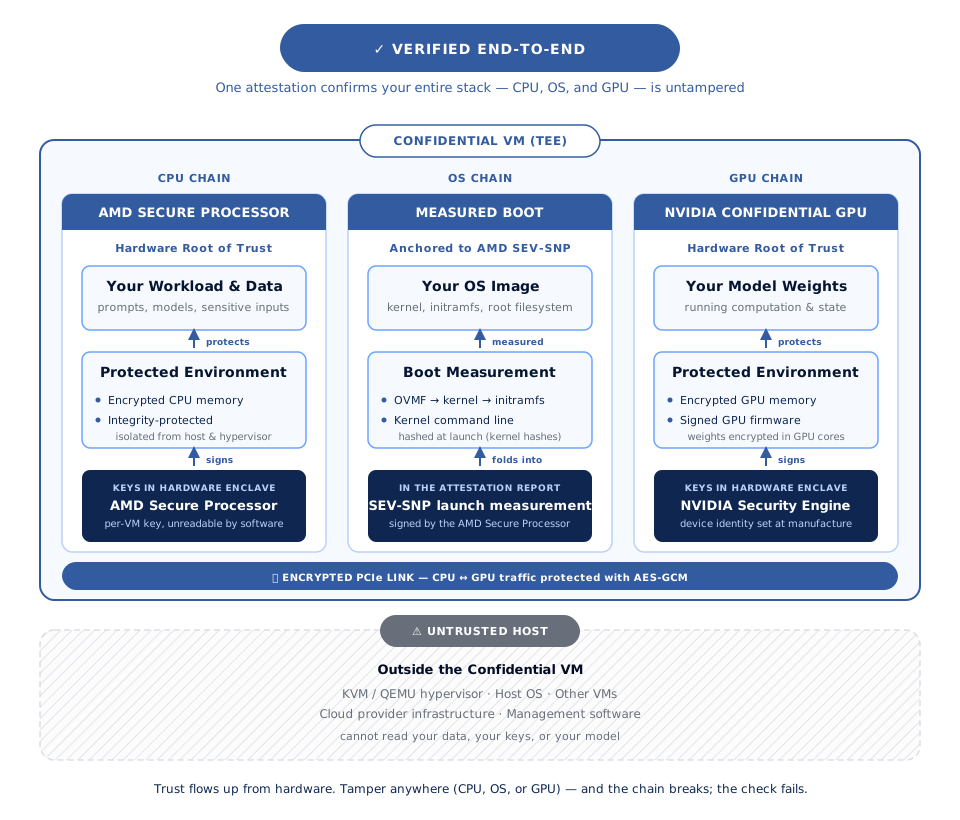
The AMD-SP hardware and the CVM (including its assigned GPU) are the only trusted components. The hypervisor can schedule and terminate the VM but cannot read its memory or register state. Verda's management plane is outside the trust boundary and has no access to plaintext data or decryption keys.
Supported Hardware
Verda currently supports confidential computing on the following hardware:
| Hardware | Size | AMD SEV-SNP | Intel TDX |
|---|---|---|---|
| NVIDIA RTX PRO 6000 | Single GPU | Available | — |
| NVIDIA B200 | Multi GPU | Available | Coming soon |
| NVIDIA B300 | Multi GPU | Available | Coming soon |
| CPU-only | up to 360x | Available | — |
System Attestation
Attestation lets you verify, before any workload runs, that your instance is running with full confidential computing protections enabled. The CPU and the GPU are attested separately.
CPU attestation
AMD SEV-SNP and Intel TDX produce different evidence with different tools, so follow the section that matches your instance's CPU (see Supported Hardware).
AMD SEV-SNP
The AMD-SP generates a report containing the launch measurement (a SHA-384 over the OVMF firmware plus, because Verda uses direct kernel boot, the kernel, initramfs and kernel command line), the SEV-SNP TCB version, and a user-supplied nonce or public key hash. The report is signed with the VCEK (a per-chip ECDSA key cryptographically derived from the firmware version), verifiable against AMD's public certificate chain. The guest requests it through the SEV guest driver (/dev/sev-guest).
Verify SEV-SNP is active
$ sudo dmesg | grep -i sev-snp
[    1.816039] Memory Encryption Features active: AMD SEV SEV-ES SEV-SNP
Run SEV-SNP attestation
Install snpguest (one-time):
$ curl -fsSL https://github.com/virtee/snpguest/releases/download/v0.10.0/snpguest \
    -o /usr/local/bin/snpguest && chmod +x /usr/local/bin/snpguest
Check that SEV, SEV-ES, and SNP are all active:
Generate an attestation report and fetch the AMD certificate chain:
$ mkdir -p /tmp/snp-attest
$ snpguest report /tmp/snp-attest/report.bin /tmp/snp-attest/nonce.bin --random
$ snpguest fetch ca pem /tmp/snp-attest/ turin
$ snpguest fetch vcek pem /tmp/snp-attest/ /tmp/snp-attest/report.bin
Verify the certificate chain (AMD ARK → ASK → VCEK):
$ snpguest verify certs /tmp/snp-attest/
The AMD ARK was self-signed!
The AMD ASK was signed by the AMD ARK!
The VCEK was signed by the AMD ASK!
Verify the attestation report is signed by this chip's VCEK:
$ snpguest verify attestation /tmp/snp-attest/ /tmp/snp-attest/report.bin
Reported TCB Boot Loader from certificate matches the attestation report.
Reported TCB TEE from certificate matches the attestation report.
Reported TCB SNP from certificate matches the attestation report.
Reported TCB Microcode from certificate matches the attestation report.
VEK signed the Attestation Report!
Verify measured boot
Because the launch measurement covers the firmware, kernel, initramfs and command line, you can verify the boot chain end-to-end: fetch the signed report, independently recompute the expected measurement from the on-disk boot artifacts, and compare.
Download and run the helper inside the CVM, as root:
$ chmod +x measure_boot.sh
$ sudo ./measure_boot.sh
[+] Fetching SEV-SNP attestation report...
[+] Computing expected measurement with sev-snp-measure...

OVMF     : /boot/OVMF.amdsev.fd
Kernel   : /boot/vmlinuz
Initrd   : /boot/initrd.img
Cmdline  : console=ttyS0 root=UUID=... ro ...
vCPUs    : 30 (family=26 model=2 stepping=1)

Report measurement   : 5D8F582C2D1FF3311E6B2E25509F130343B012EC5EFE06756E01E5FB4FE44DF4...
Expected measurement : 5D8F582C2D1FF3311E6B2E25509F130343B012EC5EFE06756E01E5FB4FE44DF4...

MATCH: launch measurement matches OVMF+kernel+initrd+cmdline
A MATCH means the running CVM was launched from exactly that firmware, kernel, initramfs and command line: the hardware and the boot chain are verified. The script auto-installs its dependencies (snpguest, and sev-snp-measure via pipx), so the instance needs outbound internet and apt the first time.
Note
Everything the measurement is computed over is available inside the CVM, so the script runs with no extra setup: the firmware is bundled to /boot/OVMF.amdsev.fd at provisioning time (see OVMF), and /boot/vmlinuz + /boot/initrd.img are the kernel and initramfs of your own volume (see vmlinuz and initrd). To pin a known-good value, record the Expected measurement from a trusted build and compare future reports against it (the report's measurement is what the AMD-SP signs).
OVMF
OVMF (Open Virtual Machine Firmware) is the VM's UEFI firmware and the first thing in the launch measurement. The host loads it at launch, so you can't bring your own: Verda pins one public build for all SEV-SNP instances, which keeps the measurement reproducible. Unlike Ubuntu's stock build, it enables 1 GiB page tables (PcdUse1GPageTable=TRUE) so it can boot behind Verda's 16 TiB PCI MMIO aperture.
| Source | verda-cloud/edk2, branch amdsev-large-bars |
| Release | verda-amdsev-largebars-stable202605 |
| Commit | 0c0bd94a4699bde01f86c6b9c39f37545af68a4a |
| SHA-256 | fea1855b6c983324246e6d3fb6642be200c0a38fd17b94884a45130ffb0b3a81 |
To verify it, download the .fd file from the GitHub release and compare its SHA-256 with the table, or rebuild it from the commit with the build instructions. The measured copy is also on your instance at /boot/OVMF.amdsev.fd.
vmlinuz and initrd
Your kernel and initial ramdisk come from your own OS volume, not from Verda. At every boot, Verda reads whatever your distro's vmlinuz and initrd.img symlinks point to, read-only, and boots those files directly, so they are part of the launch measurement. A kernel update therefore takes effect, and changes the measurement, at your next Shutdown and Start from the console.
Intel TDX
The TDX module produces a TDREPORT containing MRTD (the firmware measurement), RTMR0-3 (firmware configuration, kernel, initramfs and command line), the TCB version of the TDX module, and a user-supplied nonce. The host forwards it to Intel's Quoting Enclave, which turns it into a quote signed with a key certified for that exact CPU by Intel's Provisioning Certification Service. The host only relays bytes and cannot alter or forge them: the signature chain ends at Intel's root certificate, not at Verda. The guest requests the report through the kernel's TDX guest driver (/dev/tdx_guest / configfs-tsm).
Verify TDX is active
$ sudo dmesg | grep -iE 'tdx: Guest|Memory Encryption'
[    0.000000] tdx: Guest detected
[    0.000000] Memory Encryption Features active: Intel TDX
Run TDX attestation
Download the helper and run the self-check inside the CVM, as root. On its first run the helper adds Intel's public DCAP apt repository, installs libtdx-attest, libsgx-dcap-quote-verify and libsgx-dcap-default-qpl from it (no account needed), and points the verification library at Intel's public collateral service in /etc/sgx_default_qcnl.conf, keeping a .bak of any existing file. The instance needs outbound internet and apt the first time, exactly like measure_boot.sh on AMD.
Check the download before running it. Version 0.5.0 has this SHA-256:
$ chmod +x tdx-attest
$ sudo ./tdx-attest self-check
[ PASS ] - TDX guest: ENABLED
[ PASS ] - Quote: v4 TDX, PCK chain embedded, nonce bound
[ PASS ] - TD debug: DISABLED

[ PASS ] - Quote verified against Intel root (signature, PCK chain, CRLs, QE identity)
[ PASS ] - TCB status: OK  (advisories: none)
TEE TCB SVN          : 08030700000000000000000000000000
TDX module (MRSEAM)  : f40772d82608da5443887dd7247be3e0092927e62409a9bb8da98eaed9017704be075466a13d3ca30501000d69407495

Firmware (TDVF)      : /boot/OVMF.inteltdx.fd  sha384 5526225d1a774b3c5f1de369895c2442dd4629a2a0071d58c46c4f65c7021e549c0b435581bf55426c8243ac6bb9d1bd
Kernel               : /vmlinuz  measured sha384 da5076f7d77e12c0...  MATCH on disk
Initrd               : /initrd.img  measured sha384 3e2d6d475b0d82f8...  MATCH on disk
Cmdline              : root=UUID=... ro console=ttyS0 ...

MRTD                 : c728d5dd0d350bbac19c477792fb8c2216e6f22ed3f9ca3d902724ca193ec5608e620a598465db230b7c993f41137686
RTMR0                : c5541daf98fea261e15dab9115764d06610e0928dca3ed86e02614206d828cb992a716b4545a4e129ccf80d48b9321ee
RTMR1                : bf7d32b1ce9296d7376a238f853b3d705c746dbac5f66ac4364793d83e65435a6582c9ab42cbcdbb5f65bde6751028bd
RTMR2                : a80713400bb3be670a0ecfa1c6acb1d6bb825e6ddf454e1e779205b7a16481647a4c6c9f8218dc058777243a03821814
RTMR3                : 000000000000000000000000000000000000000000000000000000000000000000000000000000000000000000000000
Event log replay     : MATCH

PASS: genuine Intel TDX guest, TCB OK, boot chain measured and consistent
Key fields to check in the output:
| Field | Expected |
|---|---|
| TD debug | DISABLED |
| Quote verified against Intel root | PASS |
| TCB status | OK |
| Kernel, Initrd | MATCH on disk |
| Event log replay | MATCH |
| Final line | PASS: genuine Intel TDX guest, TCB OK, boot chain measured and consistent |
tdx-attest commands and options
self-check is one of five subcommands. It and quote run inside the CVM as root; verify, verify-ita and ita-nonce run on whichever machine wants to check the quote.
Pin known-good measurements by passing a reference file with the registers recorded from a trusted build (mrtd, rtmr0-rtmr3, hex). A mismatch fails the check, and a misspelled key is reported as an error:
$ cat reference.json
{"mrtd": "c728d5dd0d35...", "rtmr0": "c5541daf98fe...", "rtmr1": "bf7d32b1ce92...", "rtmr2": "a80713400bb3..."}
$ sudo ./tdx-attest self-check reference.json
...
Reference MRTD       : MATCH
Reference RTMR0      : MATCH
Reference RTMR1      : MATCH
Reference RTMR2      : MATCH

PASS: genuine Intel TDX guest, TCB OK, boot chain measured and consistent
Add --json to get every value and every event-log entry as JSON instead.
To convince a remote party, let them choose a nonce (hex, e.g. openssl rand -hex 32), bind a quote to it and send the envelope out. Without a nonce the tool still produces a quote but warns that it proves nothing about freshness:
att.json holds the quote (base64, with its certificate chain, so it is self-contained and public) and the nonce. Its other fields, a SHA-384 of the instance's SSH host key, the hostname and a timestamp, are informational: the quote does not cover them.
Verify it on Ubuntu 20.04, 22.04, 24.04 or 26.04, the releases Intel's repository serves. No TD or Intel account is needed; run it as root once so the tool can install Intel's verification library. Pass the nonce you issued and, optionally, your reference file:
$ sudo ./tdx-attest verify att.json reference.json --nonce <nonce-hex>
verify=ok  verdict=OK  collateral_expired=0
TD debug: DISABLED
BIND: matches (REPORTDATA at offset 568)
MRTD: c728d5dd0d35...
RTMR0: c5541daf98fe...
RTMR1: bf7d32b1ce92...
RTMR2: a80713400bb3...
RTMR3: 000000000000...
Reference MRTD       : MATCH
Reference RTMR0      : MATCH
Reference RTMR1      : MATCH
Reference RTMR2      : MATCH
envelope host_key_hash: 4e0c...

PASS: genuine Intel TDX quote, TCB OK, nonce bound, reference matched
verify exits 0 only if the quote checks out against Intel's root, the TD is not in debug mode, the nonce matches, the TCB verdict is accepted and every pinned register matches. Without --nonce it checks the nonce stored in the envelope, so compare that with the one you issued.
With an Intel Trust Authority subscription, Intel can verify the envelope instead. The tool submits the quote, saves Intel's signed token as att.ita.jwt, verifies the token's signature against Intel's published key set for the region, and then applies the same checks as verify to the token's claims: TCB status, debug mode, the nonce and, if given, your reference file. This needs no library and works from any machine, including macOS. Pass the region your key was issued for:
$ ITA_KEY=... ./tdx-attest verify-ita att.json eu reference.json --nonce <nonce-hex>
Token: signature verified against Intel's key set (kid ..., PS384), expires 2026-10-21T14:35:10Z
TCB status: OK [UpToDate]  (advisories: none)
TD debug: DISABLED
BIND: matches (tdx_report_data claim)
MRTD: c728d5dd0d35...
RTMR0: c5541daf98fe...
...
Reference MRTD       : MATCH
Reference RTMR0      : MATCH

PASS: Intel Trust Authority token verified, TCB OK, nonce bound, reference matched
Add --json to print the verified claims as well. Instead of choosing the nonce yourself, you can let Intel issue one, so that the token itself carries the freshness proof: fetch it on the verifier, bind it in the CVM, then verify. The nonce is short-lived, so run the three steps together:
verifier$ ITA_KEY=... ./tdx-attest ita-nonce eu ita-nonce.json
cvm$      sudo ./tdx-attest quote --ita-nonce ita-nonce.json att.json
verifier$ ITA_KEY=... ./tdx-attest verify-ita att.json eu
A token whose signature does not verify, that uses a non-RSA algorithm, or that is expired is rejected. The tool never follows a key location named inside the token; it only uses Intel's key set for the region you passed.
Options are set through the environment:
TDX_ATTEST_ACCEPT: TCB verdicts to accept, defaultOK. For exampleOK,SW_HARDENING_NEEDEDaccepts a platform Intel marks with advisories.REVOKEDandINVALID_SIGNATUREare always rejected; never addOUT_OF_DATE.TDX_ATTEST_NO_SETUP=1: skip the first-run install of Intel's packages (air-gapped instances or images with them preinstalled).TDX_ATTEST_KEY_HASH: replace the informational SSH host-key hash in the envelope with your own value.ITA_KEY: Intel Trust Authority API key forverify-itaandita-nonce; pass the region it was issued for (euorus). It is read from the environment only and never written to disk.
Exit codes: 0 passed, 1 usage or setup error, 2 the evidence did not pass.
GPU attestation
The NVIDIA driver establishes an SPDM session with the GPU firmware using a Diffie-Hellman key exchange, and the firmware returns a certificate and measurement report signed by NVIDIA's Root of Trust, proving the GPU is genuine and running unmodified firmware in CC mode. nvattest drives this flow and, on success, automatically sets the GPU Ready State, which gates CUDA workload execution.
Verify GPU confidential computing mode
$ nvidia-smi conf-compute -q
==============NVSMI CONF-COMPUTE LOG==============

    CC State                   : ON
    Multi-GPU Mode             : None
    CPU CC Capabilities        : AMD SEV-SNP
    GPU CC Capabilities        : CC Capable
    CC GPUs Ready State        : Not Ready
Run NVIDIA GPU attestation
Note
Use of the NVIDIA attestation script requires compliance with NVIDIA's Product-Specific Terms for Confidential Computing.
Install nvattest (one-time):
Run remote attestation against the GPU:
$ nvattest attest --device gpu --verifier remote
Devices:
- Device 0:
    Device Type: gpu
    Hardware Model: GB20X
    UEID: 632831960640621557346471716215948155372539415535
    VBIOS Version: 98.02.8D.00.01
    Driver Version: 580.126.09
    Measurement Result: success
    Attestation Report Cert Chain:
        Status: valid, OCSP: good
        Expires: 9999-12-31T23:59:59Z
    Driver RIM Cert Chain:
        Status: valid, OCSP: good
        Expires: 2028-01-07T22:11:08Z
    VBIOS RIM Cert Chain:
        Status: valid, OCSP: good
        Expires: 2027-08-26T10:19:38Z

GPU attestation was successful
Key fields to check in the output:
| Field | Expected |
|---|---|
| Measurement Result | success |
| Attestation Report Cert Chain | valid, OCSP: good |
| Driver RIM Cert Chain | valid, OCSP: good |
| VBIOS RIM Cert Chain | valid, OCSP: good |
| Final line | GPU attestation was successful |
Set the GPU ready state
The GPU will not accept any workload until a user inside the CVM sets the ReadyState. This prevents accidental usage before attestation is complete.
Successfully passing remote attestation (see above) automatically sets the ready state. You can also set it manually:
Protecting Your Confidential Data
When running a Confidential VM, you can create a user with an encrypted home folder so that your data at rest is also protected.
Create an encrypted user
Log in to your user with login (this will ask for your password and decrypt the home folder):
Verify home folder encryption
Create a test file from your user session:
Then exit and inspect the home folder as root. If encryption is working correctly, you will not see test.txt but instead encrypted directory entries:
$ exit
root@ncc-vm:~# ls -lah /home/newusername/
total 8.0K
dr-x------ 2 newusername newusername   4.0K Mar  2 14:25 .
drwxr-xr-x 4 root        root          4.0K Mar  2 14:44 ..
lrwxrwxrwx 1 newusername newusername   33 Mar  2 14:25 .Private -> /home/.ecryptfs/newusername/.Private
lrwxrwxrwx 1 newusername newusername   34 Mar  2 14:25 .ecryptfs -> /home/.ecryptfs/newusername/.ecryptfs
Booting a Custom OS
By default, Verda CVM instances are provisioned with Ubuntu 24.04. If you need a different or custom OS (e.g. Ubuntu 25.10), you can replace the OS on the primary volume in place. Verda uses direct kernel boot, so there is no GRUB step: the instance is booted once into a RAM-only dropbear SSH initramfs that pauses before mounting /dev/vda, the new image is streamed straight onto /dev/vda, and the instance is then restarted into the new OS.
Warning
Confidential Computing instances cannot reboot from inside the guest. Each step that "restarts" the VM means: in the Verda console, Shutdown then Start (the scripts power the guest off for you and then wait for it to come back).
How it works
dropbear-initramfsis installed on the running instance, plus aninit-premount/99-pausehook that holds the boot in the initramfs forever: DHCP comes up anddropbearlistens on port 22, but/dev/vdais never mounted.- The instance is powered off; you Start it from the Verda console. Verda extracts the kernel/initrd and boots the paused initramfs, where
/dev/vdais free. - The new image is streamed from your local machine straight onto
/dev/vda. - The instance is powered off again; you Start it, and Verda boots the new OS.
Prerequisites
- A Verda CVM instance with SSH access as root.
- On your local machine:
Download the helper scripts and sample env file into a working directory:
1. Configure
$ cp env_sample.txt .env
$ # Edit .env: set REMOTE (root@<instance-ip>); SSH_KEY defaults to your ed25519 key
2. Build the OS image (local machine)
Produces questing-server-raw.img (~3.5 GiB raw, ~650 MB compressed on the wire): Ubuntu 25.10 with your SSH key injected, DHCP networking, cloud-init disabled, and a first-boot growpart+resize2fs that fills the disk.
3. Boot into the rescue initramfs
Installs dropbear-initramfs + the 99-pause hook, rebuilds the initramfs, and powers the instance off. When prompted, go to the Verda console and Start the instance (if it still shows running, Shutdown first, then Start). The script waits until dropbear answers and /dev/vda is unmounted.
4. Flash the new OS
Verifies /dev/vda is unmounted, streams the image onto it, and triggers an in-guest poweroff. When prompted, Start the instance again from the Verda console; the script waits for the new OS to answer SSH and reports success.
Booting an Encrypted Custom OS
Everything in Booting a Custom OS applies here too, with one addition: the OS volume itself is LUKS2-encrypted, and it only unlocks after the instance proves, via the same SEV-SNP attestation chain described above, that it is genuine, unmodified hardware running exactly the boot chain you built. This pairs data-at-rest protection with the data-in-use protection CC already gives you, closing the gap between the two.
Warning
Confidential Computing instances cannot reboot from inside the guest. Each step that "restarts" the VM means: in the Verda console, Shutdown then Start. Additionally, after every future restart of this instance, not just the first one, you must run the attest-and-unlock step below again before the OS will boot.
How it works
- Same rescue/flash mechanism as Booting a Custom OS, but the image built here has an encrypted root: everything except
/bootand the EFI partition lives inside a LUKS2 container. - After flashing, every boot lands in a purpose-built initramfs that generates a fresh, one-time SSH key in RAM, produces a SEV-SNP report bound to that key, and waits: the disk stays locked until this step passes.
- A script on your local machine fetches that report, verifies AMD's signature chain, recomputes the expected launch measurement, and confirms the report is bound to the key it's talking to. Only if all of that checks out does it send the disk passphrase.
- Because nothing about an unlock is remembered across a power cycle, this repeats on every boot: each restart re-proves the machine is genuine before the OS can start, not just the first time.
| File | What it does |
|---|---|
encrypted_00_build_image.sh |
Local, run as root. Downloads and customizes an Ubuntu 26.04 image, then builds the encrypted disk: an unencrypted /boot (kernel + a special unlock initramfs) and a LUKS2-encrypted root. Also sets up a first-boot step that grows the encrypted root to fill the disk. |
encrypted_attested_initramfs.sh |
Called by the build script (you don't run it yourself). Installs the attestation + unlock logic into the initramfs: the fresh per-boot SSH key, the SEV-SNP report server, and the logic that swaps in the decrypted root once unlocked. |
encrypted_01_setup_initramfs_ssh.sh |
Local. Same rescue-mode step as Booting a Custom OS: pauses the instance in a RAM-only initramfs so its disk can be safely overwritten. |
encrypted_02_flash.sh |
Local. Streams the encrypted image onto the instance's disk, then powers it off. |
encrypted_03_attest_and_unlock.sh |
Local. Run after every boot: verifies the AMD signature and the launch measurement, confirms the report is bound to the SSH key it's talking to, and only then sends the disk passphrase so the encrypted OS can boot. |
Prerequisites
- A Verda CVM instance with SSH access as root.
- On your local machine:
Download the helper scripts and sample env file into a working directory:
- encrypted_env_sample.txt
- encrypted_00_build_image.sh
- encrypted_attested_initramfs.sh
- encrypted_01_setup_initramfs_ssh.sh
- encrypted_02_flash.sh
- encrypted_03_attest_and_unlock.sh
1. Configure
$ cp encrypted_env_sample.txt .env
$ # Edit .env: set REMOTE (root@<instance-ip>); SSH_KEY defaults to your ed25519 key; set LUKS_PASS
2. Build the encrypted OS image
This builds Ubuntu 26.04 specifically. The tool relies on Debian/Ubuntu's own package manager and initramfs mechanism (apt, initramfs-tools), so it doesn't generalize to other distro families (Fedora, RHEL, and similar).
Adding your own customization: the script installs the base image via a single virt-customize call. Add more flags to that same call to bake in anything else you need.
It also produces the encrypted raw image plus a verify/ folder (kernel, initrd, cmdline) used by the attestation step later. The second command copies the instance's current firmware so the expected measurement can be computed; do this before flashing overwrites the instance.
3. Boot into the rescue initramfs
Same as Booting a Custom OS: installs the pause hook, rebuilds the initramfs, and powers the instance off. Start it from the Verda console when prompted.
4. Flash the new OS
Streams the encrypted image onto the disk and powers the instance off again. Start it from the Verda console; it boots into the attested unlock initramfs and waits.
5. Attest and unlock
Verifies the AMD signature chain, checks the launch measurement against what you built, confirms the SEV-SNP report is bound to the SSH key it's talking to, and, only if everything checks out, sends the disk passphrase. The instance then boots into your encrypted OS. Run this same command again after every future restart to unlock it.
6. Confirm the encryption
$ cryptsetup status cryptroot

/dev/mapper/cryptroot is active.
  type:    LUKS2
  cipher:  aes-xts-plain64
  keysize: 512 bits
  key location: keyring
  device:  /dev/vda4
type: LUKS2 and a real cipher/keysize confirm / is genuinely backed by an encrypted LUKS volume, not a plain partition. If you ever see is inactive here, the unlock in step 5 didn't actually succeed.