Using Jupyter
Access JupyterLab
JupyterLab runs on your instance and listens on port 8888 by default. We firewall it out for you. Use SSH port-forwarding.
Start an instance
In the Main OS volume section, choose JupyterLab. Leave the default configuration, or increase the size if you need more space for datasets or models.
Secure the instance
Warning
Do not open port 8888 to the internet. Use SSH tunneling.
Connect from your browser (recommended)
1) Create an SSH tunnel
Run this in a terminal on your laptop/desktop:
Replace IP_OF_YOUR_INSTANCE with your instance's public IP address and <user> with your SSH username. See Connecting to Your Server if you need help with your SSH key or connection details.
If you use root, the command looks like:
This opens an SSH session on your instance and forwards the port to your laptop/desktop. Keep this session open while you use JupyterLab.
If JupyterLab uses a different port, forward that port instead.
2) Get the token on the instance
Run the following commands in the SSH session from step 1, on your instance.
From the instance
# SSH into the instance and print token to local terminal
ssh root@IP_OF_YOUR_INSTANCE 'cat /run/verda/jupyter.env'
Copy the value after token= from the URL in the output.
3) Open JupyterLab locally
Open this URL in a browser on your laptop/desktop:
Paste the token into the token or password field, then log in. Keep the SSH session from step 1 open while you use JupyterLab.
Want editor features like linting and AI copilots instead of the browser? See the VS Code section below — it connects to this same forwarded URL.
VS Code
Use VS Code when you want editor features like linting and AI copilots. You'll connect VS Code to the Jupyter server running on your instance.
Before you start
Complete the Access JupyterLab section above first — specifically:
- Securing your instance (Securing Your Instance)
- Creating the SSH tunnel to
127.0.0.1:8888 - Getting the
token=...value
Info
Keep the SSH tunnel terminal open while you use VS Code.
Connect VS Code to the remote kernel
Make sure the VS Code Jupyter extension is installed. Then connect to the forwarded URL (http://127.0.0.1:8888).
-
Select an existing Jupyter server
Open any local
*.ipynb. Select Existing Jupyter Server.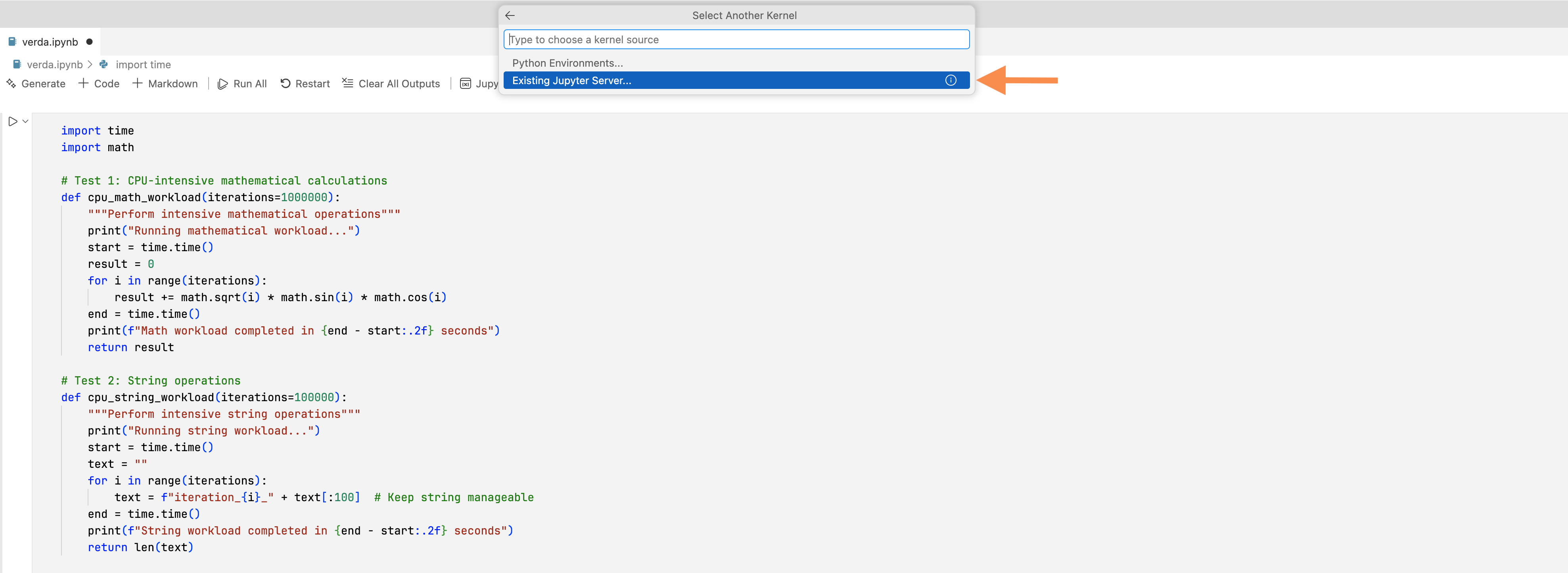
-
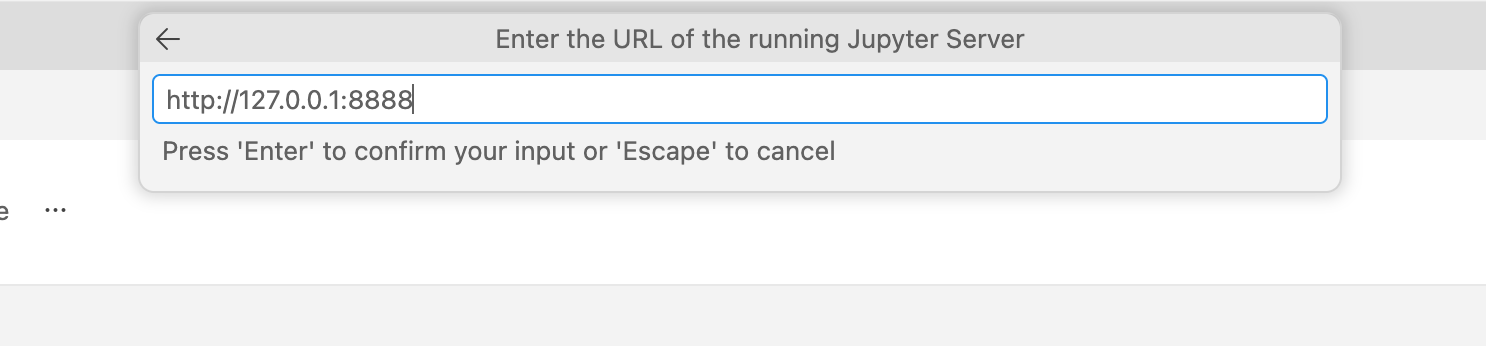
Enter the local forwarded URL
Use:
http://127.0.0.1:8888
-
Authenticate with the token
When prompted for a password, paste the Jupyter
tokenvalue.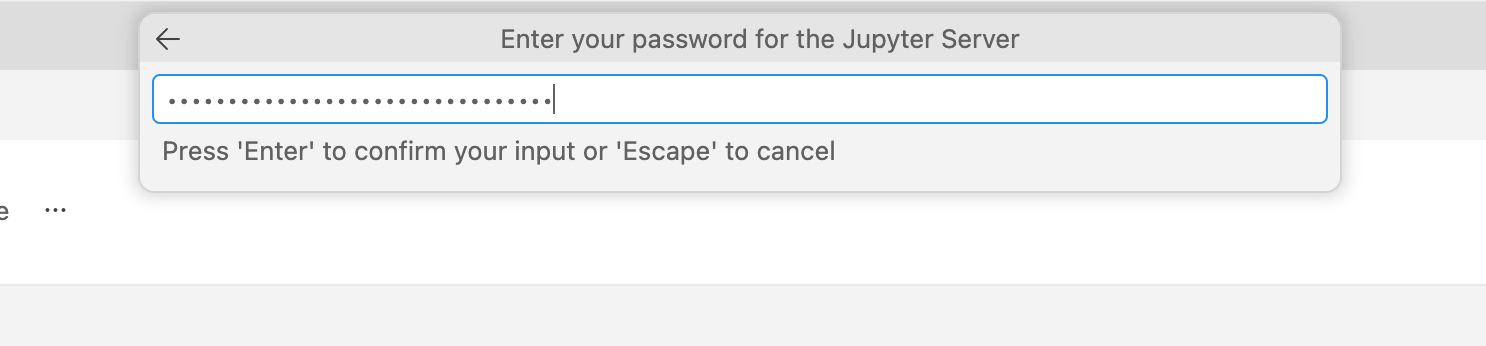
-
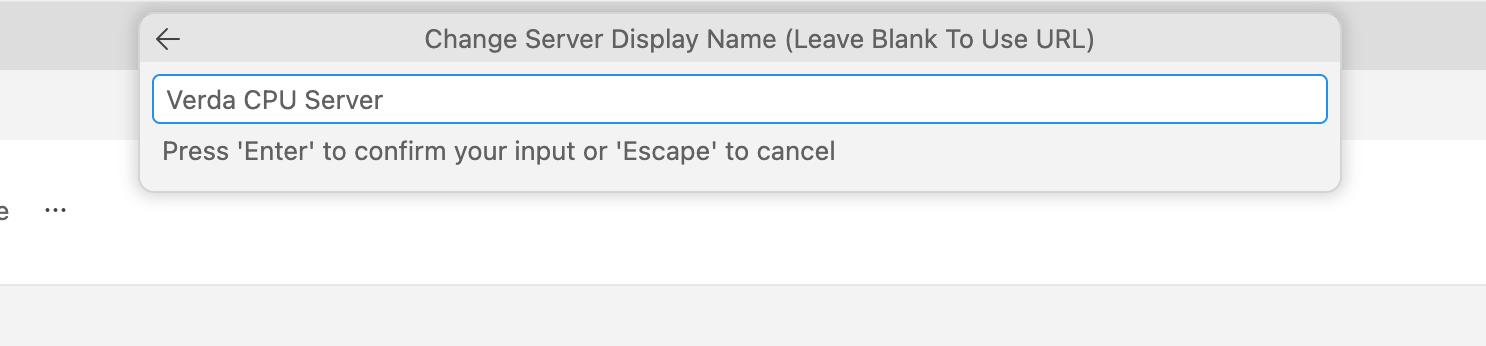
Name the server
Pick any display name.
-
Select a kernel
Choose a kernel. These are typically available on the image:
- Python (Conda)
You should now be able to run code on your remote machine through VS Code.